
It’s very annoying that you download some MP3 files from the Internet and find are there are no available lyrics for your songs. How to add lyrics to MP3? Read this post and you will know how to embed lyrics to MP3 and how to add lyrics to video with MiniTool MovieMaker.
Lyrics in a song are important for listeners. If some of your MP3 songs don’t have lyrics, follow the guides to add lyrics to MP3.
How to Add Lyrics to MP3
This part introduces two software to add lyrics to music: MediaHuman Lyrics Finder and AIMP.
MediaHuman Lyrics Finder
MediaHuman Lyrics Finder is the best free software to embed lyrics in MP3. It will automatically search lyrics for your song. Then you can edit the lyrics and export them as a TXT file. It’s a free application available for Windows, macOS, and Linux.
Here’s how to embed lyrics in MP3.
Step 1. Go to the website: https://www.mediahuman.com/lyrics-finder/. Then download and install MediaHuman Lyrics Finder.
Step 2. Click the Add file button and import an MP3 file that you want to add lyrics to.
Step 3. Tap on the imported track and this program will help you find the missing lyrics.
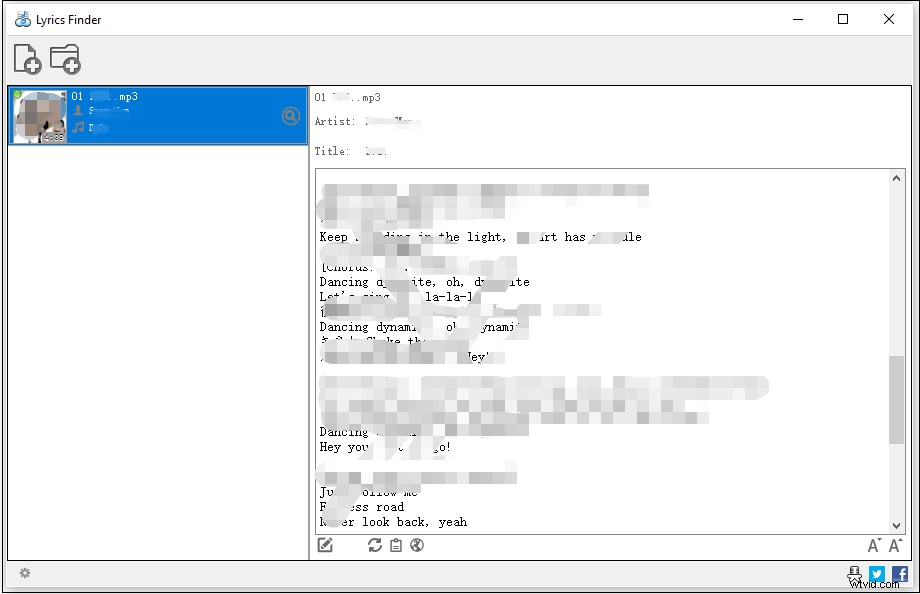
Step 4. Click the edit icon to edit the lyrics and save the changes. If it can’t find the lyrics of the song, click the edit icon to add the lyrics and click the checkmark icon.
Then the lyrics will be embedded in this MP3 song automatically.
Step 5. Right-click the song and select Export lyrics to TXT file to save the lyrics in TXT format.
AIMP
AIMP is a great offline music player for Windows and Android. It supports the most popular audio formats including MP3, AAC, FLAC, APE, etc. You can use it to play MP3 songs with lyrics, add lyrics to MP3, and add tags for MP3 like title, artist, album, and others.
How to embed lyrics in MP3 with AIMP? Take the following steps:
Step 1. Download the AIMP app from its official website and install it on your computer.
Step 2. Open AIMP and click AIMP. From the drop-down menu, choose Open files to open the song containing no lyrics.
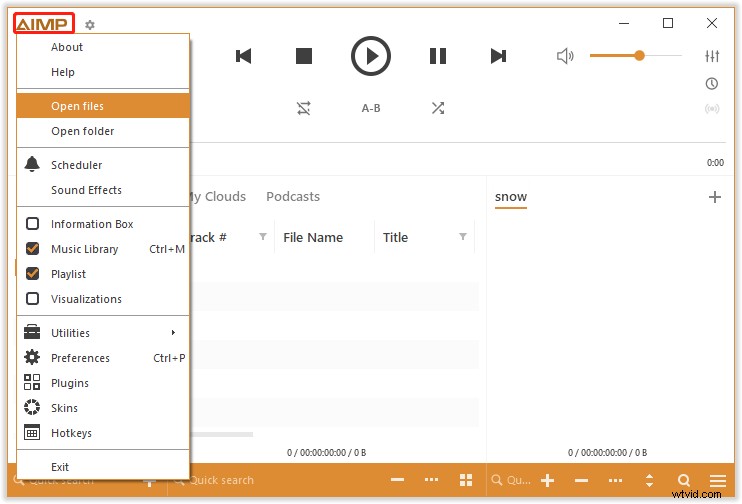
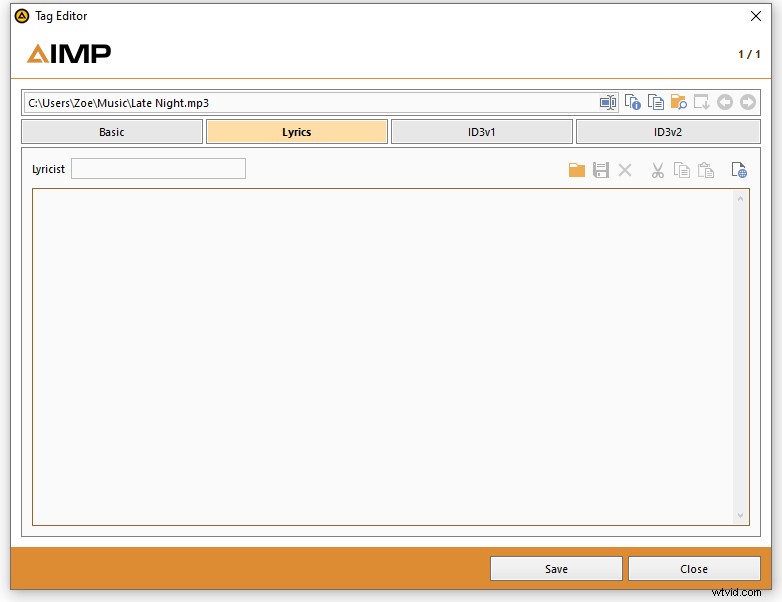
Step 3. Right-click the selected song and select File info. Or press the F4 key to open the Tag Editor.
Step 4. Switch to the Lyrics tab and click the folder icon to load the lyrics. Or paste the copied lyrics into the box. Click Save to save the changes.
Step 5. To display the lyrics, click AIMP > Information Box. If you want to adjust the timing of the MP3 file, click the edit icon to synchronize the lyrics.
Bonus: How to Add Lyrics to a Music Video
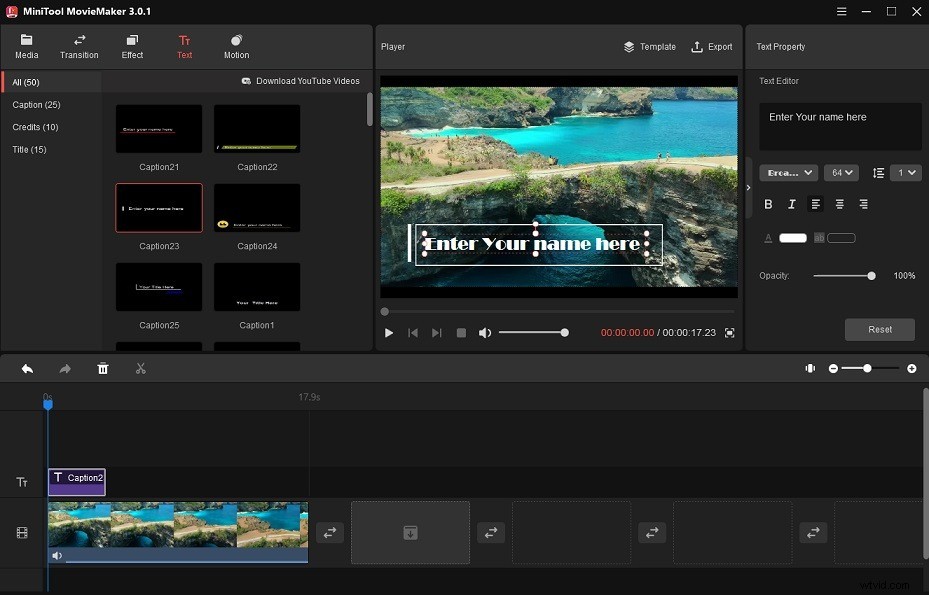
MiniTool MovieMaker is a free lyric video maker. With it, you can add lyrics to your video without a watermark. It has lots of editing functions and offers various animated text templates, effects, transitions to choose from.
Here’s how:
- Open MiniTool MovieMaker and close the popup window.
- Import the music video and add it to the timeline.
- Click on Text to choose a text template.
- Enter the text and adjust the text settings.
- When you’re finished, export the video.
Conclusion
Both MediaHuman Lyrics Finder and AIMP are the best apps to add lyrics to MP3. Choose the one you like and give it a try!