
KineMaster app is not meant to be made for PCs. However, with the method introduced in this guide, you’ll learn how to use KineMaster on Windows and Mac PC easily.
Content Table:
KineMaster for PC Information and Free DownloadHow to Use KineMaster on PC: Step by Step
Best KineMaster Alternative for Windows PC
Additional Method: Use KineMaster on PC with Windows Subsystem
KineMaster for PC
KineMaster is a powerful video editing mobile app for everyone to share their stories and make their own movies, and it’s versatile and completely free to use. All these and more have made KineMaster rather well-received, and many of its users start to wonder whether they can edit videos on KineMaster using a mouse – using KineMaster on Windows 10, Windows 11, and Mac.
In this post, we’ll introduce a free, easy, and reliable way to use KineMaster app on PC, we’ve thoroughly tested it and it works great. Additionally, the best KineMaster alternative for PC is also introduced. So please read on.
Is KineMaster Available for PC?
There’s no denying that KineMaster is one of the top mobile editing apps, and it’s favored by its users. Unfortunately, there is no available KineMaster APK that is compatible with PC.
That said, we can still manage to use the KineMaster app on Windows 10, Windows 11, and Mac, with the help of a decent Android emulator program.
Related Post: How to Use CapCut on PC
What is an Android Emulator
An Android Emulator is a PC program that creates a virtual Android environment on your home computer, it’s a tool that allows you to run Android apps on a PC as if it’s on a mobile phone.
In this guide, we’ll be using BlueStacks, which is one of the best Android emulators that work on Windows and Mac.
KineMaster APK Free Download for PC
KineMaster Android installation files Apk or XAPK can be downloaded with the links below (trusted sources):
- Free Download KineMaster from APKPure
- Free Download KineMaster from Uptodown
- Free Download KineMaster Pro
The downloaded files can be used to install KineMaster on an Android emulator on a PC. Drag and drop the APK or XAPK file into the Android emulator for quick installation.
How to Use KineMaster on PC: Step by Step
To use KineMaster on PC, what we need is an Android emulator, and here in this post, we’ll use BlueStacks for demonstration. BlueStacks is a popular Android emulator application for Windows and Mac, it’s free to use, and the overall performance is just satisfying
In our earlier post, we’ve discussed the methods to use CapCut on PC, one of which is using BlueStacks. (Though things are slightly little different in regard to CapCut, as it now has an official release of its desktop version.)
Step 1. Download and Install BlueStacks
First, we need to install the BlueStacks application on your PC. Head to BlueStacks download page and download the correct version of your PC system. BlueStacks 5 and BlueStacks 4 are compatible with 32 bit and 64 bit Windows 10/Windows 11, and macOS. Then follow the installation wizard.
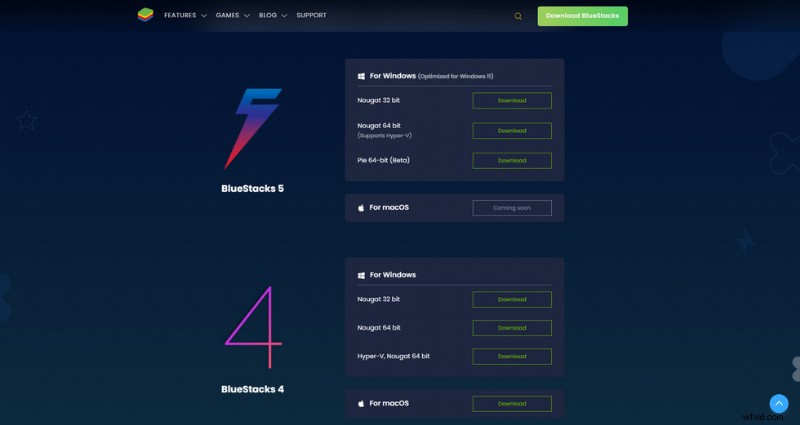
Download BlueStacks
Step 2. Launch BlueStacks Program on PC
When BlueStacks is fully installed, launch it on your PC. Please wait patiently for the starting process. Then you’ll be led to BlueStacks home screen.
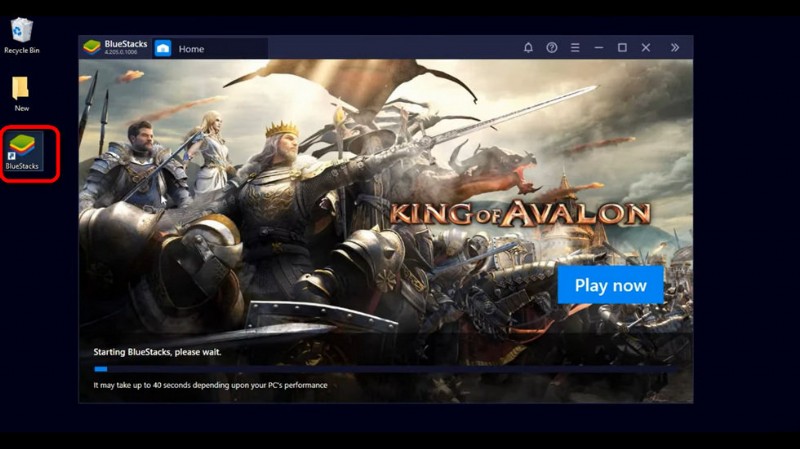
Launch BlueStacks on PC
Step 3. Install KineMaster on BlueStacks with the APK Downloads
Here you can go to Google Play Store and search for KineMaster for installation, yet as it sometimes doesn’t work, we’ll go with another method.
Download the KineMaster APK or XAPK file from the source provided in the post, and you can simply drag and drop it into the program to quickly install.
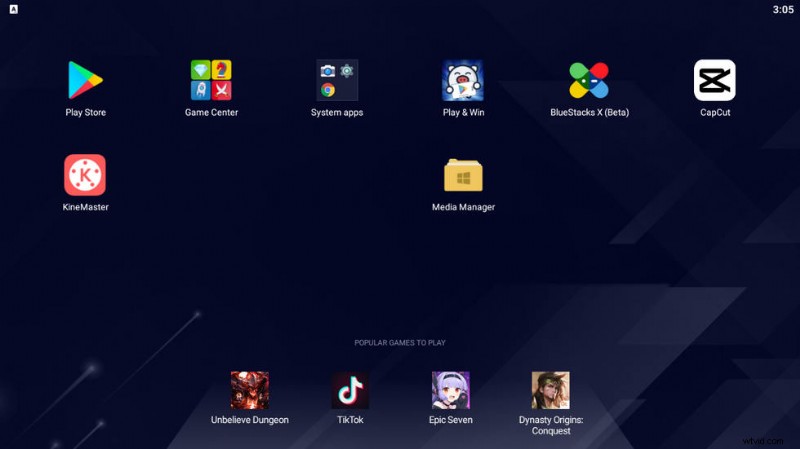
Install KineMaster APK
Step 4. Launch KineMaster on BlueStacks on PC
Just like that! In a just few seconds, KineMaster app will be installed on your PC. Now hit the Launch button or launch KineMaster from BlueStacks Android emulator home screen and give it a go!
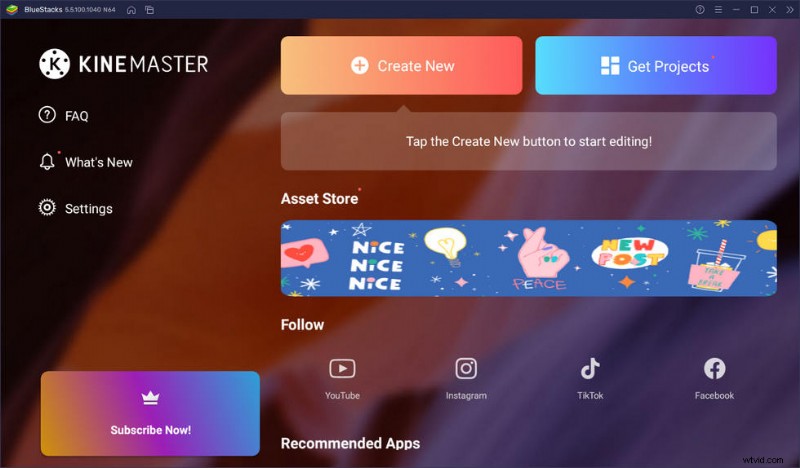
KineMaster on PC
Best KineMaster Alternative for Windows PC
However, it’s true that the Android emulator solution can be a little bit tricky for some users. then you shouldn’t miss out on the best KineMaster alternative for Windows PC: FilmForth.
FilmForth is a completely free, easy-to-use, and watermark-free video editing program with extensive video editing features.
It covers KineMaster key features such as cutting videos, cropping videos, splicing videos, adding text to video, special effects, adding stickers to videos, changing video speed, changing voice, doing voice-over, etc.
Now hit the download button below to get it for free from Microsoft store!

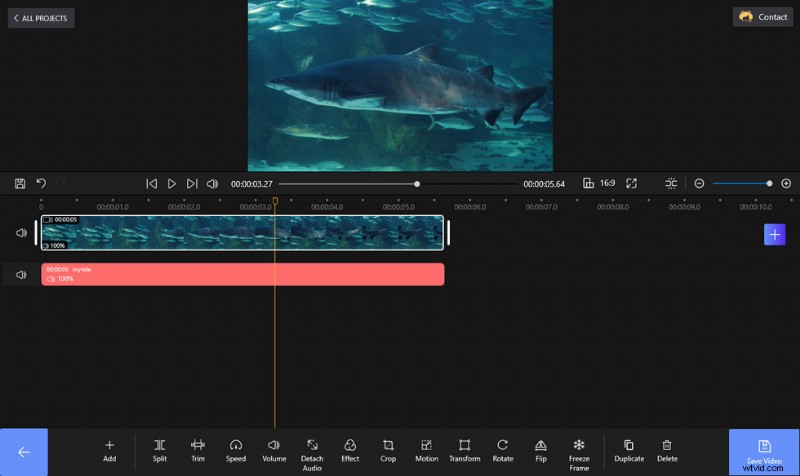
Edit Video with FilmForth no Watermarks
Additional Method: Use KineMaster on PC with Windows Subsystem
Sum Up
It becomes much more flexible when you edit on a personal computer, compared with a smartphone. Thus I really hope that you have learned the skill from this post and have successfully installed KineMaster on PC. For any insights or issues in using KineMaster on PC, please leave us a message in the comment section below.