
Green screen is an excellent video editing skill that you’re about to acquire in this guide, learn from the step-by-step guide to do green screen on CapCut easily.
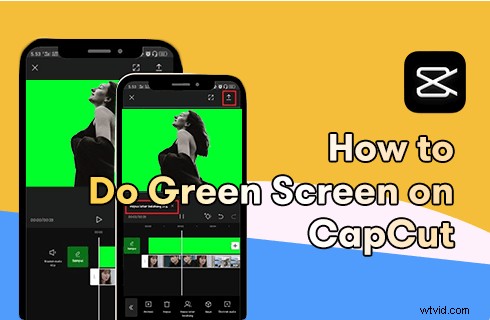
CapCut Green Screen
Green screen is a video editing skill that is used to make your animation character move on a background video or change video background in an easier way, and it’s commonly used in movies, TV shows, and video creations. And here in this post, we’ll talk about green screen editing on mobile phones.
To do so, what we need is the popular mobile editing App: CapCut. Doesn’t it sound exciting to make a movie on your phone? Read on to learn more about how to do green screen on CapCut to change video background!
What is CapCut
CapCut is a free all-in-one video editing app that works on Android and iOS mobile phones. CapCut is used by TikTok as its default video editor, plus it has tons of appealing video editing features, thus it has gained immense popularity around the world.
Among these features, the green screen video editing is a notable one, which allows you to change video background with CapCut app on your smartphones.
More CapCut Guides: How to Make a Velocity Edit in CapCut, How to Do Slow-mo on CapCut, How to Do 3D Zoom on CapCut
What is Green Screen Editing
Green screen is a term in film and video techniques such as chromakey. The green screen technique allows video-makers to add or change video background behind a moving object.
On the other hand, changing video background is a rather customary filmmaking skill used in numerous film productions.
For example, with the support of strings and ropes and the green background, an actor can easily perform the soul-stirring mountain climbing scene without having to actually climb on a cliff. All these owe to the green screen video editing technique.
More Green Screen Tutorials: How to Remove Video Background, 10 Best Chroma Key Software
How to Do Green Screen on CapCut with Chroma Key (Step by Step)
This tutorial shows you how to use CapCut Chroma Key feature to key out video background, and display overlay objects on top of the background video. To get started, you have to prepare the video overlay, which has a green background.
This tutorial is demonstrated on a mobile phone. If you intend to edit videos on PC, see our guide on how to use CapCut on PC.
Step 1. Launch CapCut App
To do green screen with CapCut, first launch CapCut app on your iOS or Android mobile phone. If you haven’t installed CapCut on your mobile already, you can easily find it from Google Play Store or Apple App Store, just search for the name “CapCut” in the search box. Hit the New Project button from CapCut start screen to create a new editing project in CapCut app.
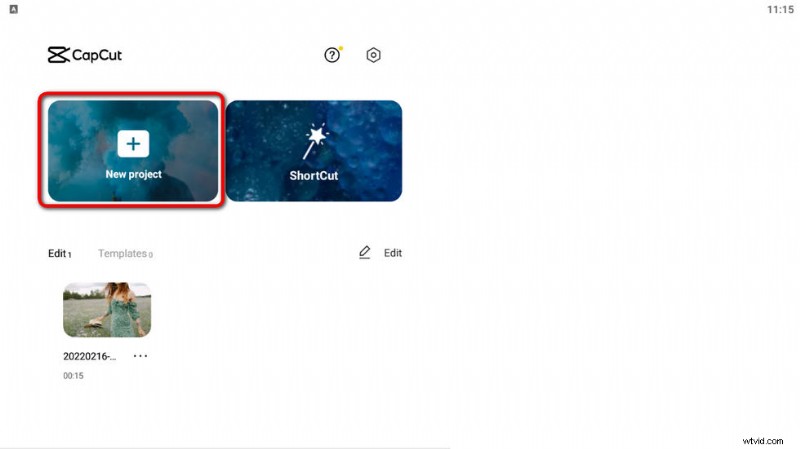
Hit New Project
Step 2. Import the Background Video
Select a video from the gallery to add to CapCut app to use as the video background, then hit the lower-right add to confirm the addition.
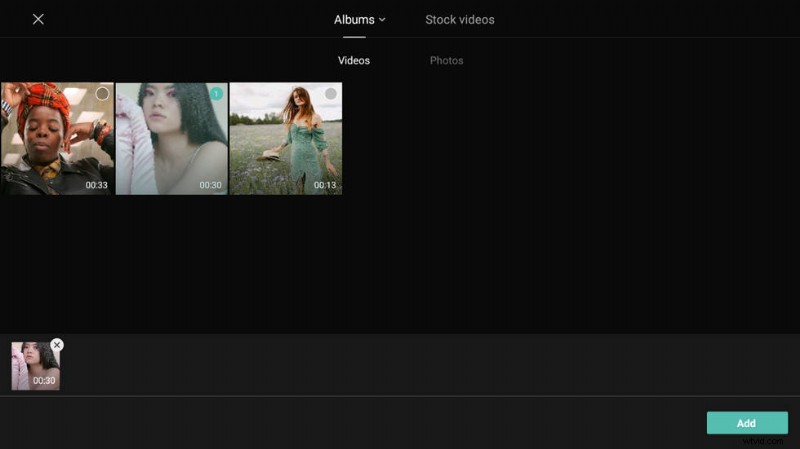
Add Video to Capcut
Step 3. Hit the CapCut Overlay Option
To do green screen, we need the CapCut Overlay feature. Hit Overlay from CapCut main workplace, and then hit Add Overlay. Then select the overlay video, which has moving objects on top of the green screen background.
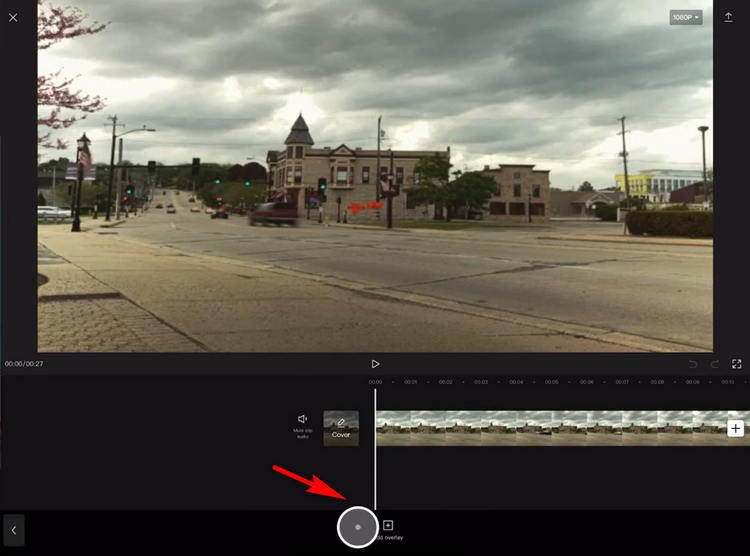
Go to CapCut Overlay
Step 4. Chroma Key Out the Overlay Background
You may have to crop the edge of the background video frame in a bit to fit with the green screen overlay. Then Hit Chroma Key and put it onto the green screen overlay, then scroll the intensity slide to the right. By increasing the intensity of the Chroma key, your overlay and background get to be more clearly shown.
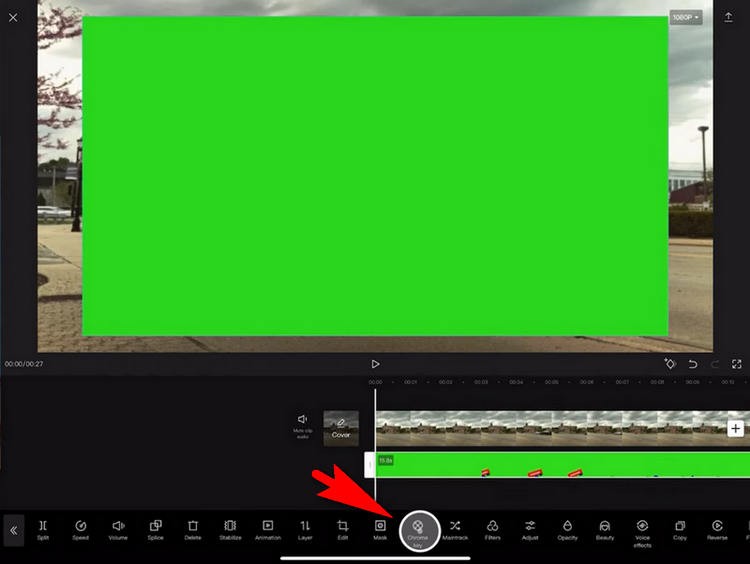
Remove Overlay Video Background
Step 5. Save and Export Video
When editing, you can always preview the output from the upper window. Whenever you’re satisfied with your work, hit the export button from the upper-right side to save and export your video.
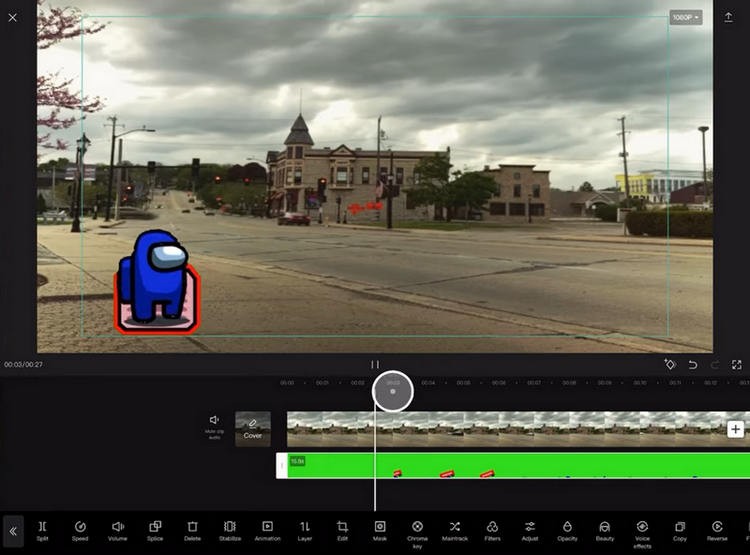
Save and Export Video from CapCut
How to Do Green Screen on CapCut: FAQs
Can CapCut Remove Background?
Yes, with CapCut green screen and Chroma Key feature, you can easily remove video background with simple clicks.
How Do You Put Videos on a Green Screen?
To put videos on a green screen, launch CapCut app, go to the Overlay option and add the desired overlay to your video, then put Chroma Key on the background video and adjust its intensity.
How Do You Change the Green Screen Background in CapCut?
To change the green screen background in CapCut, you need CapCut Chroma Key feature, after adding an overlay to the background video, you can change the green screen background by increasing the intensity of the Chroma Key.
How Do I Remove the Background from CapCut without Green Screen?
No, you can’t remove the background from CapCut without a green screen. To remove the background of a video, you need either Overlay or Chroma Key, and both of them are CapCut features.
How Do You Add Moving Object to a Video?
If you want to add a moving object to a video, such as a virtual character, a video editing technique called green screen is required if you don’t want the overlay to cover the background video. CapCut is a free video editing app for Android and Mac that allows you to easily add moving objects to videos.
To Sum Up
CapCut green screen editing will come in handy when you want to change the background for your future videos, on a smartphone, especially. Thus I hope that you’ve benefited from this guide and learned how to do green screen to change video background on CapCut.
For any insights or any trouble, always drop a line in the comment section below and let us know.