
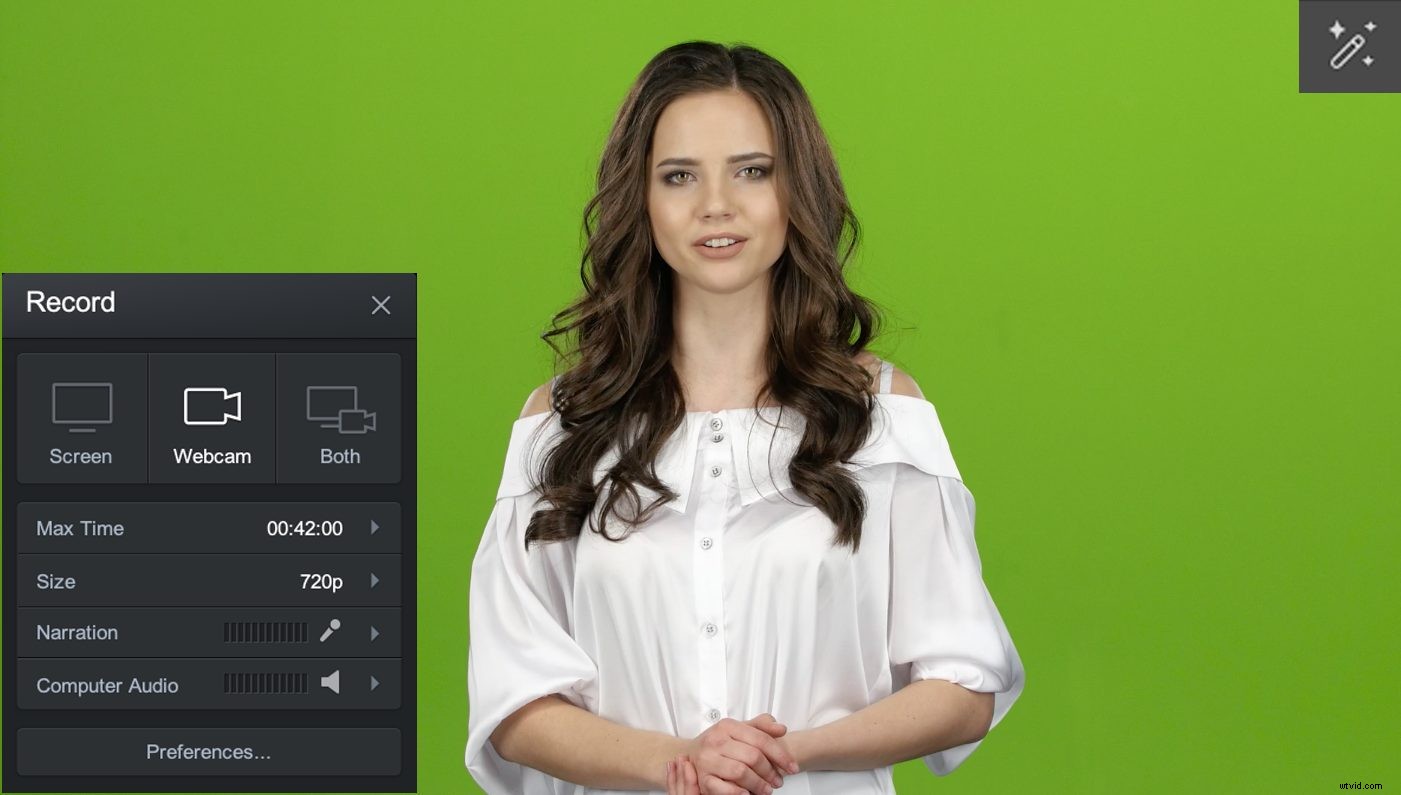
Remove your background and replace it with a custom photo or video for a visual effect. You can do this easily with our green screen technology. Here’s a how-to guide to get started with Screencast-O-Matic’s green screen software. We’ve included multiple resources to help you with your video project.
There are two ways to use a green screen on Screencast-O-Matic. You can remove your green background in either the screen recorder or in our video editing tools.
Green Screen in the Screen Recorder
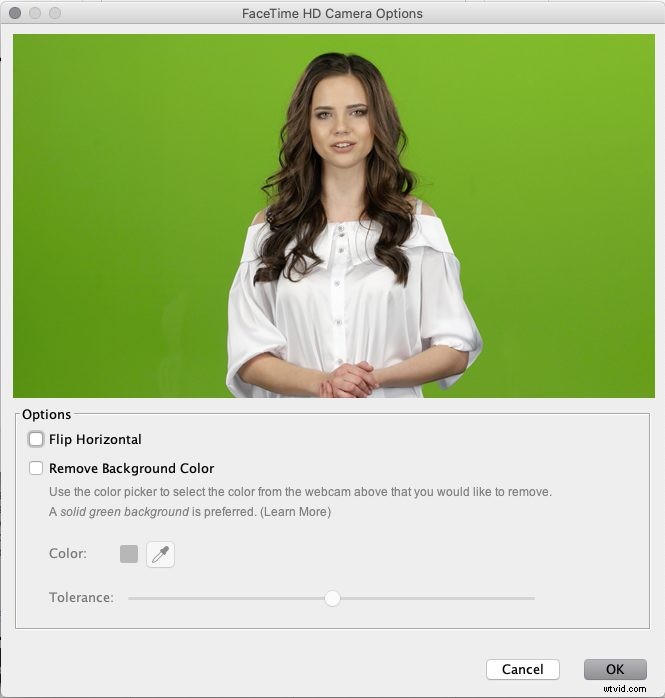
When you record with your webcam or ‘both’ (using the screen and webcam), you have the ability to remove the green screen. A pencil icon will appear on the upper right-hand corner of your webcam.
This opens up a menu giving you the option to remove your background. You can pick the color you want to remove by clicking on the color picker. You can also adjust the tolerance by dragging the slider.
Please note that you can add an image or video background during the editing process. It does not allow you to add during a recording. You can find instructions below on how to add an image or video background.
Green Screen in the Video Editor
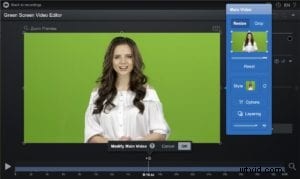
You can find the green screen option by opening your recording in the video editing software. Once you are in ‘Edit’ mode, click on your video and the ‘Main Video’ timeline will be highlighted in blue.
A menu will appear. Click on ‘Options’ and an option to ‘Remove Color’ will appear. You can pick the color you want to remove by clicking on the color picker. You can also adjust the tolerance by dragging the slider.
Add an Image or Video Overlay on Green Screen
With your background removed, you can add an image or video overlay. Here are the steps to easily add an overlay on a green screen recording.
To add an image or video, select the tool by heading to your tools menu and clicking on ‘Overlay.’ Choose either ‘Image’ or ‘Video.’ You can upload an image from your computer, previous recordings or the stock library. The stock library provides numerous background options.
Once you select an image, it will be uploaded on top of your green screen recording. You will need to layer this overlay so that it becomes the background for your green screen.
Adjust and Layer Your Image or Video Overlay
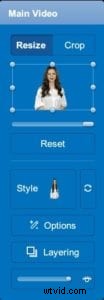
First, adjust the size of your image or video so that it covers your green screen recording. You can do this by dragging the sides or corners of your overlay. Once it’s covered, you can open the layer menu by clicking on the ‘Main Video.’
To layer the overlay, click on ‘Layering’ on the menu. A menu will appear showing you the layers of your video.
Drag the image or video overlay below ‘Main Video.’ You’ll notice that your green screen will appear above the overlay.
Green Screen Resources and Links
Video Tutorial: Remove Your Background with Green Screen
Video Tips and Tricks: Add an Image Background
Video Tips and Tricks: Add a Video Background
Blog: How to Get Started With Your Own Green Screen Backgrounds
Blog: Green Screen Tips to Make Your Video Stand Out