
From creating a reaction video to working on visual effects, there can be so many reasons for removing a background from a video. In most cases, we take the assistance of a green screen while shooting that lets us overlap any other background manually.
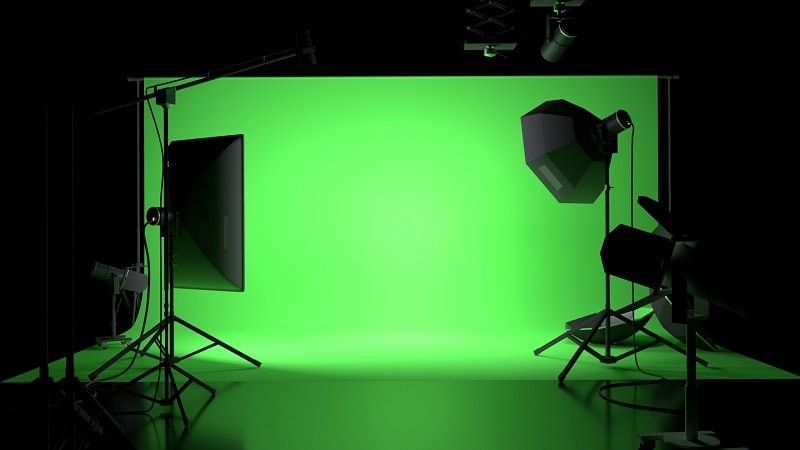
But what if I tell you that you can remove a video’s background without a green screen or undergoing so much hassle? Well, you can instantly use the Artificial Intelligent feature of an editor like Wondershare Filmora to do the same. Here, I will let you know how to remove the background of a video without a green screen via Filmora.
- Part 1: How to Easily Remove Video Background Without Green Screen?
- Part 2: Tips for Removing Video Background
Part 1: How to Easily Remove a Video’s Background Without a Green Screen?
For a long time, editors have relied on green screens to remove a video’s background. Though, with the help of Filmora, you can now remove the background of a video without a green screen. To do this, you can take the assistance of its AI-integrated features.
For instance, Filmora offers an inbuilt Human Segmentation feature in the AI Portrait mode that would automatically remove the background in your videos.
In this way, you can later put any other background for the video or can simply place it on any other video (like for making reaction videos). Apart from that, there are several other options that Filmora offers like human noise, glitch, border, and so on. To learn how to remove a video’s background without a green screen, the following steps can be taken:
Step 1: Load the Video to Edit on Filmora
To start with, you can just install Wondershare Filmora on your system and launch it. You can just drag and drop videos to the interface of Filmora or can click on the “Import Media” button. This will load a browser window that would let you locate and load videos to edit.
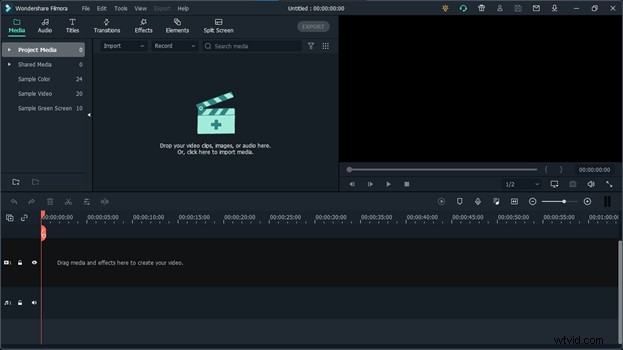
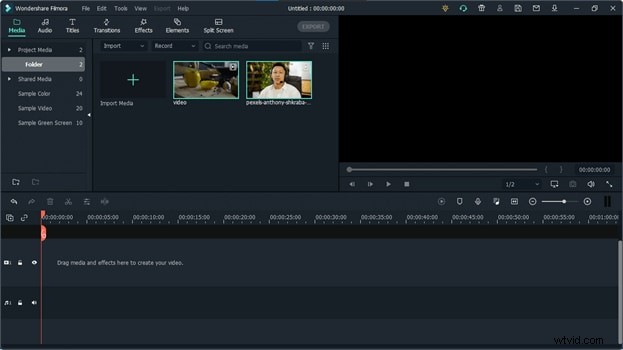
In this way, you can load multiple videos to edit on Filmora. Let’s say you want to remove a background on a video and overlay it on another. To do that, you can load both videos on Filmora.
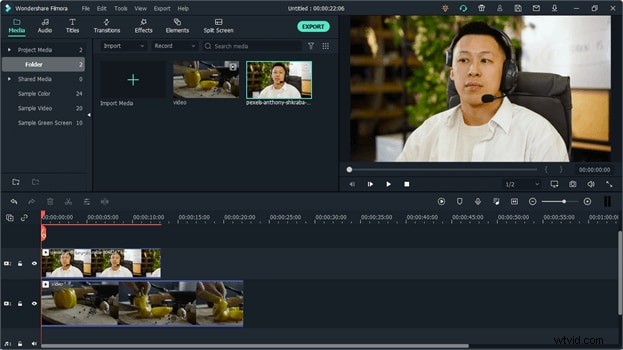
Afterward, you can just drag and drop the videos to edit on the timeline at the bottom. Wondershare Filmora offers multiple timeline tracks, letting you work on several media files at the same time.
Step 2: Remove the Background of a Video with AI Portrait
Now, to remove the background of a video without a green screen, go to the “Effects” section from the top navigation bar. From the available options under the Effects window, you can go to the AI Portrait feature on the sidebar.
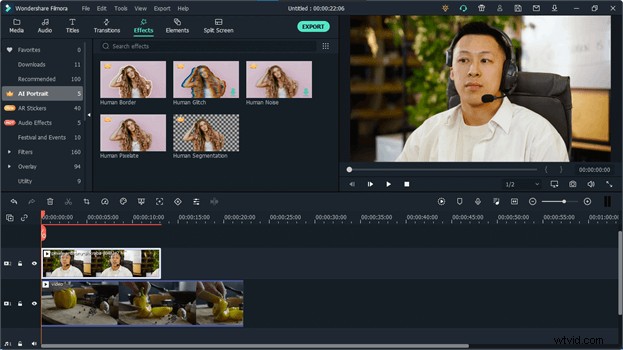
Please note that the AI Portrait mode is a paid feature. If you want, you can also click on the “Try It” button to explore its free trial version.
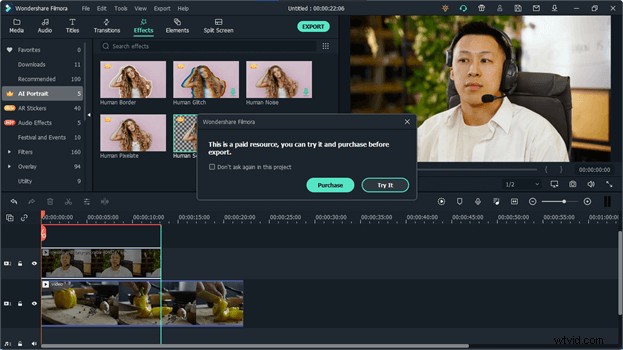
Once you have unlocked the AI Portrait feature, you can just click on the “Human Segmentation” tool. This would automatically remove the background in a video without a green screen and will simply highlight the human figure.
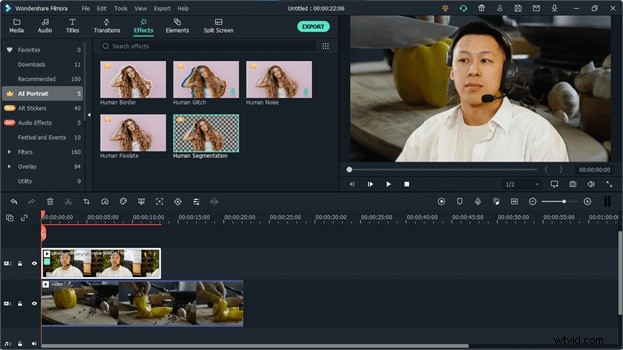
That’s it! After the background of the video has been removed, you can do all kinds of edits. For instance, you can place the humane figure on any other background or overlap it on another video as well. If you want, you can go to the AI Portrait mode and use the Human Border feature to further highlight the human figure.
You can also make the most of the AI Portrait feature by using several other options like Human Glitch, Human Noise, and Human Pixelate. If you want, you can further go to their Video Effects options to manually adjust different parameters to get customized results with these AI options.
Step 3: Export Your Videos in a Desired Format/Resolution
Not just to remove the background of a video without a green screen, Filmora can help you do all kinds of edits on your video. There are hundreds of transitions, visual effects, and numerous features like pan & zoom, speed control, color grading, auto reframe, etc. that you can access.
That’s it! After working on all the edits, you can just preview your video on the native interface of Filmora. Lastly, you can click on the Export button to save your video to any location in the desired format or video resolution.
Part 2: Tips for Removing a Video’s Background
Using a tool like Filmora, you can easily remove the background in a video without a green screen. Furthermore, you can implement the following tips to get better results while working on post-production edits.
- Master Chroma Key: Chroma Key composition is a popular visual effects technique in which we overlap two videos or images. Even if you remove a video’s background without a green screen, consider understanding the basics of Chroma Key for other video editing principles.
- Blue Screen Vs Green Screen: While both blue and green screens can be used for video editing, their overall application can be slightly different. To get better results, you should understand their key difference before shooting your videos.
- User an AI-enabled Tool: Lastly, you can consider using a tool like Filmora that would let you remove a video’s background without a green screen. This will drastically save your time and resources in editing and would let you get better post-production results for sure.
There you go! As you can see, it is extremely simple to remove a video’s background without a green screen via Filmora. All you need to do is load the video on Filmora and go to the AI Portrait Effects tab to instantly remove the background of the video. Not just that, Filmora offers tons of other AI-integrated options, letting you elevate the visual appeal of your videos without any hassle.