
CapCut is a practical video editing app that allows you to do many things. In this post, we’ll show you how to use CapCut app to add video background with or without the green screen feature.
How to Add Background in CapCut
Modified video background is an integral element in video content creation, and with CapCut, many of the TikTok trends are made possible, even for video editing beginners. The popular video editing app CapCut is an all-in-one toolkit that allows you to edit videos in the most creative ways. And here in this post, we’ll talk about how to add video background in CapCut video editor. CapCut offers different approaches for you to add background to video with or without chroma keying (the feature that allows you to change video background).
This post contains three parts of tutorials: how to add video background with green screen, how to add video background without green screen, and how to edit the added video background. Please read on to learn more.
More CapCut Tips: How to Make Velocity Edit on CapCut, How to Do Slow-mo on CapCut, How to Do 3D Zoom on CapCut
Content Table:
How to Add Background in CapCut with Green ScreenHow to Add Background in CapCut without Green Screen
How to Edit Background in CapCut App
How to Add Background in CapCut with Green Screen
Step 1. Import Background Video
To add video background in CapCut, first launch CapCut app on your mobile phone, then create a new project and import the media you intend to use as the background video/photo.
If you intend to edit videos with CapCut app on PC, please see how to use CapCut on PC.
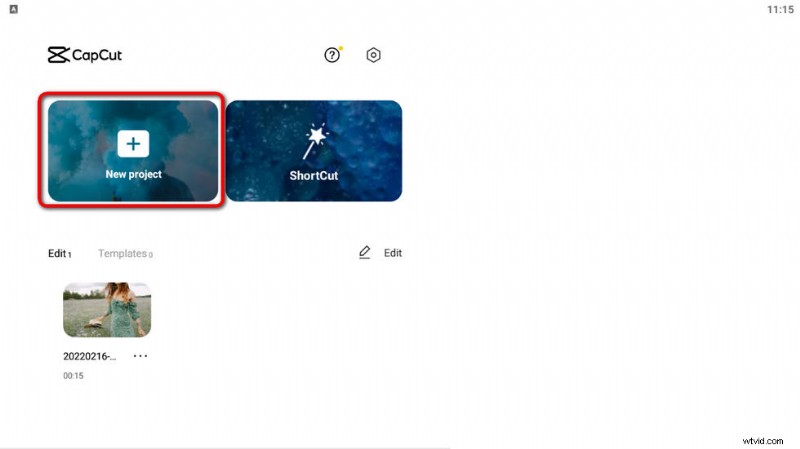
Launch CapCut and Create Project
Step 2. Import Video Overlay
From CapCut Workplace, hit the Overlay option and then the Add Overlay button, to import the video you intend to use as the video displayed upfront. Drag the handlebar of the media in the timeline to match the video and the background perfectly.
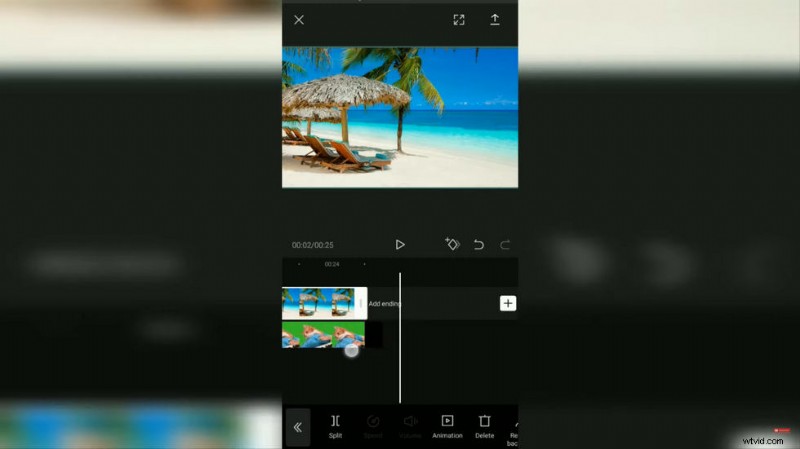
Import Overlay to CapCut
Step 3. Chroma Key the Video
From the panel below, hit chroma key option, then click the Color picker button and choose green color or the background color. Move the color picker circle in the preview window, that’ll replace the added background image.
Step 4. Adjust Chroma Key Intensity
hit the intensity button, adjust the chroma key intensity, until the green color is removed. Additionally, you can go to Shadow option to make the background a better fit.
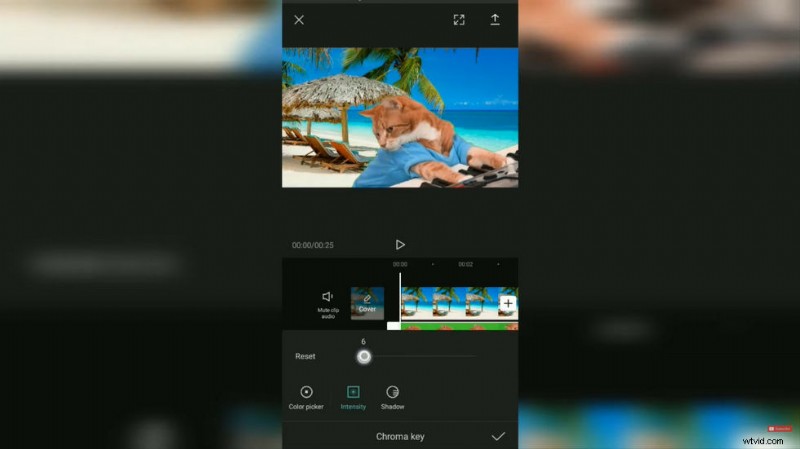
Adjust Chroma Intensity
Step 5. Export the Video
That’s it! Now you can head back to the CapCut workplace to save and export the video that has been added to a new background!
How to Add Background in CapCut without Green Screen
If you find the green screen method didn’t reach the effect you were looking for, like sometimes the green background is not completely keyed out or the background and overlay video don’t combine naturally. Then there’s another solid way of adding background on CapCut that you should try. Now follow the tutorials below to get started.
- Launch CapCut app on your mobile phone, create a new project and import your background image or video.
- Go to overlay > Add overlay to import the overlay video
- Hit the Remove background button from the lower panel.
- Wait patiently for the CapCut smart background removal process
- And it’s done, simple as that! The overlay video background disappears and the background video/photo shows up. And now you can go and export the video.
Just remember this method doesn’t work for all videos, if you find it doesn’t work, please go with the first method in this post.
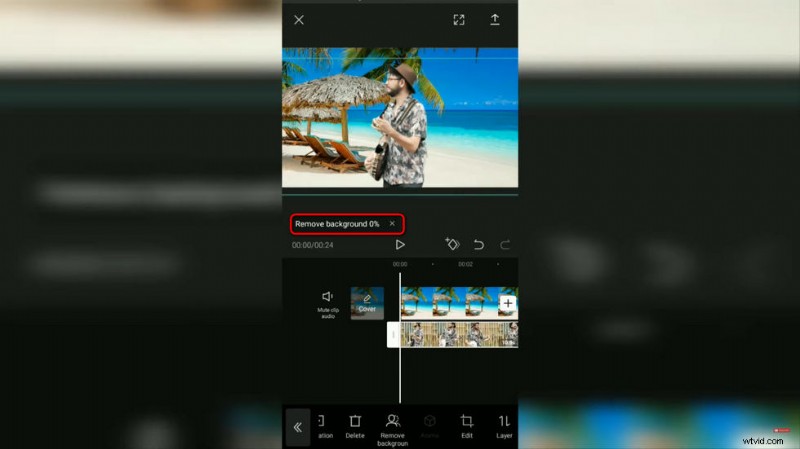
CapCut Remove Overlay Video Background
How to Edit Video Background in CapCut App
Find the added video background barely satisfactory, or want to merge two different videos into on same screen/frame? No worries, with its green-screen feature, CapCut app even allows you to edit the video background. To do so,
- Launch the CapCut app, create a project and import the video you intend to edit the background.
- Tap the overlay button from the workplace to add another green screen video as its overlay.
- Hit to select the overlay video in the timeline, and tap the Chroma Key button from the workplace.
- Go to Color Picker and select the part of unwanted scenes to remove with green screen
- From the Chroma Key option, go to Intensity and change the chroma key intensity to a proper extent.
- Go to the Shadow option and adjust the shadow of the overlay as needed, for a more natural combination.
- When it’s all set, head back to the CapCut workplace and export the video.
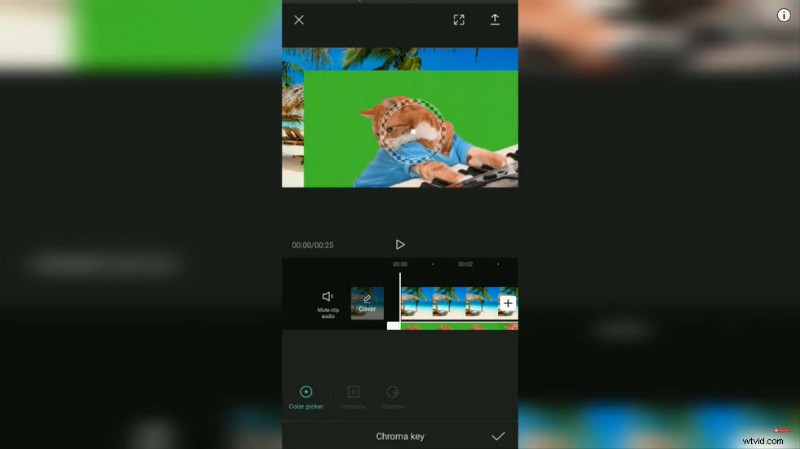
Color Picker the Video in CapCut
To Sum Up
That’ll be all about how to add video background in CapCut with the green screen and without the green screen feature. As you can see, it’s quite easy and useful. CapCut is such a versatile tool that it allows you to exert your creativity in any way you want. Occasionally, you need your audience to pay more heed to the picture, in that case, you may want to learn how to make 3D zoom on CapCut.
More Related Articles
- How to Trim Videos on Windows 10 >
- How to Change Background on YouTube Channel on Phone >
- Top 3 Apps to Convert YouTube to MP3 for iPhone >
- How to Fade out Video on Windows 10 >
- How to Add Text to a Video for Free on PC >