
How to use music in tutorials
Simple background music does no harm. Quite the opposite, it makes the learning process smoother, as it creates triggers and involves sound associations. You can use musical accents to mark milestones or topic changes, emphasize the most important points, and highlight the key points.
And Clideo has just the right tool to add tutorial music to your videos in several clicks. Just follow these steps.
Upload your files
Open Clideo’s Video Editor in any browser and hit the “Get started” button.
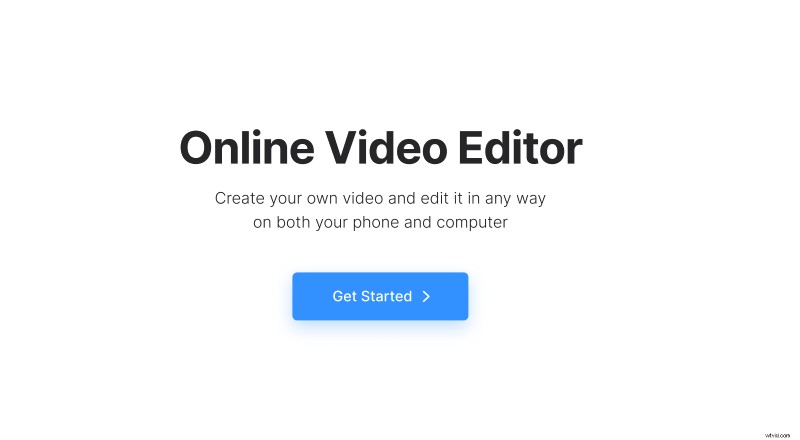
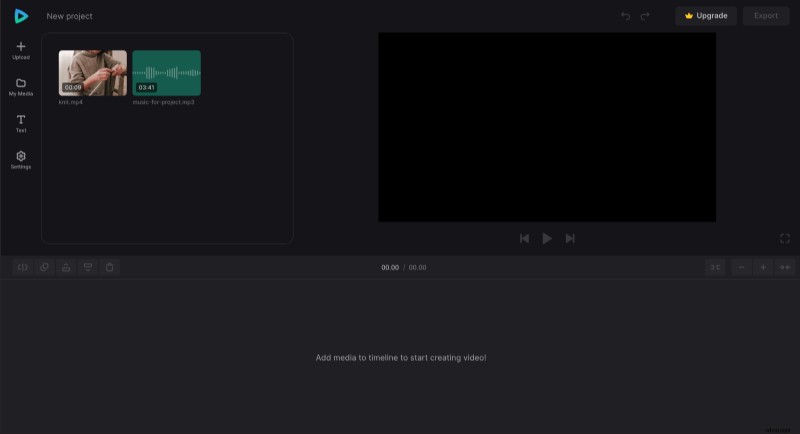
As soon as you are transferred to the Editor screen, you'll be able to upload your initial recording and the chosen music for instructional videos.
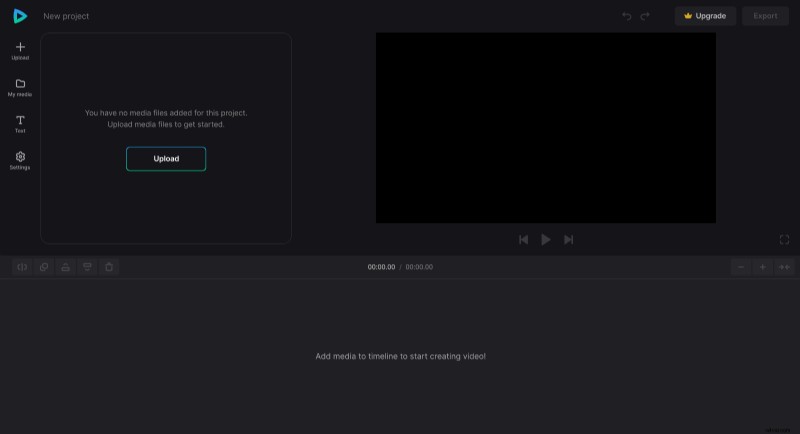
All the files will be stored in the "My Media" section. To start working with them, drag and drop the recordings on the timeline below the player or to the canvas on the right.
Adjust audio to the video
Adjust the files' length with the help of yellow handlers. If the audio is too short, you can duplicate it (use the corresponding icon at the top left of the timeline or just the copy/paste keyboard shortcut). If the background music is too long, then drag its right handle to the left until it snaps to the ending of your video. Just make sure the snap option, which is at the top right of the timeline is turned on. Then you can set up volume and fade in/fade out effects.
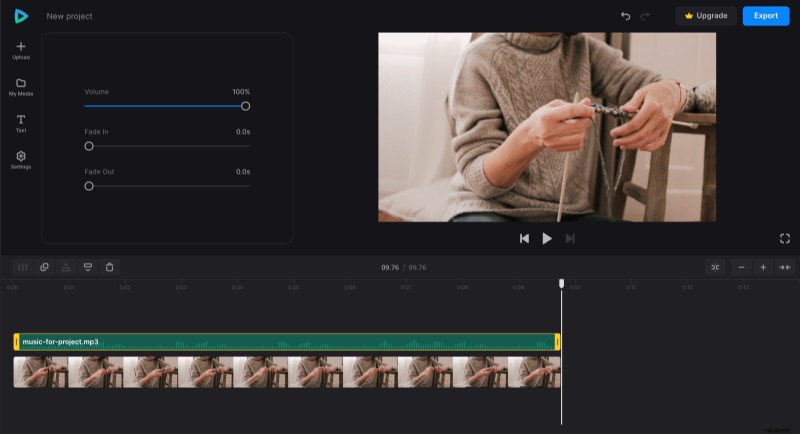
If you want to adjust your video, select it and apply any changes you need in the area above the timeline, and your tutorial is ready!
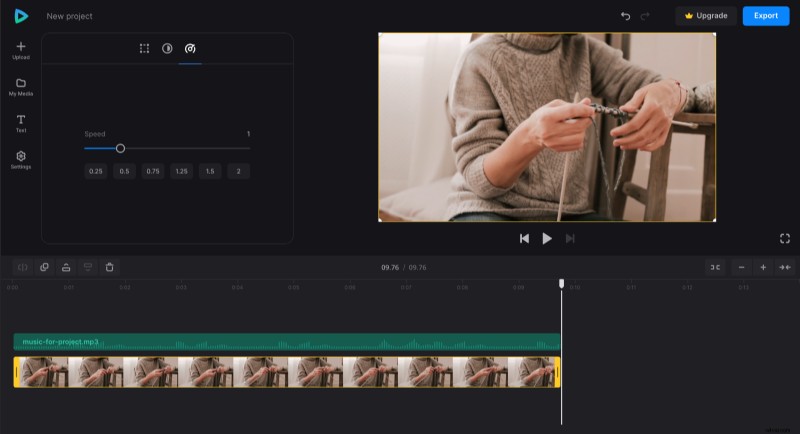
Save your tutorial with background music
Give it the final run to ensure that everything is smooth and neat. Don't worry, you'll be able to edit your video even after processing, but it's always better to save time.
When you are done, hit the "Export" button and choose the resolution. If your account type doesn’t allow you to choose the best ones, just upgrade it to Clideo Pro.
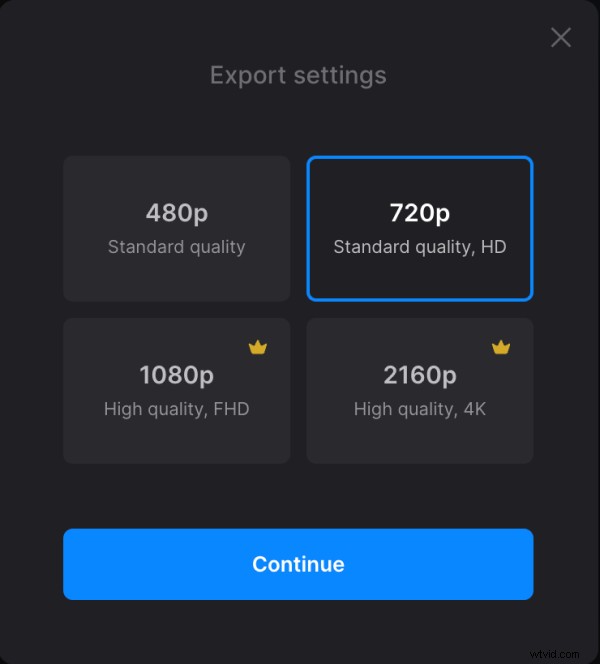
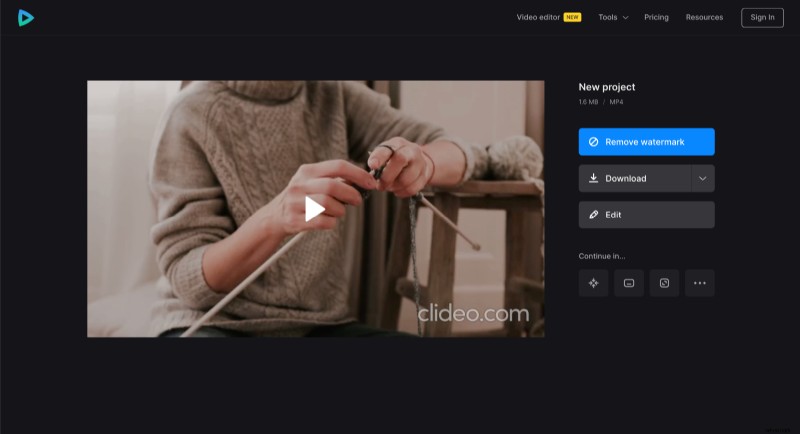
Then click "Continue" and wait while your project is being processed. Now you can save the ready tutorial to your device, Dropbox, or Google Drive, or return to editing.
If you would like to learn more about our all-in-one video editor, look for more info in our Help Center.