

Up until March 2020 Zoom was a pretty obscure video conferencing app, mostly used by corporate workers for online meetings. Fast forward to our current state of COVID-19 isolation, and it’s become a part of almost everyone’s daily lives. Got a work meeting? Zoom. Teaching a remote class? Zoom. Missing your nearest and dearest? You guessed it! Zoom.
This app Zoom and Zoom alternatives are changing the way we communicate with each other and thankfully, it includes some fun new additions! The most popular of these is Zoom’s virtual backgrounds – in a few quick clicks you can swap your home office backdrop for something more exciting like the beach or outer space. Zoom virtual backgrounds are a great way to get creative (and hide your lack of housework) during this trying time.
While Zoom offers a couple of virtual background options to get you started, we’ve gone a step further. In this blog, we’ll be showing you how to customise our new Zoom video background templates and how to change your background to a video in Zoom.

How to change your Zoom background with Clipchamp video templates
Step 1. Create an account
If you haven't already, sign up to Clipchamp for free, or log in.

Step 2. Browse our Zoom Backgrounds template collection
Click Template Library in the left sidebar. When the page loads, scroll through the collections to find the one titled Zoom Backgrounds.
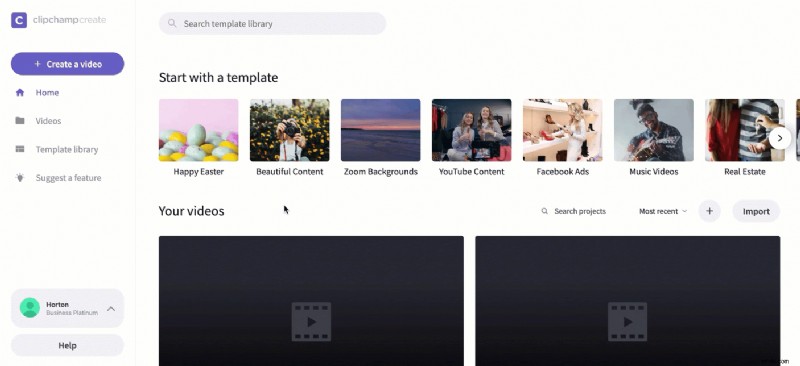
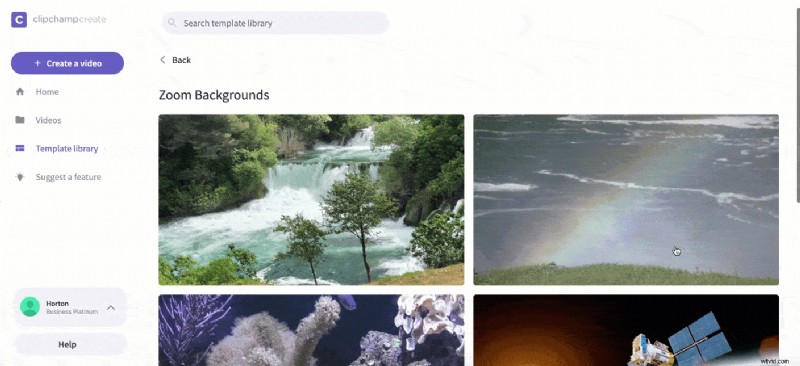
Step 3. Select a template to edit
Click your chosen template. Then click Use this template. The Clipchamp Create editor will open automatically once you have clicked on the template.


 In-browser video editor.
 Free forever. Make professional videos in minutes.
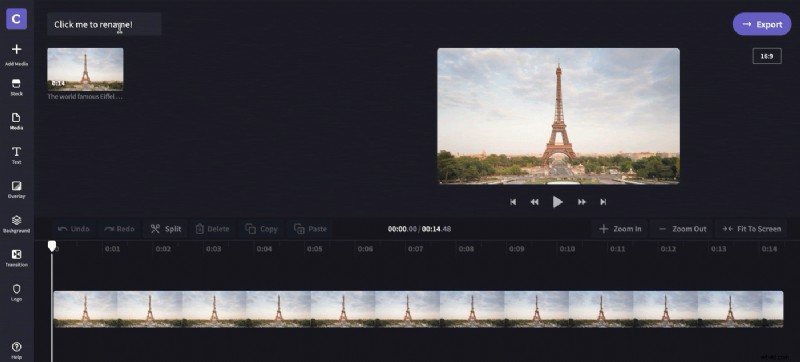
Try for freeStep 4. Rename the video template
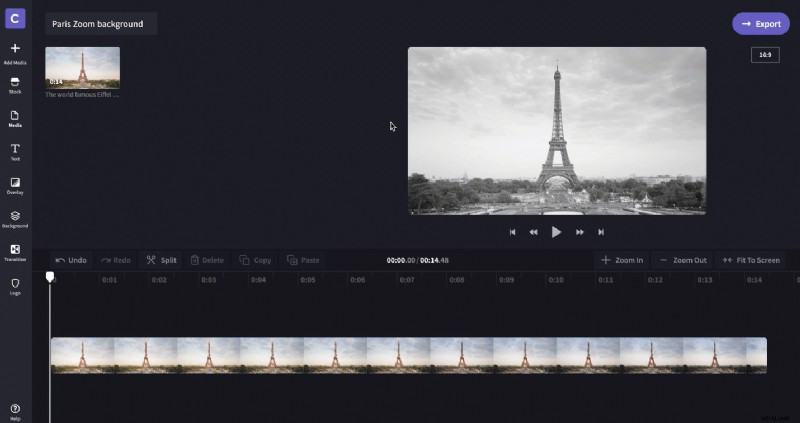
Firstly, select Click to rename! in the top left corner. Add a title to your Zoom video background.
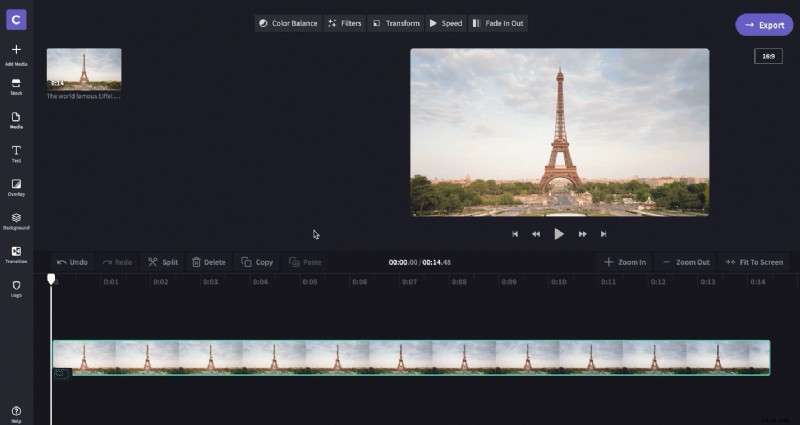
Step 5. Customise your template
Explore what our free online video editor has to offer. You can apply filters, adjust colours, add motion text and more!
Step 6. Export the finished Zoom video background
Once you're happy with your Zoom video background, click Export in the top right corner then choose your export video quality. We recommend using 1080p for the best quality. Click Continue when you have selected the export settings. Click Save to save your Zoom video background to your computer.
Step 7. Log in to your Zoom account
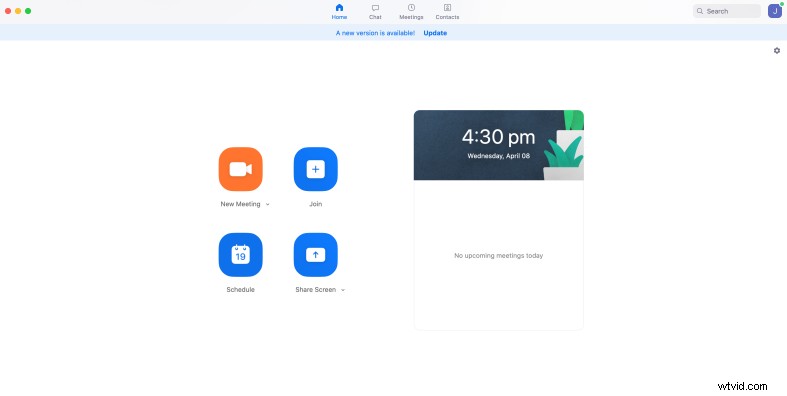
Open the Zoom app on your computer and enter your details to log in.
Step 8. Customise your video preferences
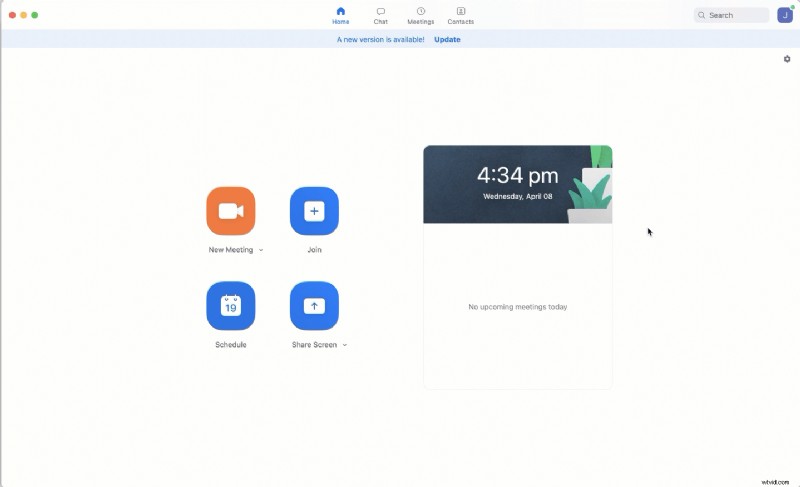
Once logged in, click the wheel icon in the top right corner of your home screen to open settings. Once the tab opens, click Virtual Background in the left toolbar.
Step 9. Add your Zoom video background
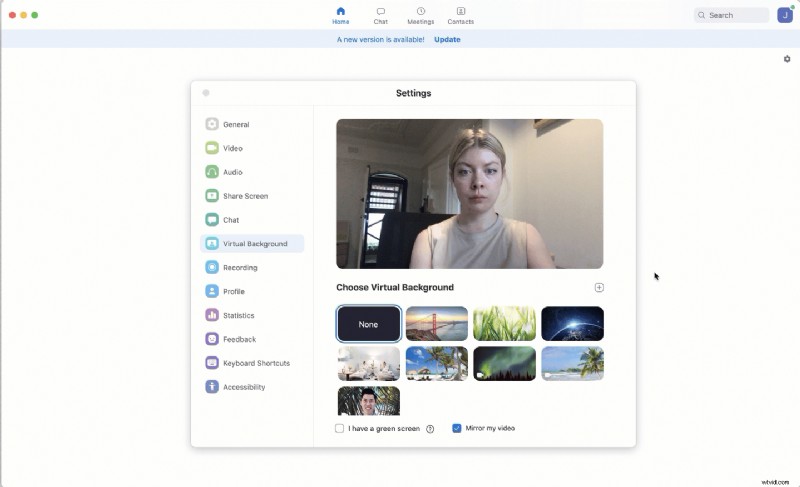
Click the + symbol above Zoom’s virtual background options, then select Add Video. Search your computer for the Zoom video background you saved earlier and once you’ve selected it, click Open. Your background will automatically change to your Zoom video background.
Step 10. Change or remove your Zoom video background
Finally, if you would like to change your background to another option, simply repeat the prior steps. If you wish to remove your background entirely, repeat steps 1 to 8 and instead of adding another background, select the None option that sits alongside Zoom’s virtual background options. It's as easy as that! And it’s now simpler than ever to import and edit Zoom recordings with Clipchamp.