
Сaption a video in three easy steps
There are several probable scenarios when you’ll need to put a caption on a video:
- the soundtrack of the clip isn’t translated into your local language;
- subtitles provide some additional comments: educative, informative, entertaining;
- the sound is so poor or the background music is so loud that you can hardly hear a single word.
Solving such issues is a complicated task, but no worries, our handy and user-friendly Video Caption Maker will help you with that.
Upload a recording
Open the Video Caption Adder by Clideo in any browser. This tool works online, it’s not an app that must be installed on your iPhone, Android or any other personal device.
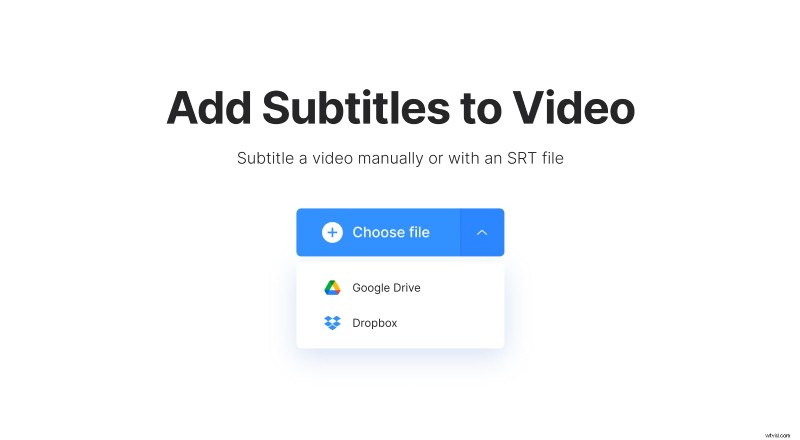
Hit a blue pane in the centre to select a video from your camera roll. If you want to import files from Google Drive or Dropbox, call a drop-down menu and paste a URL to the appropriate box.
You can upload up to 500 MB for free.
Add captions to the video
At the next step, you may either upload an STR file (all the abovementioned ways are available) or add subtitles manually.
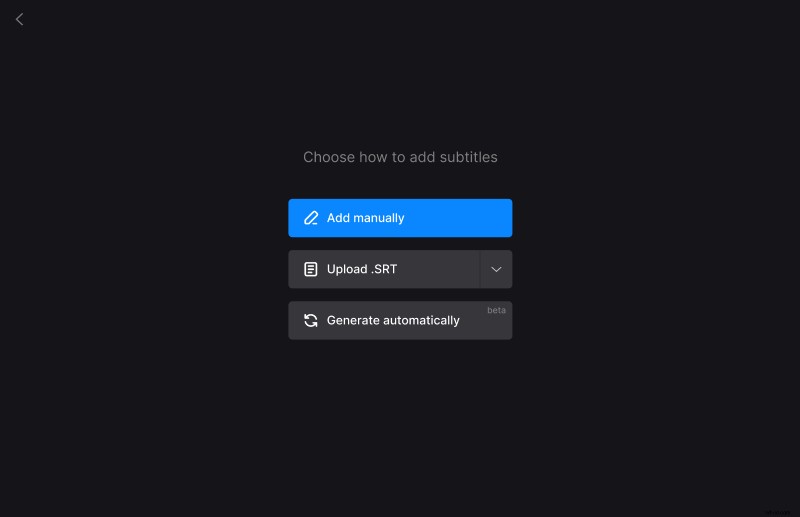
If you choose the second option, create captures adding them one by one and set their start/end time in the box on the right side. When the text is ready, you may edit its style:
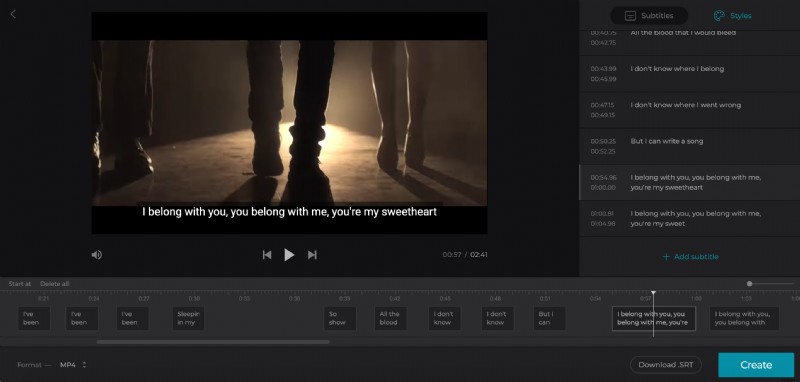
- Capture position (at the bottom or at the top of the screen);
- Alignment (left, center, right);
- Font;
- Font size;
- Font colour (pick one of the arrays or customize with a hex code);
- Highlighting colour and transparency.
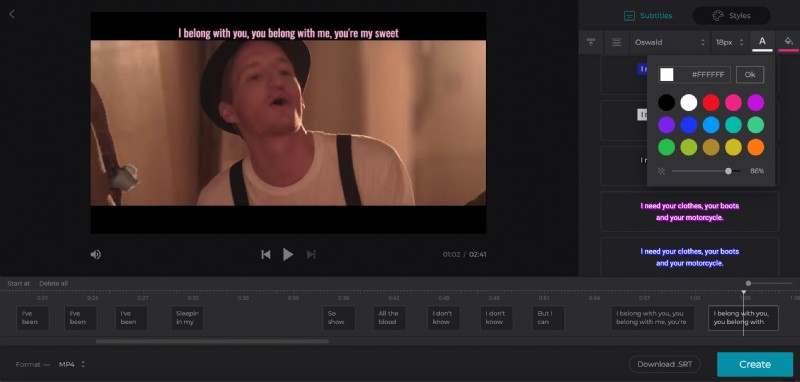
If the soundtrack distracts you from editing, you may temporarily mute it by clicking the appropriate sign below the player. If you want to delete the sound permanently, use another tool.
You can download subtitles as a separate STR file and save to your personal device. Set an output format – our tool supports all the popular video extensions including WMV, AVI, ASF and others.
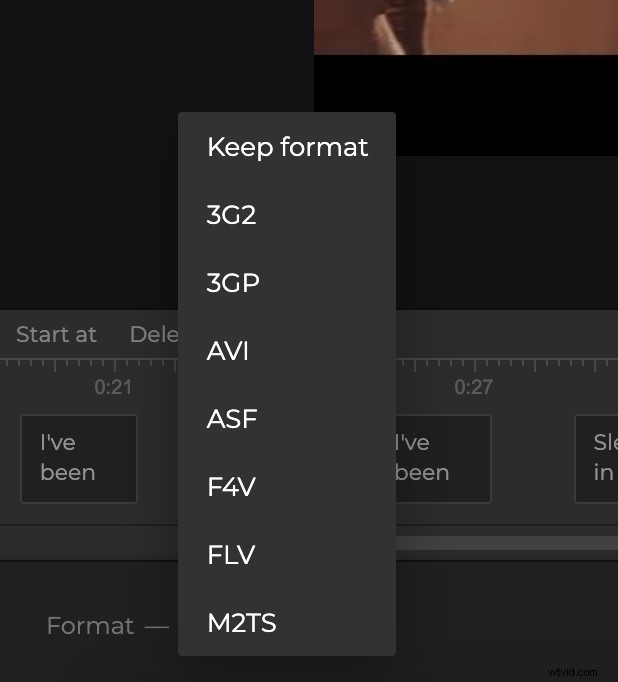
When you are done, click “Create” and wait several seconds while your file is being processed.
Please note that the tool adds hard subtitles only. Hard subtitles are burned in, or hard coded, as an overlay over your video and cannot be turned off or on later in a player.
Download the captured video
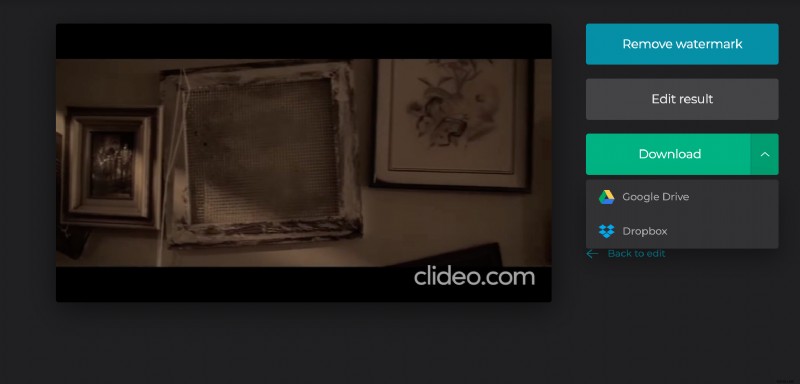
Have a preview and get sure that your recording is impeccable now. If it is not, return to the editor by clicking “Back to edit”. Otherwise, save the file to your personal device or cloud storage.