
CapCut is now available for PC! If you’re looking for CapCut app for Windows or Mac PC, then you’ve come to the right place. Follow the step-by-step guide and learn about 4 proven methods to use CapCut app on PC, which respectively use CapCut Desktop, DCapCut Pro version, Android emulator, and Windows subsystem. Read on to learn more.
Table of Contents
- 1. CapCut Official Desktop Version for PC
- 2. Use Capcut on PC with Capcut Pro
- 3. Use CapCut on PC with Android Emulator
- 4. Use Windows Subsystem for Android
- 5. Workaround: CapCut Alternative for PC
- 6. CapCut for PC: FAQs
CapCut for PC
CapCut, formerly known as Viamaker, is a rather popular video editing app that works on iPhones and Android phones, it has won a giant user base with its ease of use, practicality, and extensive video editing features. In our latest CapCut review, we’ve acclaimed CapCut as one of the best free video editing apps in 2022, just like KineMaster.
As TikTok is now available on PC, many of the CapCut users have asked about whether they can use the CapCut app on desktop computers such as Windows and Mac PCs. And this guide is here to help resolve this issue and show you how to use CapCut app on PC. Moreover, the best free CapCut alternative for PC is also introduced.
1. Important Update: Official CapCut Desktop Version is Now Available!
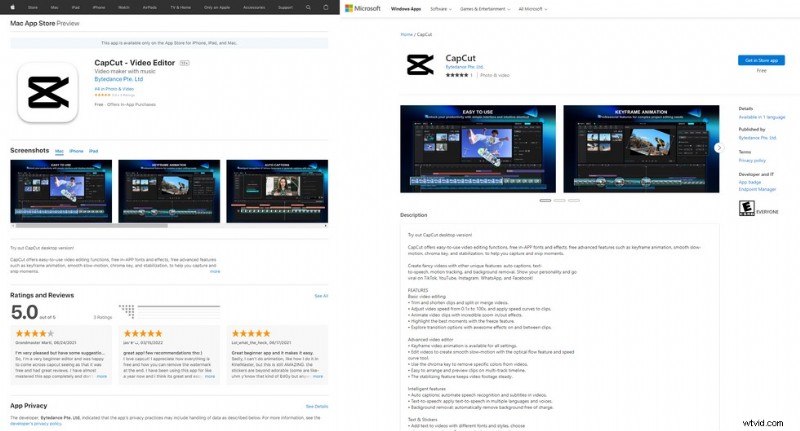
In August 2022, the CapCut desktop version with English-language-based UI is officially released in Apple Store and Microsoft Store, allowing you to free download and edit videos on your Mac and Windows computers. The following links lead you to the official source of the CapCut desktop version download.
- Free Download CapCut for Mac from Apple Store
- Free Download CapCut for Windows from Microsoft Store
CapCut from Apple Store and Microsoft Store
2. Use Capcut on PC with Capcut Pro for Desktop
CapCut, which also bears the name ‘JianYing’ in Chinese, is the work of a Chinese developer team owned by Bytedance, the parent company of TikTok.
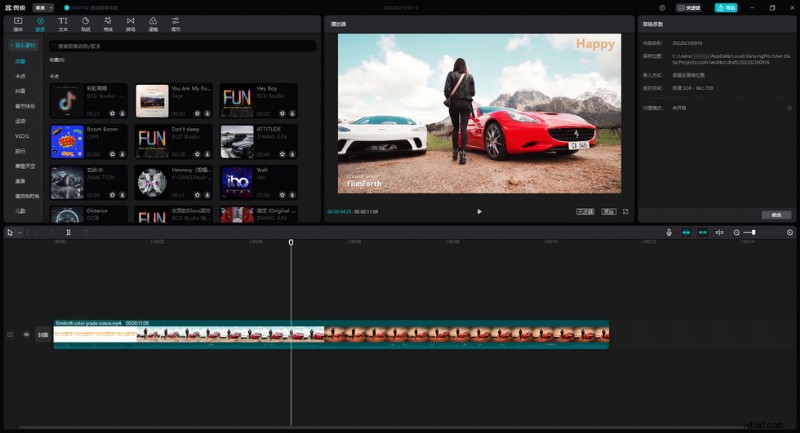
The good news is, the brand new professional versions of Capcut called Capcut Pro or JianYing Pro (剪映专业版), which are designed to work on Windows and Mac PC, have just been officially released. CapCut Pro allows you to edit videos on Windows and Mac PC, in our familiar CapCut interface.
CapCut for PC: Free Official Download
You can download CapCut for PC from the Capcut official source below, and install it on your PC:
JianYing Offical Website: https://lv.ulikecam.com/

Download CapCut Pro for PC
Hit the light blue 立即下载 (Download Now) button in the middle to download the CapCut desktop version, it works with 64bit Windows 7 and later.
Our team has thoroughly tested the installation package and the CapCut desktop program, and CapCut Pro is completely safe to use, free of charge, and it works like a charm on Windows PCs. It automatically saves projects and synchronizes editing drafts across different devices, including desktop, mobile, and tablet.
Please note that, if you’d like to go with that method, we suggest the use of a web browser with a translation feature/extension like Chrome or Firefox, to navigate through the Chinese language-based website.
• Additionally, the Chinese language-based installation wizard and user interface may still cause trouble for English-language users, so we’ve provided two additional methods underneath for you to use Capcut on PC.

CapCut Installation Wizard
The snapshot below shows you the look of the CapCut desktop version.
Do Not Miss: How to Use KineMaster App on PC
CapCut Pro
3. Use CapCut App on Windows and Mac PCs with Android Emulator
The second method of using CapCut app on PC requires the use of a desktop Android emulator program called BlueStacks. It allows you to install working CapCut app (English UI) on Windows and Mac PCs, with APK or IPA files, or from Google Play store.
With this method, you get to use CapCut from the familiar mobile UI on a desktop device. So if you find the introduced CapCut desktop version not as handy as the mobile one, go with this method.
BlueStacks is an Android emulator/app player which is designed to enable Android applications to run on PCs running Microsoft Windows and Apple’s macOS. With the BlueStacks program, you get to use mobile phone apps like CapCut on your computer as if using them on a mobile phone. BlueStacks service is free and safe to use.
Step 1. Download and Install BlueStacks Android Emulator
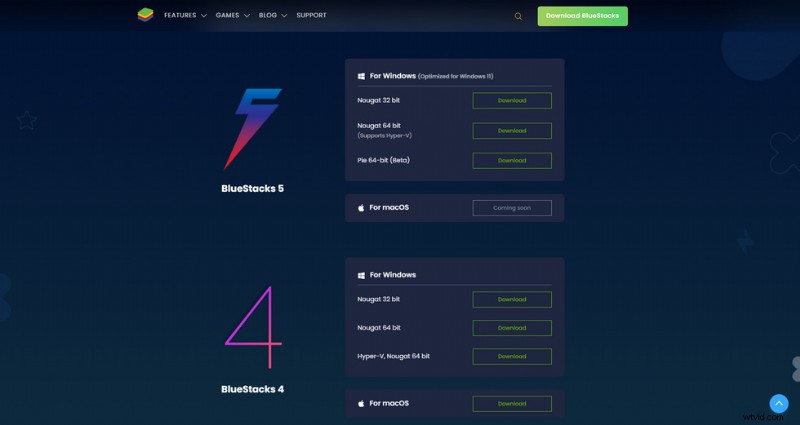
Download BlueStacks from BlueStacks download page and install it on your PC. BlueStacks 5 and BlueStacks 4 are compatible with 32 bit and 64 bit Windows 10/Windows 11, and macOS.
Download BlueStacks
Step 2. Launch BlueStacks on Your PC
When BlueStacks is fully installed, launch it on your PC, and please wait patiently for the starting process.
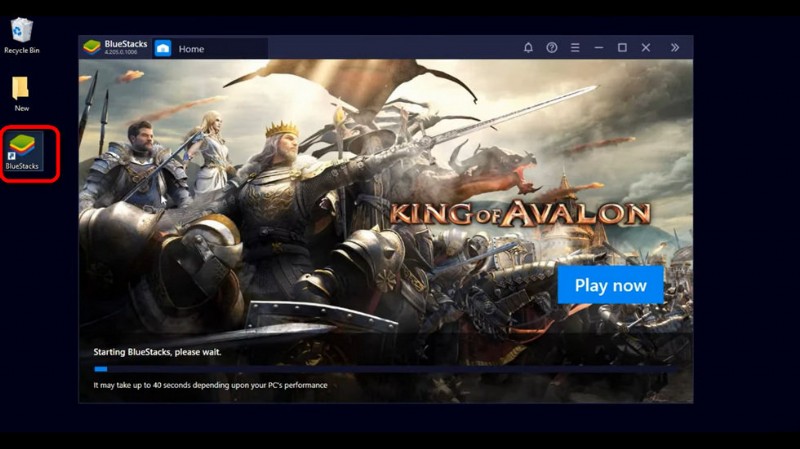
Launch BlueStacks on PC
Step 3. Go to Google Play Store in BlueStacks
In BlueStacks, go to the Library section from the upper-left side, click on Google Play Store icon. Then you’ll enter Google Play Store in BlueStacks interface.
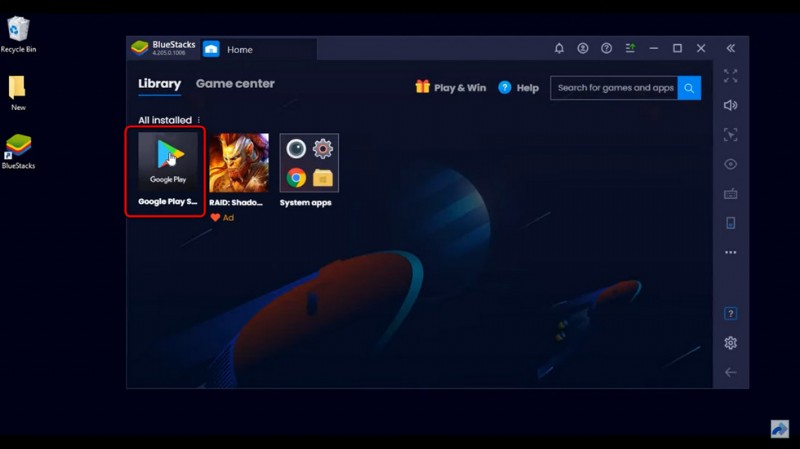
BlueStacks Play Store
Step 4. Search for and Install CapCut App
From Google Play Store, search for CapCut app, hit the Install button to the right to install CapCut app on BlueStacks Android emulator.
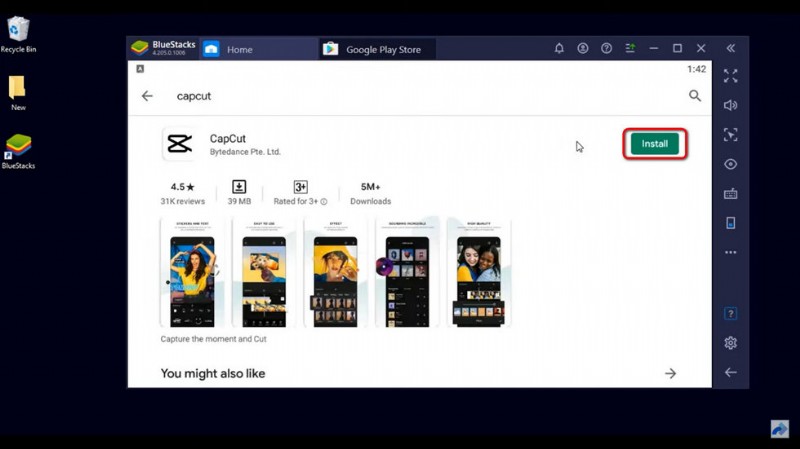
Install CapCut on BlueStacks
Step 5. Launch CapCut on BlueStacks on PC
Congratulations! Now you can run CapCut app on Windows or Mac PC within the BlueStacks Android emulator! Now hit the Launch button or launch CapCut from BlueStacks home screen and give it a try!
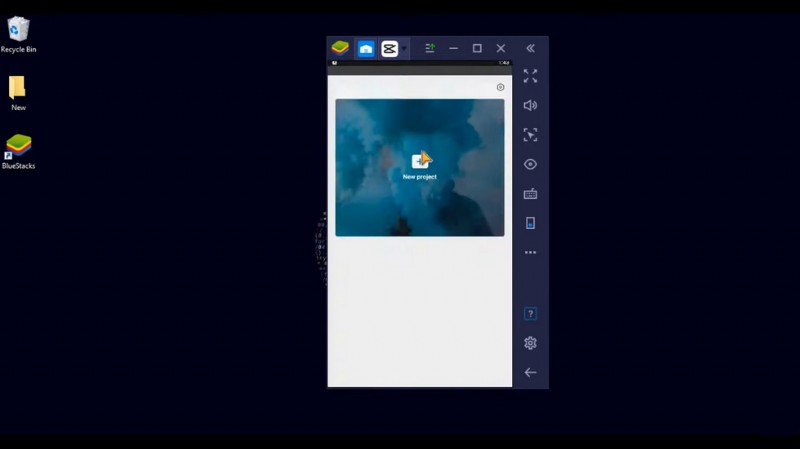
Use Capcut on BlueStacks
You can also go to BlueStacks system apps > Media Manager > Import From Windows > locate and select the .apk file on your computer, to install CapCut on your PC in BlueStacks with the CapCut APK downloaded on your computer.
Download CapCut Installation File for Android (5.3.0)
You can also go to BlueStacks system apps > Media Manager > Import From Windows > locate and select the .apk file on your computer, to install CapCut on your PC in BlueStacks with You can try this method if you encounter “BlueStacks couldn’t sign in” issue.
4. Use Capcut on PC with Windows Subsystem for Android
If you don’t like additional installations of third-party applications, then the Windows subsystem for Android is another viable way to use CapCut app on PC. Check out our video tutorial below to learn about how to do so.
5. Workaround: Best CapCut Alternative for Windows PC
If you find the introduced methods troublesome, then you shouldn’t miss out on the best CapCut alternative for Windows PC: FilmForth.
FilmForth is a completely free, easy-to-use, and watermark-free video editing program with extensive video editing features.
It covers CapCut key features such as Split Video, Reverse Video, Resize Video, Mirror Flip, Special Effects, Filters, Speed Control, Stickers and Text, etc. The most notable part of it is that it doesn’t have watermarks in export videos, or hidden costs of any kind.
Now hit the download button below to get FilmForth from Microsoft Store for free, and give it a whirl!

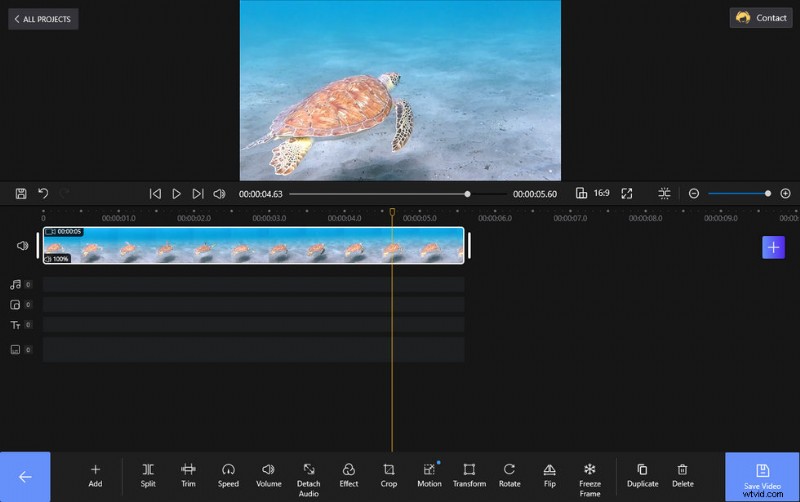
FilmForth Video Editor
6. CapCut for PC: FAQs
Is CapCut Available for PC?
Back then, CapCut is a video editing app for iOS and Android phones and CapCut app is not available for PC. And now with the newly released CapCut for PC, you can install and use the newest version of CapCut which is compatible with Windows and Mac! Find more details in this guide, and it has shown you 4 working method to install and use CapCut on PC!
How Can I Download CapCut on PC?
There are various ways to download CapCut on PC, one is to go for the latest released CapCut Desktop version from Microsoft Store or Apple Store. And you can also download Capcut APK from APKPure or Uptodown for installation on Android emulators, so as to enjoy the familiar UI.
(Hint: Windows, Mac, Linux, Chrome OS, Ubuntu, or any other customary desktop operating systems don’t recognize CapCut IPA or APK files which means you can not directly install them on your PC.)
Is CapCut Pro safe?
CapCut Pro is the newly released CapCut desktop version. Our team has thoroughly tested CapCut Pro installation package and program, and CapCut Pro is safe and free.
Is BlueStacks Safe?
BlueStacks is a safe Android emulator program for Windows and Mac PC. With it, you can easily install and use CapCut Android app on Windows and Mac PCs without cost.
To Sum Up
CapCut is certainly an awesome video editing tool for content creators, and it would be a shame if it’s limited to mobile phones. Luckily, with the introduced methods above, it’s possible to easily use CapCut on Windows and Android PCs without cost. All the methods have been well tested and proved to be working, so don’t forget to give it a try!
For any questions or insights about using CapCut on Windows and Mac PCs, don’t hesitate to drop us a line below.