
Make awesome 3D motion photos to impress your friends. Learn from this guide on how to do 3D photo TikTok trend with video editing app CapCut!
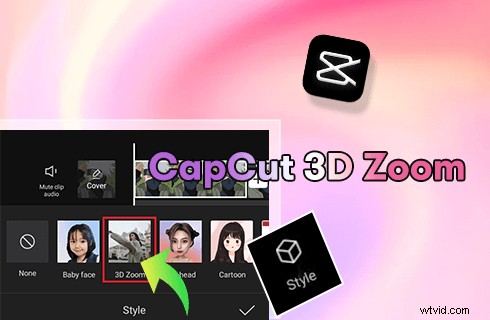
CapCut 3D Zoom
In the recent TikTok 3D trend, we’ve seen many well-edited and creative video clips, consisting of moving images with 3D effects, where gorgeous images and pictures are presented to the audience in a rather dynamic manner. The 3D visual seem so real that it even makes you think it’s actually a 3D movie playing, while it’s just a picture displaying special effects.
To achieve a video effect like this, what you need is simply a video editing app called CapCut.
Learn from this step-by-step guide about CapCut, CapCut 3D photo effect, and how to make your own 3d photo trend!
What is CapCut
CapCut, owned by a Chinese company called ByteDance, is a free all-in-one video editing app for Android and iOS mobile phones. It is used by the popular social media platform TikTok as its default video editing, which brings it enormous popularity.
CapCut offers a variety of special effects for videos and photos, making it an awesome tool for content creators and creative minds. For example, the 3D zoom effect we’ll talk about in this post will make your pictures really awesome, see the example below.
More CapCut Guides: How to Make a Velocity Edit in CapCut, How to Do Slow-mo on CapCut, How to Do Green Screen on CapCut
What is TikTok 3D Photo Trend
The latest TikTok 3D photo trends represent all the fancy imagination and impressive creativity in everything between 3 dimensions and gorgeous-looking photos.
3D photo editing trend started from a photo editing of a cute cat (maybe you have known it from the song Phonky Town by PlayaPhonk) and you may have already guessed, the photo quickly went viral on social media platforms including Facebook, TikTok, YouTube, etc. and people are all talking about this awesome photo editing skill: CapCut 3D zoom.
How to Do 3D Zoom Photo Editing Effect on CapCut
This tutorial is demonstrated on a mobile phone. If you intend to edit videos on PC, see our guide on how to use CapCut on PC.
Step 1. Install and Launch CapCut on Mobile
If you don’t have CapCut app already, you can easily find and install it from Google Play Store or Apple App Store. Launch CapCut on your mobile phone. Start a new video editing project in CapCut by clicking the New Project button on the left.
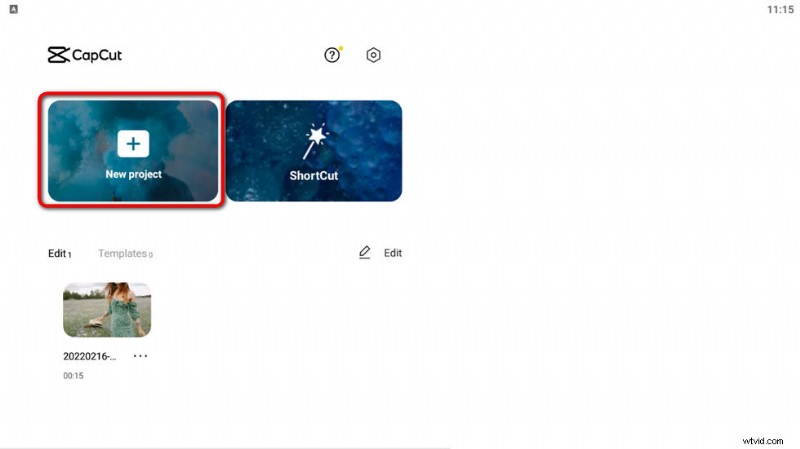
Hit New Project
Step 2. Import a Photo to CapCut
You can add an image from your camera roll to CapCut. Then confirm the addition by clicking the lower-right Add button.
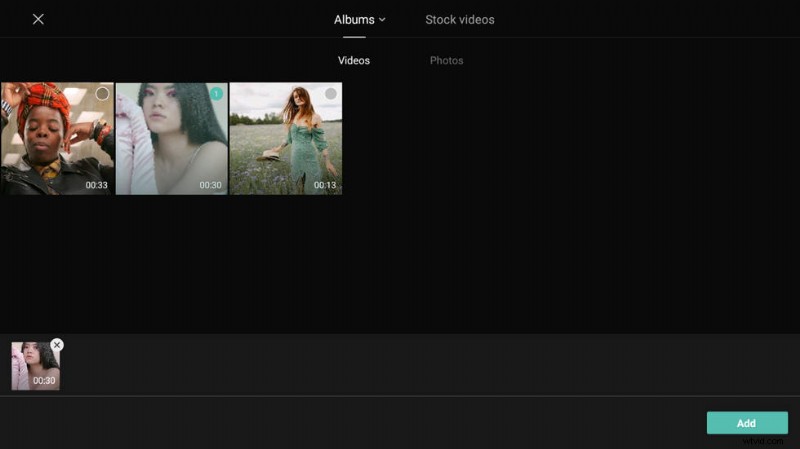
Add Photos to Capcut
Step 3. Go to the Style Menu
Click to select the added image file in the timeline, and hit the Style button from the lower panel to enter the CapCut Style menu.
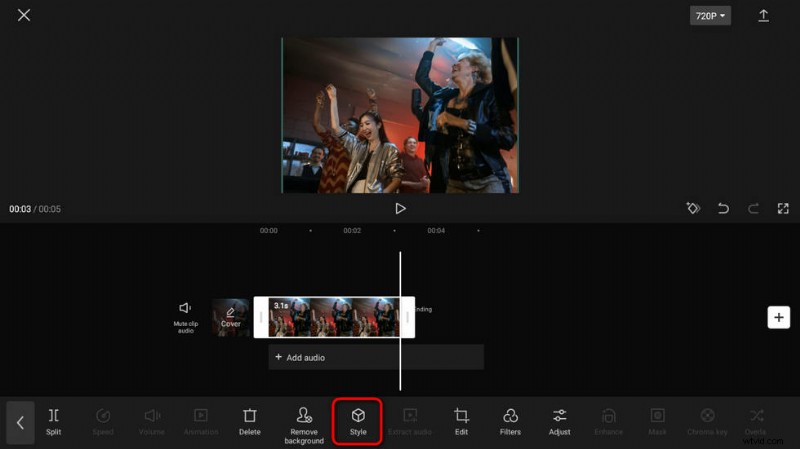
Hit the Style Button
Step 4. Apply 3D Zoom Effect to Your Images
As you can see from the CapCut Style menu, there are various image effects available: Auto Velocity, Photo Puzzle, 3D Zoom, 3D Zoom Pro, Big head, etc.
There are two different types of 3D zoom effects: 3D Zoom, 3D Zoom Pro. You can try and select either one for your image.
Then hit the check button from the lower-right side.
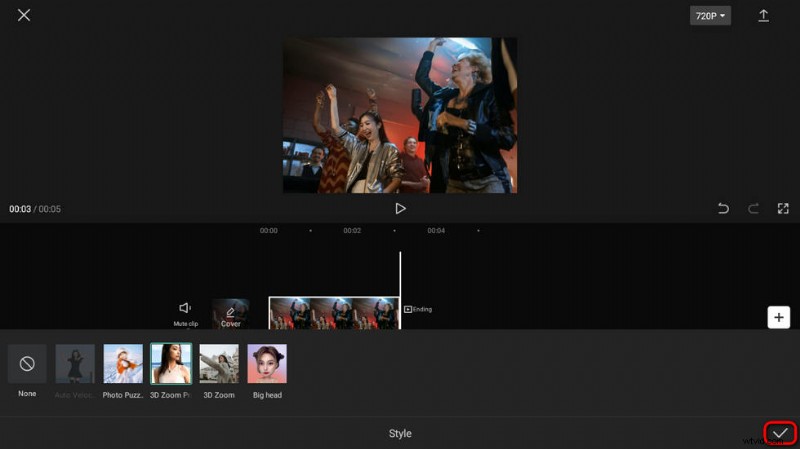
Apply CapCut 3D Zoom Pro
Step 5. Save and Export 3D Zoom Photo from TikTok
Now you are back to the CapCut main workplace, now you can go to the upper arrow from the upper-right side to share your 3D zoom photo on TikTok, WhatsApp, Facebook, Instagram, etc.
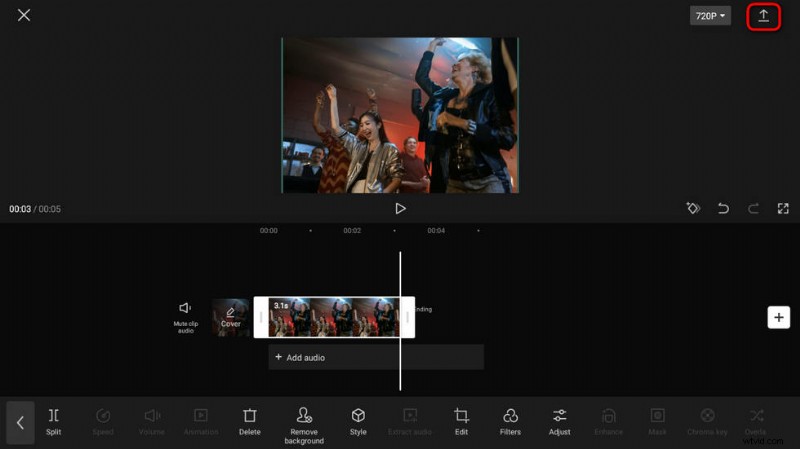
Save and Export 3D Photo
CapCut 3D Zoom: FAQs
How to Do TikTok 3D Photo Trend?
To do TikTok 3D photo trend, you need CapCut video editor. Find the 3D zoom effect from the Style menu, and your images will look like three dimensions. But before sharing, it’s time for creativity! Edit your 3D zoom photo if needed!
How to Do TikTok 3D Photo Trend on Android and iOS Phones?
To do 3D photo zoom on Android and iOS smartphones, you need the free video editing app CapCut. CapCut is the default TikTok video editor and it works with both Android and iOS and offers awesome 3D zoom effect.
How to Do 3D Zoom Effect without CapCut?
There are a variety of free video editing programs that offer the zoom-in effect or Ken Burns effect. However, CapCut is the only video editing app that does 3D zoom photo effects so far.
To Sum Up
CapCut is so practical a video editing tool that you get to achieve so many awesome video/photo effects with it. It’s an excellent choice if you enjoy editing videos and photos on smartphones. Besides, effects such as 3D zoom can be easily implemented with a simple click.
Anywho, please make sure to follow the tutorial to make 3D images with CapCut when you have time!