
The best way to create high-quality scans of your printed photos is a desktop scanner. But did you know that you can also scan documents using your phone’s camera?
Google Photos and Microsoft Lens are two popular apps for photo scanning on your phone.
In this article, we’ve given a step-by-step guide on how to scan photos with your phone with these apps. We’ve also gathered some useful tips to help you quickly create great digital scans of your favourite snapshots!
How to Scan Photos With Google Photos
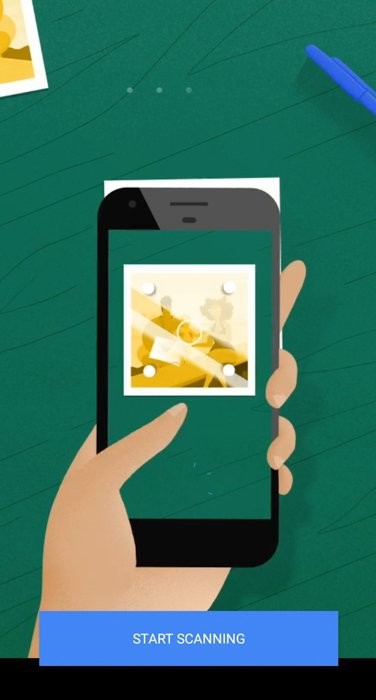
The main selling point of the free Google Photos app is that it allows you to scan photos without any glare. It’s a great feature, especially since glares are almost impossible to avoid when scanning with your phone!
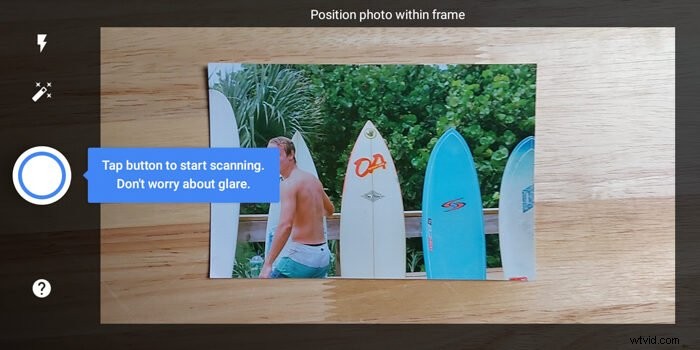
When you turn on the free Google Photos app, you’ll see a simple camera interface appear. It looks much like any other camera apps, so it should feel familiar. There’s the shutter button in the middle, and beside it are the Flash and Magic Wand (for anti-glare) icons. And on the other side, you’ll find a thumbnail of your scanned photo.
Step 1: Use Flash and Anti-Glare to Adapt to the Lighting
If you’re in a dark room, feel free to turn on the Flash icon. But if you have enough light to illuminate your photo, keep it turned off.
The magic wand represents the anti-glare feature. Make sure you turn this on to ensure you don’t end up with bright spots in your photo.
Step 2: Follow the White Dots to Scan Your Image
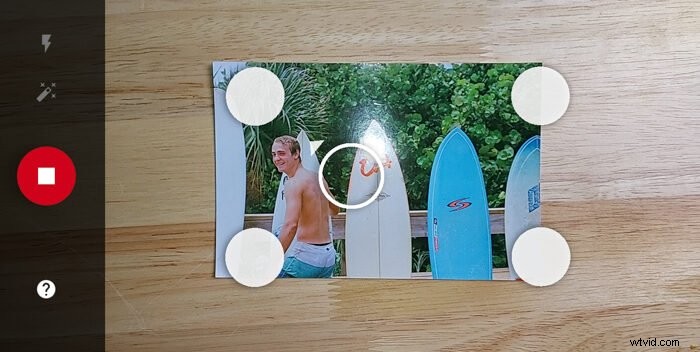
After activating the features you need, it’s time to take a photo. Once you press the Record button, four white dots will appear. In the middle is an icon of a hollow circle with an arrow. To start scanning, follow the direction of the circle until it merges with all four dots.
Step 3: Crop and Rotate Your Scanned Image
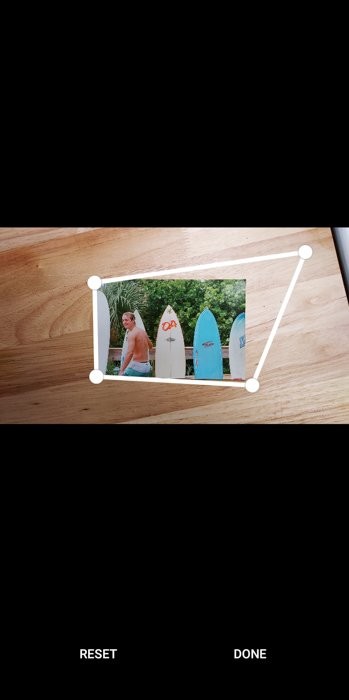
Once you finish scanning, tap the scanned photo’s thumbnail to edit your file. You have the option to rotate it and adjust the corners (i.e. crop the image).
To crop your image, you’ll need to align the four dots of the Crop Tool to the corners of your photo. The app automatically shows a zoomed-in view of the edges so you can precisely crop your file.
Step 4: Save Your Digital Scan
Once you finish cropping your enhanced digital scans, all you have to do is save them, and that’s it!

How to Scan Photos With Microsoft Lens
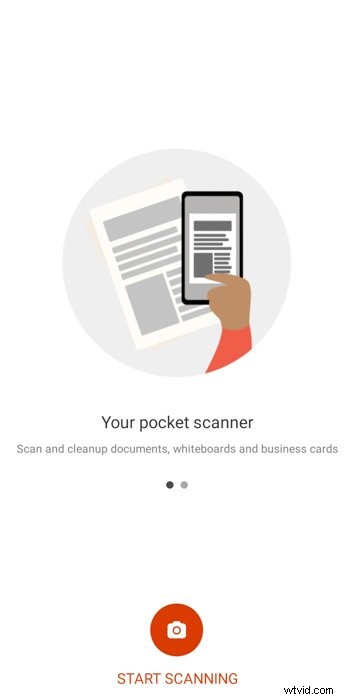
In many ways, Microsoft Lens works much like the Google Photos app. But it also allows you to create enhanced digital scans of other physical files. You can use it to scan documents, whiteboards (yes, the ones you find in classrooms!), and business cards.
Perhaps the most innovative feature of Microsoft Lens is the Actions Mode that lets you scan text and convert it to voice. You can even use it to translate literature from one language to another. Oh, and if you need a QR Code scanner, it has that too!
But let’s not get carried away with Microsoft Lens’s features. Let’s find out how to use this app’s photo scanner!
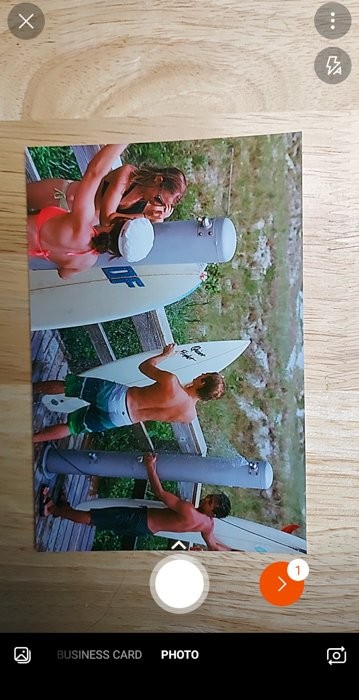
Once the app opens, you’ll find a similar user interface with a shutter button on the screen and a selection of Modes below. You can choose from Whiteboard, Document, Actions, Business Card, and Photo.
Step 1: Select Photo Mode and Frame Your Scan
Click Photo to initiate the scanning process. Once you’re in this mode, all you have to do is compose your shot and make sure all the elements of your printed photo are in frame.
Microsoft Lens doesn’t have an anti-glare feature. So make sure your light source isn’t too close to the printed photo you want to scan to avoid glare.
Step 2: Press the Shutter Button to Scan the Image
Once you’re satisfied with your composition, pressing the shutter button will scan the image.
After scanning, you can choose a variety of tools to edit your scanned photo. You can add filters, crop, rotate, and even add text or sketches.
Step 3: Use the Crop Tool to Tidy Up Your Scan
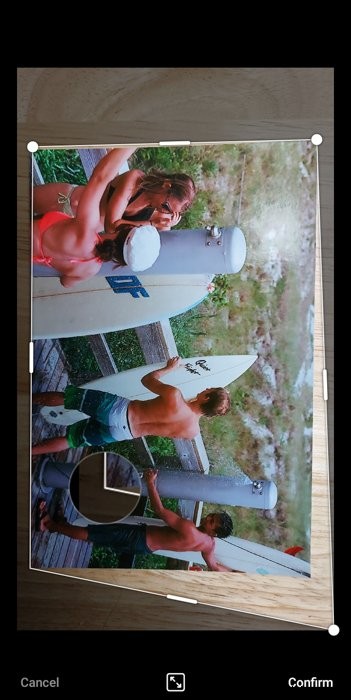
In most cases, all you’ll need is the Crop Tool to make sure the edges of your image look clean. After editing, tap Done.
Step 4: Save Your Photo Scan
You can then save your photo as a JPEG, PDF, or even a Powerpoint file.

Useful Tips When Scanning an Image With Your Phone
The simplest method to scan documents and images is to take photos using your phone’s camera. We’ll show you a few simple tips to help you achieve decent “scans”.
1. Look for Even Lighting for a Clear Scan
Lay your photo on a table near a window or a light source that produces even lighting. Remember that you need to illuminate the entire image and not just a part of it. Otherwise, you’ll end up with one side brighter than the other.

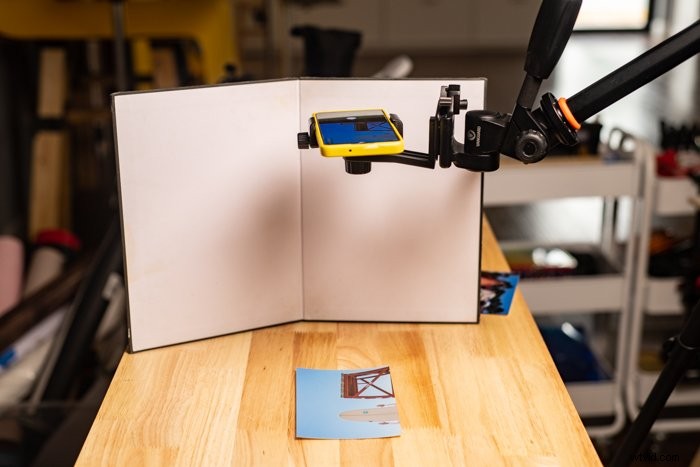
Sometimes, getting an even illumination is impossible, especially when you’re using window lighting. So, to achieve the correct exposure, add a bounce card (i.e. white cardboard) on the other side of the picture opposite of the light source. Doing so allows you to bounce light back onto the picture.
2. Use Zoom to Avoid Casting Shadows
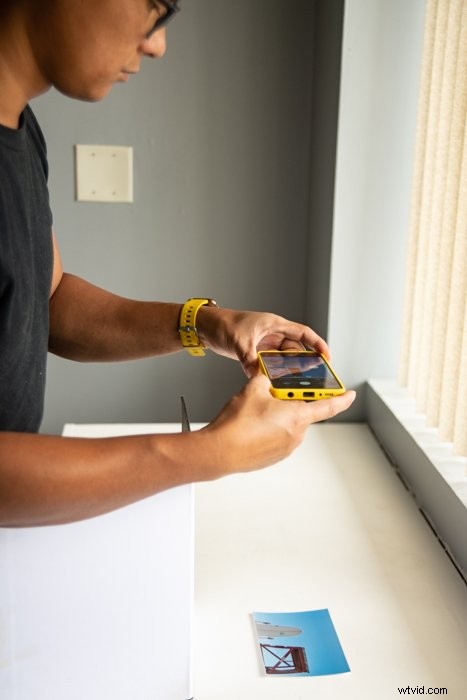
A crucial step when scanning photos with your phone is to use your zoom lens. If you get too close to the printed photo you want to scan, you’ll end up casting a shadow on the image. Zooming in eliminates this issue right away.

3. Use a Tripod if Taking Multiple Scans
If you’re only scanning one or two photos, you can handhold your camera while taking pictures. But if you’re working with multiple images, you may need to use a tripod with a horizontal mount. That way, you don’t have to readjust your angle and height all the time.
Conclusion
Both the Google PhotoScan and Microsoft Lens are free to use and are reliable photo scanning apps.
If you want only to scan photos exclusively, then Google Photos would be the better option. But if you want to scan other documents apart from printed images, we recommend Microsoft Lens instead.