
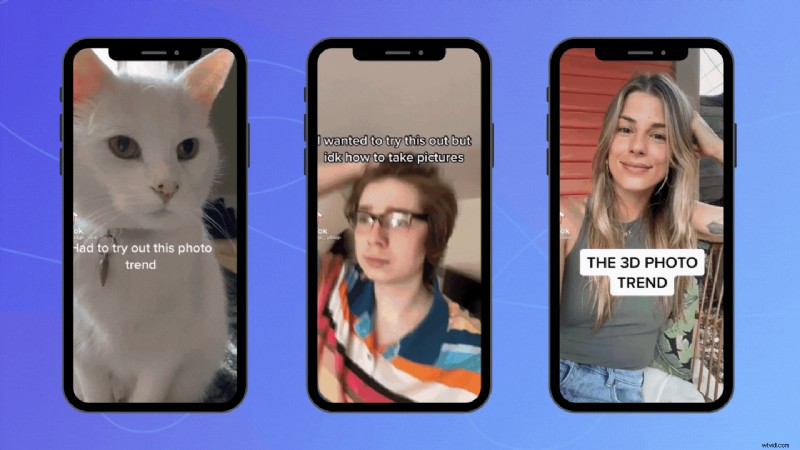
Move over TikTok food hacks and bee lady—the 3D photo trend is quickly taking over TikTok feeds. With creators thinking even more outside the box, you can now make your pictures look like multidimensional videos. It sounds more complicated than it is, so don’t stress just yet. This blog will teach you how to easily create the 3D photo trend on TikTok using our online video editor, along with some fun video ideas to inspire you.
How to create the TikTok 3D photo trend on Clipchamp
How to change the aspect ratio of a video
How to create the TikTok 3D photo trend on Clipchamp
Creating a 3D photo for TikTok is made easy with our online video editor. Whether you’re making a TikTok video ad for your small business or simply just love making TikTok videos, the new 3D photo trend is a great new challenge to try out. Perhaps you want to create a new behind-the-scenes video, a b-roll or promote a new collection. The 3D photo trend just might be the hype your TikTok channel is looking for.
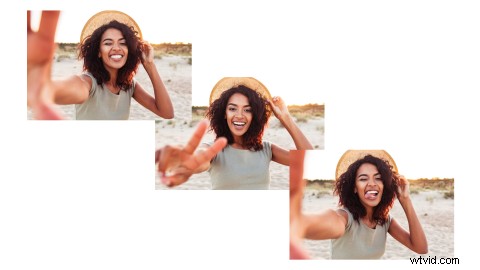
Before we get started, make sure you've chosen at least 3 images to use. They must be of the same subject but from a different pose or angle.
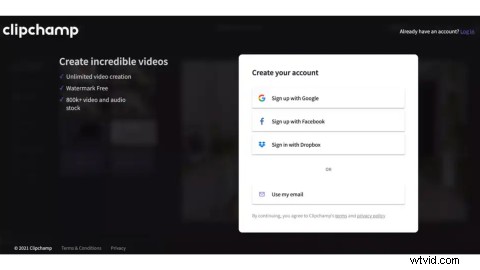
Step 1. Log in to Clipchamp or sign up for free
Firstly, head over to our online video editor. Log in to your existing account with us or sign up to Clipchamp for free.
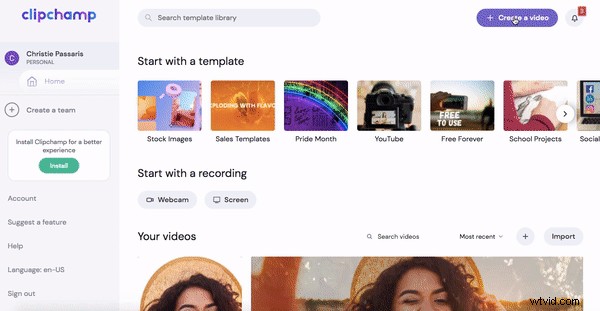
Step 2. Create a new video
To get started on creating your 3D photo for TikTok, click on the Create a video purple button. Your browser will redirect straight into our online editor. Click on the Untitled video tab to rename your video. Keep your aspect ratio the same.
Step 3. Upload your images
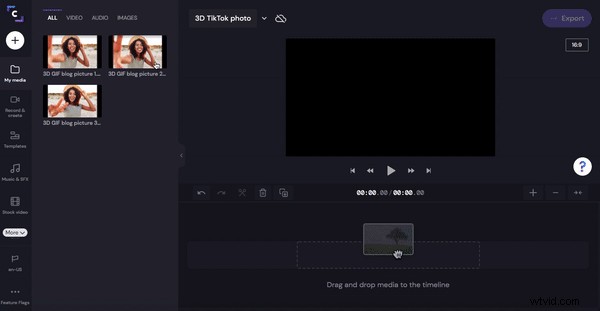
Click on the + sign from the left-hand side menu to add media and choose the path from where you want to import your stills. You can either drag and drop your images directly into the tab or browse your computer files. We also offer to import via Dropbox, Google Drive, OneDrive, Zoom, Box and Google Photos.
We have chosen to select our images directly from the computer. Click Open when finished selecting. Your images will now appear in your media library.
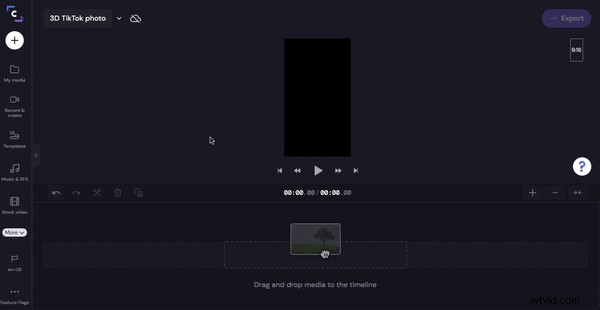
Step 4. Drag and drop images to your timeline
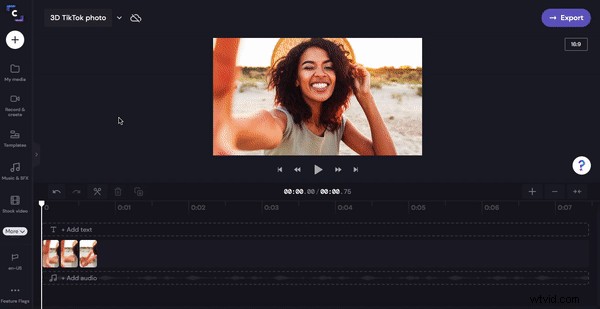
One-by-one, drag and drop images from your media library to your timeline. Click on Transform then Crop to Fill. You will then need to make the length of the image shorter, so drag the right green sidebar to the left to crop the image duration.
Repeat this process for all 3 images, place them side by side on the timeline, ensuring that they're all the same length.
Step 5. Add a filter
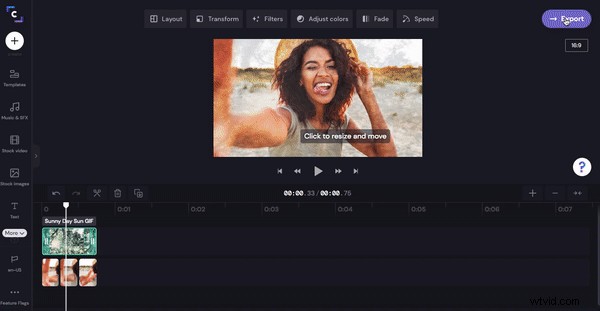
To add a filter, click on your image on the timeline, then click the filters tab. Scroll through our selection of filters and click on the one you prefer the most. Make sure to add the same filter to each image.
Step 6. Add an overlay
We have chosen to give the 3D image some more depth by adding a GIF over the top. On the left sidebar, click on Graphic. Under GIPHY, click See more. Scroll through our selection of GIFs or search a keyword. Once you have chosen your GIF overlay, click on the plus button to add to the timeline.
Crop your GIF so it is the same length as your image duration. Slide the green sidebar to crop the GIF. Next, you will need to click Transform, then Crop to fit. Turn the Opacity down so the images can be seen through the GIF. The GIF is acting as a filter/overlay.
Step 7. Export your 3D GIF for TikTok
Finally, it’s time to save and publish your new 3D GIF. Click on the → Export purple button in the top right corner of the editor. Saving options will appear. Click on the GIF tab, then Continue to start exporting. Save your GIF to your computer. You can also directly upload your 3D GIF to Box, Dropbox, Google Drive, OneDrive and Pinterest.
If you'd like to add stock audio to your video, make sure to save your video as a video and not a GIF.
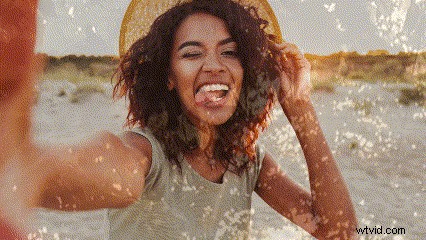
Our 3D Photo Trend GIF for TikTok
How to change the aspect ratio of a video
We've created and exported our new 3D GIF in 16:9 widescreen aspect ratio. TikTok usually prefers your video content to be uploaded in portrait 9:16 aspect ratio. To change the aspect ratio of your new GIF, simply head over to our Online Video Converter to optimize for mobile.
See you on TikTok
With these easy steps, you can create your very own 3D photo to post on TikTok and keep up with the new trend. Clipchamp’s iOS app can also be a fun tool to make your TikTok videos on the go.
Did you know videos with captions are proven to get higher engagement? Check out How to add captions to TikTok and get a sneak peak into how to use Clipchamp’s iOS app.
Stand out from the crowd on TikTok and make a 3D photo today Clipchamp.