

Sometimes product updates are big and exciting, other times they’re small but mighty. This is one of the latter updates — you can now replace items on the timeline.
Not sure what this means for you? We’re here to explain how to use this new feature, and why it’s about to make your video editing experience better than ever.
How to replace items on the timeline in Clipchamp Step 1. Log in and create a video
If you're not a member already, sign up to Clipchamp for free, or easily log in. Then, click the create a video button in the top right-hand corner of the home screen.

Step 2. Select a clip and replace it
First things first: we’re replacing a clip on the timeline. To do this, make sure you have your replacement clip waiting in my media — you can import your own or find a stock video.
Then, simply drag your replacement clip over the original clip on the timeline. A green replace prompt will appear, then you can drop the clip to complete the replacement.
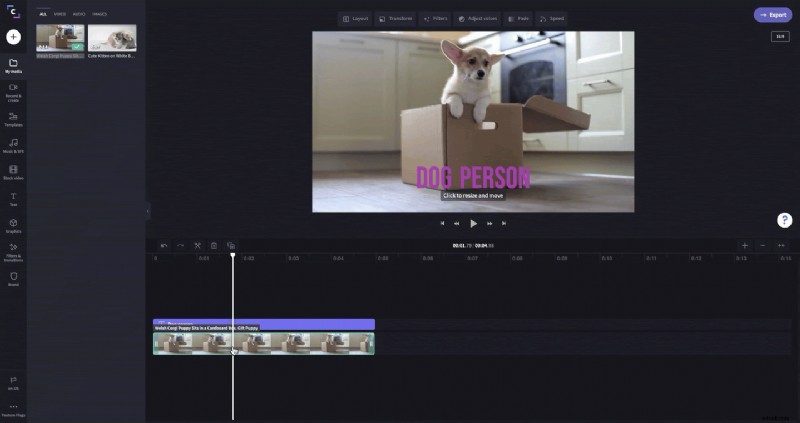
Step 3. Explore other items you can replace, like text and transitions
It’s not just clips that can be easily replaced — it’s other items too, like text and transitions. Again, it’s just a simple drag and drop on the timeline.
Bonus: you won’t lose your formatting when you replace items like text and transitions. If your original text used a certain font and color, your replacement text will too.
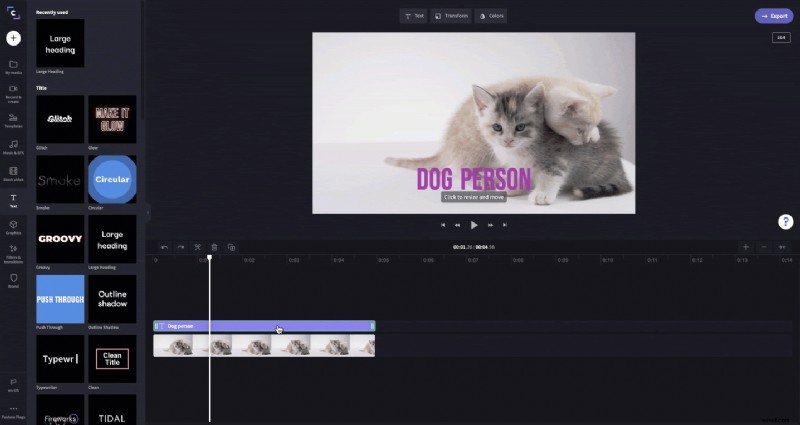
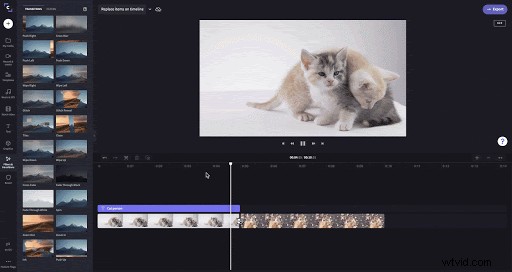
Step 4. Try it with templates
One of the best things about replacing items on the timeline is it improves your experience with our video templates.
Previously, you needed to delete clips from the timeline, then drag and drop the replacement in its place. In this scenario, things didn’t always fit perfectly and often resulted in a jumbled video; now, those worries are a thing of the past.
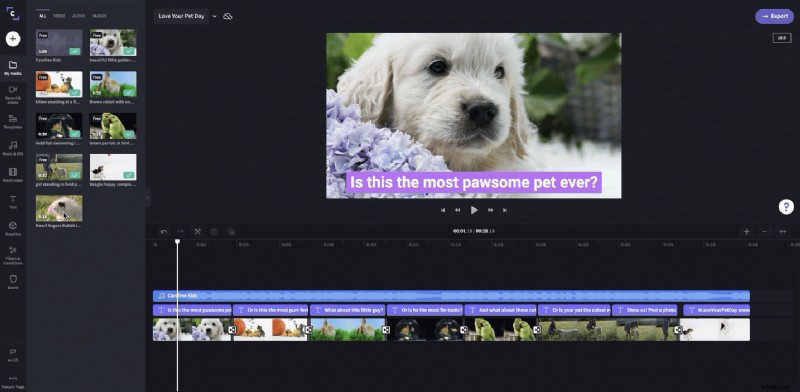
Enjoy easier video editing
Like we said, this update is small but mighty. That means this tutorial is all wrapped up. We hope the ability to replace items on the timeline makes your video editing just that little bit easier. Head to our video editor to try it for yourself.