
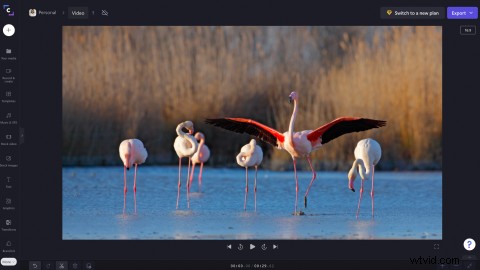
Watch back your video editing with a bigger screen and a lot faster with Clipchamp’s new full-screen preview feature. “Full-screen” refers to when you can simply collapse your timeline and sidebar to preview your video in a larger full-screen mode. Enlarge your preview screen to review videos in more detail, creating accuracy and consistency.
Read on to learn how to quickly review your videos without size limitations with Clipchamp’s full-screen preview feature.
How to use full-screen video preview in Clipchamp
Step 1. Open an existing video or create a new video
The full-screen video preview feature is available to all free and paid subscribers.
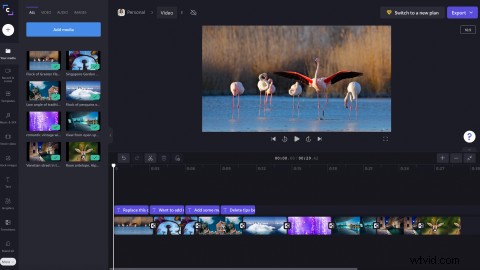
Step 2. Collapse the left sidebar
Collapse the left sidebar by clicking on the collapse/expand button. The button is a small arrow icon. A keyboard shortcut isn't currently available.
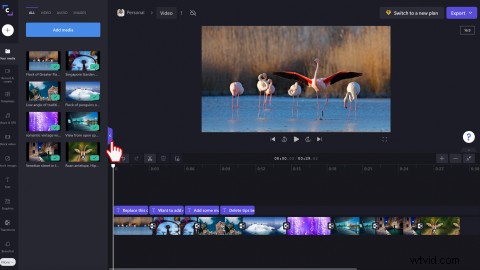
Your video editor should now look like this once you have collapsed the left sidebar.
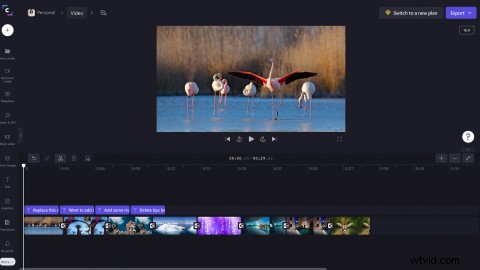
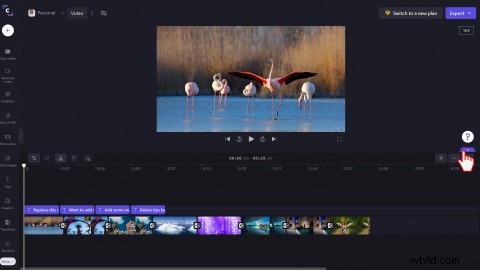
Step 3. Collapse the timeline
Collapse the bottom timeline by clicking the collapse/expand button, or use the keyboard shortcut command + option + 3. The button is a small arrow icon.
Your video editor should now look like this once you have collapsed the timeline.
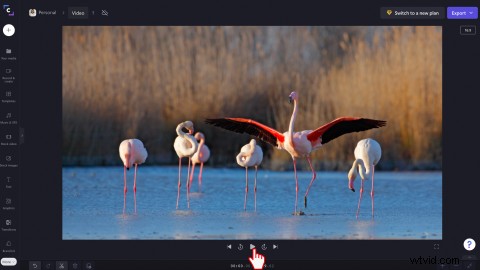
Step 4. Watch your full-screen video preview
Click on the play button to watch your video in the full-screen preview mode. You can play, pause, skip, and rewind your video as often as you would like.
Step 5. Return Clipchamp to its regular display
Once you’re finished watching your video in full-screen mode, return your screen to its original preview. Simply click the same collapse/expand buttons you used to collapse the sidebar and timeline. Clicking on the arrows will extend the timeline and sidebar to their previous size.
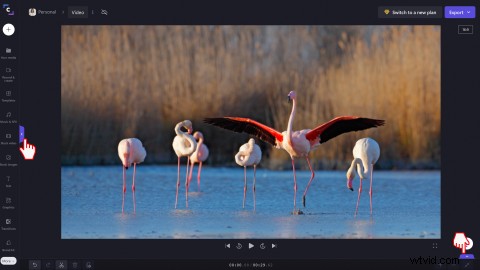
Your video editor should now look like this once you have expanded the timeline and sidebar.
Try it out today
Now that you know how to use the full-screen preview mode with just two clicks, it’s time to try it yourself. Edit videos and preview them in full-screen with Clipchamp.
If you want to know more about what’s new inside Clipchamp, explore features like the freehand crop.