
You can tell a lot about a person from their handwriting, but let’s be real — today we spend more time typing words than penning them. That means font choices communicate more than you might think.
Arial is clean, confident, and modern. Merriweather is an elegant classic. And Creepster (one of our newest additions) is as fun as it is spooky!
The fonts you use in your videos are important — they set the tone, and help you communicate with the 50% of viewers who rely on video captions.
This is why we’ve added more than twenty new fonts to Clipchamp. See them in action in this video:
New hack! Add filters to text
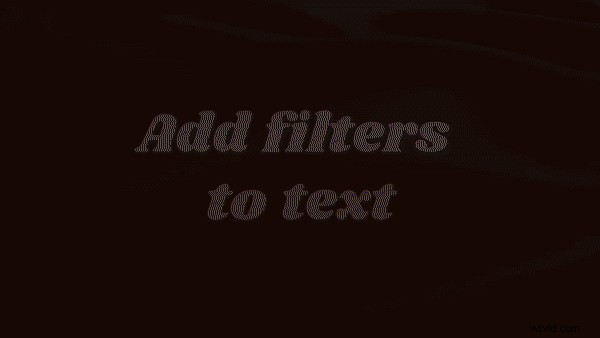
To add to the fun, we’ve got a handy hack to show you. You can now add filters to text. While our filters were originally designed to work on video footage, we’ve realized they look just as good with words!
Step 1. Create a video with text
You know the drill, create a video. If you don’t, you can learn all of the basics here.
Use your own footage or add stock video. Then click on the text tab, select what you’d like to use and drag and drop it into the timeline.
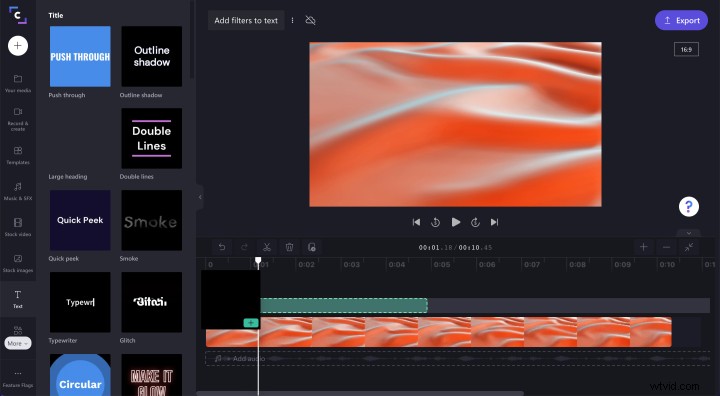
Step 2. Find the right font for your text
Customize your text by changing its font. This is the perfect time to try one of the more than twenty new options available in Clipchamp.
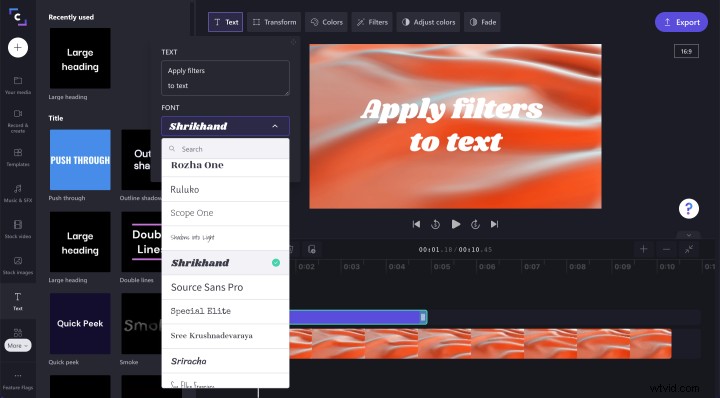
Step 3. Apply a filter to your text
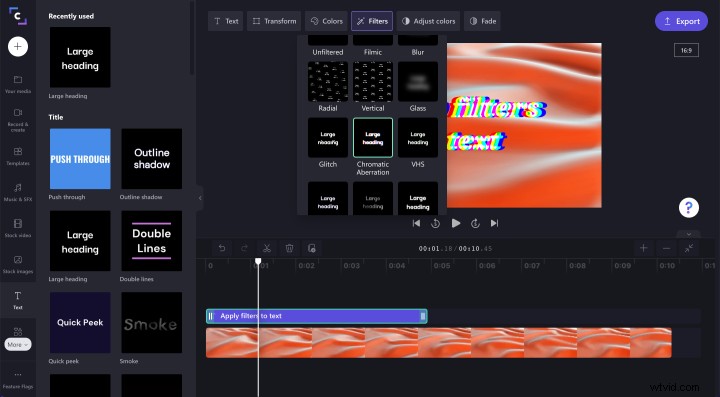
With your text selected in the timeline, select filters (the tab will be above your video). Then, look through the filters that drop down and make a selection. Play your video to see the filtered text in action.
Step 4. Continue editing or export your video
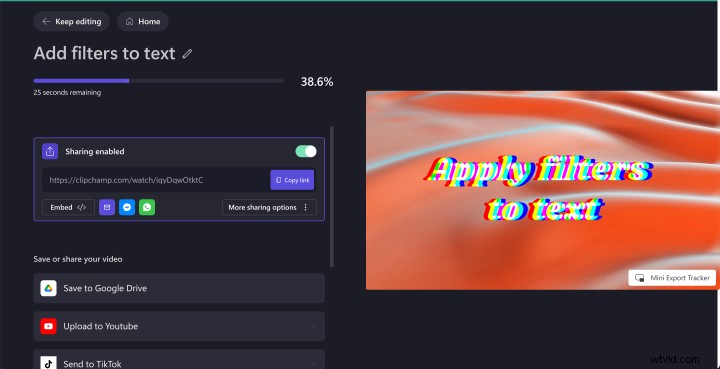
What happens next is up to you! Continue editing your video or select the export button to wrap things up.
Enjoy these new additions
It’s always fun to introduce you to new parts of Clipchamp, but introducing you to two has been twice as nice! Now go explore, find a new font that fits your style and be sure to try out our text filter hack.