

REC

Recommended: Video Production, Editing & Gear Maintenance Guide

 WTVID >> WTVID >  >> video >> Video clip

Organize Your Videos Effortlessly: Introducing Folders in Clipchamp

Organize Your Videos Effortlessly: Introducing Folders in Clipchamp

We love that it only takes minutes to make a video in Clipchamp. It’s great — you could create dozens of videos in a day if you wanted to. What’s not so great? Having lots of videos and no easy way to organize them 😢 

...until now! We’re introducing folders (a tried and tested organizational tool) to Clipchamp. From today, you can create folders and move videos into them — it’s a simple but effective way to clean up your home page and work more effectively. 

How to create and use folders in Clipchamp 

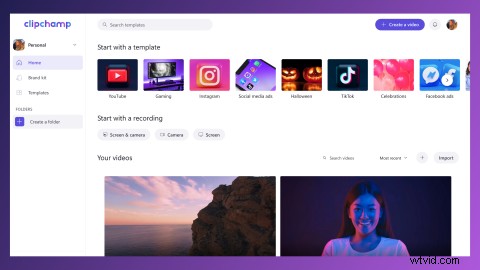
Step 1. Discover folders in the home page menu

You’ll notice something new in your home page menu — folders! 
Organize Your Videos Effortlessly: Introducing Folders in Clipchamp

Step 2. Create a folder

Create a folder to get started (don’t forget to give it a good name).

Organize Your Videos Effortlessly: Introducing Folders in Clipchamp

Step 3. Add videos to your folder

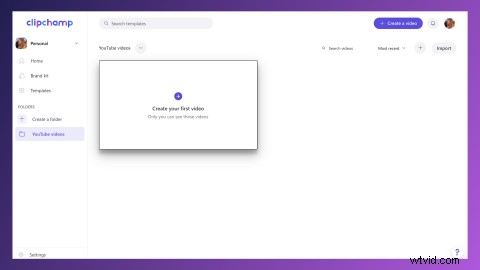
Your new folder will be empty. You can fill it up by creating videos in your folder or by moving existing videos into it.
Organize Your Videos Effortlessly: Introducing Folders in Clipchamp

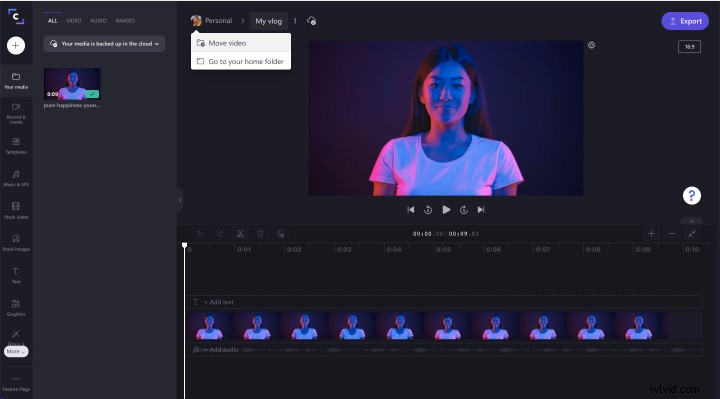
While in the editor, you can move your video to a folder by clicking on see more (the three dots next to your video’s title). From the dropdown, select move video.
Organize Your Videos Effortlessly: Introducing Folders in Clipchamp

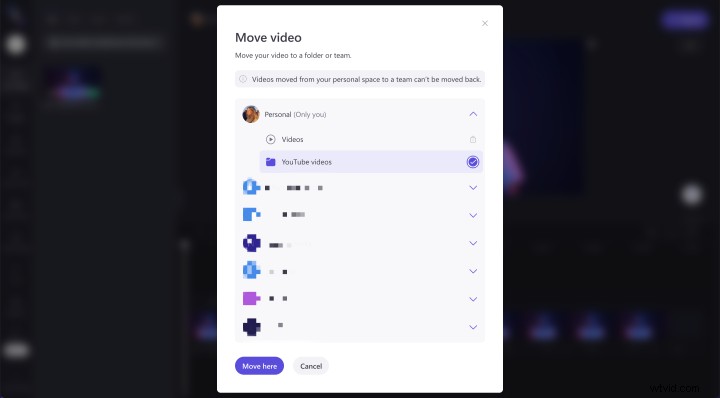
Then select the folder you want to move your video to.
Organize Your Videos Effortlessly: Introducing Folders in Clipchamp

Next time you visit the selected folder, it should contain your video.

Organize Your Videos Effortlessly: Introducing Folders in Clipchamp

Alternatively, you can move videos from your home page.  

To do this, select see more (the three dots) on the video you want to move, then select move.  
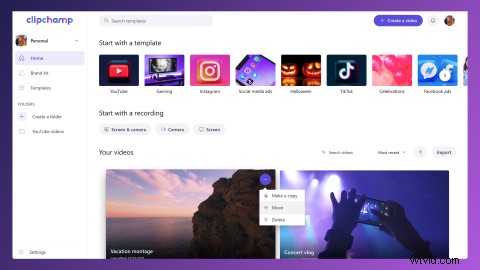
Organize Your Videos Effortlessly: Introducing Folders in Clipchamp

Then select a folder to move your video to.
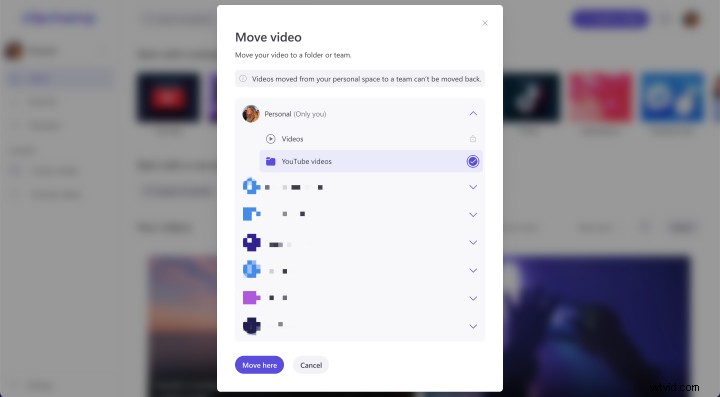
Organize Your Videos Effortlessly: Introducing Folders in Clipchamp

Next time you visit the selected folder, it should contain your video.

Organize Your Videos Effortlessly: Introducing Folders in Clipchamp

Step 4. Rename and delete folders

Next to your folder’s name you’ll see a more button (three dots). Click on this and you’ll see a drop down with the options to rename or delete your folder if you ever need them. 

Organize Your Videos Effortlessly: Introducing Folders in Clipchamp

How many folders can you create? 

As many as you like! You can create an unlimited number of folders in your personal space or in a team.

Let’s get organized

If you’re anything like us, you can’t wait to log in and start cleaning up your videos with folders. So, make like Marie Kondo, and get organized!


  1. Drive E-Commerce Growth: Proven Video Ad Strategies to Attract New Customers

  2. Panasonic SV-AV100 'Lil’ Fella': Compact SD Camcorder with 10x Optical Zoom

  3. Master Adobe Premiere Pro's Freeform View: Step-by-Step Video Tutorial

  4. Master Lightroom's New Texture Slider: Pro Tips to Enhance Photo Details

  5. How to Easily Create New Folders in the Files App on iPhone and iPad

Video clip
  1. Master Creative Projects: Our Free Creative Brief Template Guide & Download

  2. Mastering Still Images in Video: Pro Techniques for Seamless Motion

  3. Master Media Management: Streamline Post-Production Workflows & Save Time

  4. Master Lightroom's Enhance Details: Step-by-Step Guide to Sharper Images

  5. FLV Extract Guide: How to Extract Audio & Video from FLV Files Effortlessly

  6. Ultimate Guide: Organize Video Project Files for Seamless, Worry-Free Archiving

  7. Clipchamp's New Gap Removal: Intelligent Video Editing for Seamless Timelines

  8. Clipchamp's New Freehand Crop Tool: Precision Editing for Videos & Images