
Reach inside hundreds of folders at once to access your assets with this Premiere Pro Relinking tip.
In this short video tutorial, I walk you through how to reach inside hundreds of subfolders to find the files you need and then move (or copy) them into one new location.
This is handy for a variety of reasons, but in my case it was a huge timesaver when trying I was trying to reconnect a project in Adobe Premiere Pro.
I’ll take you through it step by step in the follow video and in the guide below.
Before we get started, there are a couple of things you should know.
First, you really want to give every media file you’re bringing into an editing project a unique file name. In my example, I was working on a client project with original file names like “0001.MTS” — and not something more unique like “280517_0001.MTS.”
The problem is that this technique will fall apart if you have two files with the same name. Because they end up in the same folder, you won’t know which one to relink to.
You can batch rename hundreds of files in a few seconds with apps like Renamer. I talk about how to do that here.
Secondly, if your media requires a specific folder structure to remain intact, then you might want to make a copy of the files rather than moving them — just to cover your bases.
(The track in the video is “Saboteur Jam” by Grandom, from Premiumbeat.com.)
When Premiere Will Only Relink One File at a Time
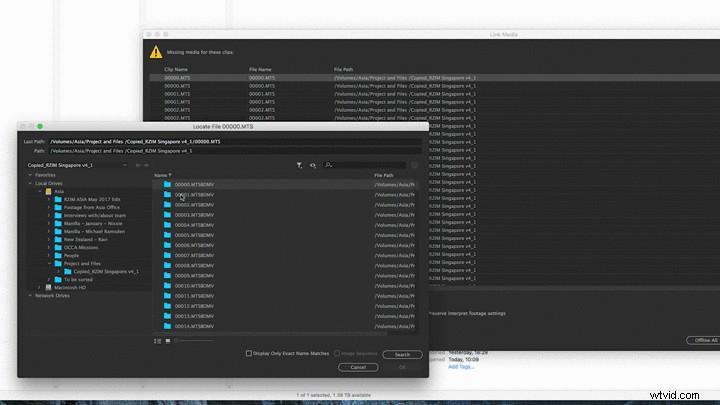
Here is the situation: I have to relink an already-edited Premiere Pro project, but the files aren’t automatically reconnecting because each of the files it’s looking for is in a subfolder.
(Normally, if you point to one missing file in a folder, the program can automatically relocate and relink the rest of the media in that folder.)
If you don’t know where a file is, you can search in the relocate window, but if you have multiple files with the same file name elsewhere on the drive, Premiere might discover those instead of the ones you need.
My quick fix lets you move hundreds of individual files out of hundreds of subfolders and into one folder so that Premiere can relink to the media in a few seconds.
Step 1 — Move Folders
Move all of the folders you need to look inside into one new folder. In the video tutorial, I called this folder “All MTS Folders in One.”
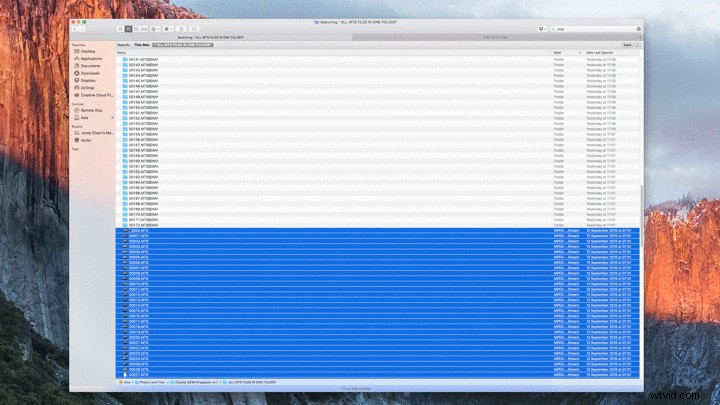
Step 2 — Mac Finder
Use the Mac Finder to search inside that new folder for the file extension you need. In my case it’s “.MTS.” This will reveal every file name with the MTS extension in that folder.

Step 3 — Sort
In the Finder window of your search results, sort by Kind from the list view. Scroll down to find all of the files you need in a neat list.
Step 4 — Move Files
Move or copy (alt+drag) those files into a new folder (e.g. Just MTS Files).
Step 5 — Relocate Media
In Premiere, point to this new folder (just MTS Files) when relocating your missing media, and it will automatically find all the files.
This tip is very easy to follow, and there are a few caveats that apply depending on your unique circumstances (such as duplicate file names, directory structures, etc.), but the time you will save is worth it.
Do you have tips for relinking multiple files in a project at once? Let us know in the comments.