
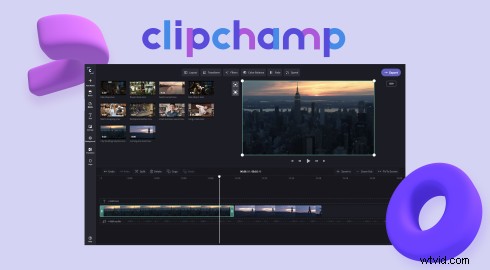
Do you want to save valuable time when uploading videos to YouTube? Conveniently upload videos directly to your YouTube channel without leaving your browser with Clipchamp’s YouTube integration.
Read on to explore our step-by-step guide on how to make YouTube uploads faster using Clipchamp’s YouTube integration.
How to publish your Clipchamp video to YouTube
In a few easy steps, make YouTube videos with Clipchamp and easily export them directly to your YouTube channel.
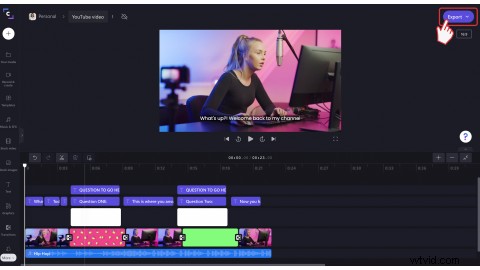
Step 1. Click on the Export button
When you’re finished editing your video, click on the Export button at the top right corner of the editor.
Step 2. Select a video quality
Click on 480p, 720p, or 1080p video resolution to continue the export process. We recommend saving your YouTube video in 720p as it’s the best resolution for social media.
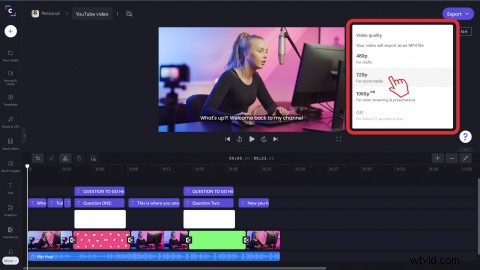
Your video will begin to save once you have clicked on a video resolution.
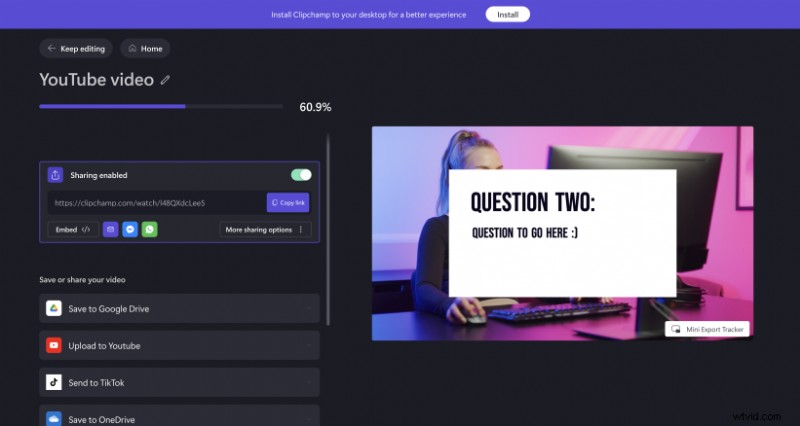
Step 3. Share your video to YouTube
Once your video has been processed, click the Upload to YouTube button.
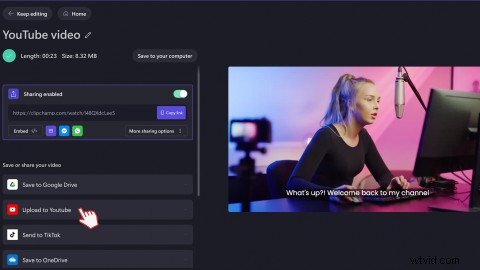
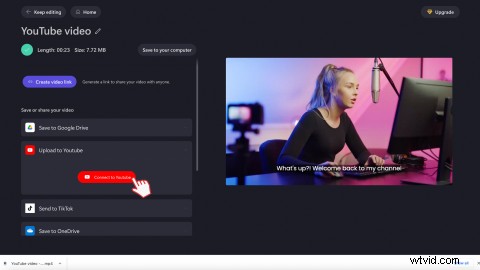
A drop-down menu will appear. Click on Connect to YouTube.
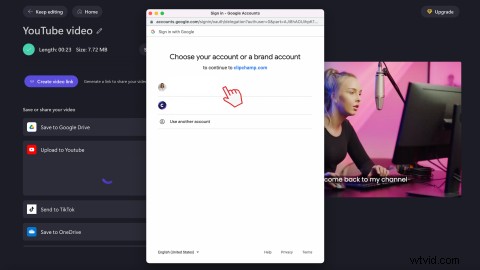
A pop-up window will appear. Click on the account you would like to share your video to or sign into another account.
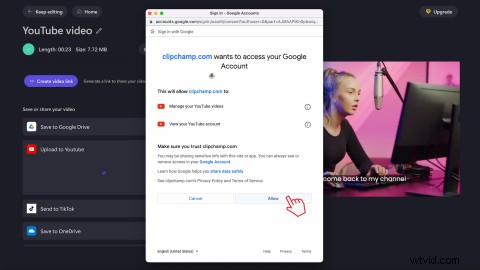
Next, click on the Allow button to allow access to your Google Account.
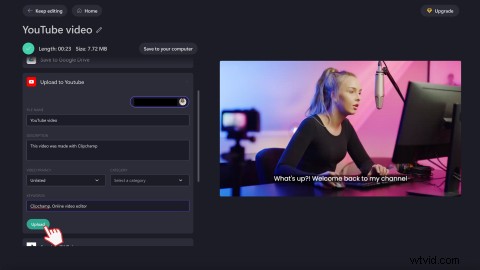
Personalize your YouTube video by filling out the title and description. Select your video's privacy settings and category, then add any keywords. Once you have finished, click on the Upload button.
Frequently asked questions
Why doesn't my upload from Clipchamp to YouTube work?
If you’re having trouble uploading from Clipchamp to YouTube, try deleting all browser cookies on app.clipchamp.com related to Google and YouTube.
To do this, click on the lock symbol in the browser address bar from your Chrome browser, then click on Cookies. Remove all entries related to Google and YouTube. Close the popup and reload the page.
Can I add YouTube tags when uploading from Clipchamp?
Yes. Add YouTube tags to your description when uploading directly from Clipchamp.
Can you upload multiple videos to YouTube from Clipchamp?
You can only upload one video to YouTube at a time from the Clipchamp export page. However, there is no limit on how many videos you can upload to YouTube from your Clipchamp account even if you are a free user.
What should I write in my YouTube video description?
When writing your YouTube video description, use simple language, and include what your video is all about from an SEO standpoint. Share a strong CTA, any YouTube Chapters you might have, and where viewers can send their feedback.
Simple as that
Easily create engaging YouTube videos and share them even faster with Clipchamp’s YouTube integration.
Watch on our YouTube channel