Extract audio from a video for YouTube online
Having just a soundtrack of your favorite educational class could be one of the ways to relisten to it as often as you need and whenever you need it. Additionally, this can save traffic and storage space on your device.
Luckily, there is an online tool by Clideo that can help you extract audio from a video for YouTube or any other video you own. You neither need any special software or app installed, nor any specific skills. A browser on your device — Windows or Mac, iPhone or Android — will suffice.
Moreover, the service is free and requires no registration if your file is up to 500 MB.
Let’s see how you can get a recording out of a website link in several simple steps.
Add a video
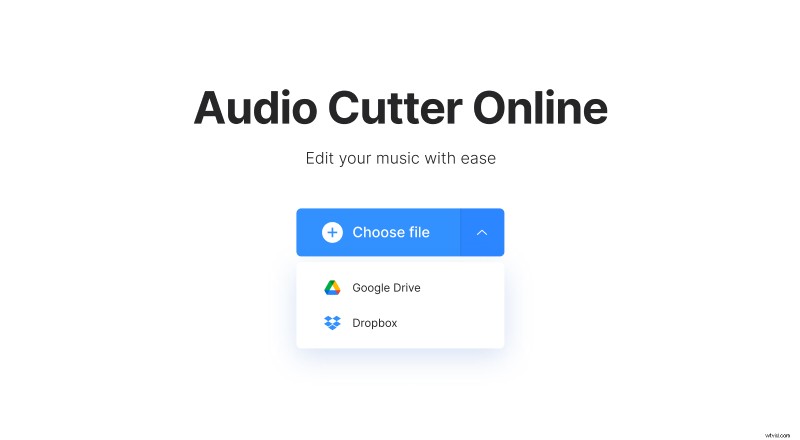
Your first step is easy: open Clideo’s cutter in your preferred browser. Then click the blue "Choose files" button to upload the video from your device.
Extract audio
Once uploaded, the track will be displayed as a sound wave preview with a randomly selected part.
If you drag the yellow handles, you can specify the start and end of your track. You can also do that manually — if you have the exact timestamps for the most interesting moment that you need, add the corresponding timing in the “Cut from” section below.
Please note, as this tool is a cutter tool, you need to cut at least 0.11 seconds from any of the track sides to make the “Export” button at the bottom right active.
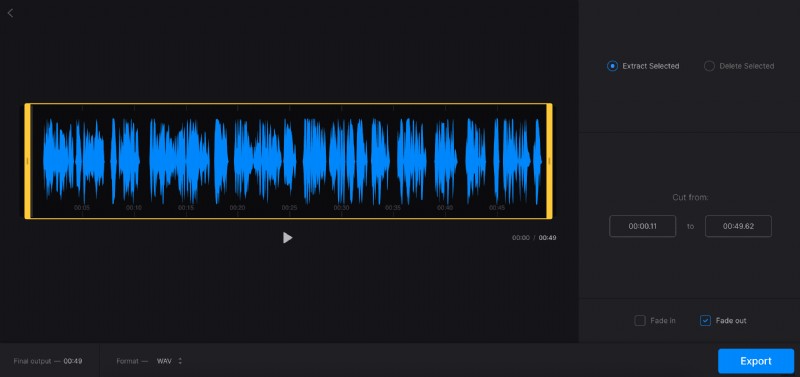
The service lets you add some effects to your audio as well: fade-in and fade-out are available when you choose the “Extract Selected” option and crossfade — when you choose “Delete Selected”.
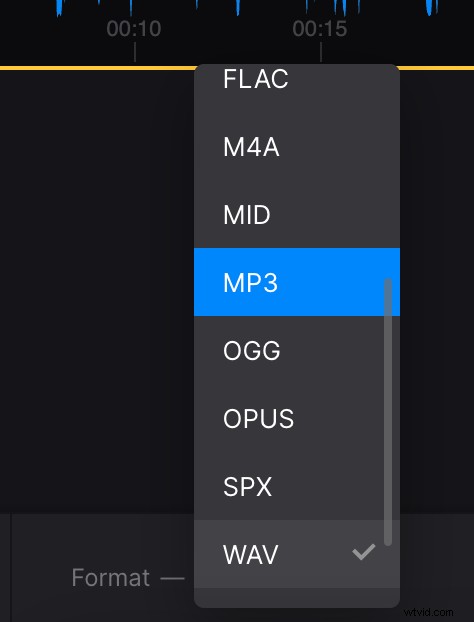
At the bottom, you will see how long the final recording will be. Also, you can call the drop-down menu to choose an output file type: FLAC, MP3, OGG, and so on.
Once done with the settings, click the “Export” button.
Download the recording
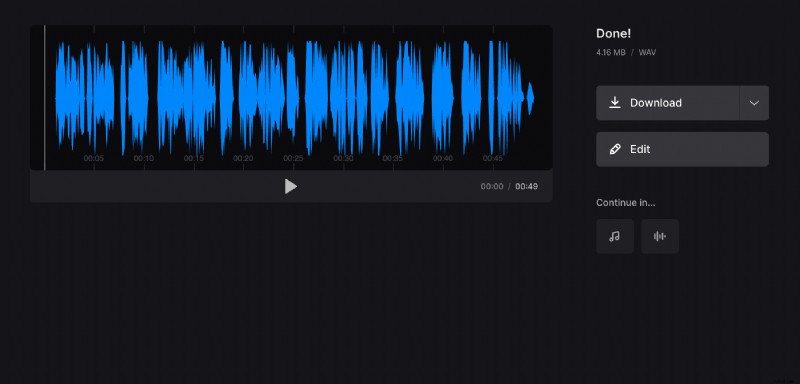
In this last step, you can do the final review of your file. If it meets your expectations, then use the “Download” button to save the recording to your device. If any tweaks are needed, you can always use the “Edit” button. Then you will return to the tool to make the required changes.