
Extract audio from an MKV video online
However, if you have an MKV file you want to extract audio from and you’re wondering how to go about it so you can listen to it from a music player or smartphone, then you’ve come to the right place.
Using our nifty tool, you can do so quickly and easily. Best of all, it’s free and doesn’t require purchasing any expensive apps because it works completely online. The tool will work on any browser from any device, including Mac, Windows, Android and iPhone.
Here’s how...
Upload your MKV video
Head over to Clideo’s MKV Audio Extractor and hit the blue ‘Choose file’ button in the centre of the page. You’ll then be given the option to upload a file from your personal device.
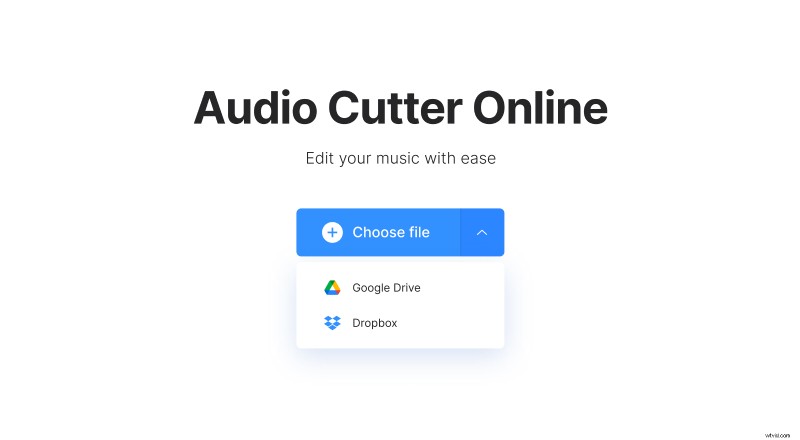
If you want to upload your clip from a cloud storage account instead, tap the down arrow and a drop-down menu will appear. Select the Google Drive or Dropbox option.
Separate the audio from MKV
Once your clip is uploaded, you’ll be taken straight to the tool’s editor. Here, you’ll be able to cut it down in length, if required. Move the green sliders in the player to select your beginning and end.
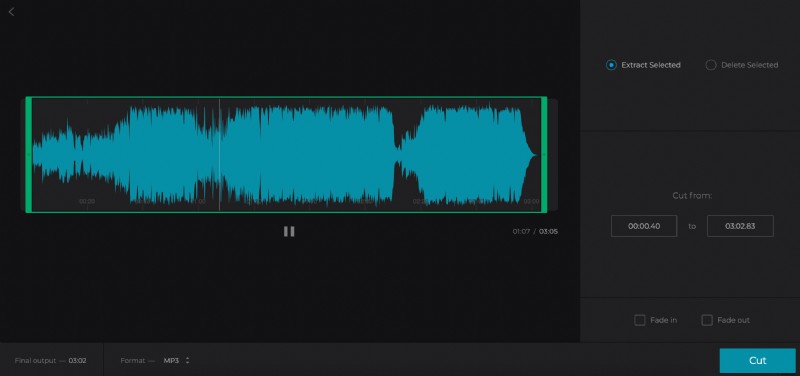
You’ll see the options ‘Extract Selected’ or ‘Delete Selected’. The former means only part of the track that is selected will be kept, whereas the latter means the tool will cut out the extract from the track and merge the rest.
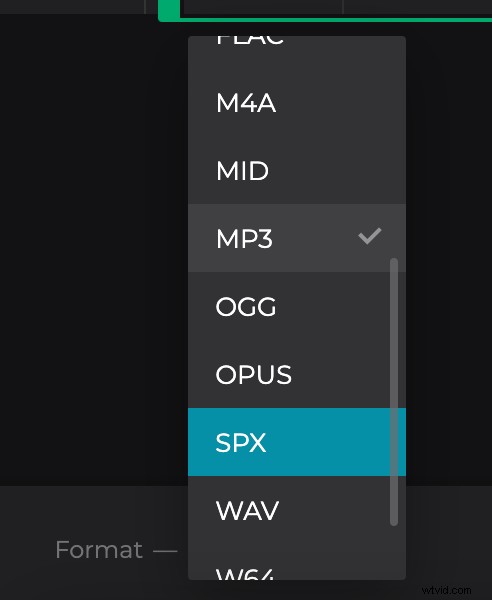
Next, ensure that you have chosen the preferred format. There are many to choose from, but we recommend MP3 as it’s the most universally compatible.
Preview the track via the play/pause button in the centre of the editor and if you’re happy with the result, hit the ‘Cut’ button.
Download your new audio file
Once you’re all done with editing, the tool will begin processing your new audio track. When that’s done, you’ll be given the option to download it back to your device or a cloud storage account.
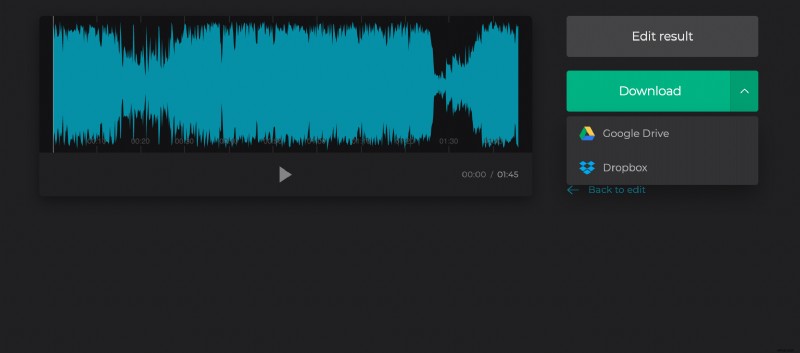
Before you tap the ‘Download’ button, play the track to make sure it’s to your liking and if you’ve made a mistake - don’t worry. Simply hit the ‘Back to edit’ option and you’ll be taken back to the editor where you can make more changes without starting over.