Rip audio from a video file in three steps
...But you want to have it separately anyway. And the only option to get it is to cut the audio out of the video.
It’s a simple task to do using our simple service.
There is no need to download and install it as it works online. You can use it completely free of charge and it does not require any effort at all. But the best thing about it is that while you’re editing a file, the quality stays the same!
Here’s how you can easily rip audio from video on Android, iPhone, Windows or Mac.
Upload any recording
Open Clideo’s audio ripper, then click on the blue “Choose file” button and pick an MP4, MOV, AVI or any other file from your device.On a computer you can also just drag the video from the folder to the page.
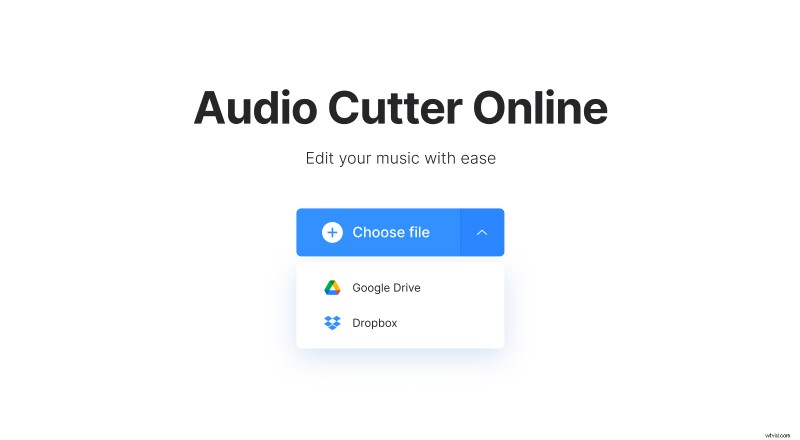
Сall the drop-down menu on the right of the big button. There’ll also be an option to select content stored on your Dropbox or Google Drive.
Get your music
Once it’s uploaded, notice that the “Extract selected” option is selected by default. Move yellow markers to select the section you want to save. You can also write down the exact time segment in fields below the “Cut from” option.
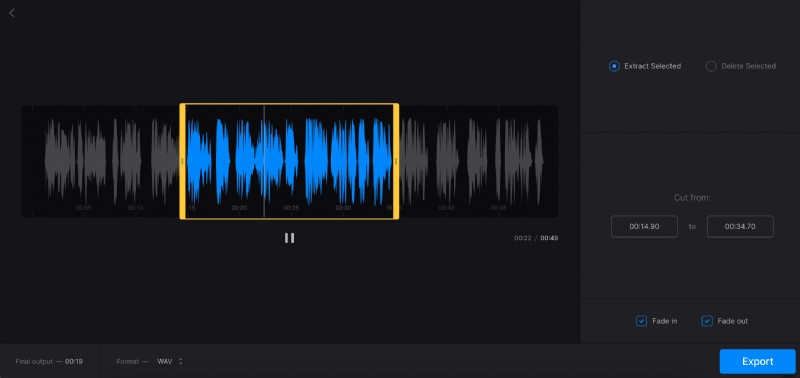
Check “Fade in” and “Fade out” boxes if you want the audio to start and end gradually.
With the other option, “Delete Selected”, you can cut out the middle part of the audio and combine the sections before and after it. Checking the Crossfade box will make transition between the remaining parts smoother.
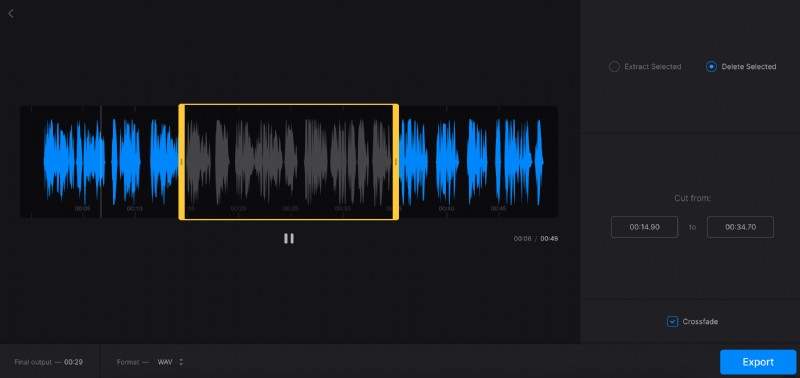
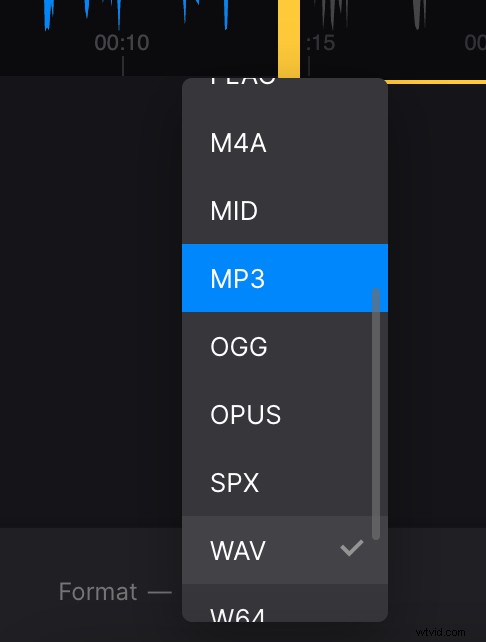
The default format is MP3, but you can change it on the bottom left.
After you finish editing, click on the “Export” button.
Save the ripped audio
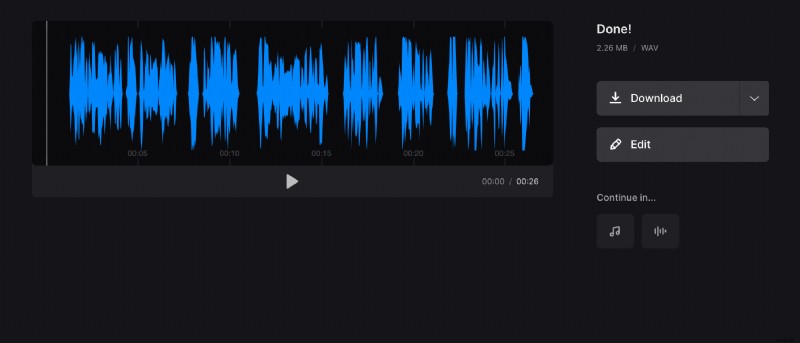
On this screen you can listen to the result of the editing and download it directly to your device or cloud storage. In case you want to cut it some more or, on the contrary, add more time, you can click the “Edit” button and it will return you to the previous step.