
How to save MP3 from your YouTube video
It might sound complex but it’s actually super easy to do. Best of all, it’s free and doesn’t require downloading any bulky or expensive apps. Here’s how to get MP3 from your YouTube video...
Add a video from YouTube
First of all, go to your YouTube account and download the already posted video if don't have it stored on your device.
Navigate yourself over to Clideo’s MP3 Cutter. This tool simply works online from the safety of your web browser - any browser for a matter of fact - and from any device (PC, Mac, Android or iPhone). Well, so long as it’s connected to the Internet!
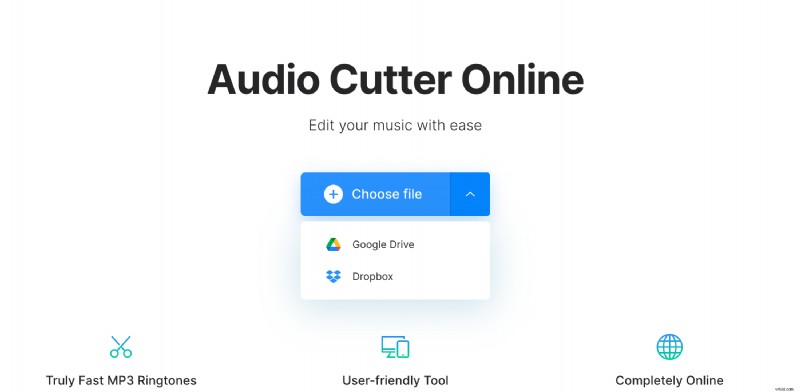
On the tool’s home page, you’ll be welcomed by a big blue Choose File button. You can upload a physical clip from your device’s hard drive or cloud storage services Dropbox and Google Drive.
Cut the MP3 if you want
Next, you’ll be taken to the tool’s editor, where you will be able to select the beginning and ending. Move the sliders in the player to make changes to its length.
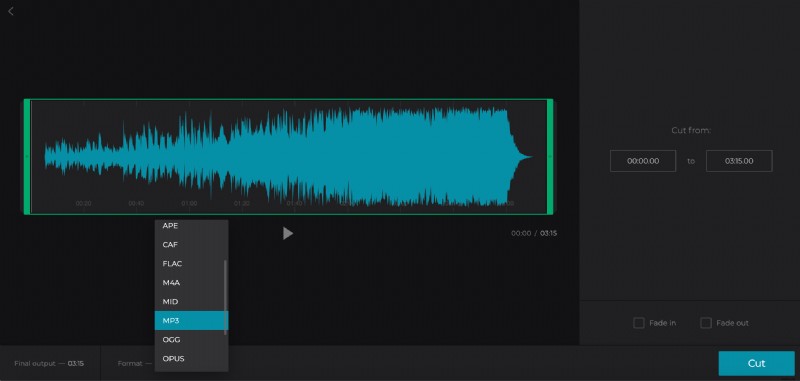
If you want it to fade in and fade out your track, simply tick the appropriate boxes on the bottom right-hand side.
Ensure that you have chosen MP3 from the format option on the bottom left. There are many other audio file formats to choose from if you so wish.
Preview the track via the play/pause button in the centre and if you’re happy with the result, hit the blue Cut button on the bottom right. Your new audio track will begin processing and will be ready in a flash!
Download your new track
For the third and final stage, you’ll be given the option to download it back to your device or cloud storage account.
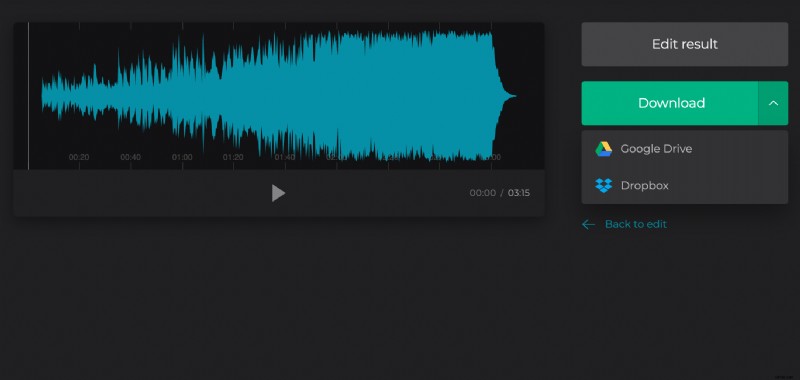
Before hitting the Download button, play the track to make sure it’s to your standard and if you’ve made a mistake - don’t fret - simply tap “Back to edit” and you’ll be taken right back to the editor where you can make more changes.