2 free ways to save videos from Instagram and 1 easy way to cut a part of it:
- Screen recording
- Direct downloading off Instagram
- Cut Online with Clideo
Screen recording
A unique option for iPhones and iPads. iOS 11 permits the users to record what is going on on the screen in the real-time mode without downloading any app. Start the desired video on Instagram and, well, record the visuals and sound without URL pasting:
Step 1:
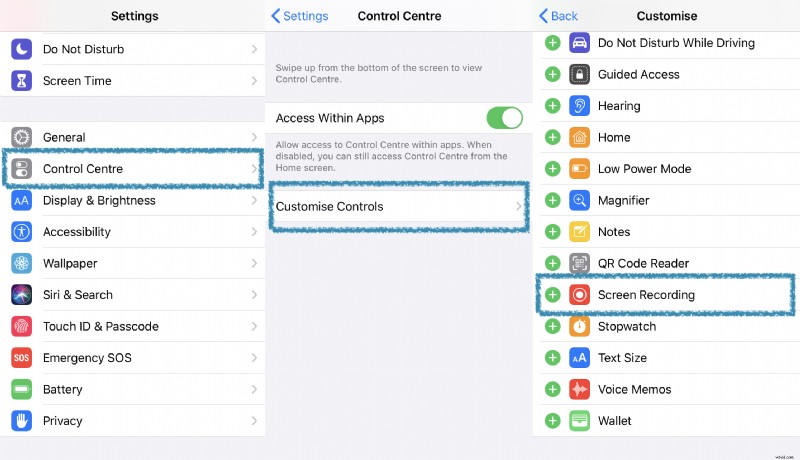
Open Control Center in Settings, choose Customize Controls, find Screen Recording and tap a green “plus” sign next to it.
Step 2:
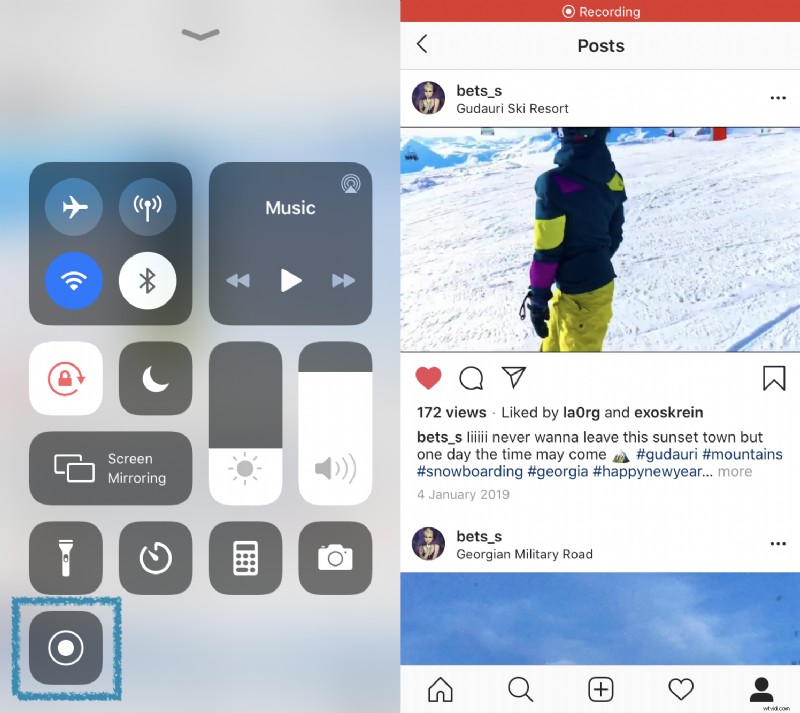
Open the needed video and run it. Swipe up from the bottom edge or swipe down from the right-upper corner depending on the iOS version.
Step 3:
Tap Start Recording in the bottom line of icons. It will start in 3 seconds.
Step 4:
When everything is ready, stop recording by tapping a red status bar at the top of your screen.
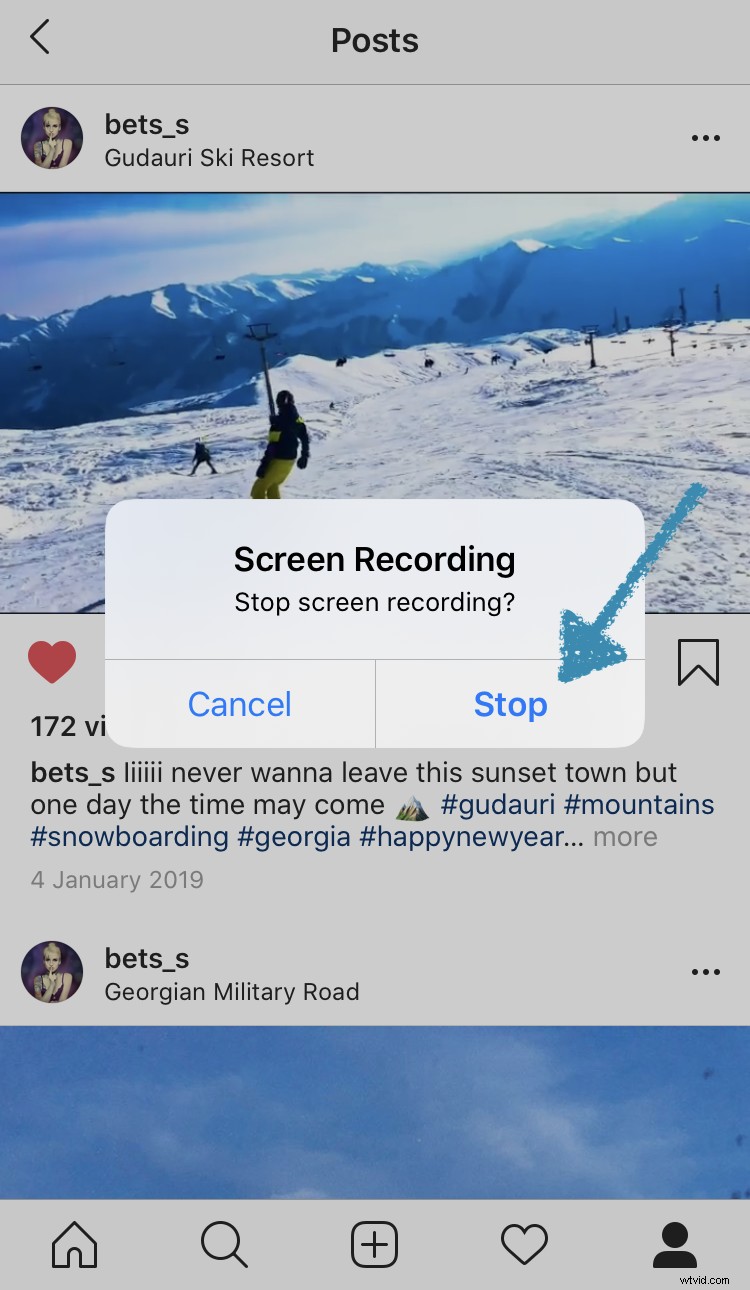
The video will be saved to your gallery, you’ll be able to open it with Photos.
Direct downloading off Instagram
It may be news for someone, but Instagram does allow saving your own video posts or Stories after posting. The way is a little bit complicated, though:
Stories
Easy as ABC. Just tap three dots to call More and choose Save Video, it’s available even for Archive Stories.
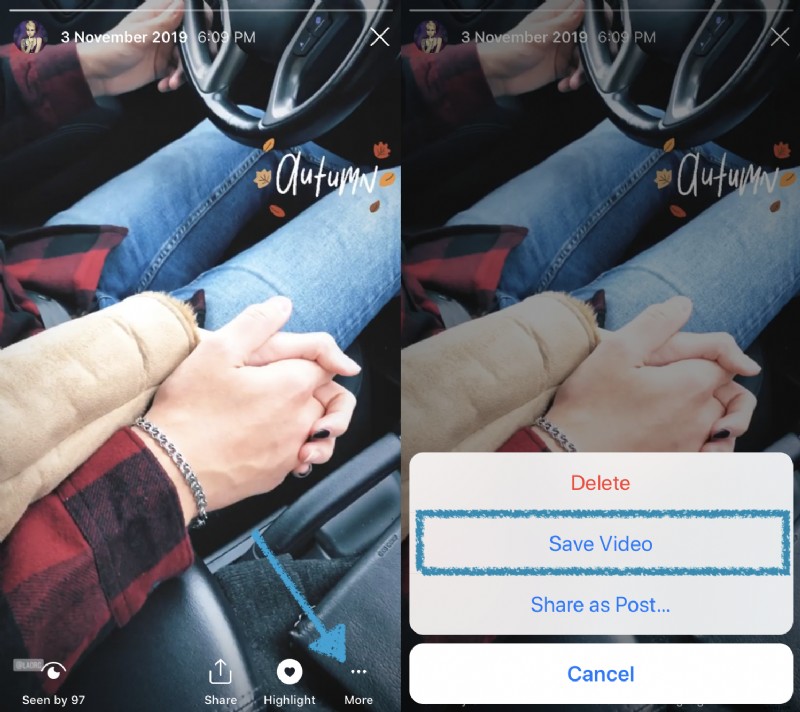
Note: This option is in the Instagram app only, there is no desktop version!
Posts
You can’t download them directly, but you can request a copy of all your shared content.
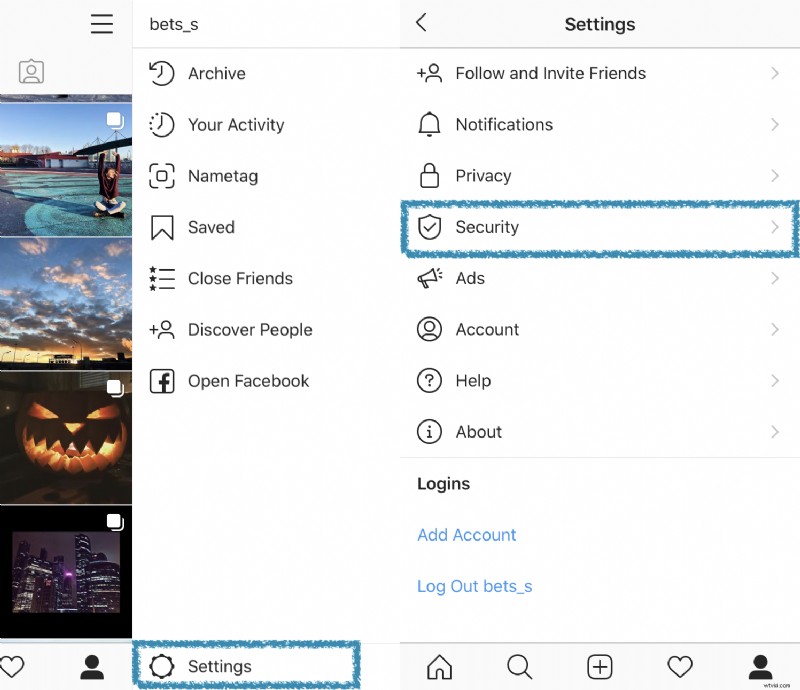
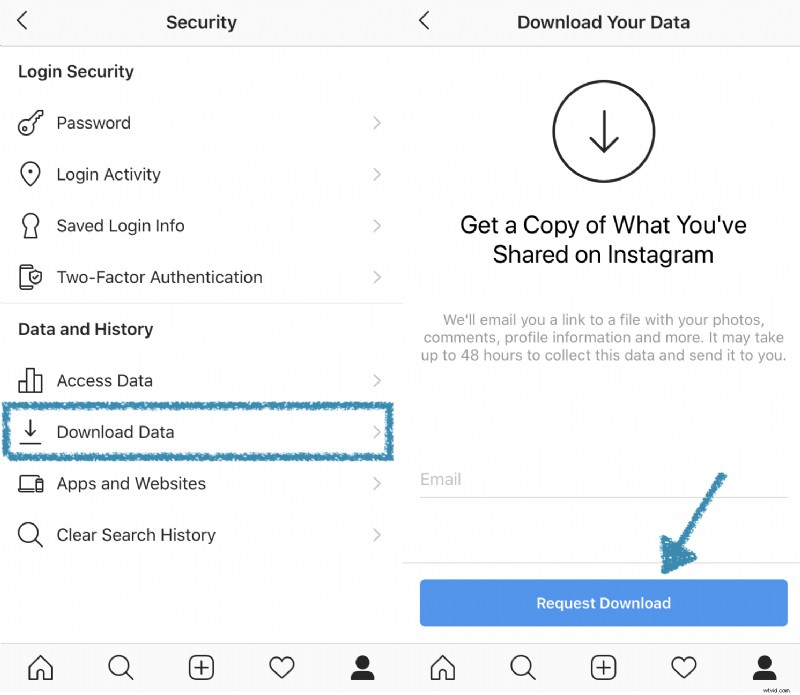
It works on any device but if you wonder how to save Instagram videos on your computer, that’s it: go to Menu on the top right in your profile -> Settings -> Security -> Download Data.
Here enter your email and click on Request Download. Within 48 hours, you’ll get an e-mail with a link to all your old-published data. Then you can save it either to a computer or to a mobile device.
Cut Online with Clideo
A free online tool, allowing users to trim any video if needed and save to a PC, a Mac or a mobile phone:
Step 1:
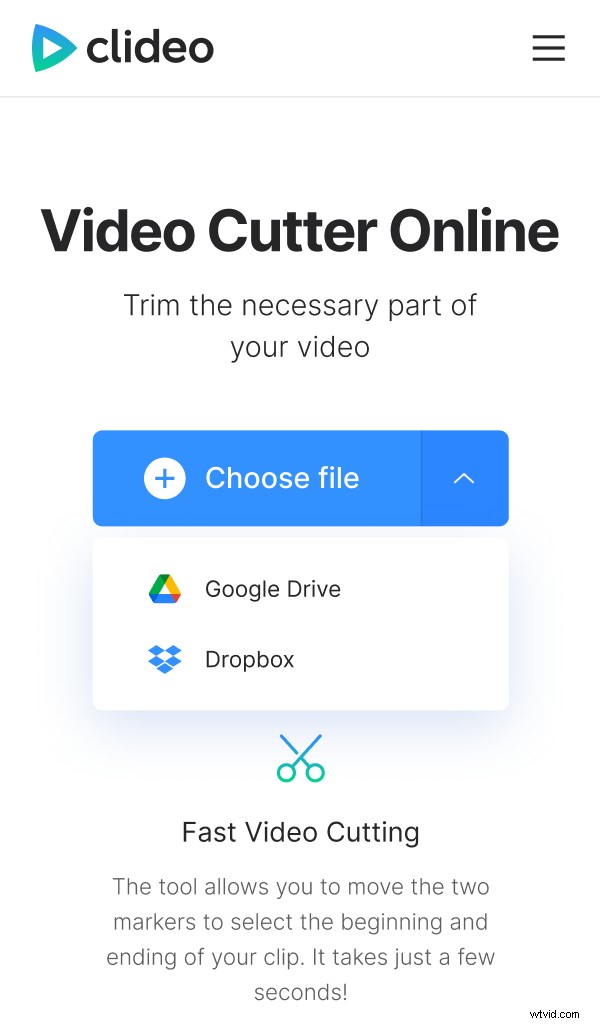
Open Online Video Cutter by Clideo. Click "Choose file" to add from your device. You can also click an arrow on the blue pane and upload from Google Drive or Dropbox.
Step 2:
Edit the video as you wish. You may trim the film, moving sliders or setting and exact beginning/end time.
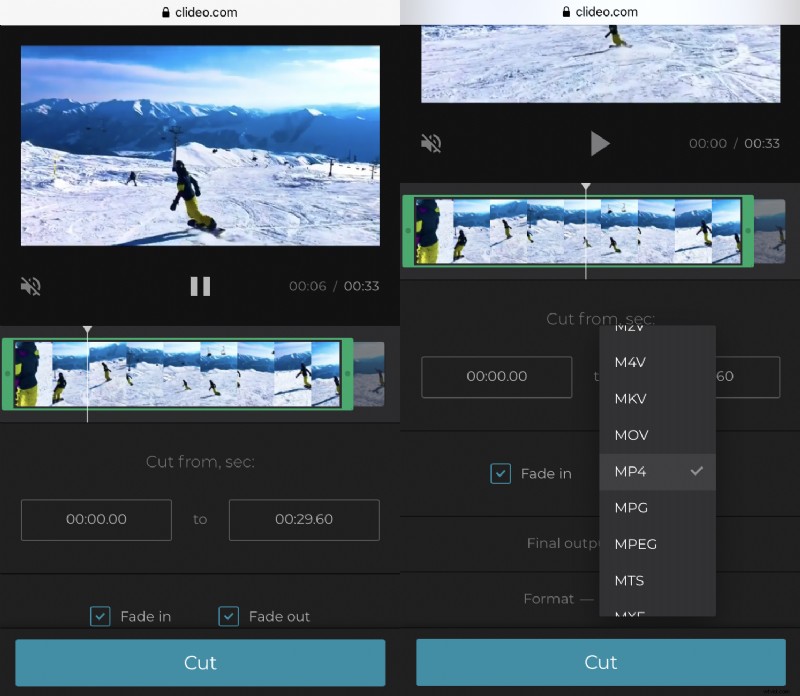
Tick “fade in” and “fade out” boxes to make the video smoother. At this step, you should also decide on a final output format – or keep the initial one.
After all the operations – or without them – click “Cut”. The video will be processed, it will take just several seconds.
Step 3:
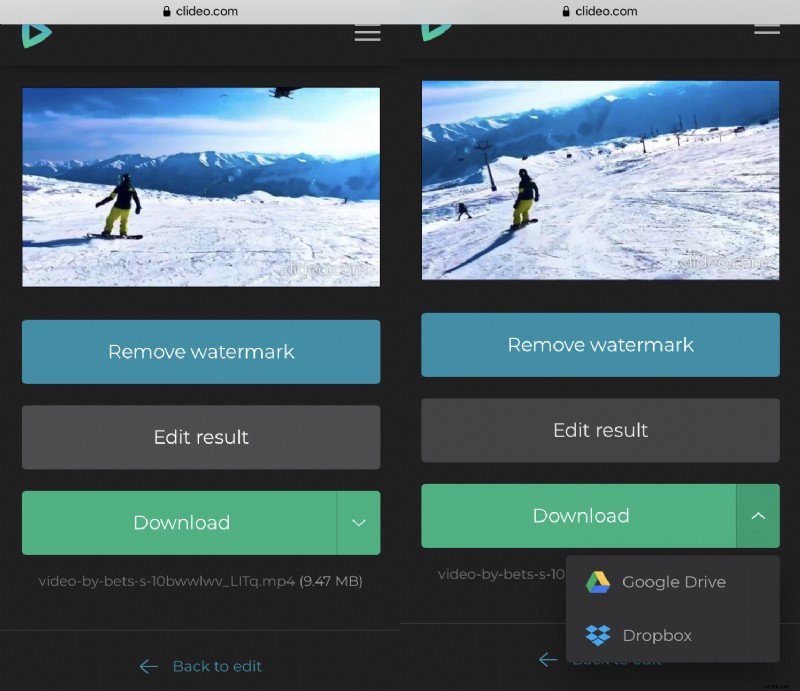
Download the result. You may choose where to save it. The Online Video Cutter is the only way to save a video both to a computer and to a smartphone.