
Make a GIF from a clip for YouTube or another video
Sometimes, it’s a good idea to make loops from your favorite film moments or even your private videos, why not. This way you can add your own levels of meaning, express yourself clearer, and portray yourself in your very own specific manner.
These days you can design your GIF using no complicated software tools or apps. All you need is your preferred browser with access to the Internet and a pinch of creativity.
So, you have a video clip in mind that will suit perfectly for an animated image. Now let’s explore how you can become a creator of your own short, never-ending story.
Upload your video
To add your movie clip, go to Clideo’s Video to GIF Maker. The service is available in any browser and on any device — Mac, Windows, iOS, Android, and so on. Any video file format is ok for it.
If your recording is right on your device, just click the big blue “Choose file” button to start the upload.
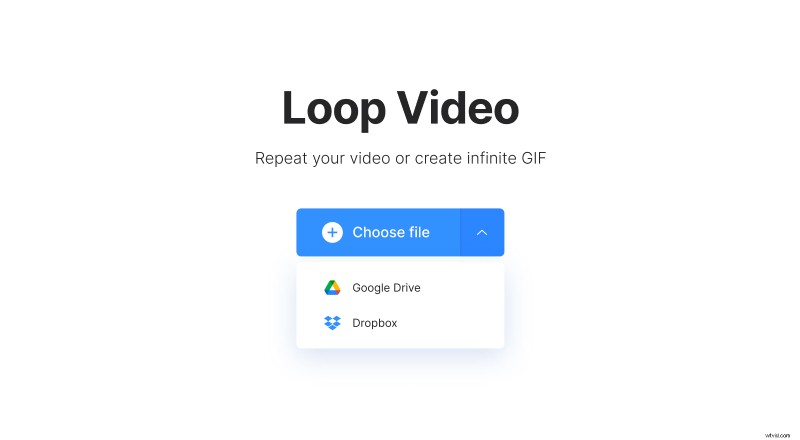
You can also add from your Google Drive or Dropbox storage, hover over the drop-down arrow to see that option.
Create your GIF
Once the video is processed, you will see its preview and a few buttons in the right-side pane. To make a GIF, click the very last button with the “Infinity” icon. Thus, your animation will repeat over and over again. Please note that animated images cannot have audio, so if there was any track in the original file, it will be muted.
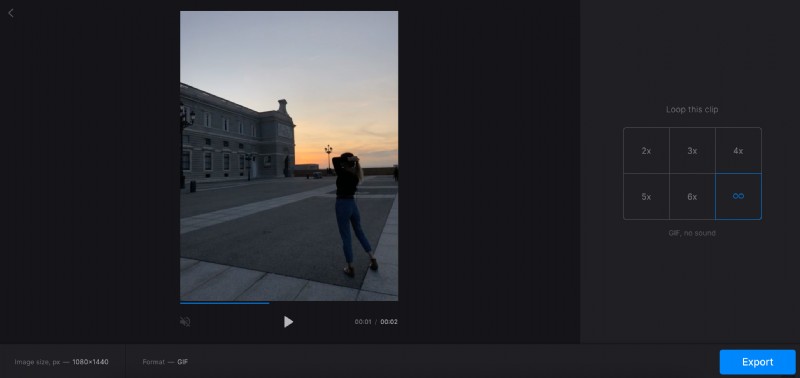
In the bottom pane, you can see some useful information about the outcome resolution. If you think it is too huge for your needs, consider resizing the original clip first.
Hit the “Export” button to get your GIF done.
Save your animated image
The transformation will take a few moments. Finally, have a look and check if all looks perfect. If so, click the “Download” button to store the result on your device or save it to your Google Drive or Dropbox.
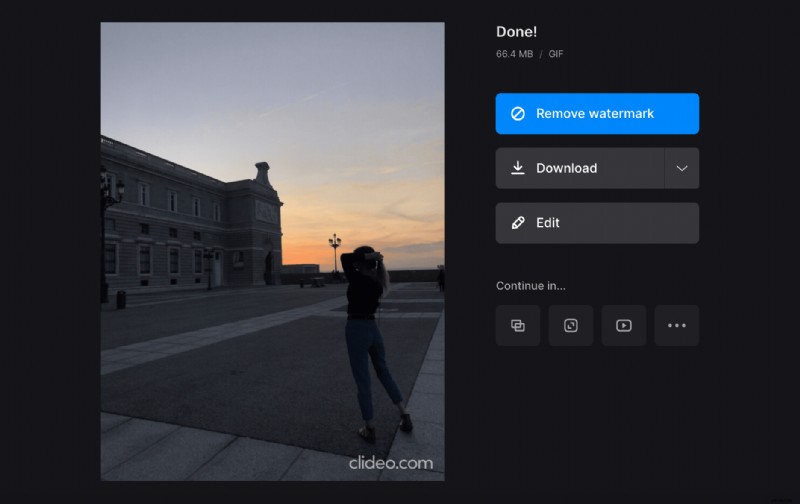
By the way, you can proceed with your creative endeavors by using our meme maker. Being a Pro subscriber will let you go from one tool to another without downloading and re-uploading your intermediate results.