
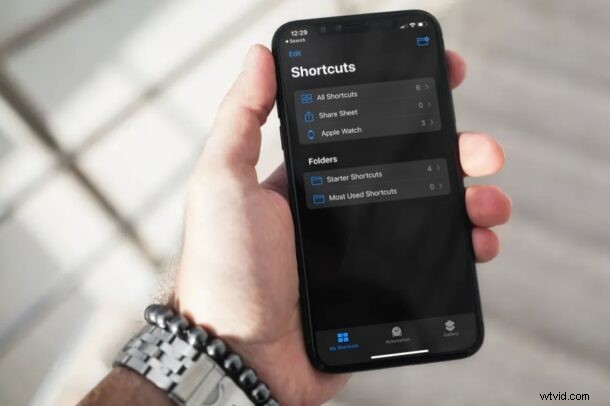
Do you use the built-in Shortcuts app on your iPhone to launch apps, run automated tasks, change app icons, and perform various other actions? In that case, you may be interested in organizing all of your shortcuts into folders within the app, especially if you’ve created many of them.
Apple’s Shortcuts app that comes pre-installed on iOS and iPadOS devices let users quickly do everyday tasks and operations with just a tap or by asking Siri to run them. From launching apps to creating custom icons for your apps, there are so many things you can do with this particular app. With the latest versions of iOS (14 onward), Apple has added the option to create folders and neatly organize all your custom shortcuts.
How to Organize Shortcuts in Folders on iPhone & iPad
Before you go ahead with the following procedure, make sure your device is running iOS 14/iPadOS 14 or later, since folder organization isn’t available on older versions.
- Launch the “Shortcuts” app on your iPhone or iPad.

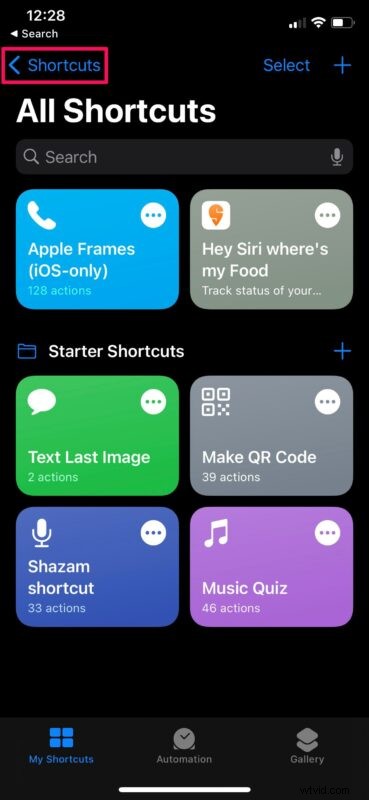
- This should take you to the All Shortcuts section of the app. Here, tap on “Shortcuts” located at the top-left corner of the menu as shown below.
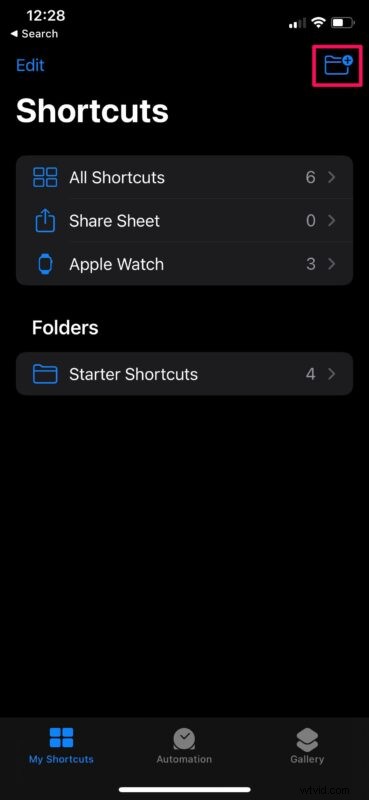
- Now, you’ll see that a folder called “Starter Shortcuts” has already been automatically created by your device. Tap on the folder icon located at the top-right corner of the screen.
- Next, give a preferred name for the Shortcuts folder and tap on “Add” to continue.
- You’ll find this newly created folder right below Starter Shortcuts. Tap on the folder you just created.
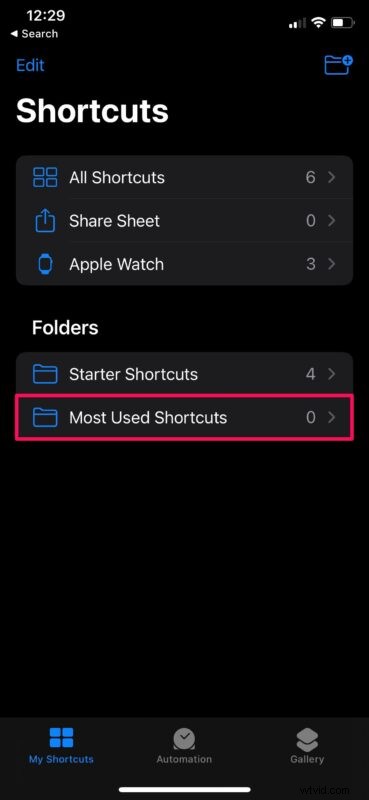
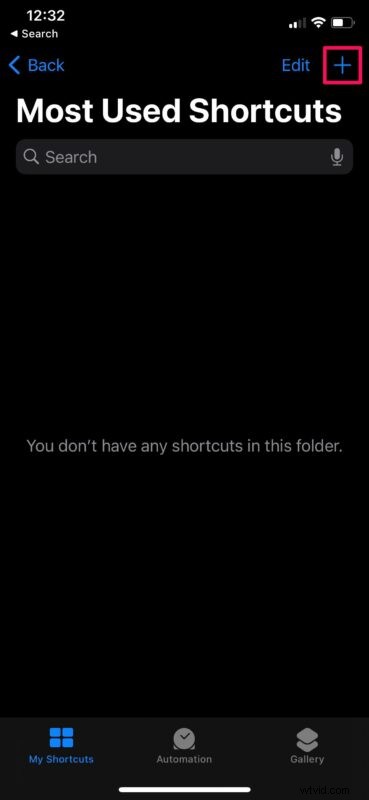
- As you can see here, the folder is empty at the moment. However, you can create a new custom shortcut by simply tapping on “+”.
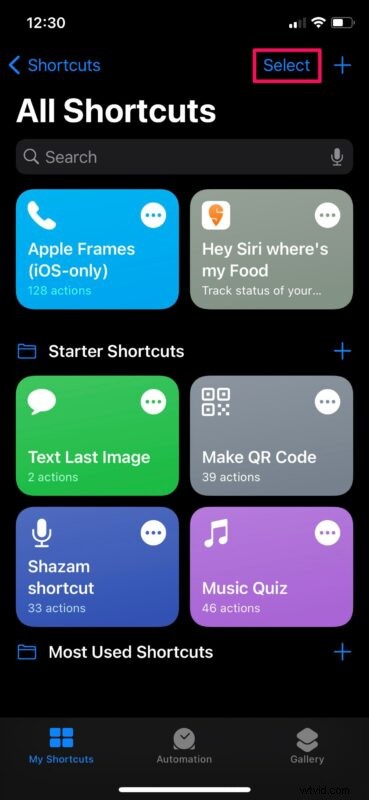
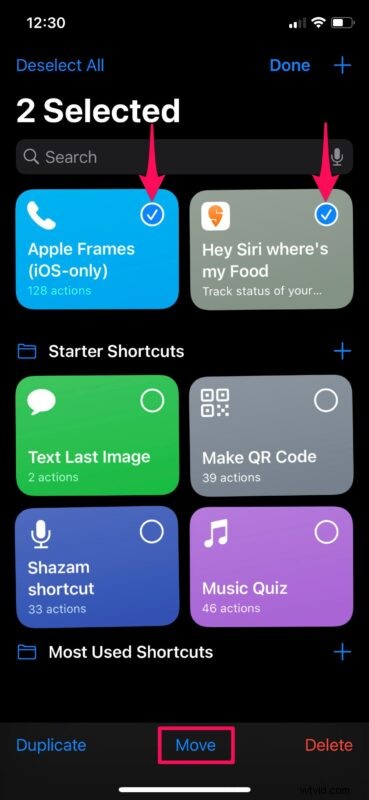
- On the other hand, if you want to move an existing shortcut to this folder, go back to the All Shortcuts section. Now, tap on “Select” located right next to the + icon.
- Next, simply tap on the shortcuts to select the ones you want to move to the newly made folder. Tap on “Move” to continue.
- Now, select the newly created folder from the list of available Shortcut folders on your device.
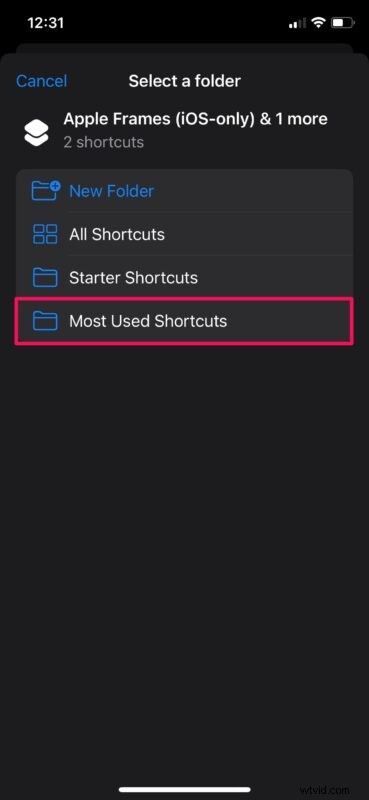
And there you have it, you’ve successfully moved the shortcuts to the new folder. Pretty easy, right?
You can repeat the above steps as many times as you want to create multiple folders and organize all the custom shortcuts that you have created so far. You can also create a new folder while moving the selected shortcuts.
One of the interesting new additions to iOS 14 are Home Screen widgets for iPhone, and you’ll be pleased to know that Shortcuts support widgets too. You can add any of the folders that you created as a widget right on the home screen for quick and easy access. You can run any shortcut stored in a folder from the widget itself without having to open the app.
Apart from this new feature, the Shortcuts app has also received other improvements. The app can now suggest automations based on your usage patterns which could be helpful for beginners. You can also set up automation triggers to run shortcuts. For example, you can set the app to run a shortcut when you receive a text message, or even schedule text messages if you feel the need to.
Now you know how you can organize all your custom shortcuts with the help of folders. Do you have any thoughts, experiences, or opinions on Shortcuts and Shortcuts folders? Share with us in the comments!