
Are you looking to add some excitement to your videos? From social media and gaming videos to marketing and sales videos, GIFs can help you express your emotions and messages in a few seconds. GIFs are the perfect way to capitalize on trends, add value to your videos, and connect with your viewers.
Read on to learn more about our GIPHY stickers integration and how to add GIFs to videos with Clipchamp’s free online video editor.
What can GIFs bring to your videos?
Just by adding fun GIFs to videos can make your video content more relatable and resonate with viewers. That’s why at Clipchamp, we’ve integrated with GIPHY GIFs and Stickers. Our GIPHY animations with transparent backgrounds can take your videos to a whole new level. Add GIPHY stickers on top of your videos, or edit GIPHY GIFs in between clips on your timeline.
Easily convey a reaction, or feeling, add some personality to stock footage or loop an image for comedic effect with Clipchamp’s GIF maker.
How to add GIFs to videos
To add GIFs and GIPHY stickers to your videos, log in or sign up for free to Clipchamp's online video editor.
Step 1. Open an existing video or create a new video
Create a new video to get started, or open an existing video.
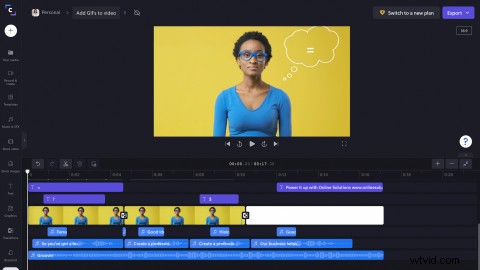
Step 2. Click on the Graphics tab
On the left sidebar, click on the Graphics tab to locate our GIPHY GIFs and GIPHY stickers.
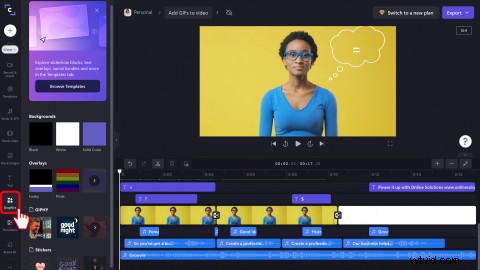
Click on the GIPHY ‘see more’ arrow to open the GIF library.
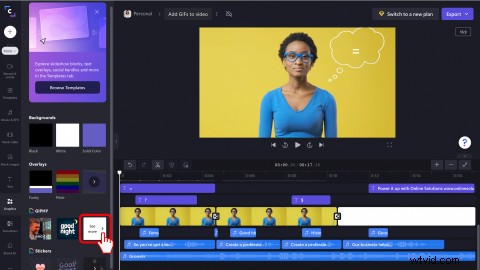
If you want to see our GIPHY stickers library, click on the Stickers ‘see more’ arrow.
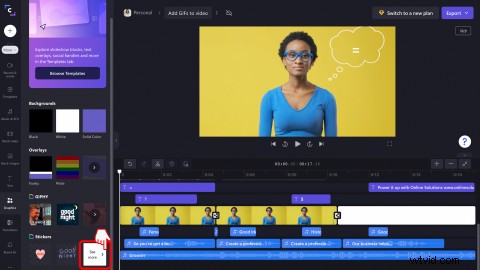
Step 3. Add a GIF to your video
Use the Search GIPHY tab at the top of the sidebar to search for a keyword. Once you have found the GIF, you would like to add to your video, drag and drop the GIF onto your timeline.
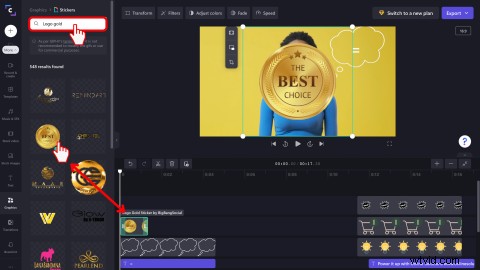
Step 4. Edit your GIF
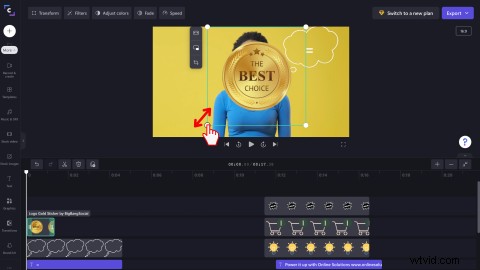
Use the freehand resize tool to edit the size of your GIF. Drag the corners in and out to make the GIF smaller and larger. You can also freely move the GIF around your video preview by clicking on the GIF, then dropping it to its new location.
To edit the length of your GIF, click on the GIF on the timeline, so it’s highlighted green. Drag the green sidebar left and right to adjust the time duration.
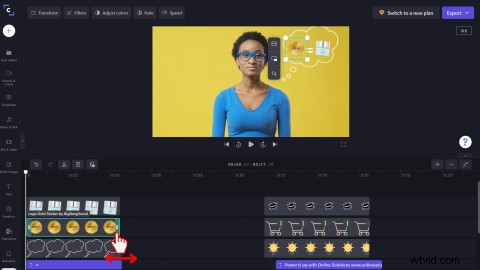
Watch the final product below!
Frequently asked questions
Can I make my own GIF with Clipchamp?
Yes. You can create your very own 15-second GIFs with Clipchamp’s GIF maker. Convert a wide variety of video file types like MP4 or YouTube videos, resize to suit any social media platform, and share directly with no watermarks.
Do GIFs have sound?
No. GIFs do not have sound. You can still add audio to your videos, including GIFs, but make sure to export videos as an MP4 file, not GIF.
Can I import other creators GIFs into my video?
Yes. You can save GIFs directly from GIPHY or download videos from YouTube, then upload the GIF files to Clipchamp’s video editor to add to your videos. Feel free to use already published GIFs from the internet in your videos.
Do Clipchamp GIFs have a watermark?
No. All GIPHY GIFs and stickers are free to use and watermark-free for all Clipchamp subscribers.
Add GIFs to videos in no time
Whether you’re creating a social media ad or video presentation, add GIFs to your video to further entertain your audience. If you’re looking to expand your editing skills, take a look at our how to make green screen memes blog. Similar to GIFs, create and share fun memes directly from your browser. Start adding GIFs to your videos today with Clipchamp.