
Video effects, also known as filter or visual effects, are used to create all sorts of crazy visuals with clicks. It's easy to do and the results are stunning. This is why people love video effects.
Different from other video editing software hit on the market that only come with very limited video effects, Wondershare Filmora provides 300+ free effects, including Transitional effects, Picture in Picture, Intro/Credits, Titles, Sound, Jump Cut, Mosaic, and more. All of these make your video going into the next level. In the following, I'll show you how to add special effects to a video. Download it to have a try!
Step 1 Add video files to the program
Before adding video files to the Timeline for editing, you need to import them first. There are mainly 2 ways: either through "Import" button on the main interface, or simply dragging and dropping files from Windows File Explorer to the User's Album. All popular video/audio/photo formats are supported by this video effect software.
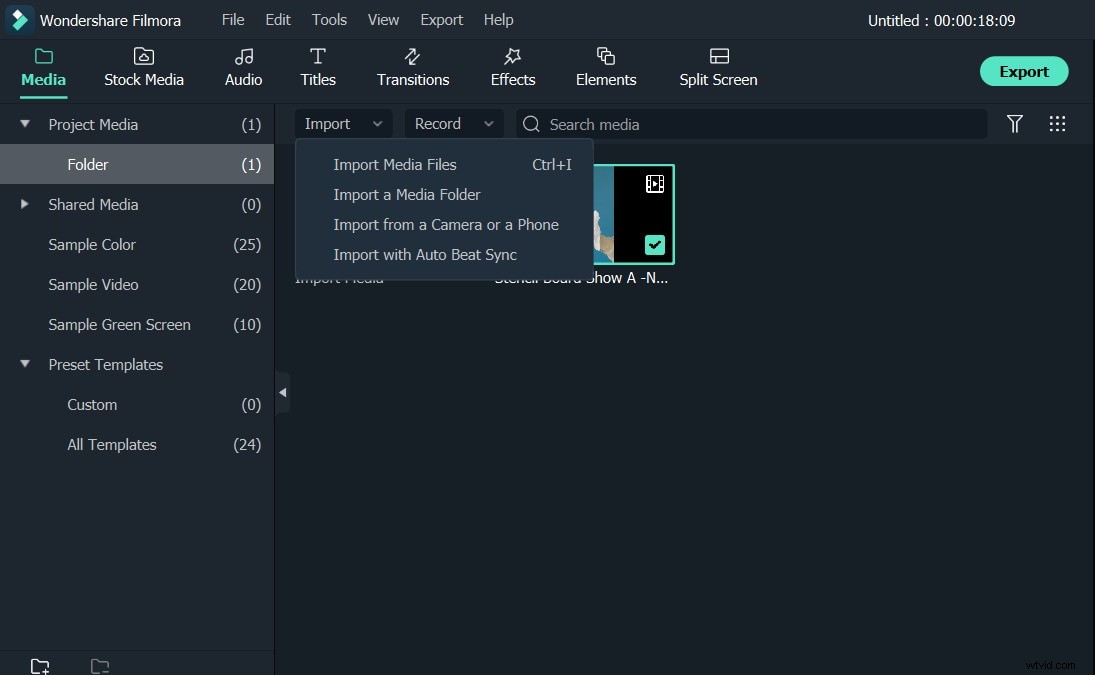
Step 2 Apply video effects to video and photo files
Now it's time to add media files and apply video effects. First, drag the video file from the User's Album to the video Timeline. And then switch to the Effect tab at the top. Just select one to apply. You will see a sub-track just above video track, a blue track. Note that the added effect will only be applied to the overlayed video. If you want to increase the effect duration, just mouse over the edge of the filter clip, and when the "double arrow" cursor appears, drag it to any length you want.
Step 3 Export video
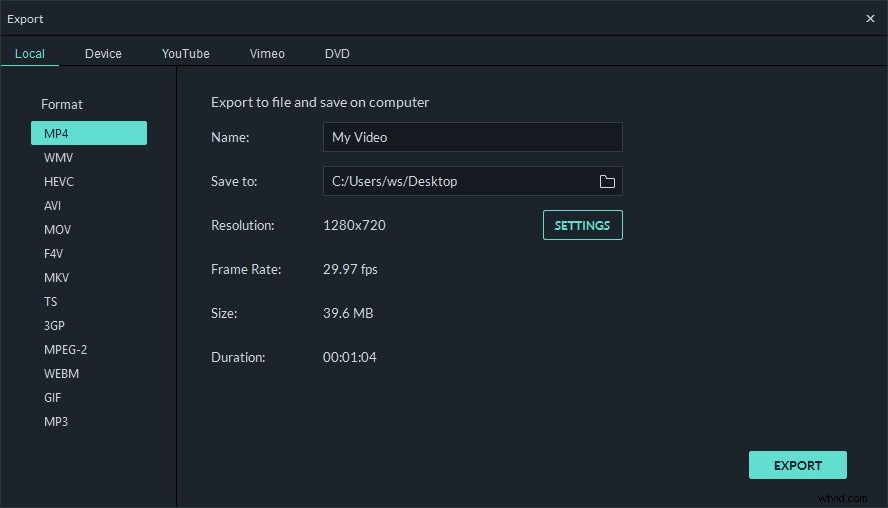
When you are happy with the video effects applied to a video, click EXPORT to save a video with effects. You can save video in all popular formats on the computer by clicking Local and specify some necessary settings. If you want to play your video on iPod, iPhone, iPad, click Device and select the thumbnail of your devices. It's also a good idea to share your videos on YouTube to share with your friends.
Watch the video below to get more information about Wondershare Filmora.