
Grunge. It’s a great look for gritty, edgy, photos, and you couldn’t have it simpler than doing it in Luminar 2018. In this article, you’ll see how to examine Presets and use elements from those Presets to create your own custom Grunge look. Presets are fantastic, but the best way to improve your processing is through your own creative process. So let’s get started.
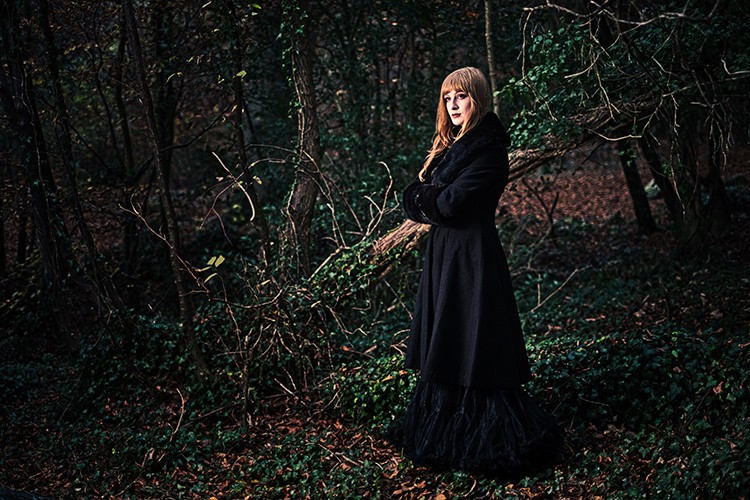
Grunge look.
Find the right image for a grunge look
Open the photo you want to process. I have a winter woods scene here. It’s already moody, and you’ll find that using a photo that will benefit from a grunge look is a good place to start. No point starting with happy sunny day shots as it really doesn’t fit the style.
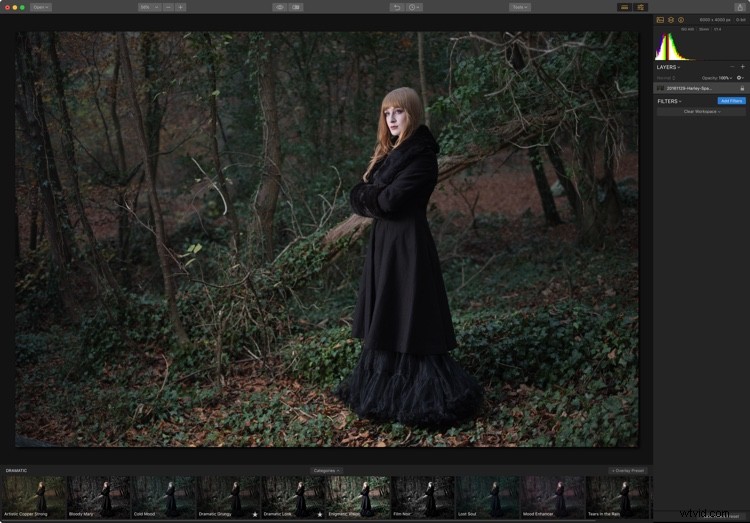
Presets
As Luminar has a huge number of Presets, you should begin there. If you don’t see the Presets at the bottom, click the Presets panel icon, it’s the third one in from the right on the top toolbar. From the Categories, choose Dramatic. Two of these look appealing for a grunge look; Dramatic Grungy and Dramatic Look.
Dramatic Grungy opens a custom Workspace with three filters: Dramatic, Clarity and Structure.
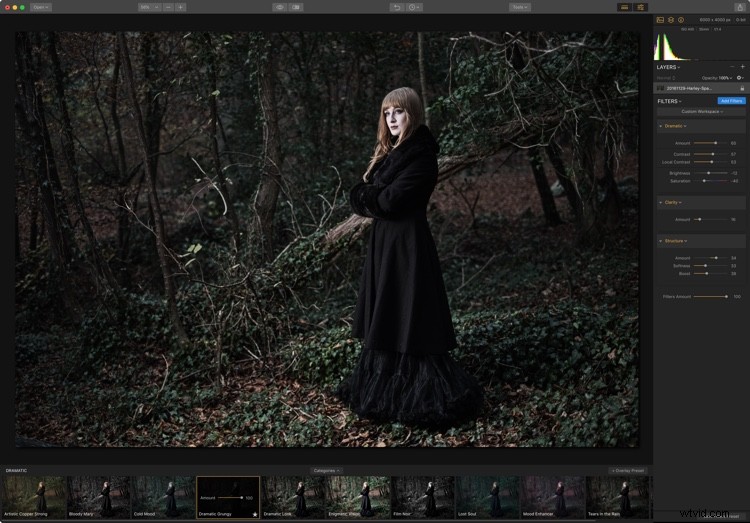
You’ll notice that Dramatic Look also uses three Filters. Dramatic is there, but the others are Raw Develop and Vignette.
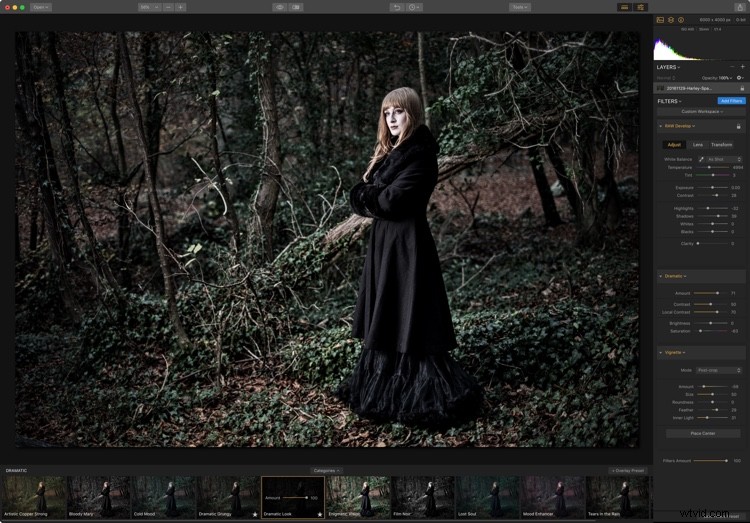
The Dramatic Filter is common to both presets, and there are other filters that are in one and not the other, so perhaps a good start is to combine the five filters from both presets into your own custom workspace.
Custom Workspace
You can reset the image by going to Filters panel, clicking on “Custom Workspace” and choosing “Clear Workspace”. This gives you a fresh start to create your own grunge workspace.
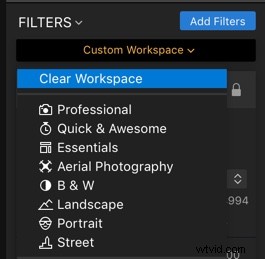
Click Add Filters. You can find some of the filters immediately. Raw Develop, Structure and Vignette are in the Essentials section, Clarity is in Issue Fixers and Dramatic is in Creative. If you don’t see a filter immediately, just type a few letters in the Search box at the top of Filters Catalog to restrict the view to match.
You’ve probably noticed that there’s a Clarity slider in Raw Develop, so you could choose to leave out the Clarity filter. But you might want even more Clarity and this allows you to double up the effect, and mask it to only apply to certain parts of the image.
Finally, add one more filter to this set; Cross Processing. This will allow you to color tone the final look.
Raw Develop
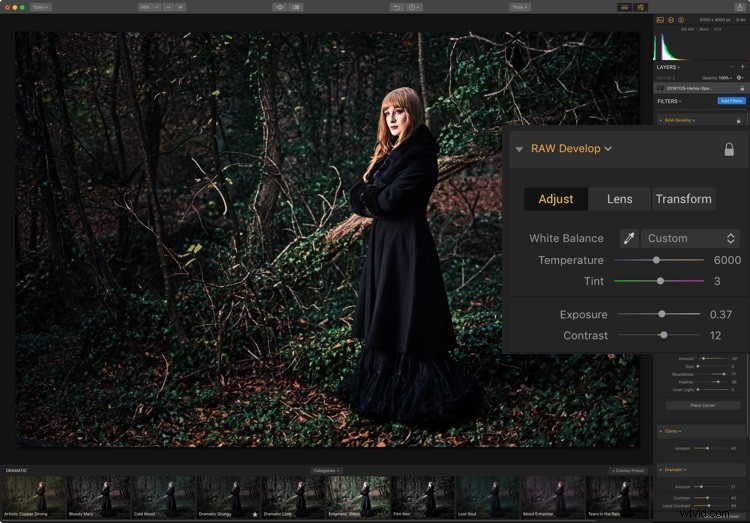
The Raw Develop filter is where you use Luminar’s processing to bring out the most from your Raw file. This Raw file (as per most) is a bit flat to start, so needs some tweaking. Reducing Highlights and increasing Shadows will open up the photo a bit more, while decreasing Blacks and increasing Whites will add to the contrast of your photo. At some point, you may want to decrease the saturation of the photo, but for now, use Raw Develop to get the most out of your photo.
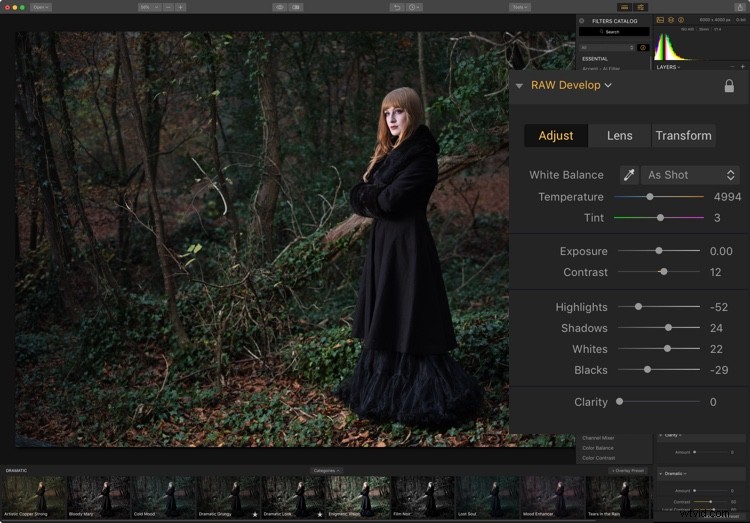
The Photo is still a little cool toned so a bump in Temperature to 6000k will fix that and sit better with the tones in the photo.
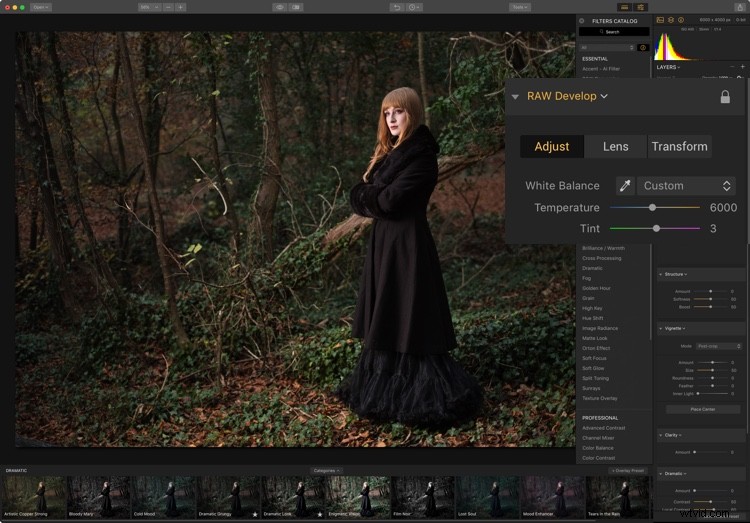
You can leave Clarity at zero here and come back later if you want to add more.
Structure
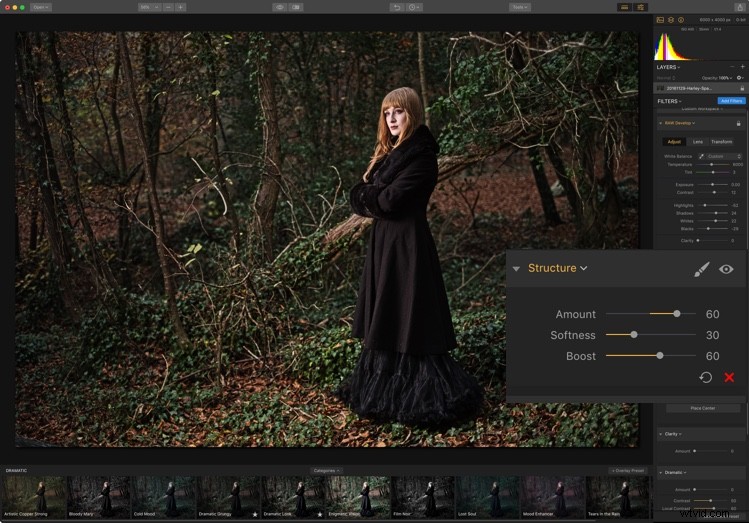
What makes a photo grungy? Think of the things and feelings grunge evokes; dark, moody, edgy, and gritty. The Structure filter can definitely do the Edgy bit. Your Amount slider can go from really soft at -100, to really nasty at +100. 60 seems to look good for this photo.
Softness changes your internal contrast in the photo. A setting of 30 keeps the skin from getting too blown out. Of course, if you want more of the effect in the background you could erase the effect a little on the subject using the masking tools.
The final slider is Boost, which does indeed boost the effect. 60 looks great here. We’re already well on the way to making a grungy photo.
Vignette
Vignette darkens or lightens the corners of the photo via the Amount slider. To draw attention to the center of your photo, you should darken the edges. Your first step should do is click Place Center, then click on your subject. That will target the area for the middle of the vignette to keep lighter.
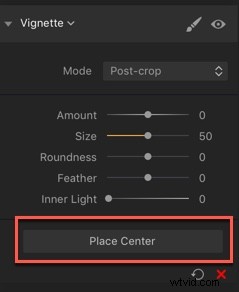
To see your Vignette edge easier, set the Feather to 0, with Amount turned way down.
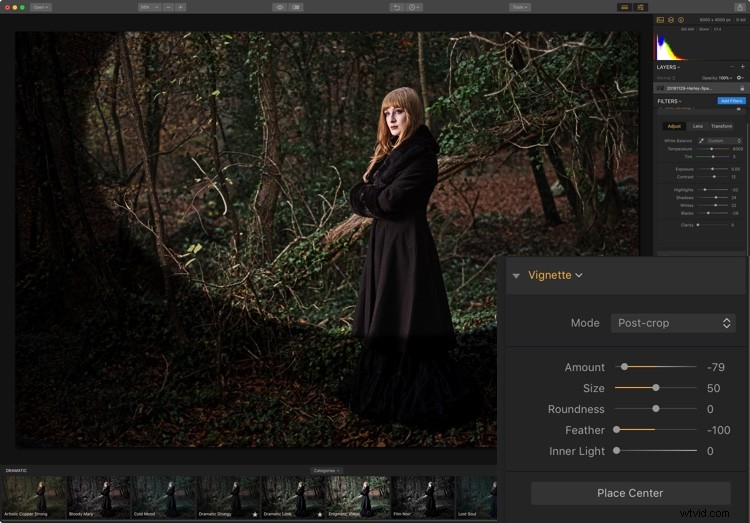
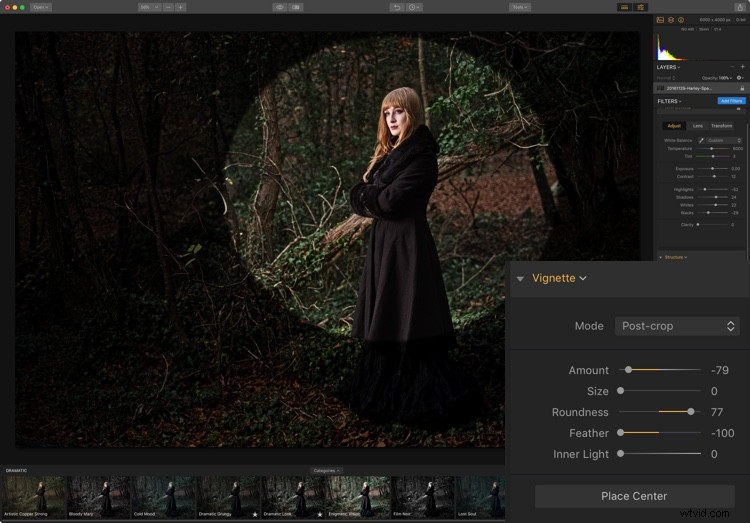
Using Size and Place Center, get the best position and radius for your vignette. Use Roundness to get the best shape; to the left, it’s more rectangular, to the right it’s rounder.
Don’t worry if it looks too obvious, this is just for getting the placement and size right as it’s easier to see this way.
Finally, set the Feather to soften the edge of the vignette, and set Amount to the final darkness you want.
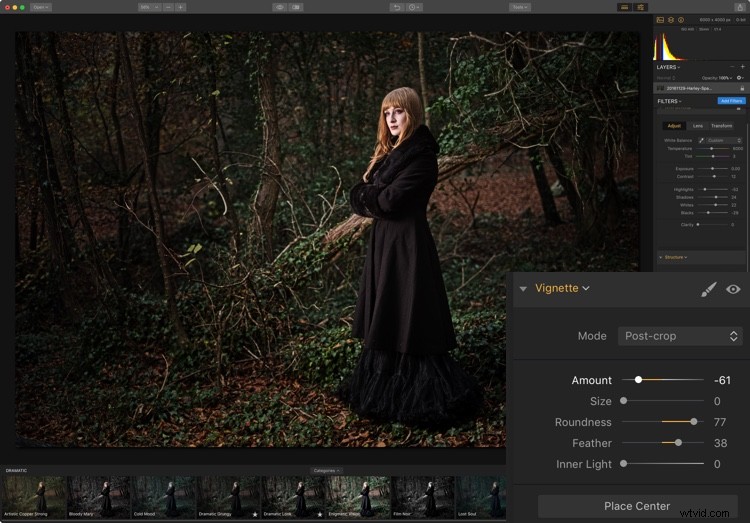
Edge vignette applied.
Clarity
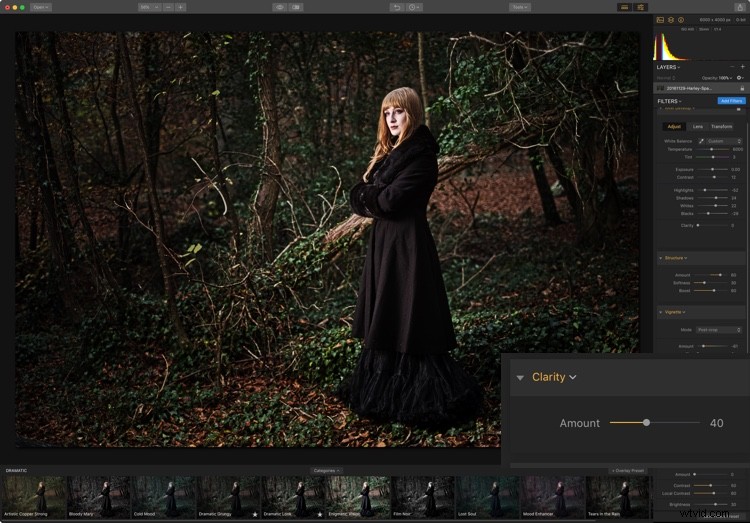
Contrast darkens shadows and lightens highlights. Clarity tends to work away from these areas and work more in the mid tones. It’s a grit filter, so add your grit here. 100 is way too much, and 40 looks better here.
Dramatic
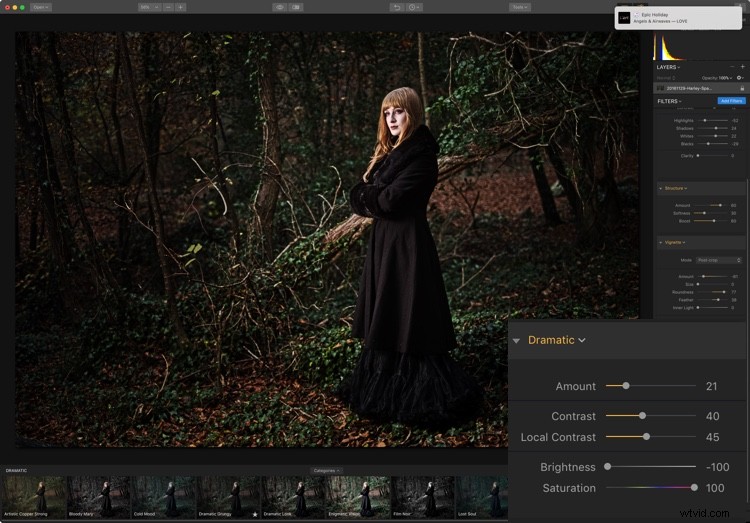
You’ve already gotten quite a bit of drama to the image, so only a hint of this contrast-based filter is needed. The Dramatic Filter is one to play with for this.
If you want to retain color, set Saturation up to full. Adding Contrast and Local Contrast will increase both the darker and lighter aspects of the photo, so Brightness is there to compensate for whichever is stronger. In this photo, you’ll find reducing it is necessary.
Cross Processing
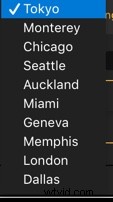
While this was originally a way of changing colors by processing film in the wrong chemicals, Cross Processing is now more associated with color toning a photo. Luminar uses city names to define their various toning options.
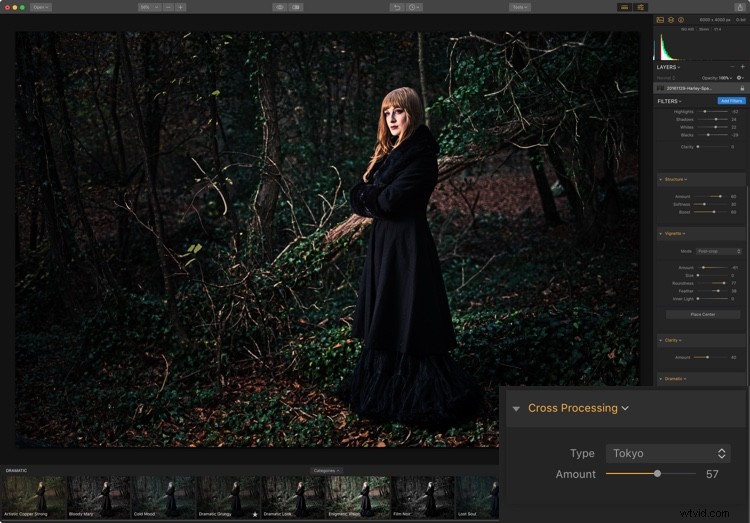
You should try each one with the Amount slider up high to find one you like. After looking at all the cities, I came back to Tokyo, which I’d found pleasing immediately. Then you can dial the effect back using the Amount slider until you find the look you want.
Reprocess
The image is now suitably dark and gritty, but probably a little too dark. A quick trip back to Raw Develop to bump the Exposure slider will fix this.
Saving Presets or Workspaces
Now is the time to save what you’ve set up. If you like your work, you should consider creating either a Preset to repeat the exact look you have here or set up a Workspace to have all the filters open for you to begin working from scratch (or both).
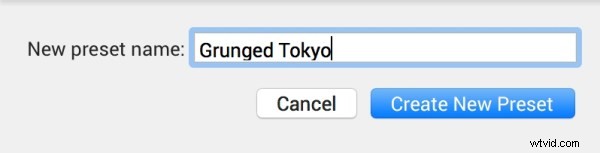
To save your Preset, click Save Filters Preset at the very bottom right corner of the screen. A dialog appears allowing you to name and create your new preset. This will allow you to apply all the same filters and settings to any image with one click. Of course, you can always adjust any of them to suit the image or dial it back using the amount slider on the preset.
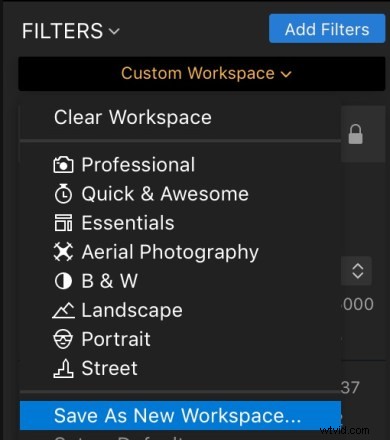
To save your new Workspace, go to the top of Filters, then click on Custom Workspace. From the drop-down menu and choose “Save as New Workspace”.
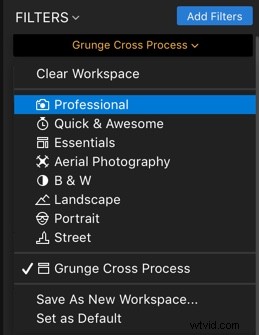
Name the Workspace and create it.

The new Workspace will now appear in the Workspaces list and will be selected (check mark next to it). Now it is available for you to use with any image. Clicking it will open those same five filters but not apply any of the settings.
Other options
Here is the before and after to show the full grunge effect.
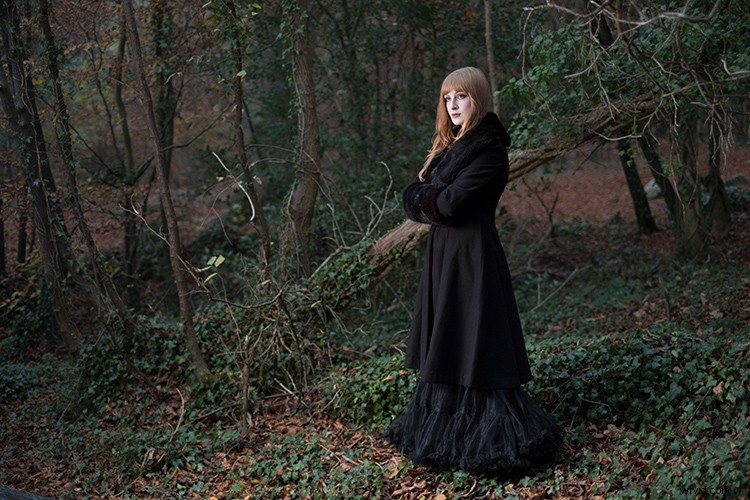
Before.
Grunge look.
With the look solidified, you could potentially add a texture to add even more grit to your photo. So, check out how to do this in our article How to Apply Creativity to Your Images with Texture Overlays Using Luminar.
As you’ve seen, Luminar 2018 has great tools that you can use to achieve your processing goals quickly and repeatedly. Now, go out and grunge!
Disclaimer: Macphun, soon to be Skylum, is a dPS advertising partner.