
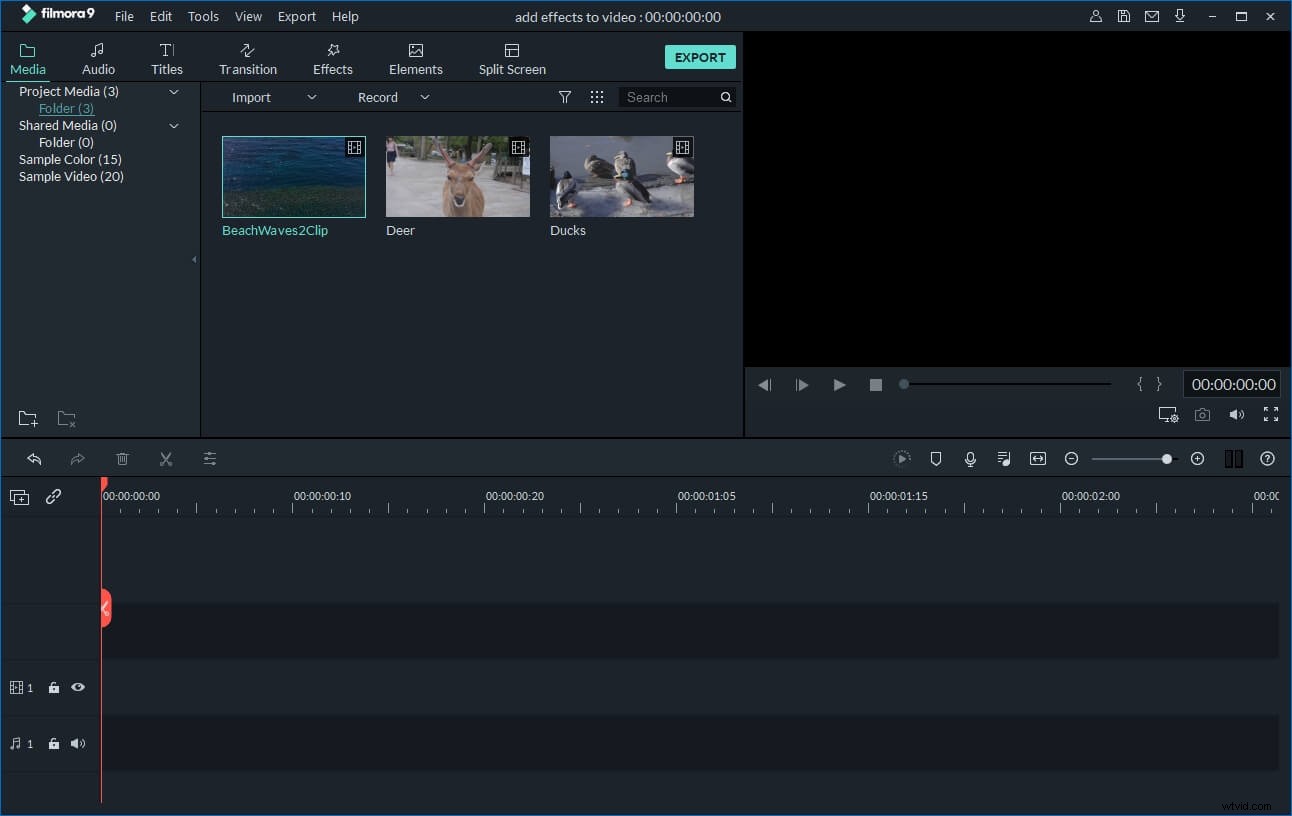
You may have many AVI videos at hand which indeed enrich your daily life. However, editing AVI videos is another fun for you to explore. Maybe one particular scene in a video really bothers you and you want to take it out, or a logo on the edge of the video image makes you annoyed and you want to crop it, or the video effects don't satisfy you and you want to readjust.
If you're looking for a wonderful AVI editor to edit AVI videos, Wondershare AVI Video Editor is a highly recommended. Its friendly user interface and easy-to-handle tools deserve your praise. Now read on to get more information about this AVI editor and learn how to easily edit AVI videos with it.
- Part 1: How to Edit AVI File
- Part 2: Best Video Editing Software for Beginners to Edit AVI File
Easy-to-use AVI Editor:
Wondershare AVI Video Editor
- Support AVI (XVID, DIVX, H264/AVC, etc) from camcorder, Internet and elsewhere.
- Easily edit AVI with handy video editing tools like crop, cut, trim, rotate and more.
- Personalize video with transitions, intro &credits, text effects and more.
- Provides advanced editing tools like Tilt Shift, Face off, Mosaic, Jump Cut, etc.
- Upload the edited video online directly, or burn it to DVD discs.
Why Choose Wondershare AVI Editor
Easy-to-use
This AVI editor features an intuitive and easy-to-learn interface and gives you total video editing control. Now drag-n-drop to add your files and layer AVI video, audio and text elements for easy access and editing.
Powerful Editing Functions
Edit video with classic features like trim, crop, cut, split, rotate, merge, etc. Adjust brightness, contrast, saturation, hue to reach your expected video quality and easily tweak the playback speed.
Rich Stunning Effects
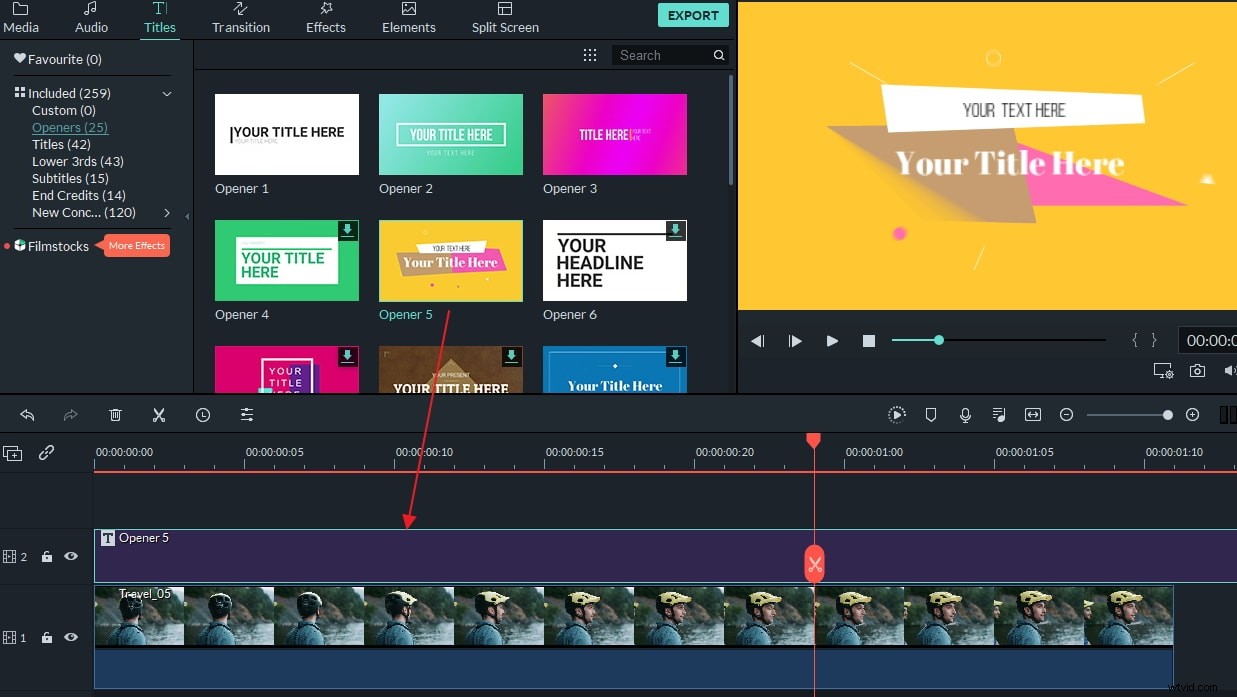
Various text effects, gorgeous filters, funny animation resources, dynamic transitions, impressive intro/credits and vivid sound effects - get access to every available video creation feature to make your video unique.
Various Output Options
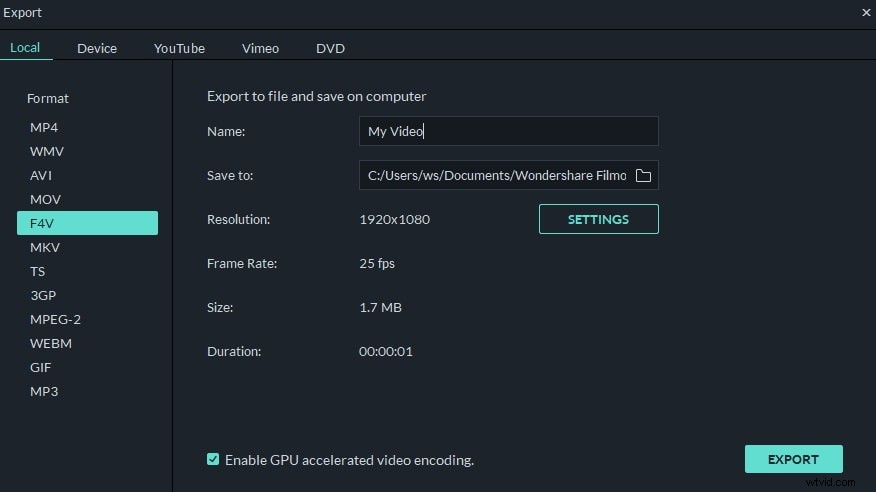
Ready to share your creations? You can convert them to play on any of your mobile device, share directly onto your YouTube channel or Facebook page or produce DVD discs.
Part 1:How to Easily Edit AVI Video:
1. Cut AVI Video
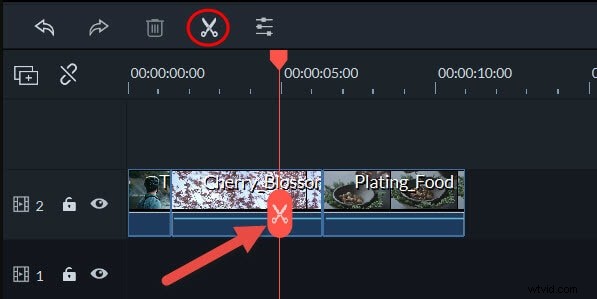
To cut your AVI video file, just highlight it on the timeline, then place the red Time Indicator to the where you want to cut the video, and click the Scissor button above the timeline. After that, move the red marker to the end of the scene, and repeat this again
2. Join AVI Video
This AVI editor enables you to easily join several AVI videos together. You just need to place all the video files on the timeline, adjust the order and hit "Create" to export it.
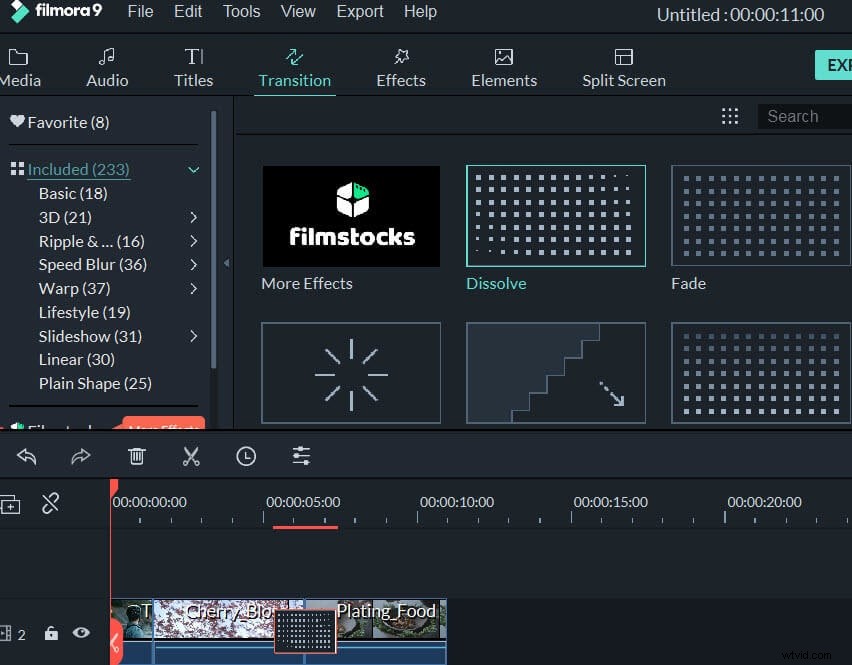
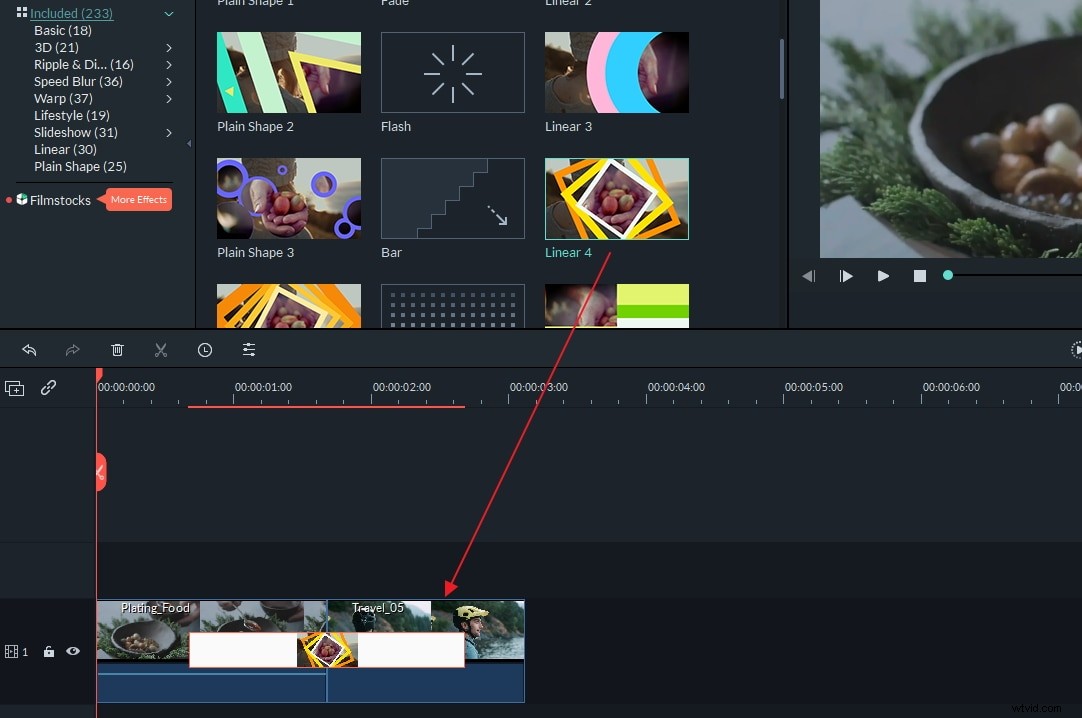
If you want to add transitions between clips for smooth change from one to next, go to the "Transition" tab to add transition effect. Choose you like and drag-n-drop it onto the timeline to apply. You can also let the software choose the transition randomly by right clicking and selecting "Random to All" option.
3. Edit the Audio of AVI Video
Double click the target video and switch to the audio column. Then you can simply use the slider to fine-tune your video/audio.
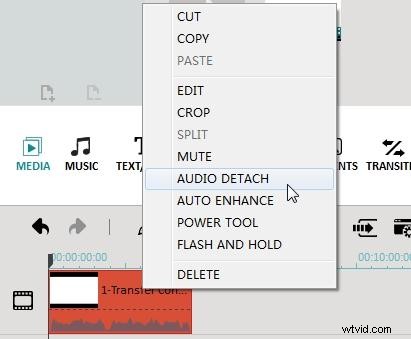
To change the original audio track, right click the video file and choose "Audio Detach". Then the audio file of your video will immediately be separated. You can easily delete it or replace it with a new one.
4. Import MP4 videos to this MP4 cropper
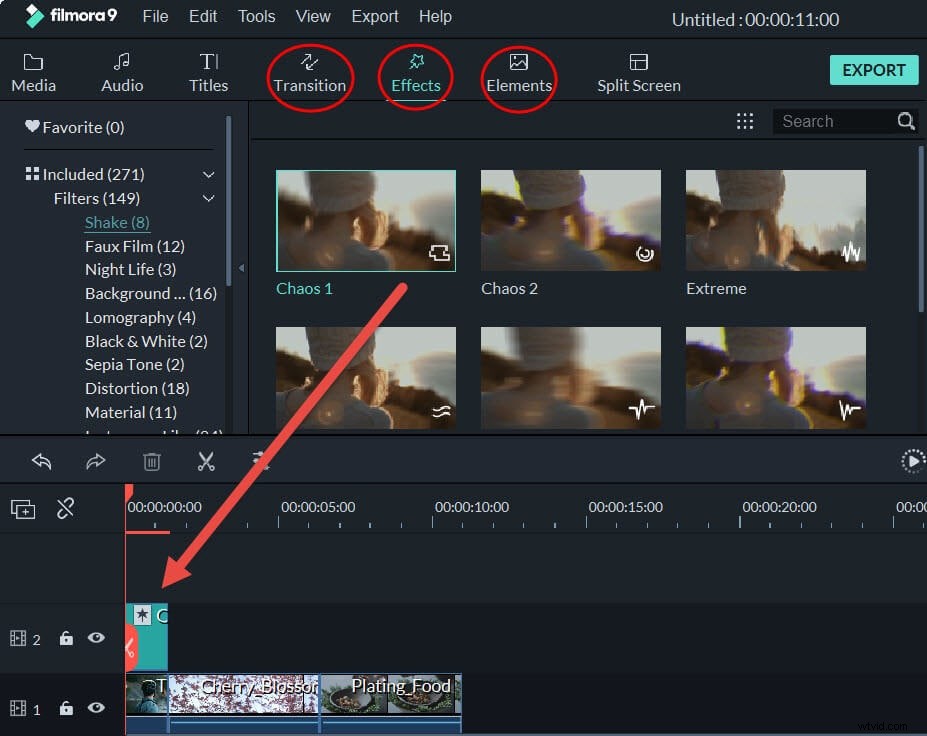
More than 50 visual effects could be added to your AVI videos. Simply drag and drop an effect to the Timeline, and it will be applied to videos and photos. For some effects, you can double click on them to adjust the parameters. All added titles on the Timeline will have a leading letter "E". Easily trim or expand it by dragging.
Part 2: Best Video Editing Software for Beginners to Edit AVI File(Video Tutorial)