
Want to edit M4V files either to cut off some unnecessary parts, merge several different segments, add video filters and more? Well, what you need is a M4V Editor, which helps to customize M4V video for you. In fact, Wondershare Filmora is a powerful video editing tool that helps you to edit M4V videos by trimming, rotating, cropping, merging, etc. as well as personalize your videos with rich captions, filters and transitional effects for sharing anywhere.
Powerful M4V Video Editor - Wondershare Filmora
- Easily trim, rotate, crop, merge and combine your M4V video files;
- Personalize your M4V videos with stunning text, filter and transition effects including AR stickers;
- Choose advanced effects like Motion Tracking,Key Framing, Mosaic, Jump Cuts, Face-off, and more are provided;
- Upload your M4V videos onto Vimeo and YouTube, burn to DVD or save in different formats.
How to Easily Edit M4V Video:
1. Trim M4V video
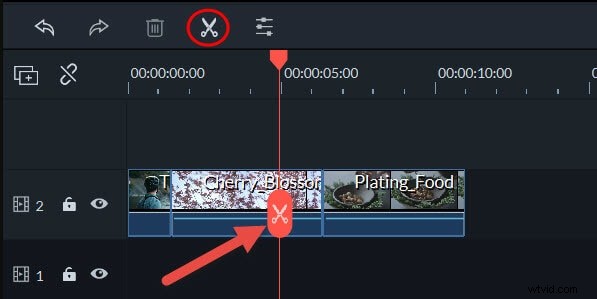
If you want to trim a video lip to the segment you want, just highlight the video clip on the Timeline, drag the top of the red Time Indicator to your wanted position, and then hit "scissor" button to cut it into several clips. Delete your unwanted clips and just keep the right one.
2. Crop, rotate, change video & audio effect and speed video
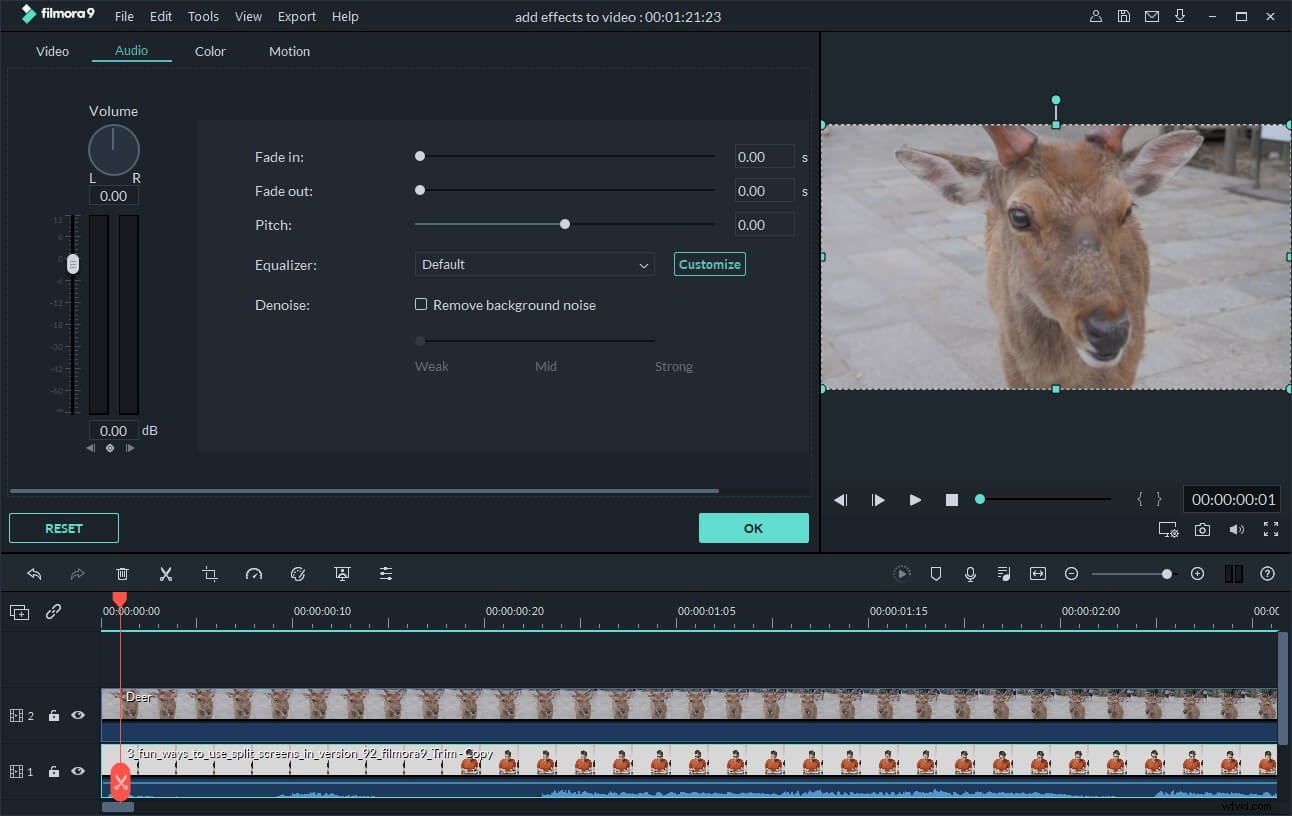
Right click your wanted video clip in the Timeline and then select Edit option. And you can get some common editing tools: rotate, crop, speed videos and change video effect. To delete or edit the audio track, just right click the video clip and then choose “Audio Detach” option instead.
3. Add Mosaic, Motion Tracking,Key Framing, and Face-off
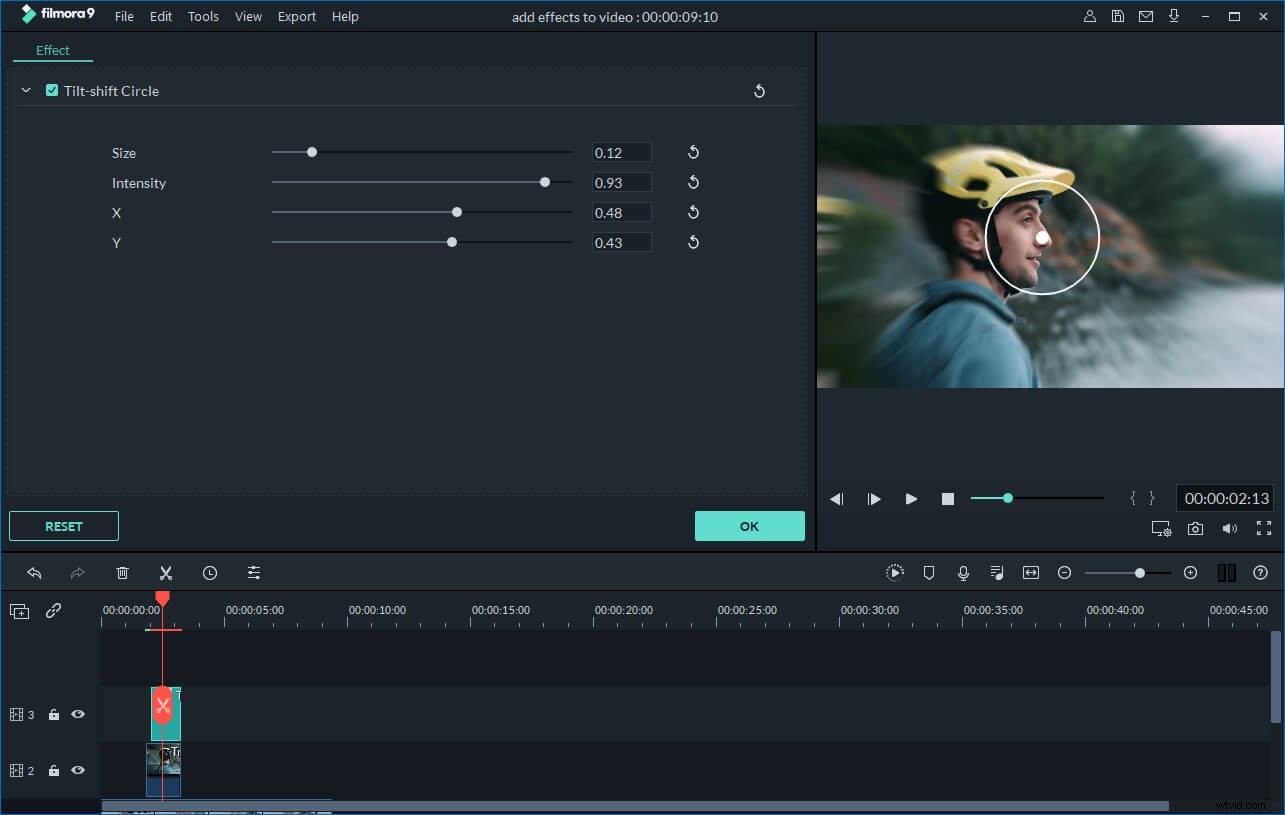
To apply effects like Mosaic, Motion Tracking,Key Framing, and Face-off, you can right click the video clip in the Timeline, then choose the "Power Tool" option or directly click the "Power Tool" button above the timeline.
4. Apply text, PIP, transitions, audio and intro/credit etc
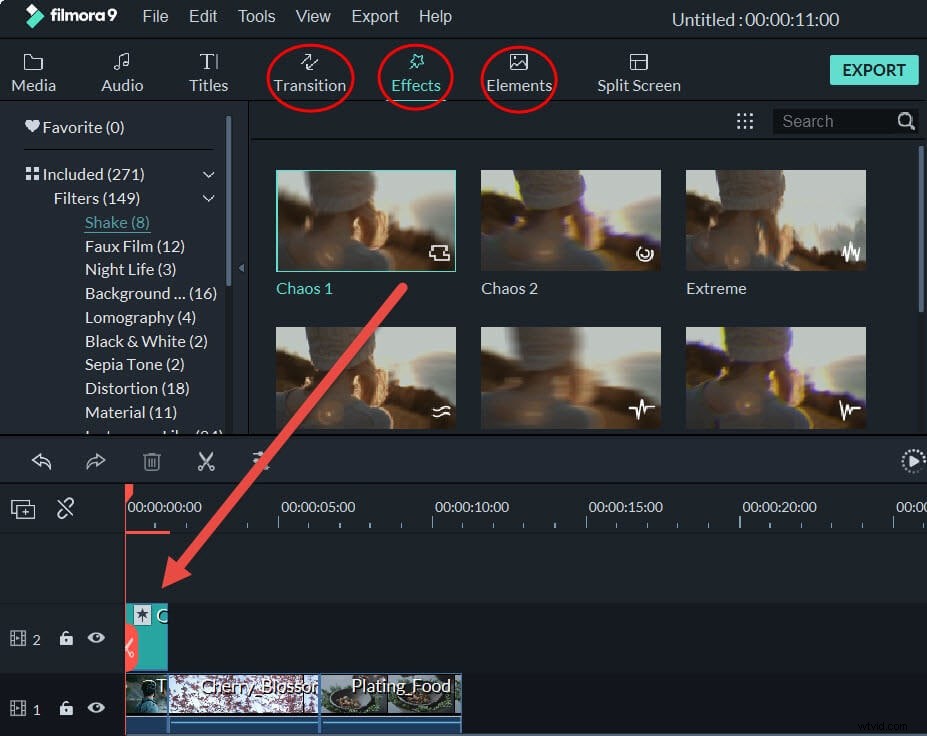
If you want to make your video more personalized, you can also add some elements like text, PIP, transitions, audio, intro/credit and more. To do it, click different effect tabs above the timeline to enter into the corresponding resource library. Then, directly drag the template you like from the library to the video clip in the Timeline. At last, you can customize the settings as you like.
Best Video Editing Software for Beginners to Edit M4V File(Video Tutorial)
As you can see, edit M4V files with Filmora is quite easy. And you can also personalize your video with tons of video effects and advanced editing tools. Try Filmora for free now, you will not regret.