Shot some compelling videos with your iPhone, and want to stitch together to create a new video? If you’ve ever edited video with some iPhone editing apps like Splice, iMovie, or whatever before, you would know how painful it can be to do the simplest tasks. Also, cellphone apps usually get very limited features, which may not satisfy your needs. Since it's a little bit crazy to edit directly on your iPhone, let’s see what a desktop application can do for you: Wondershare Filmora. It's a fast, fun, and powerful iPhone video editor for PC that can quickly turn your videos into professional-looking movies and upload them directly to YouTube. Below I'll introduce some of its key features.
You may also like:
Easy and Free Ways to Transfer Photos/Videos from iPhone to PC >>
Top iOS Video Editing Apps You Might Like>>
Powerful Desktop iPhone Video Editor:
Wondershare Filmora (originally Wondershare Video Editor)
- Easily trim, rotate, crop, merge and combine your iPhone video files;
- Add stunning text, filter, intro/credits and transition effects to enrich iPhone video files;
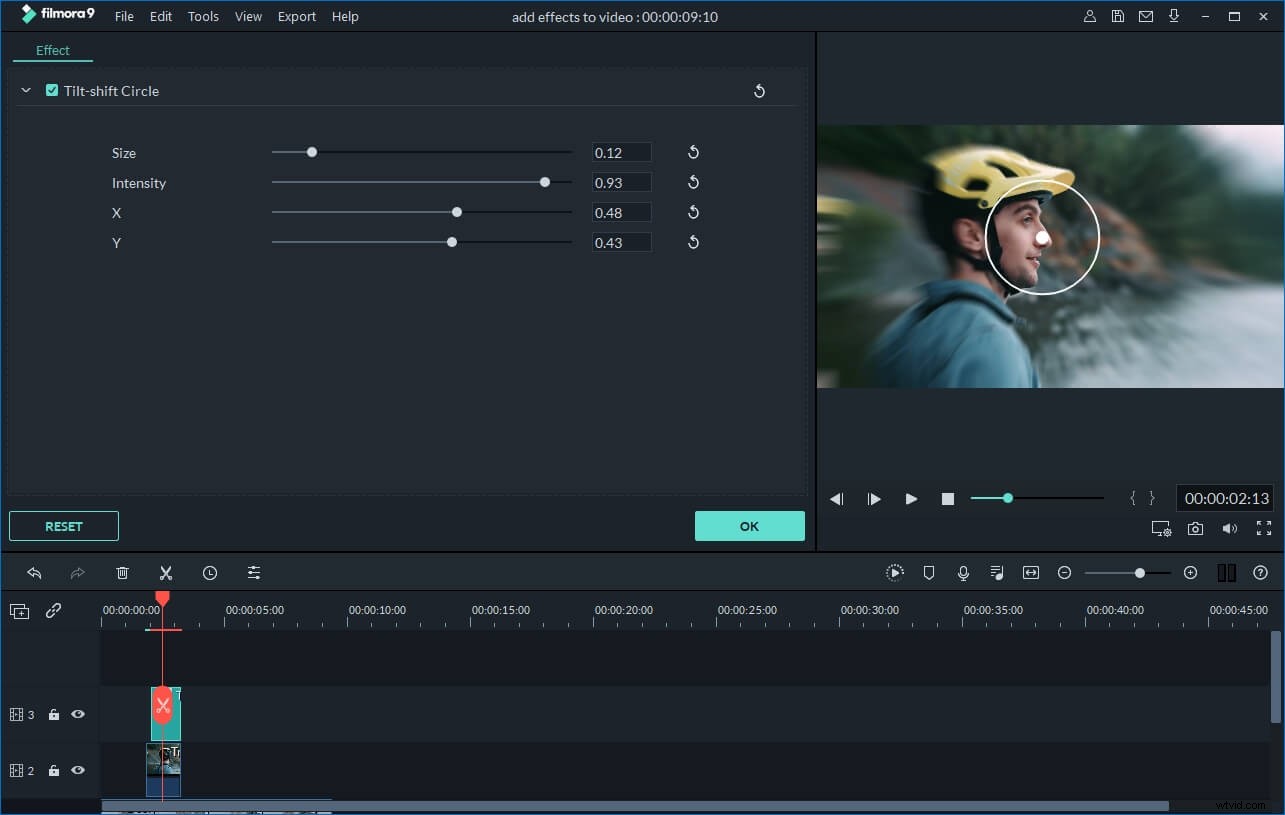
- Provide advanced effects like Tilt-shift, Mosaic, Jump Cuts, Face-off, and more;
- Upload the edited iPhone videos onto Facebook and YouTube, burn to DVD or save in other formats.
Why Choose Wondershare iPhone Video Editor
#1. Intuitive Interface
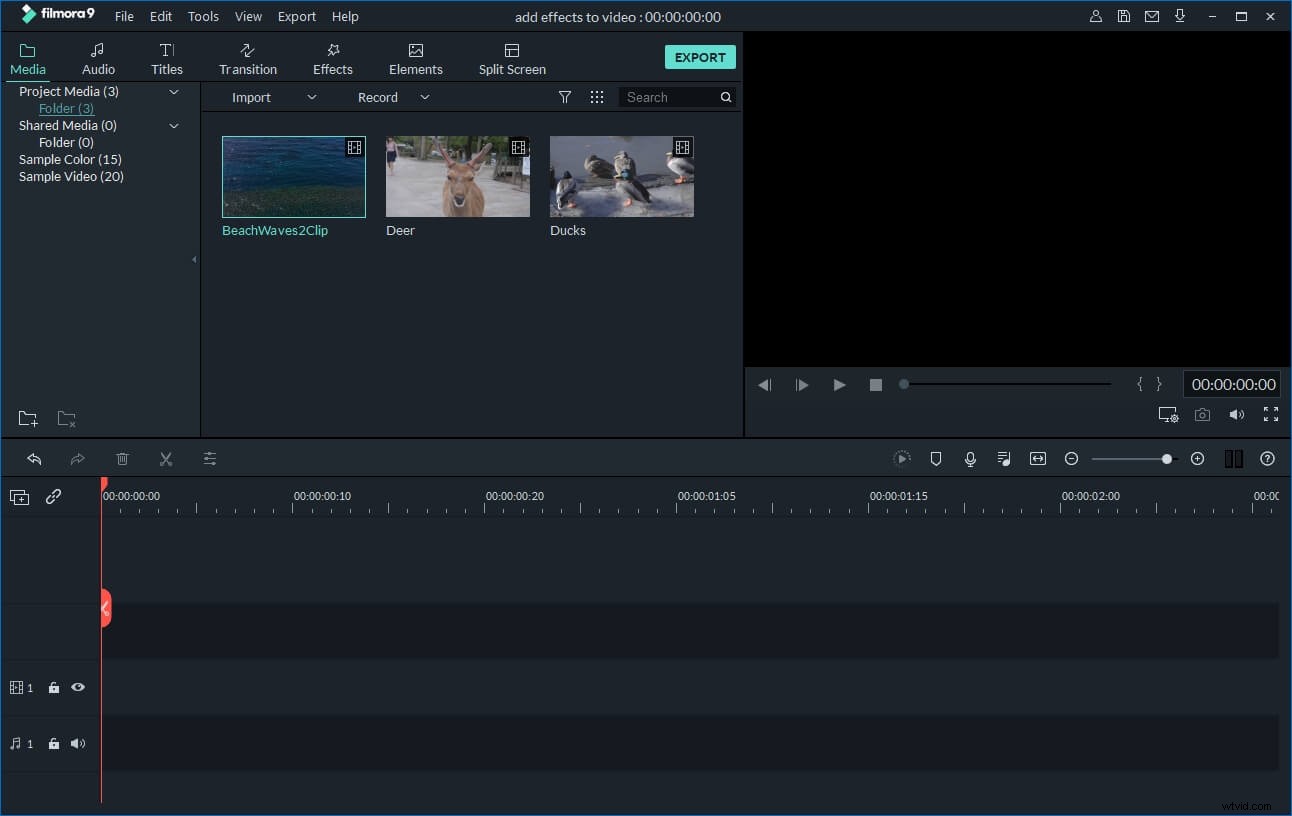
This program comes with a stylish and easy-to-use interface that lets you edit iPhone video efficiently. It won't take much time for you to get used to it.
#2. Edit & Enhance Videos
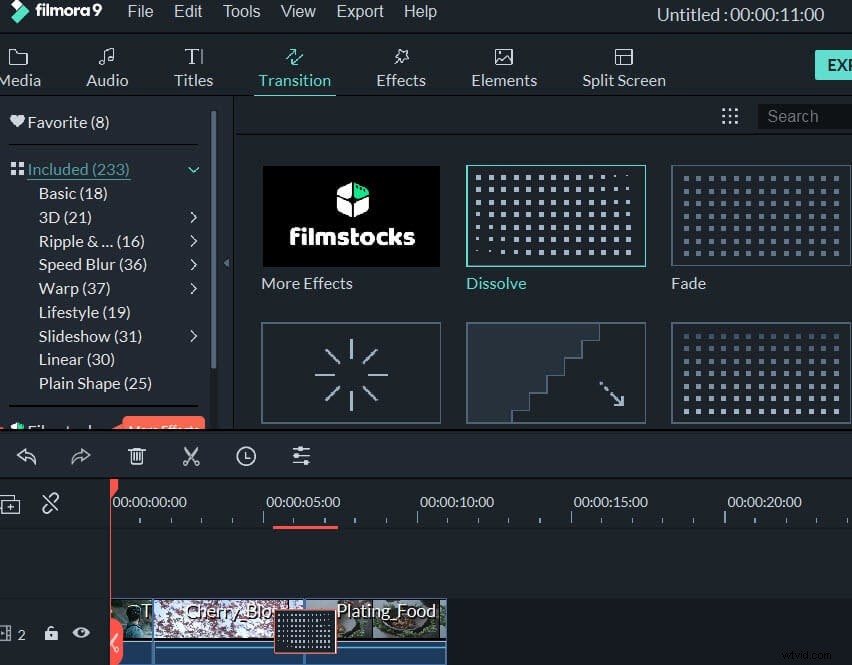
With all handy video editing tools, you can easily make a gorgeous movie out of common photos and videos shot with your iPhone (iPhone 8/7/6 included).
#3. Fantastic visual effects
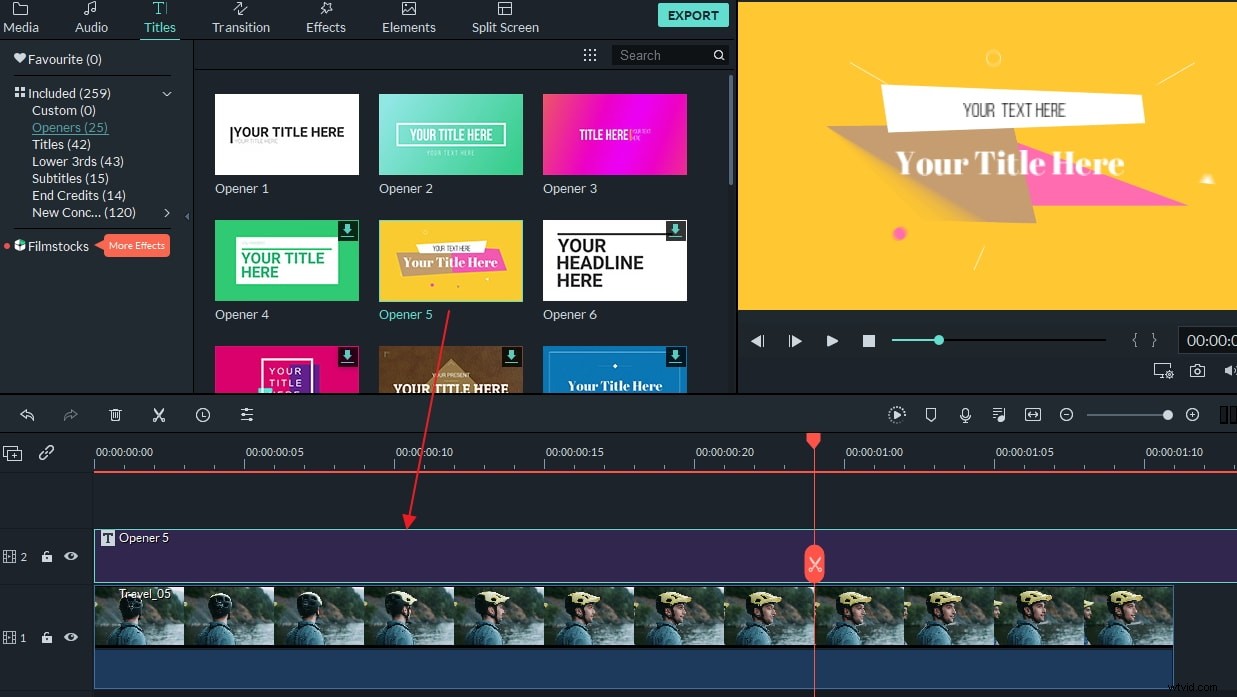
This iPhone video editor lets you easily make your iPhone video more polished and professional by offering 300+ awesome transitions, titles and effects.
#4. Share videos everywhere
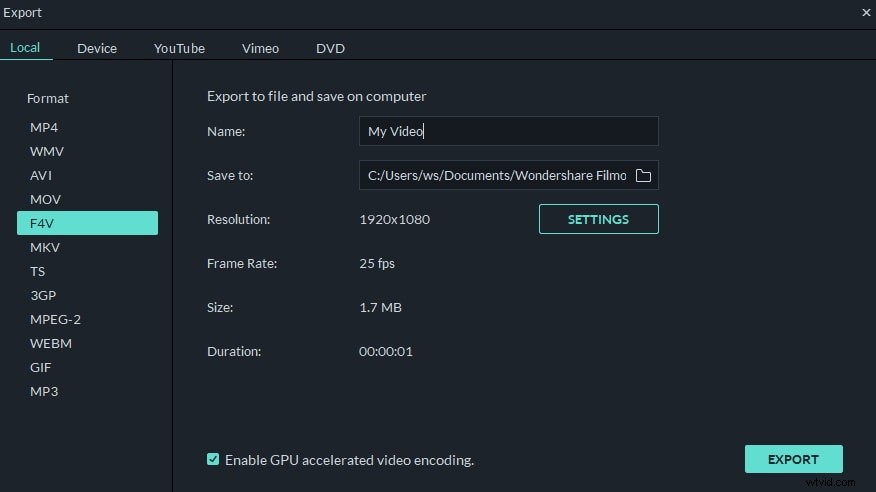
When video editing is done, save video to a compatible format for playbacking on both computer and portable devices, upload it directly to online or burn to DVD.
How to Edit iPhone Videos on PC:
1. Trim or split a iPhone video clip
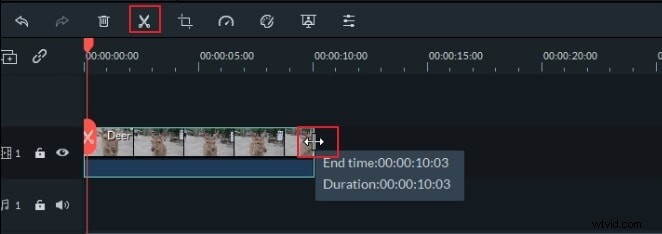
If you want to trim video to the specified length, click the video clip, mouse over its left or right edge to show the "double arrow" indicator, and then drag it to any length you want.
To split a video clip, you need to select it by clicking, drag the top of the red Time Indicator to any position you want, and then click "scissor" button.
2. Crop, rotate and change video/audio settings
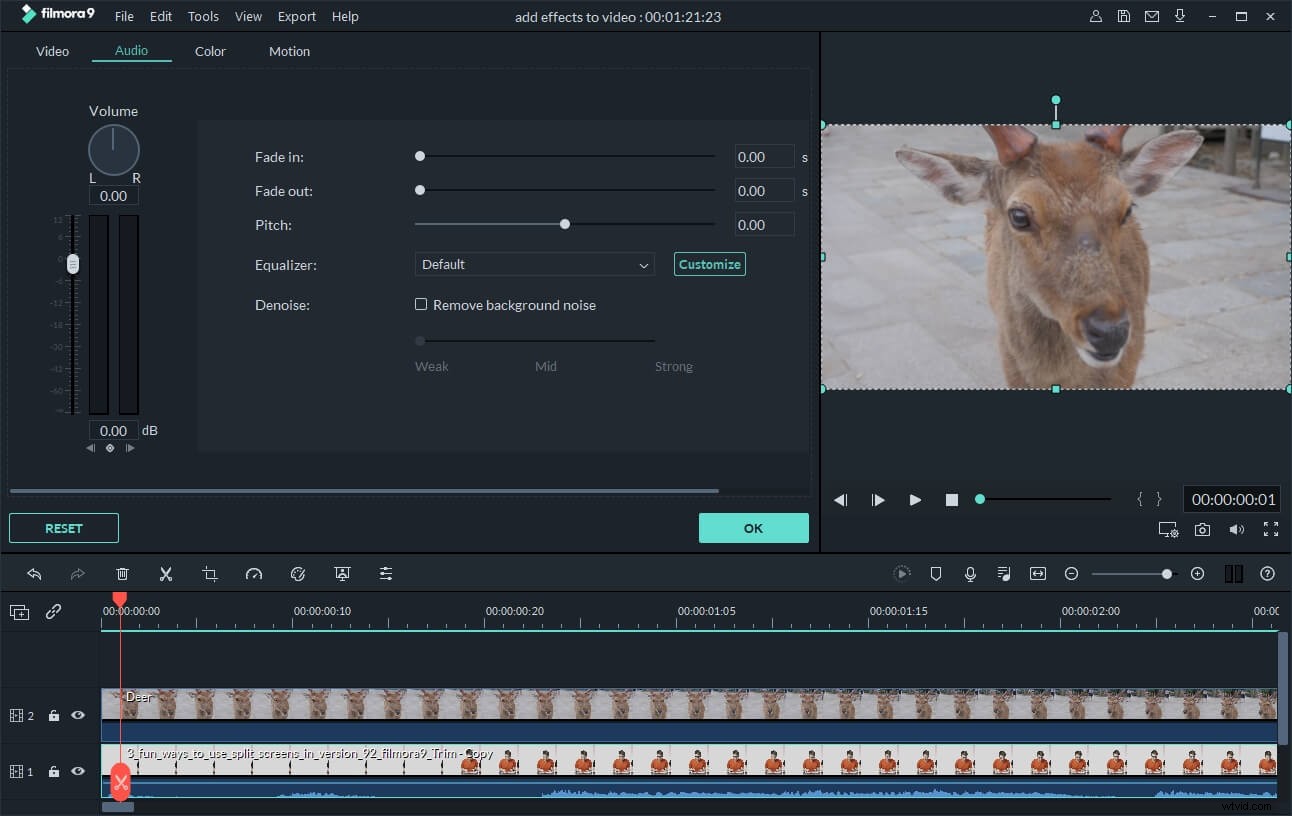
Right click the iPhone video file on the timeline to bring up the video and audio editing panel. Here, you can rotate or crop video, adjust brightness, saturation, contrast, slow or speed up the playing speed, set audio pitch, volume, fade in/out, and more.
3. Touch up your video with music, texts, intro/credit and more
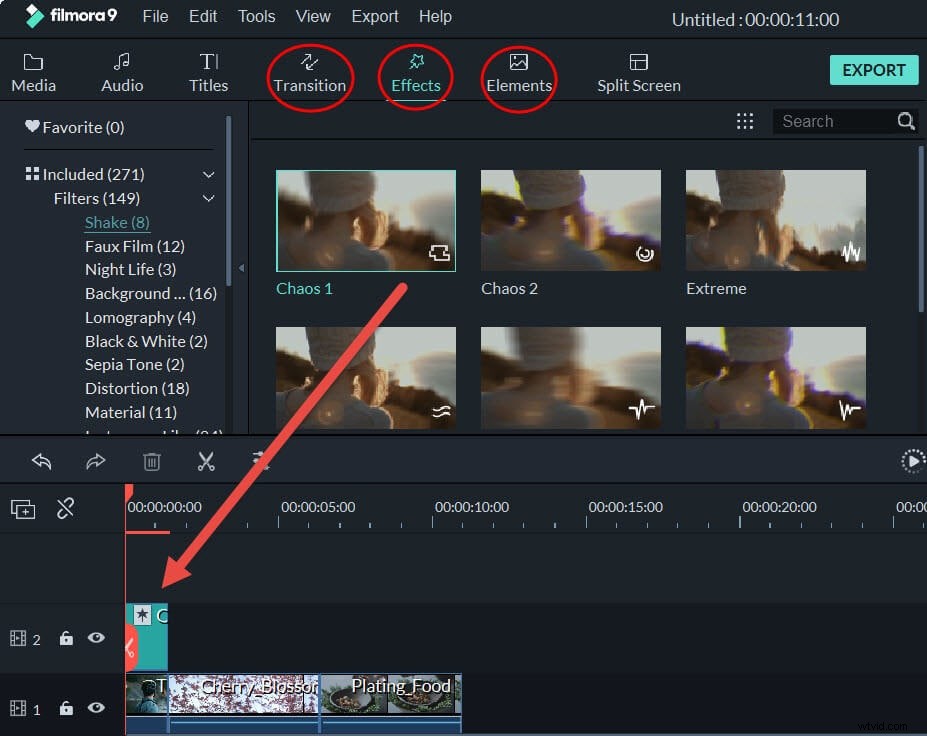
Background music will add a really nice touch to your video. You can drag and drop the imported music to the music track, and this will cause music to play along with your video. You can also add words to describe the action, or simply point out something interesting. To do this, just click the “Text” button in the tool bar, drag-n-drop a text effect to the text track and enter your words. Besides music and texts, feel free to add intro/credits and transitions effects by click the tabs above the timeline.
4. Add Mosaic, Jump Cut, Tilt-Shift, and Face-off
If needed, right click and choose "Power Tool" or directly click the "Power Tool" button above the timeline to apply more advanced effects like Close-up, Jump Cut, Tilt-Shift, Mosaic, and Face-off to your footage.