
How to brighten a video on iPhone in three steps
Despite all the latest camera tech built into them, this sort of thing can happen often on any smartphone device, especially when you’re indoors or outside at night. You might also find that videos seem to record darker than when you’re snapping photos. And no, you’re not imagining it!
It’s all to do with the limitations of a phone’s camera hardware. While the iPhone's photo mode uses a slower shutter speed for creating a lighter and better quality picture, video mode will choose a faster shutter speed.
This is because a slower shutter speed will not only allow for more fluid motion capture but will ensure the moving image isn’t blurry.
So, if you’re looking for the best of both worlds, you’re in luck! All you need to do is brighten the dark video after it’s been recorded. While there are hundreds of apps out there that are capable of doing this, many are expensive to purchase, or might not be safe to download.
That’s not the case if you use Clideo’s video-brightener, however. This easy-to-use tool works online in your web browsers so you can edit the brightness of a video on your iPhone or any other device in minutes, without downloading a thing. Oh, and did we mention it’s free?
With that, here’s how to make a video brighter on an iPhone...
Upload your movie
To get started, head over to Clideo’s video brightener tool. Upload your dark video. To do this, navigate to the centre of the tool’s homepage, hit the ‘Choose file’ button and you can select the clip you want to brighten from your system.
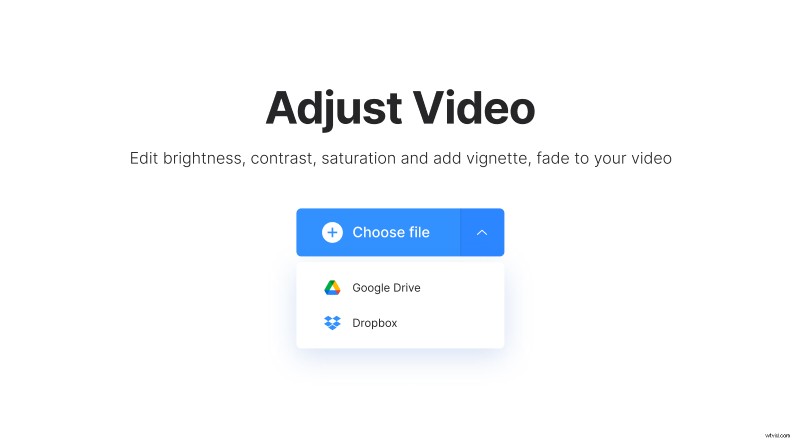
If you’d prefer to upload it straight from an online source, this is also possible. Simply tap the down-arrow on the right side of the button and a drop-down menu will appear. Here you have the option to upload from Dropbox or Google Drive. The upload will begin automatically.
Please note that the tool works with all popular video file formats including MP4, WMV, MOV, VOB, AVI. It will also accept files of up to 500MB.
Brighten your iPhone video
Once your video has been uploaded, you’ll be taken to the editor where you can increase the iPhone video brightness via the easy-to-use sliders. Here you’ll also find you can alter the clip’s saturation and contrast as well as vignette, fade and hue.
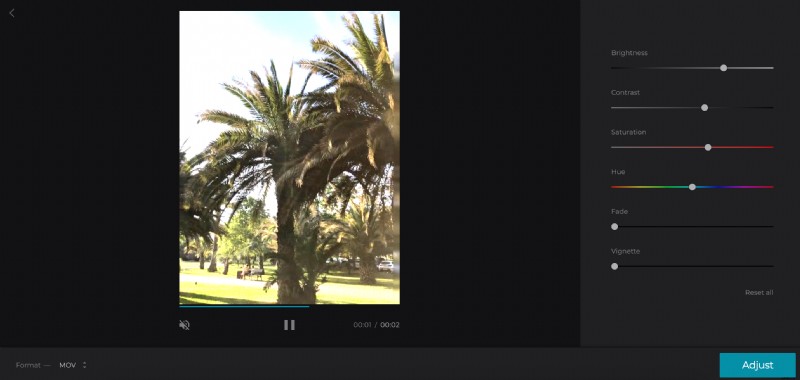
As you increase or decrease the different settings, the video will be previewed in real time, so you can check how it’s looking as you go.
Once you’re happy with the result, select an output format. We recommend MP4 or MOV, especially if you want it to be played on your iPhone.
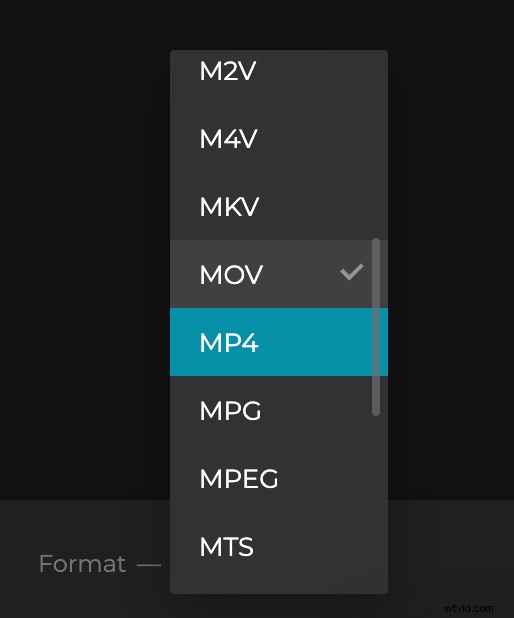
Once you’re done, tap the ‘Adjust’ button at the bottom.
Download your newly edited clip
Once your changes have been processed, you’ll be given the option to playback your clip. If you’re happy with the result, simply download it back to your device. To do this, tap the green ‘Download’ button.
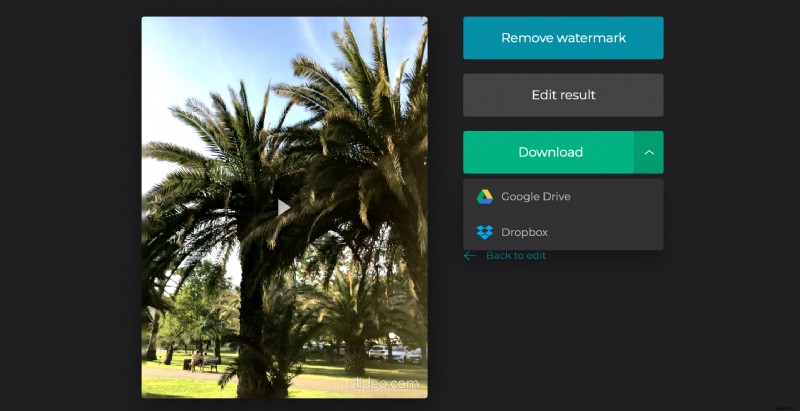
Again, you have the option to save it back to your Google Drive or Dropbox if you prefer.
Have some other changes you wish you’d made? No problemo, just hit the ‘Back to edit’ link and you can do so without starting from scratch.