
How to trim a video on Samsung
First of all, check our social media manual and get familiar with their specifications. Pay attention, the most annoying and strict limits refer to the videos’ size and format. Luckily, Clideo provides a full range of different tools that help you to meet all requirements.
Coming back to Samsung: our video editor allows you to trim a clip and convert it to any format. It’s online, which is why it’s compatible with all the phones: Galaxy S3, S6, S7, S10, etc. The tool is intuitively comprehensive and makes a perfect choice even for users without experience in visual editing.
Ready to start? Keep reading and get to know how to cut a video on Samsung S8 or another device in no time!
Upload a video to trim
As soon as you open Clideo’s Video Trimmer, you’ll spot a big blue button in the centre of the homepage. Hit it to import a file from your personal device in one click.
If you work from Mac or Windows PC, you can just drag and drop the needed visual to the pane.
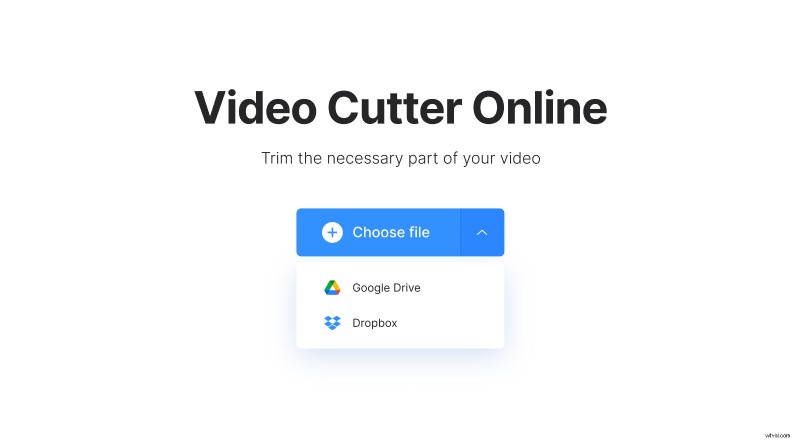
Alternative option: call a drop-down menu on the right side of the button and upload a file, stored online. You can pick recordings from Google Drive or Dropbox.
Trim the recording
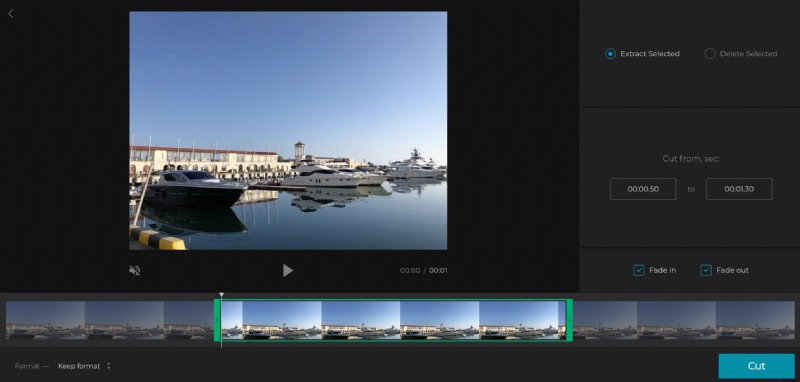
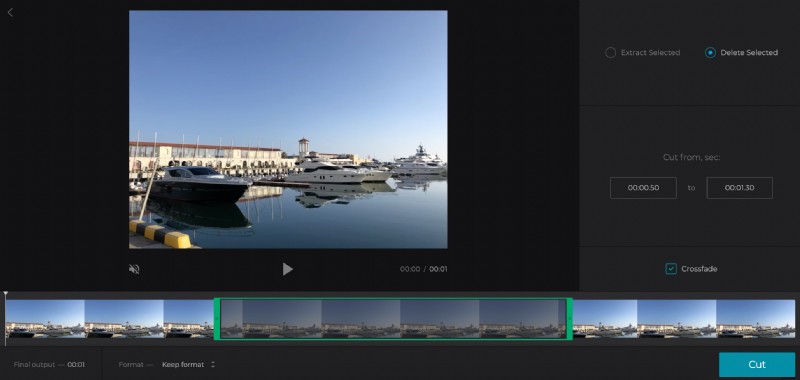
Select the part of the video by moving the sliders or setting the start/end timing manually. After that, you have two options:
- Cut the video. To do so, hit the “Delete Selected” bullet. The snippet will be eliminated, and the rest will be merged. If you want to make the transition smoother, tick the “Crossfade” box.
- Cut out a part of the video. To perform it, tick “Extract Selected”. If you want to make a gradual beginning and ending, hit “Fade in” and “Fade out” boxes.
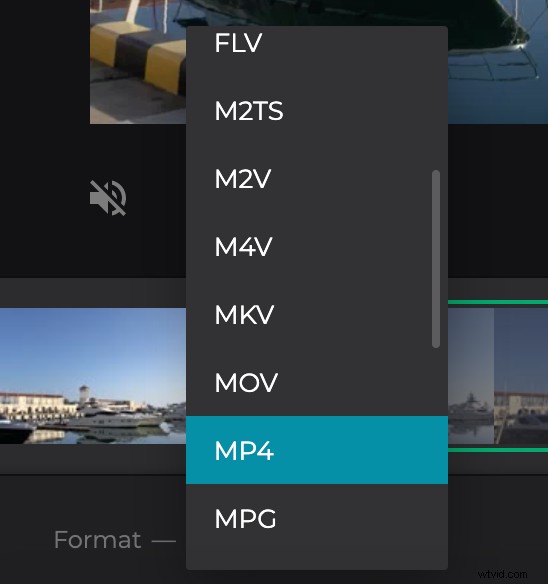
Don’t forget to set an output format. MOV and MP4 are compatible with all the most popular social media, but you can choose even as unusual extensions as M2TS, 3G2, OGV and others.
Check everything one more time and click on “Cut”.
Save the trimmed video
Download the clip to your personal device or cloud storage account.
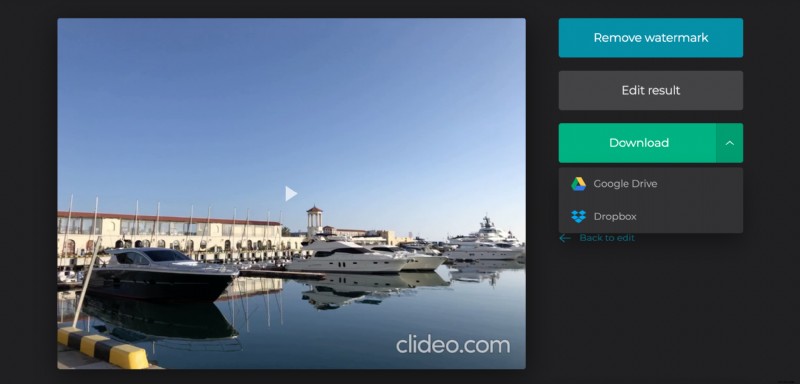
Don’t worry about the watermark – it’s tiny and discreet. But if you want to remove it, feel free to subscribe to Clideo Pro.