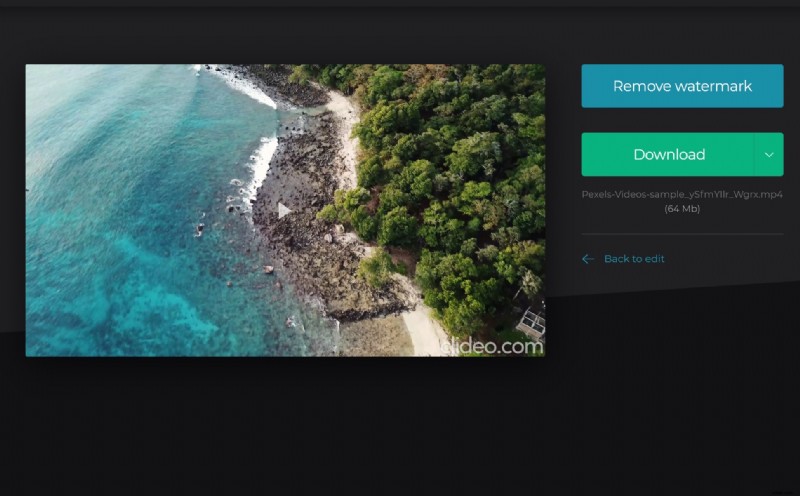
Cut YouTube video in seconds
Whether you’re a YouTube novice just starting out or an avid vlogger with tonnes of subscribers, editing your clips can be one of the most time-consuming things on your to-do list, especially when using professional editing software. Sometimes all a video clip needs is a quick trim down before you load it on the web.
So why not make use of something a little more straight forward, such as Clideo's online video trimming tool? It works in your browser, meaning you don’t need to download or install anything onto your device. And the best thing is, it allows not only cutting but also converting your video to one of the supported YouTube formats.
Upload your clip
First things first: head over to YouTube video cutter by Clideo. If you’re on a desktop computer, such as Mac or Windows, you can either drag and drop the video into the tool itself or if you’re uploading from a smartphone or tablet (both iOS and Android devices are supported), hit the ‘Choose file’ button.
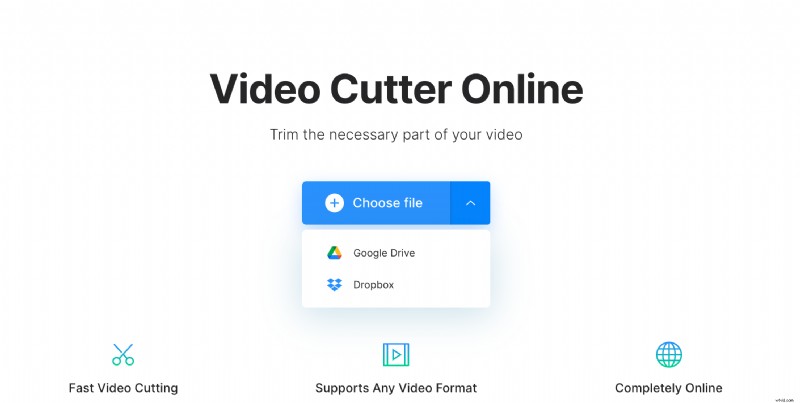
If your file is buried within your Dropbox or Google Drive accounts, we support adding files from these sources, too.
Once you’ve chosen the file that requires a good trim, hit open and the video trimming tool will upload it to its servers for processing. Please note: videos of 500 MB and less can be uploaded for free and all of the most popular formats are supported, including AVI, MP4, MPG, MOV, and many others.
Snip snip!
Once your clip has been processed, you’ll be presented with the video editing tools dashboard. Now it’s time to get creative. Here you can choose where you want your video to begin and end before chopping it down. You can move the green sliders to select where you’d like to crop visually, or you can input the specific beginning and end in minutes, seconds or even split seconds via the boxes on the right-hand side.
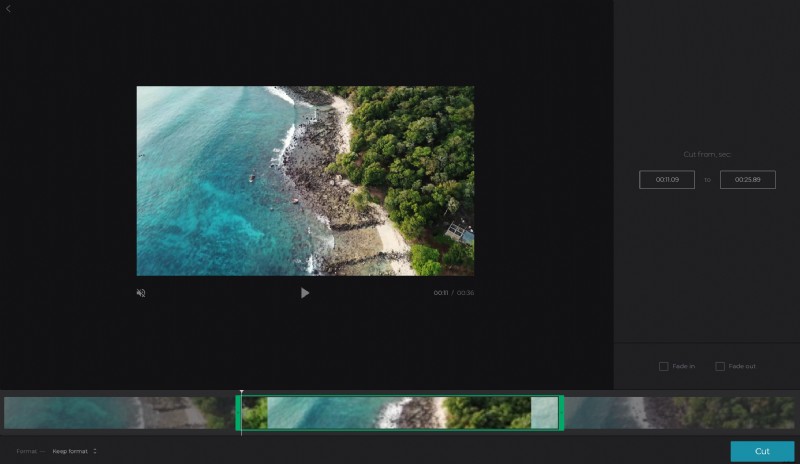
Just under this tool is the fade-in and fade-out feature, which will add a nice, professional-looking transition effect if chosen. You can opt to add it to the beginning, the end, or both by simply ticking the boxes. Then give it a preview by pressing the play button.
Once you’re happy with the new length of your clip, select an output format. You can either keep the original or convert to one of the other supported video standards. For YouTube we'd recommend MOV or MP4.
If you’re sure you’re all done, hit the ‘Cut’ button on the bottom right-hand side and your newly-trimmed video will get the chop!
Download to your device
Once the processing has hit 100 percent, it's ready to download your freshly-cut clip. You can either save it back to your device by tapping the ‘Download’ button, or - again - send it to your online storage account in Google Drive or Dropbox via the downward arrow on the right.