
Are you a content creator—like a podcaster or blogger—who wants to pivot to video? Or, maybe you’re a small business that wants to establish leadership in your niche by publishing quality video content.
No matter your goals or experience level, the truth remains: if you have a YouTube channel, you’ll need to know how to edit YouTube videos.
Below, we’ll show you how to make basic edits in YouTube Studio (the native editing tool within YouTube), as well as options and tips for editing your videos regardless of your budget or tech-savviness.
How To Edit YouTube Videos on a Laptop or Desktop Computer
The best way to edit videos for YouTube is to use a personal computer, either a desktop or laptop. This setup makes it easiest to navigate your software of choice and be as precise as possible.
To start editing using the YouTube video editor, sign into your Channel dashboard and click Upload Videos.
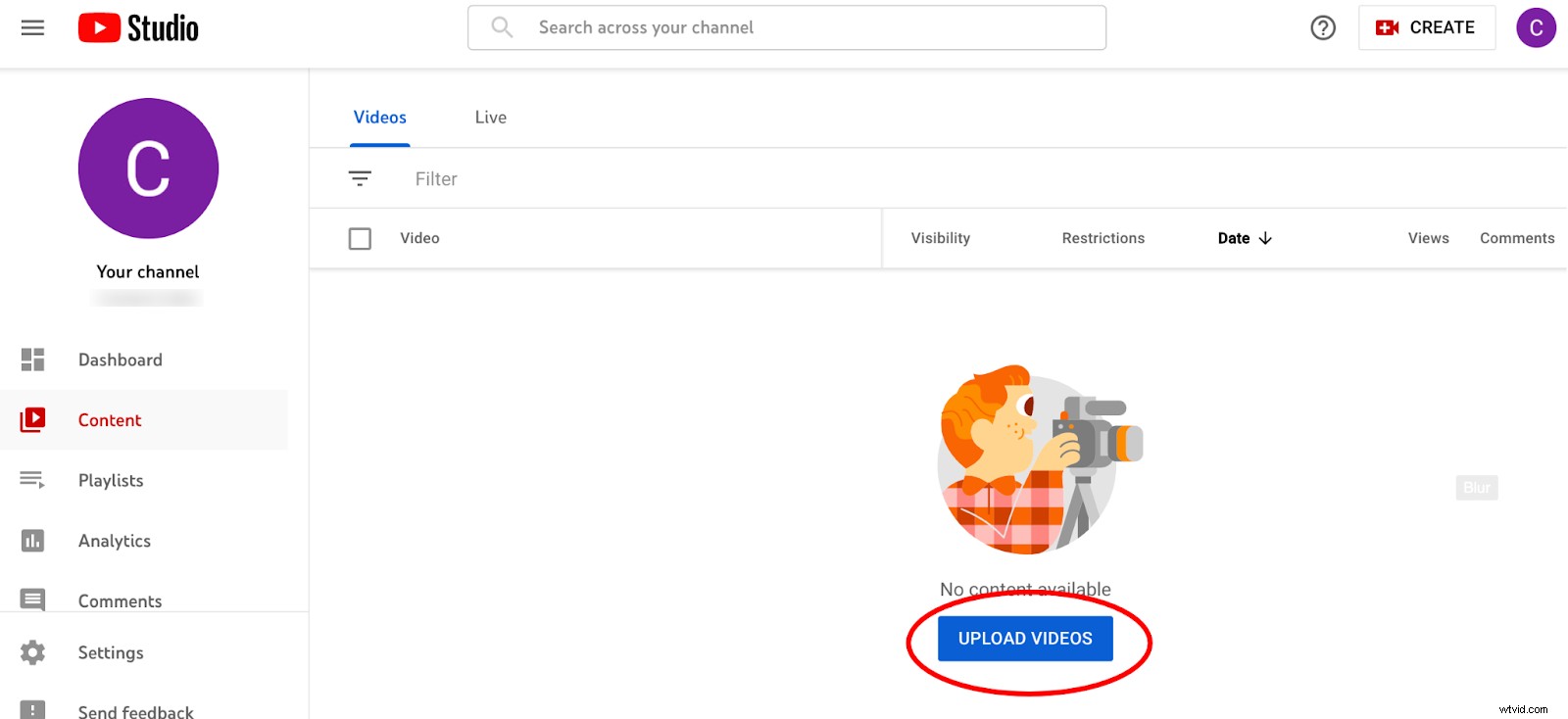
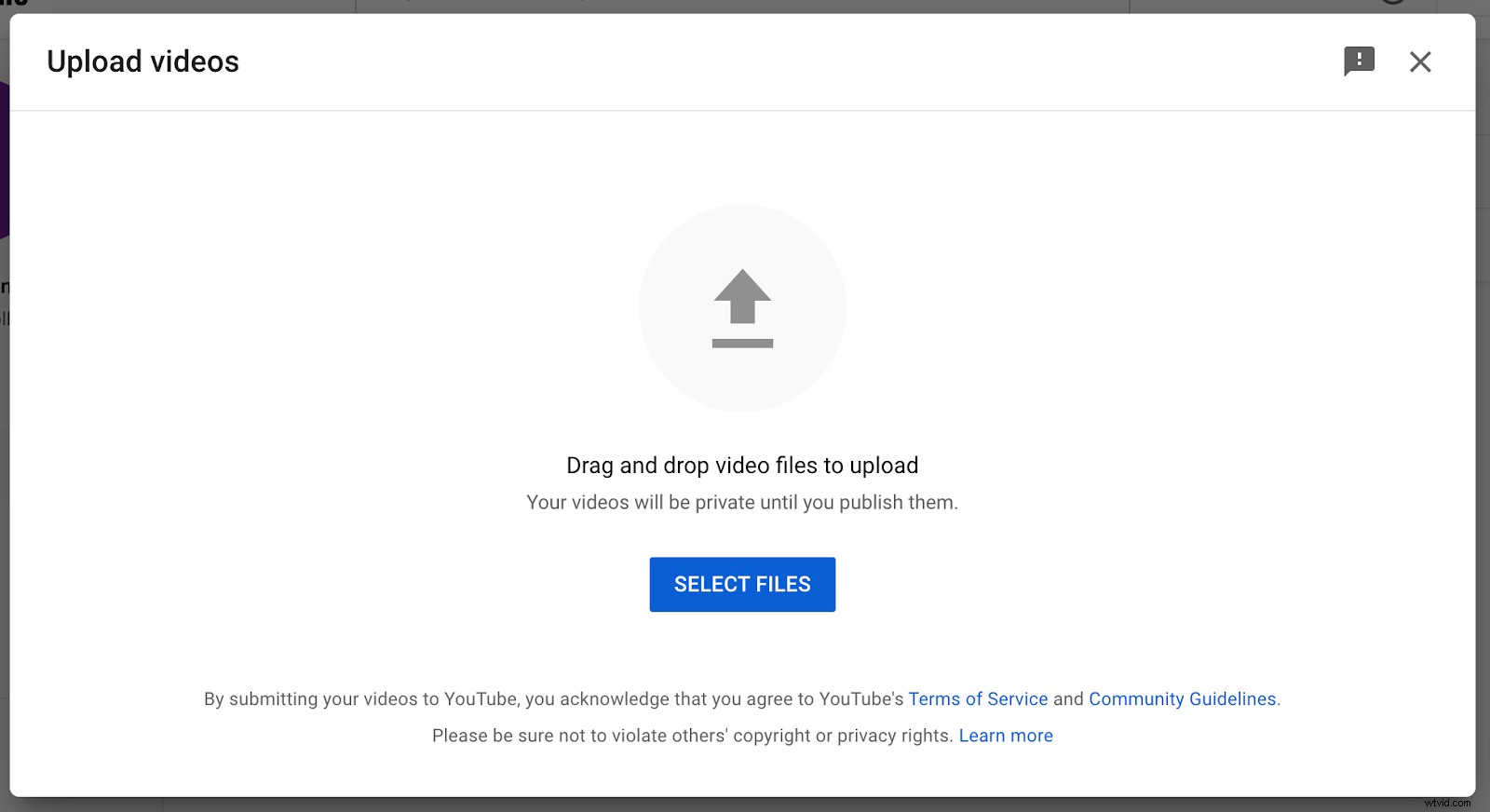
Choose the video you want to upload from your files.
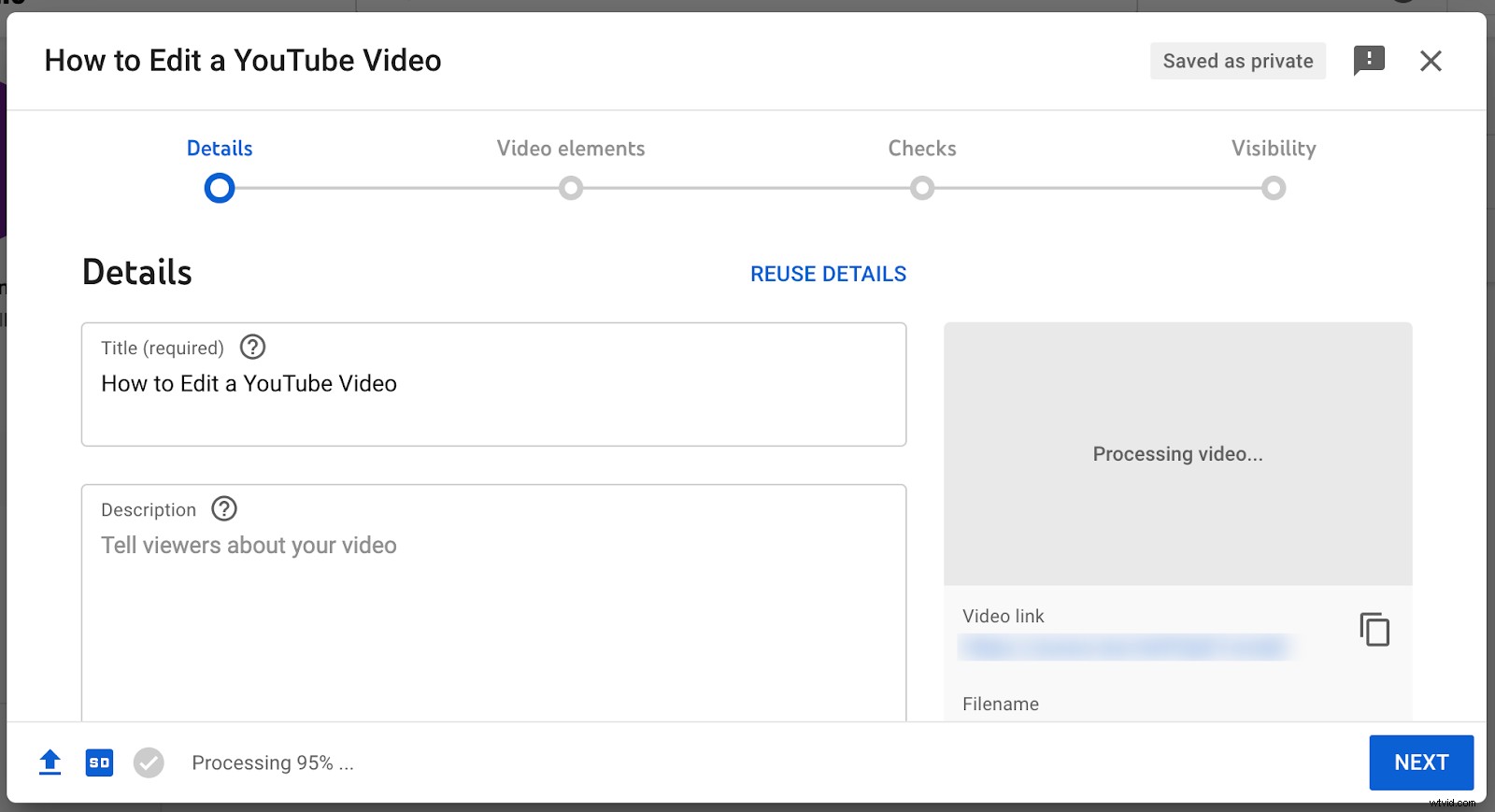
Complete the video details and elements, like:
- Video title and description
- Video thumbnail
- Which playlist to add it to
- The language and subtitles
- The target audience age
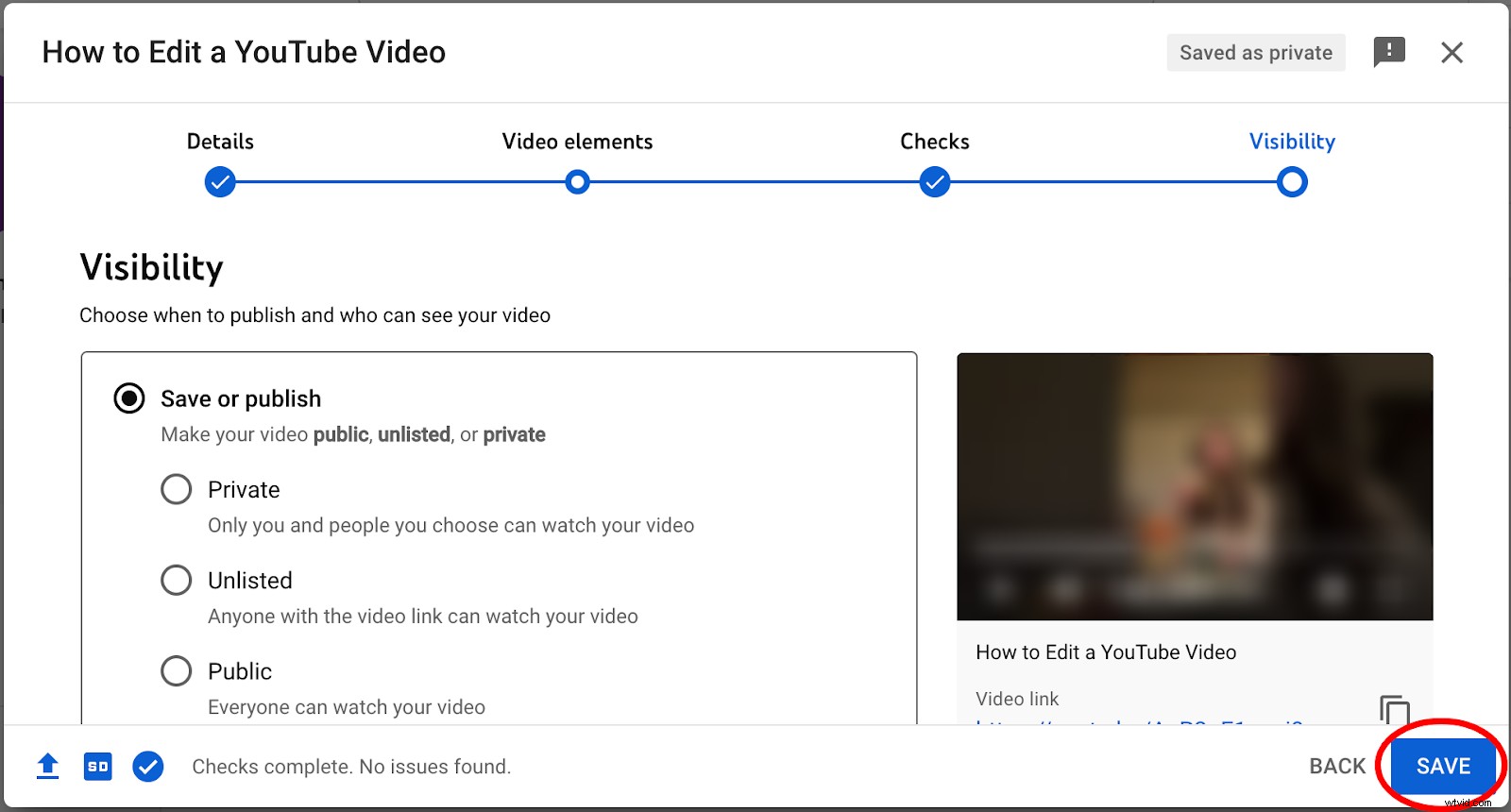
On the visibility page, you can choose whether the video will be public, unlisted, or private. This page also lets you schedule a publication date and time. Click Save.
Once your video is uploaded, you can begin editing.
Back in your dashboard, select the Content tab on the left column and click on the thumbnail of the video you’d like to edit.
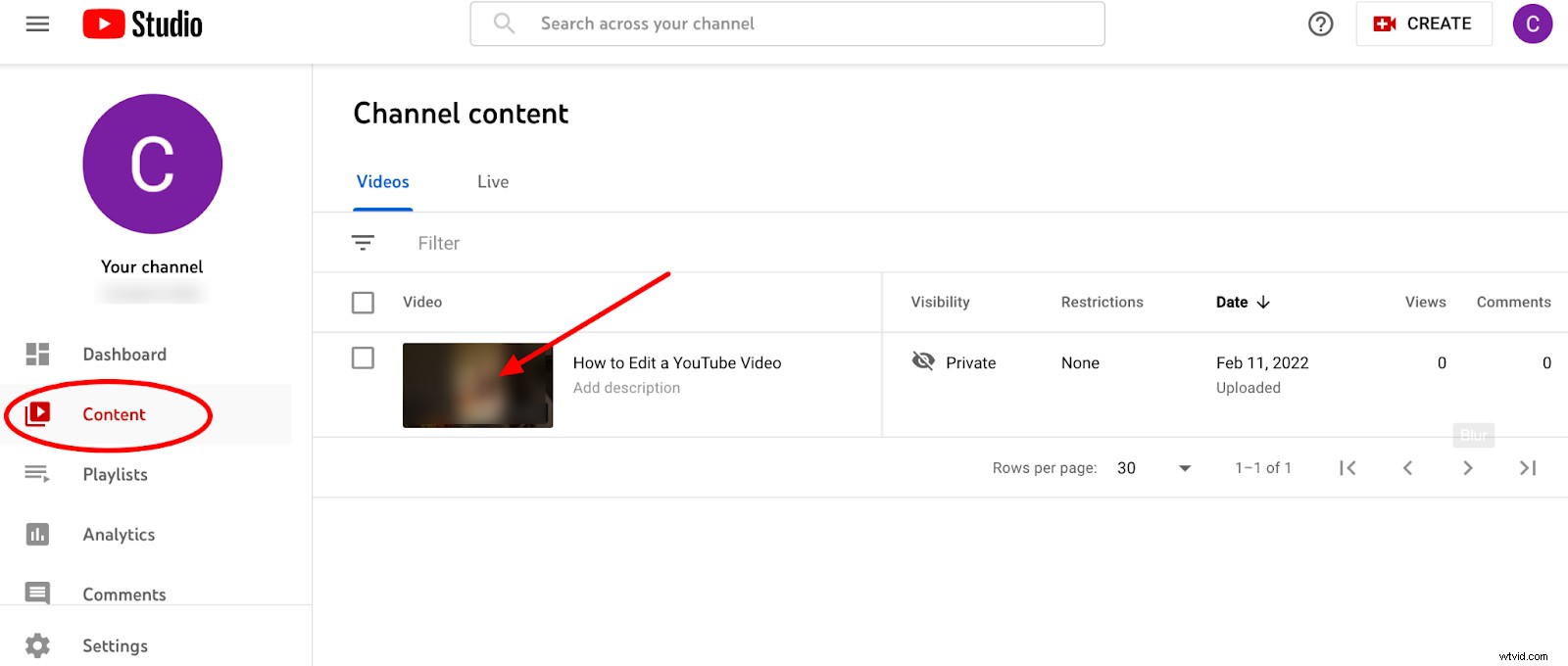
How to Trim a Video in YouTube Video Editor
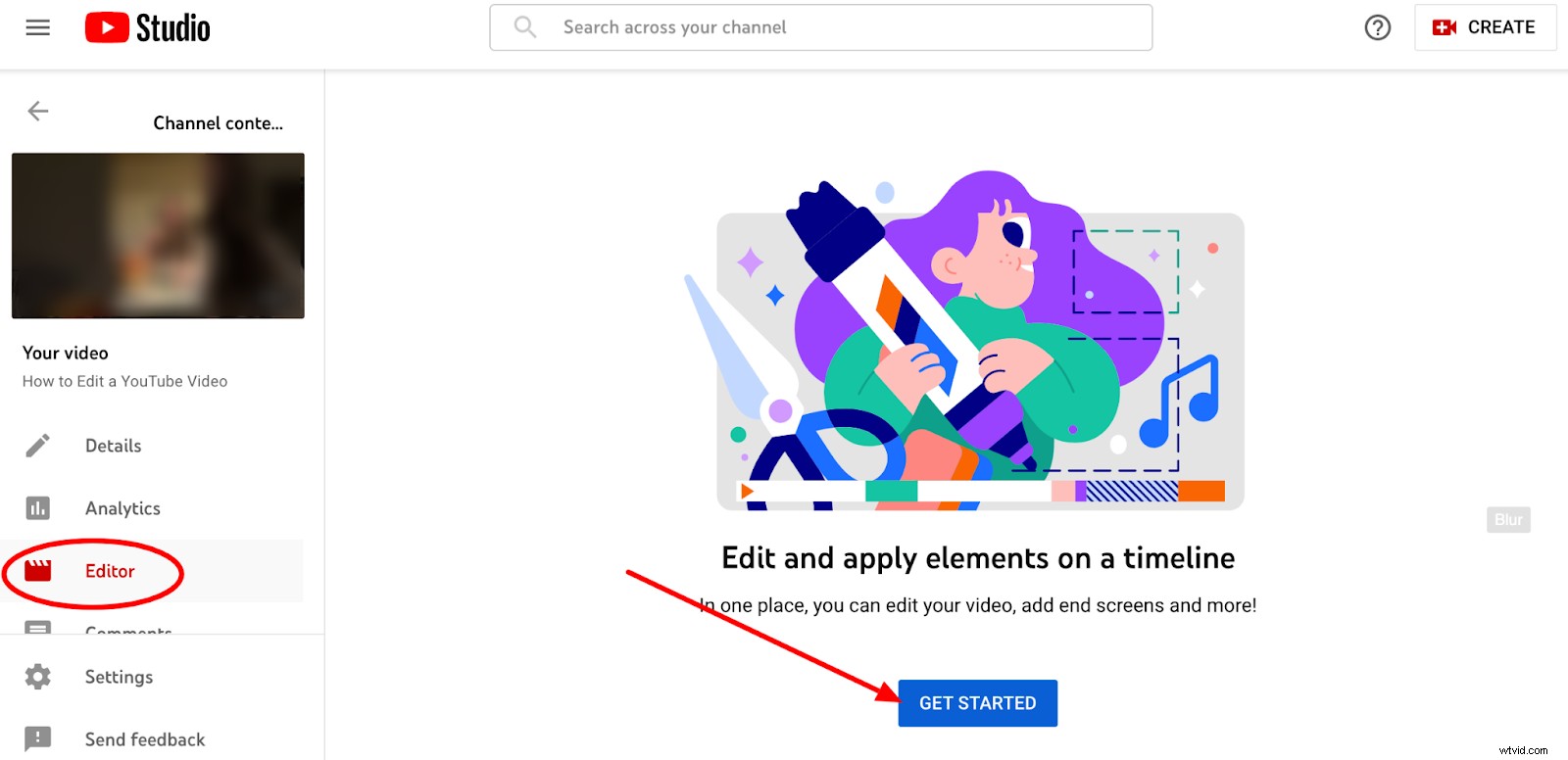
After you’ve clicked on your video’s thumbnail, click Editor in the left sidebar. Select the blue Get Started button.
Click Trim. A timeline will appear at the bottom of the screen. Drag the bars to the points you want your video to start and end.
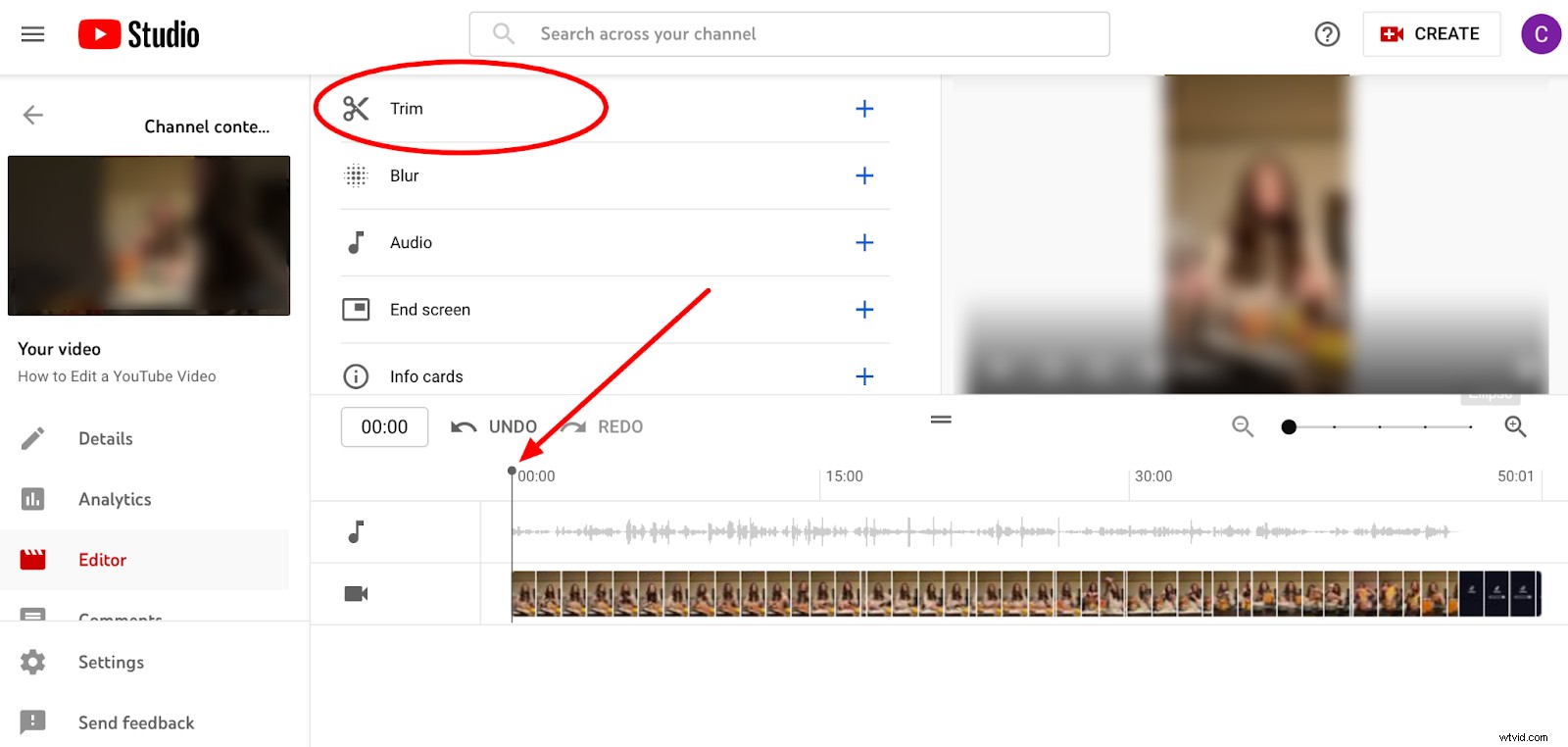
When you’re ready, click Preview at the bottom of the screen to see your trimmed video. Click Save to save your changes.
To trim out a section from the middle of your video, move the starting point to the place you want to trim. Click Trim, then select Split at the bottom of the screen.
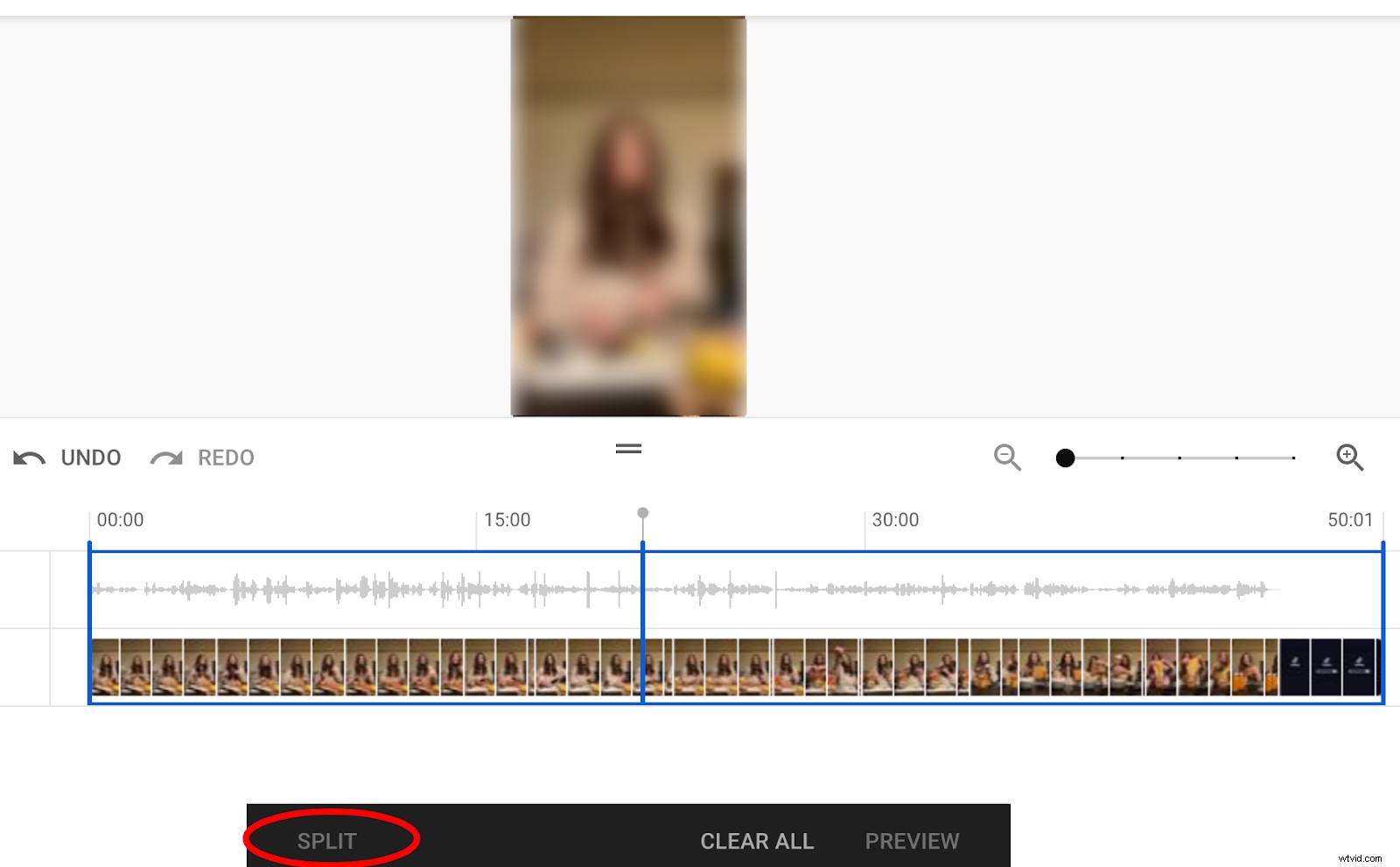
From there, drag the blue bar to the end of the section you’d like to trim out. When you’re done, click Save.
How to Blur a Video in YouTube Video Editor
In the video editor, click Blur. You can choose Face blur (which automatically detects faces and lets you choose which ones should be blurred) or Custom blur.
If you choose Custom blur, you can adjust the location, timing, and size of the blur box in the preview window.
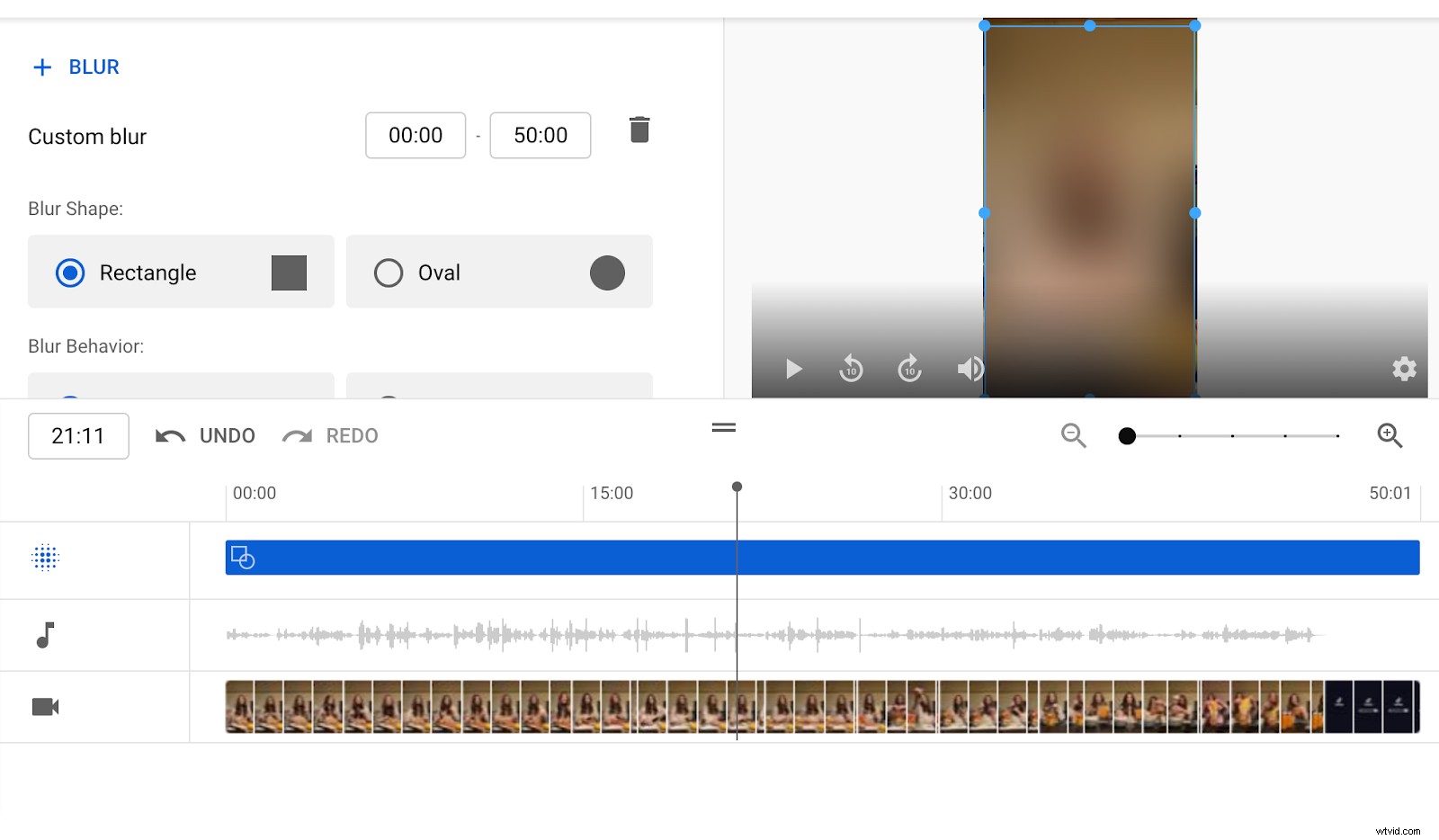
Click Save when you’re done editing.
How to Add Music in YouTube Video Editor
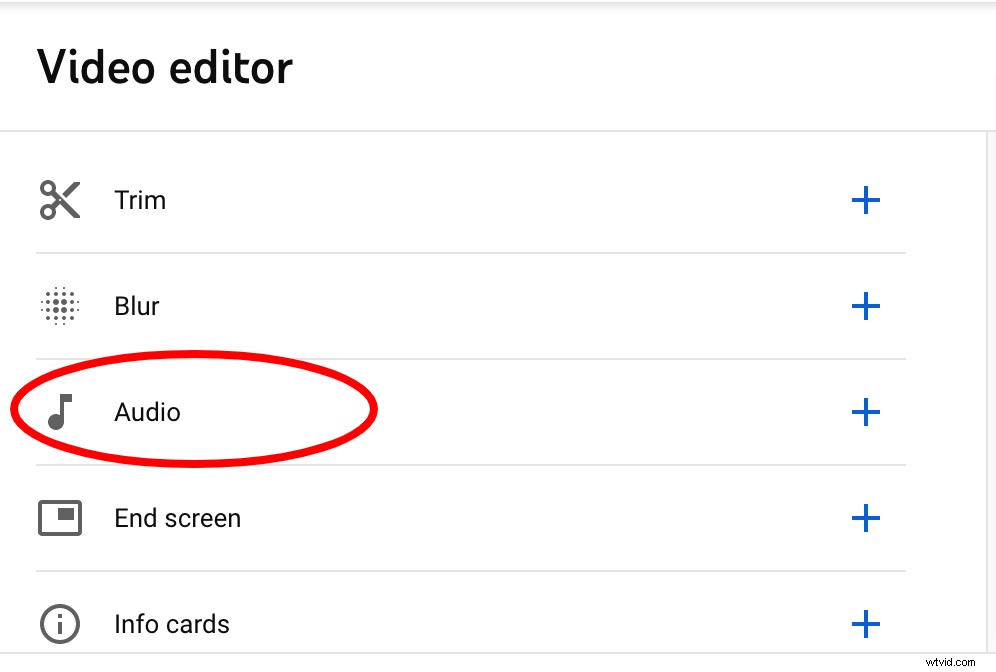
If you want to add music or sound effects, click in to the editing screen and select Audio.
YouTube includes a list of free songs and sound effects that aren’t copyrighted. You can search by title, genre, mood, artist name, or track duration.
To choose a track, hover over it and click Add. The track will appear alongside the video timeline.
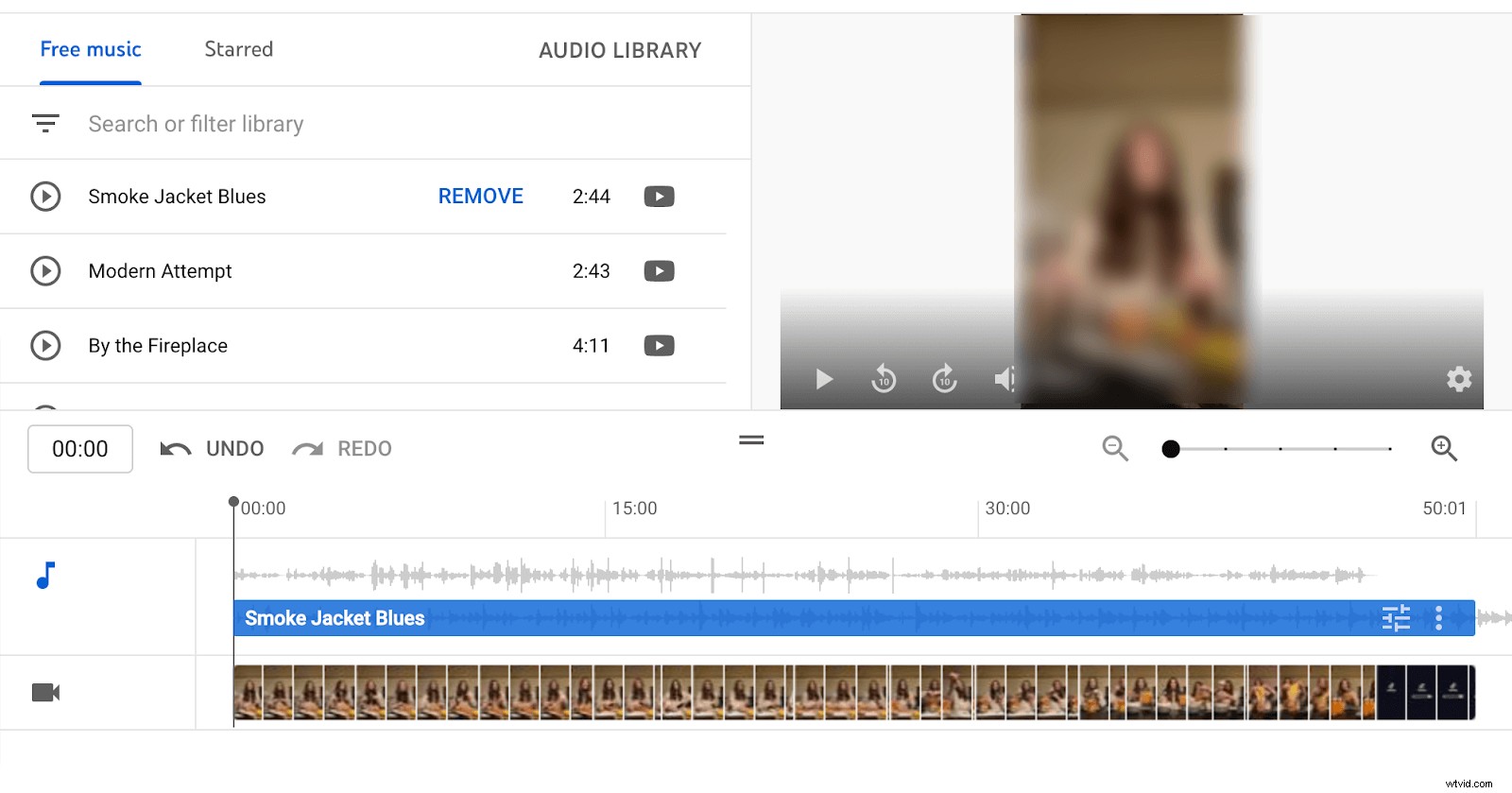
From there, you can adjust the audio mix level and drag the start and end of the music track to where you want them.
How To Edit YouTube Videos On Mobile and Tablet
While it’s easiest to edit YouTube videos on your desktop or laptop computer, it’s possible to edit them from your mobile device as well. The tips and apps recommended below work whether you’re using a phone or tablet.
The first thing to note is that while you have limited editing capabilities through YouTube itself if you’re using a desktop or laptop computer, those capabilities are much more limited if you’re on a mobile device.
If you want more granular control over your video settings and view analytics, you can download the YouTube Studio app from the Apple App store or Google Play. Here’s an introductory video from YouTube about how to use YouTube Studio:
But if you want to do more than basic edits, you’ll need to use a third-party app designed for your device. We’ll include the best apps for Apple and Android devices below.
How To Edit YouTube Videos On An iPhone or iPad
The easiest way to edit videos on an Apple mobile device is to use the built-in video editor in your Photos app. Simply open the video you wish to edit for YouTube and tap Edit at the top of the screen to access the video editing tools.
Trim the video by dragging the ends of the bar at the bottom of the screen. Adjust the exposure, contrast, brightness, and more by clicking the adjust icon.
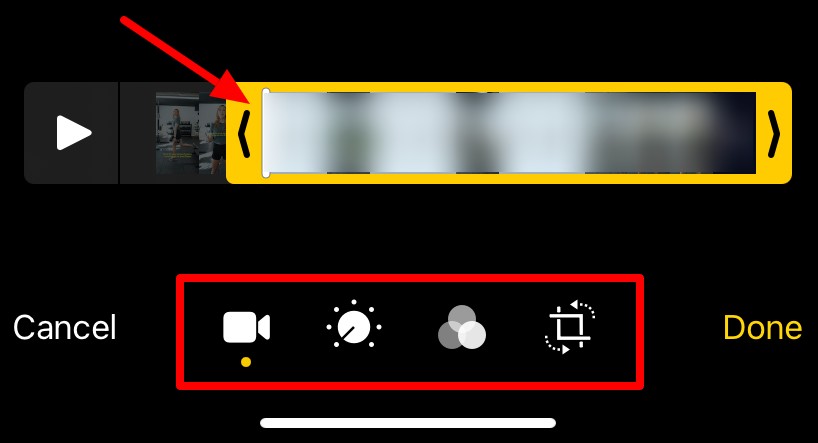
Tap the filter icon to choose from among the available filters. Crop and rotate the video by clicking the crop icon.
Click Done to save your changes when you’re finished.
If you want to use more advanced editing options, some of the most popular third-party video editing apps for iPhone and iPad include:
- iMovie
- Video Editor by Luni
- Adobe Premiere Rush
- FilmoraGo
How To Edit YouTube Videos On An Android Device
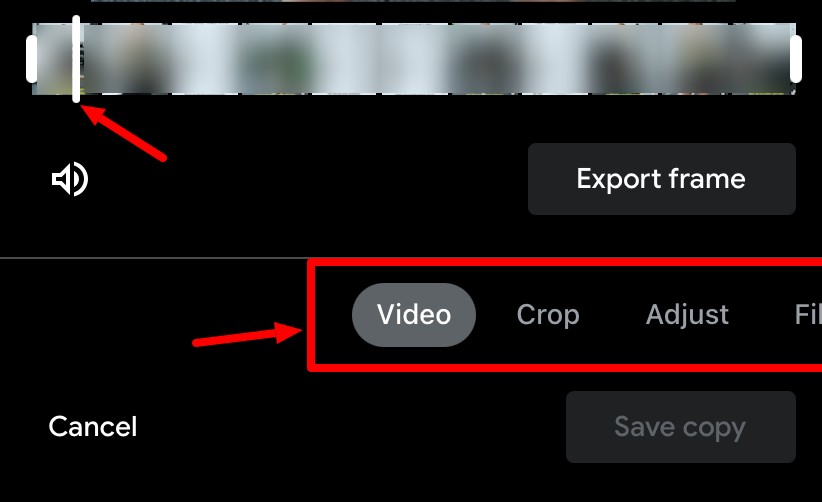
If you have an Android phone or tablet, your Google Photos app has the limited ability to cut or trim videos you’ve recorded on your device. Simply open the Google Photos app and select the video you’d like to edit.
Tap the screen to reveal the editing tools. Click on the Edit icon.

Drag the handles on either end of the video bar to adjust its start and ending points. Tap Save when you’re finished.
If you’d like to do more than trim or cut your videos, consider using a third-party app like:
- Quik
- Adobe Premiere Rush
- ActionDirector
- InShot
Best Third-Party YouTube Video Editors
If you’re creating a simple video, YouTube’s built-in editor (or its Studio App for mobile devices) may be enough for your needs.
But if you want to do more than trim or filter your video, you’ll need to turn to third-party software. As you can imagine, there are plenty of options ranging from free to pricey. Here’s a list of our top picks to get you started.
Riverside.fm—Best All-in-One Recording and Editing App
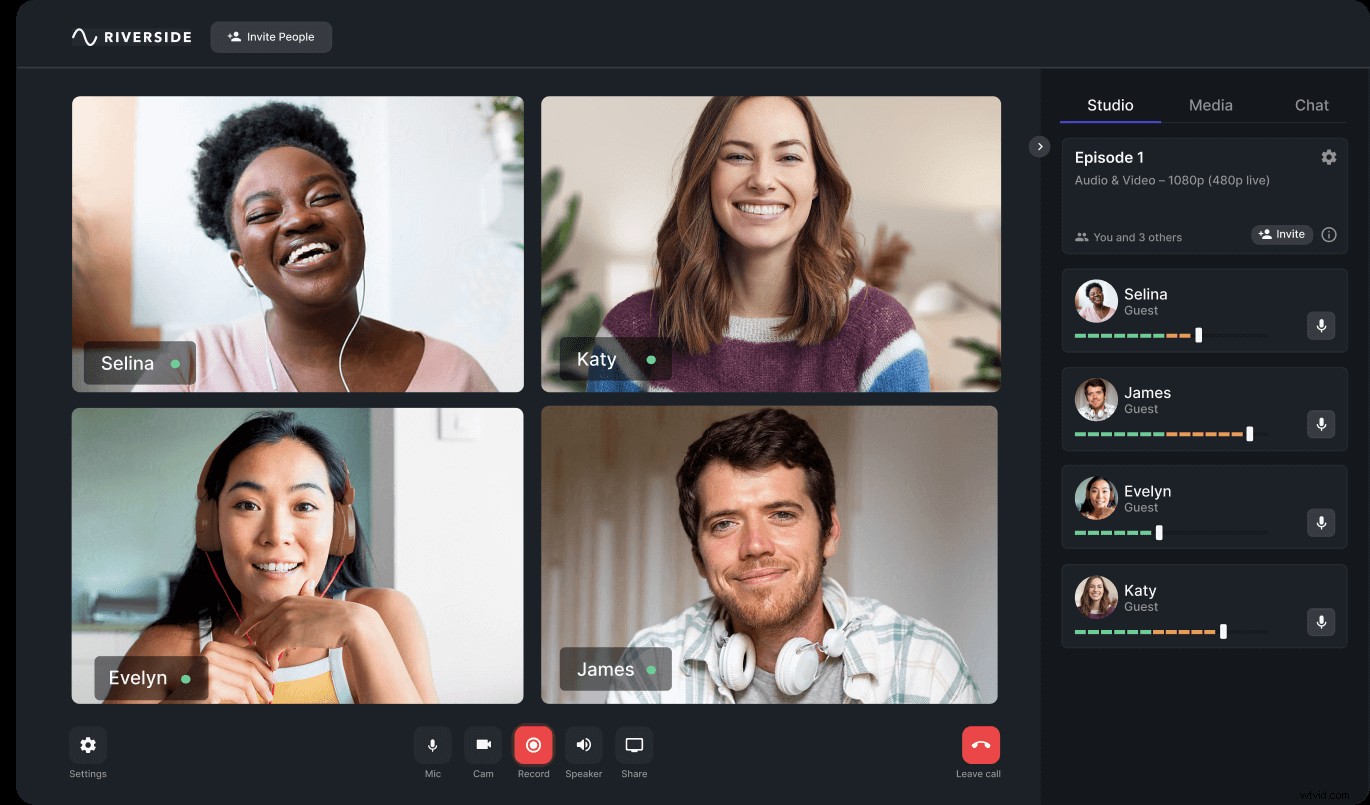
If you’re looking for a one-stop application to record professional quality videos and edit them into a polished final product, look no further than Riverside.
Not only is our recording software the perfect combination of crystal clear video quality and intuitive interface, but our Magic Editor also streamlines your editing process by automating tasks like switching between speaker views and adding custom backgrounds. You can turn your long form recording into short promotional Clips within minutes and as an added bonus, Riverside lets you live stream to YouTube with a single click.
Price: Free plan, paid plans start at $15/month.
Want to see how easy it is to edit a video with Riverside? Check out our video editing tutorial below.
Adobe Premiere Rush—Best for Pro-Level Editing
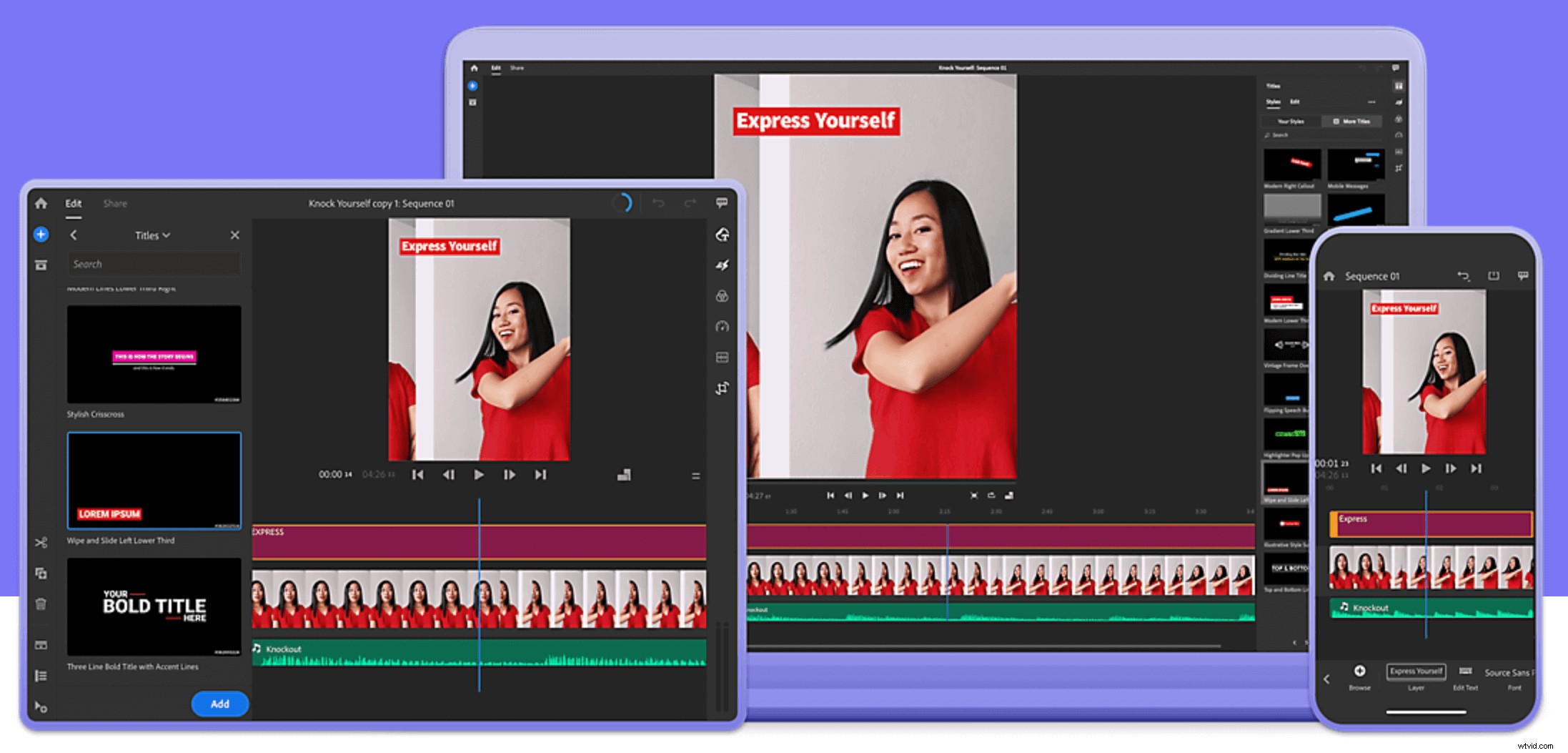
Adobe Premiere Rush is a great choice for professional video editors (or beginners who don’t mind a steep learning curve).
This professional editing app lets you create customized transition effects and tweak the playback speed, and it also makes mobile editing a breeze. The features may be overkill for beginners or hobbyists, but Premiere Rush is the gold standard for the pros.
Price: starts at $9.99/month.
Final Cut Pro X—Best for iOS Users Who Don’t Want to Pay a Subscription
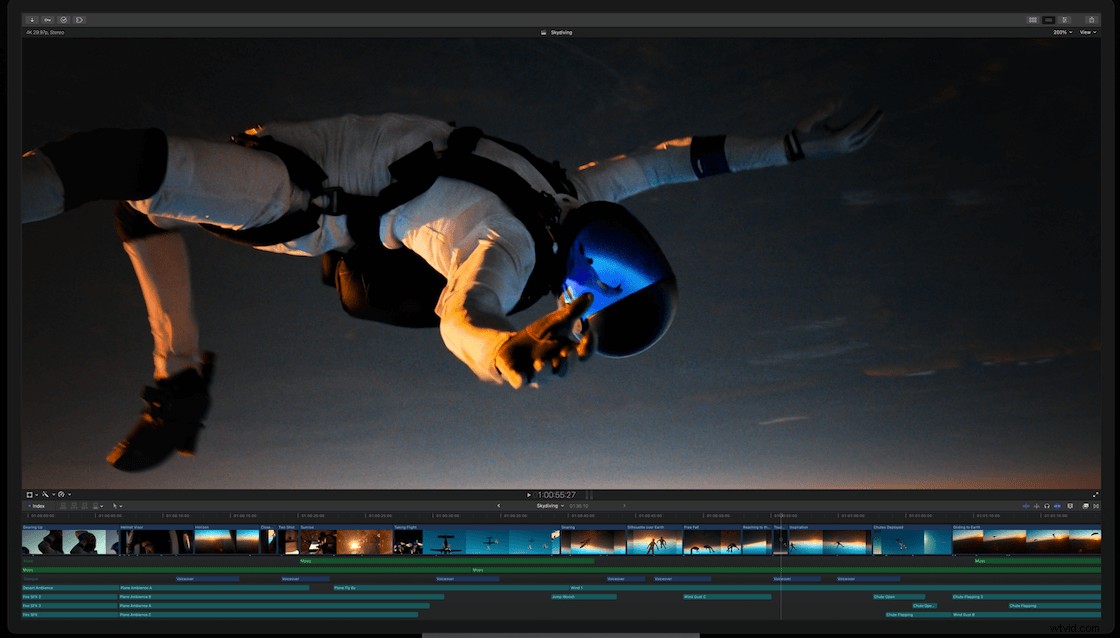
Final Cut Pro X, the industry-leading software for Mac users, comes with sophisticated features like advanced color grading and a multicam feature. It also comes with an intuitive Magnetic Timeline tool that makes rearranging scenes a breeze.
If you work completely within the Apple ecosystem and want pro-level video editing software that you don’t have to pay a regular subscription for, Final Cut Pro is a great choice.
One-off price: $299.99
Lightworks—Best Freemium Software
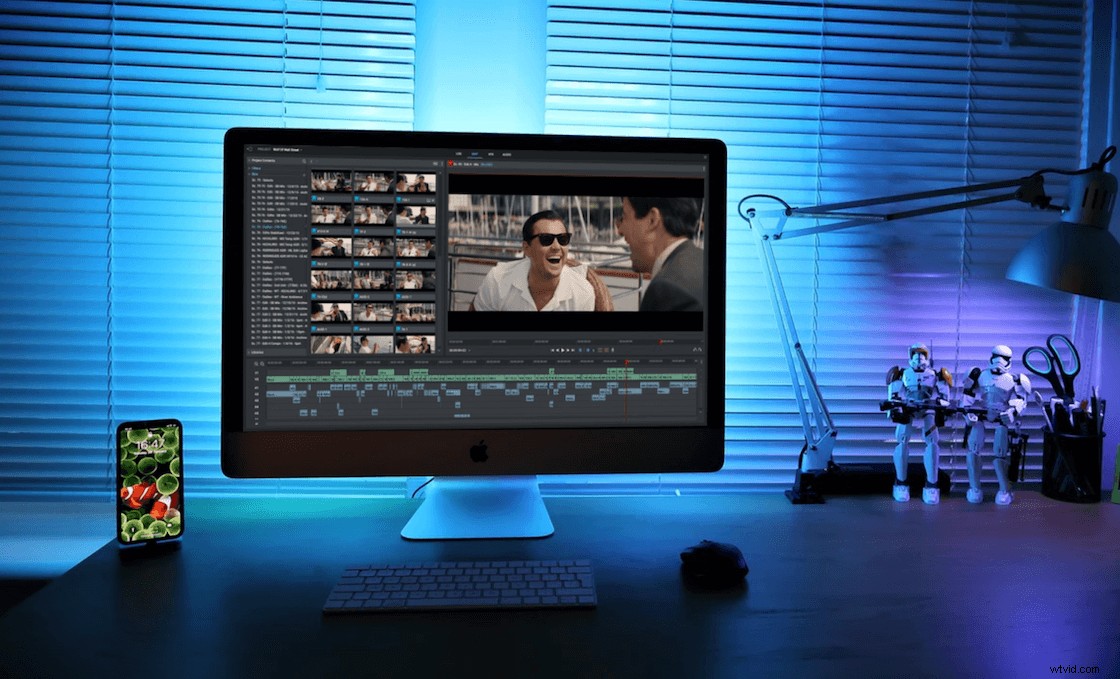
The paid version of Lightworks is often used on big-budget Hollywood films—and the free version is still plenty powerful. The only downside to the free version is that it only exports at 720p, so you’ll have to pay if you want HD or 4K.
But conveniently, Lightworks does let you export straight to YouTube and Vimeo.
Price: Paid plans start at $9.99/month
Best Practices for Editing YouTube Videos
Of course, choosing the right software and knowing how to use it is only half the battle. You’ll also need to follow best practces like these for the best end results:
- Keep backups—There’s nothing worse than losing your entire video because you accidentally messed up or deleted a part of it. Store multiple copies of your video in case you need them later.
- Add an end-screen—Whether it’s a call-to-action (CTA) asking viewers to subscribe or a simple logo, an end-screen is a great way to give viewers a sense of resolution.
- Take video from multiple angles—Having B-roll provides visual interest and levels up your videos in terms of professional production quality.
- Use an external microphone—Even if you’re recording with your phone, you can get high-quality audio with an external mic. Check out our list of best microphones for YouTube videos for our top recommendations.
YouTube Editing FAQs
What do YouTubers use to edit their videos?
Most YouTubers use software like Final Cut Pro and Adobe Premiere Pro to edit their videos. These applications aren’t cheap, but they are the most feature-rich for professional content creators.
Is the YouTube video editor good?
The native editing features within YouTube are useful for basics like trimming, cutting, adding a filter, and choosing background music. If you want more features beyond basic editing capability, you’ll need to turn to a third-party application.
Where do I find the YouTube video editor?
To use the video editor within YouTube, sign in to YouTube Studio. Then:
- Select Content from the left-hand menu.
- Click the thumbnail or title of the video you want to edit.
- Select Editor from the left menu column.
How do you edit YouTube videos for free?
YouTube Studio comes with basic editing features that you can use for free. There are also several free (or freemium) third-party editing apps available on the market, like Lightworks, iMovie, and Windows Movie Maker.
But if you’re planning to do more than create videos as a hobby, you may want to invest in paid software that can generate professional-quality content. For best results, we recommend Adobe Premiere Rush (for the most advanced features) or Riverside.fm (for pro-quality output and beginner-friendly functionality).