Mirror or flip an iPhone video online with Clideo
The easiest, fastest and cheapest way to flip an iPhone video is by using Clideo’s Flip Video tool. Not only is it free to use, but it works effortlessly in your browser, meaning you don’t have to download external software.
Want to know how to mirror a video on iPhone, too? Good news - the tool also allows you to do it, too.
Step 1: Upload your video
Navigate over to the tool from any browser on your iPhone and hit the ‘Choose file’ button.
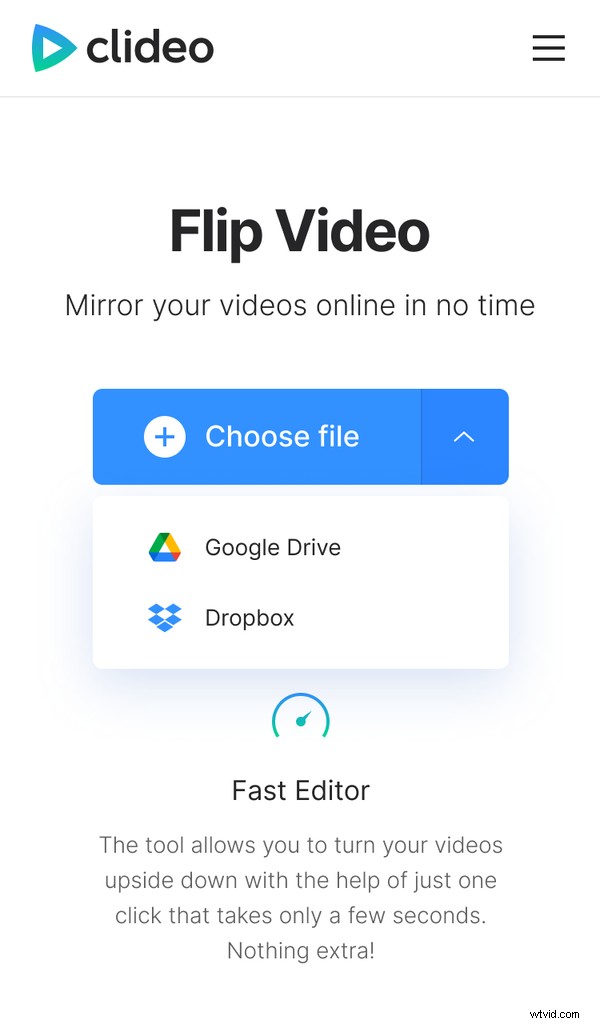
Select the recording from your camera roll. If it’s stored in your cloud storages instead, you’re in luck — tap the downward-facing arrow and select it from Google Drive or Dropbox.
You can upload clips up to 500 MB, completely free of charge. And it also works on PC, Mac and any other device with access to a web browser!
Step 2: Flip the video
Once the video has been uploaded to Clideo’s servers, you can opt to flip it horizontally or vertically using the Flip button option on the right-hand side.
To the left of this is the mirror button, also. Now choose an output format for the file from the menu on the bottom left.
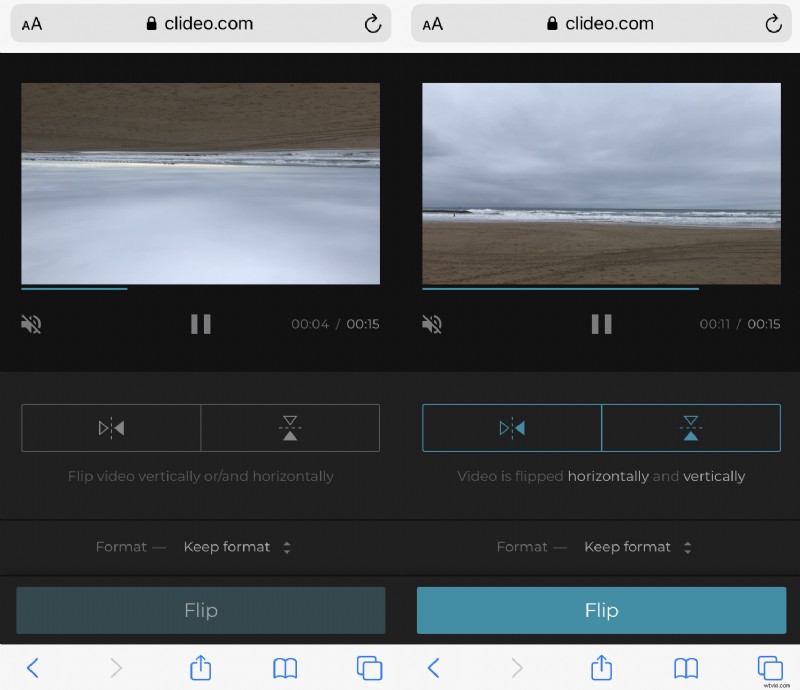
Please note that for iPhone, the MP4 extension is recommended. If you’re happy with the result in the preview pane, hit the ‘Flip’ button on the bottom right to continue.
Step 3: Save your mirrored video
After a few moments, your new movie will be processed and ready to download back to your iPhone via the green ‘Download’ button.
Again, click the arrow to save the file to Google Drive or Dropbox if you want to save it here instead.
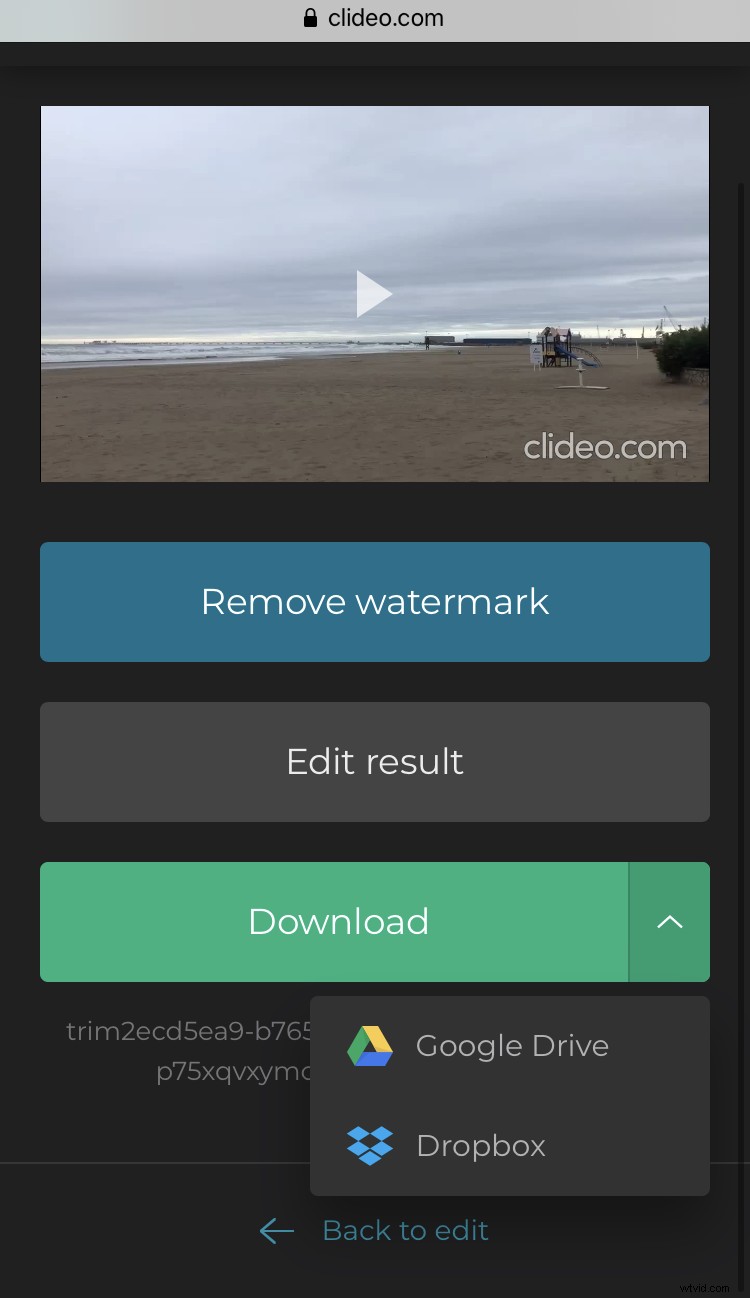
Want to make some more changes? Simply tap the ‘Back to edit’ option and you’ll be taken back to the editor tool without needing to start over.
Flip a clip offline with iMovie
The other way you can change the orientation of an iPhone clip is via iMovie - Apple’s official video editing app. To get your hands on it, you’ll have to find it in the App Store and download it to your iPhone first.
Please be aware, however, that you can only flip a clip in iMovie but can't mirror as you can do with Clideo.
Step 1: Choose your file
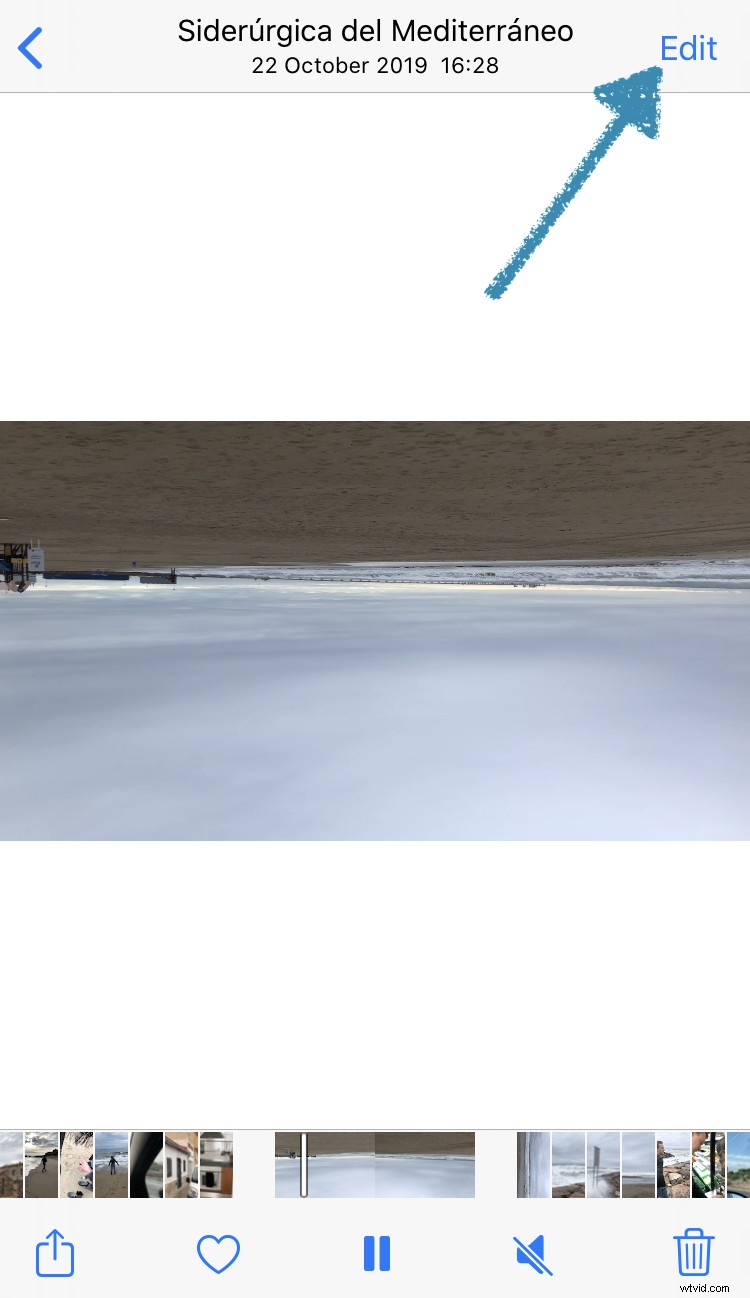
Select the video you want to flip in your iPhone Photos gallery and tap the ‘Edit’ option on the top right.
Step 2: Export to iMovie
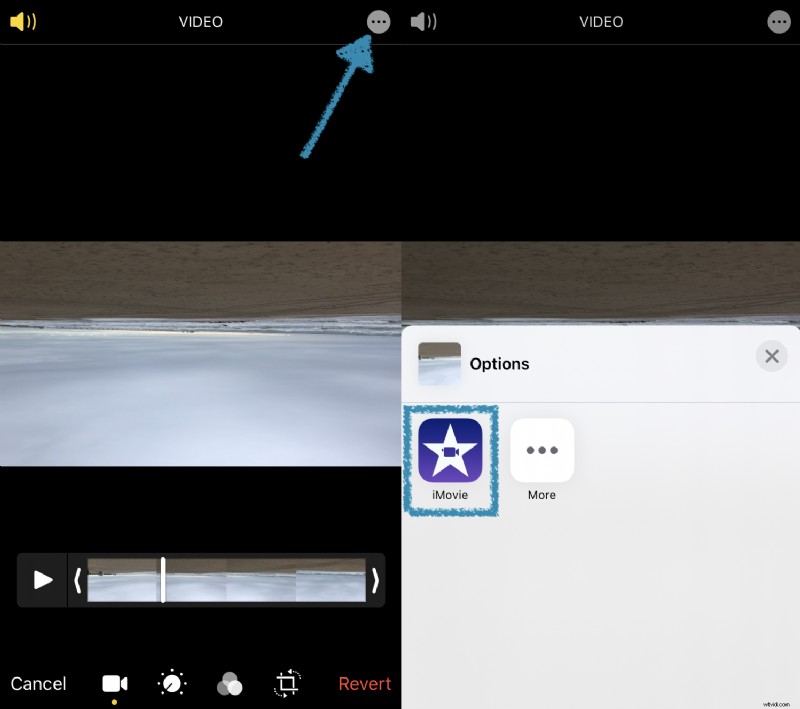
From here, select the extensions button (the ellipses inside a circle) on the top right again and tap the iMovie icon to open the video in the app.
Step 3: Rotate 180 degrees
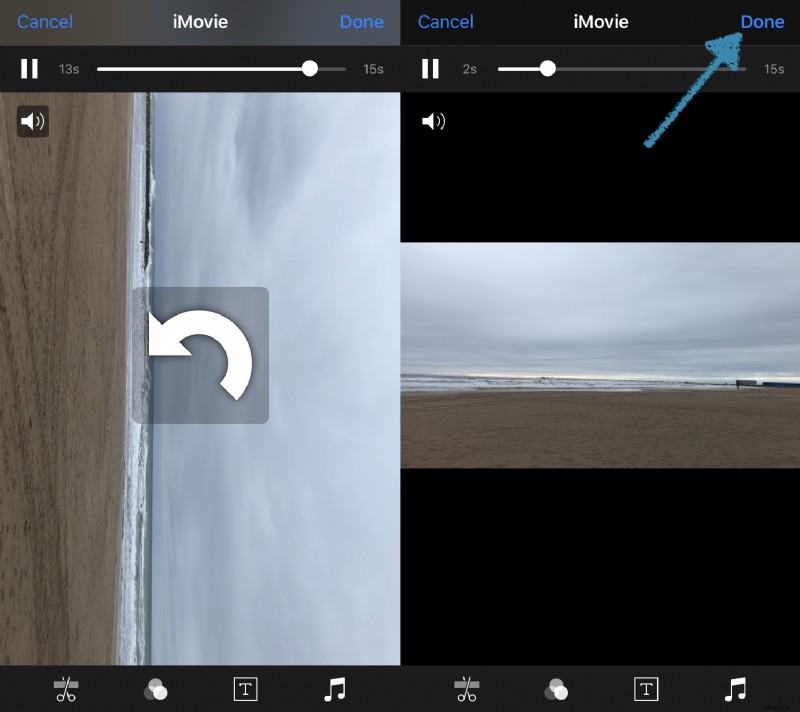
Within the iMovie app, you take the rotation into your own hands..literally! Use two fingers on your iPhone’s screen to rotate the clip around the correct way. Tap Done and save it back to your device’s camera roll, and you’re done!

REC
Recommended: Video Production, Editing & Gear Maintenance Guide