As Flash Video (FLV) has become the default video format on the web and almost every video sharing site, you may have downloaded some FLV videos from YouTube or other video sharing sites. Want to edit these FLV videos on your Mac? You may find some video editing tools fail to support editing FVL in Mac's latest operating system- Mavericks.
To help you edit FLV in OS X Mavericks, a professional and easy to use video editor is required. Here I recommend Filmora for Mac(Originally Wondershare Video Editor for Mac). With an intuitive user interface, you can split FLV videos into multiple clips, merge several files into one, trim the unwanted part, and convert FLV videos to other formats with ease. Now check out the steps below to know how to edit FLV in OS X Mavericks.
1 Import files to the FLV editor for Mavericks
After running this FLV editor for Mavericks, click File > Add Files or simply drag your FLV videos to the video track. You can also use the media browser to add files from your iTunes library, iMovie and other places.
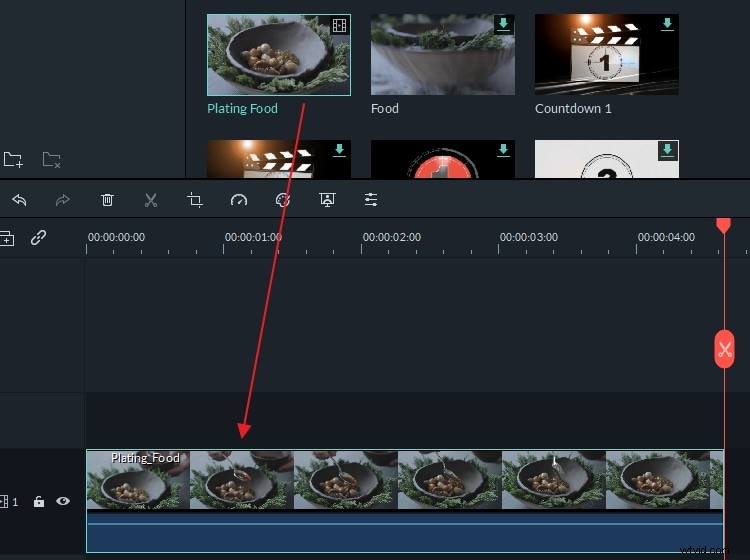
2 Edit FLV videos in OS X Mavericks
It's easy to edit FIV files using Filmora for Mac. To do some basic editing, just click the button on the toolbar to trim, crop, rotate videos and add voiceover to your videos.
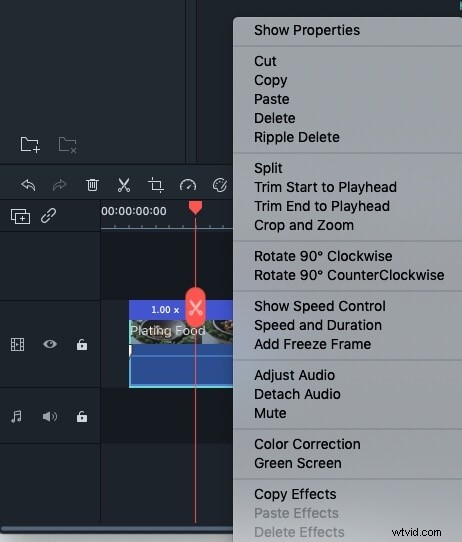
If you want to make the video more stunning, choose to add scene transitions to all the added files or separately. What' more, you are able to add intro/credit or background music for the FLV file. If the video contains noisy sound, you can mute it by clicking the gear-like button and choosing Mute or choosing Audio to lower the volume.
Besides these functions motioned above, you can also click the gear- like button on the video and choose power tool to add special effects like Tilt-Shift, Mosaic, Face-off, and so on. These effects will definitely make your FLV video more funny and unique.
3 Export or share your edited FLV video
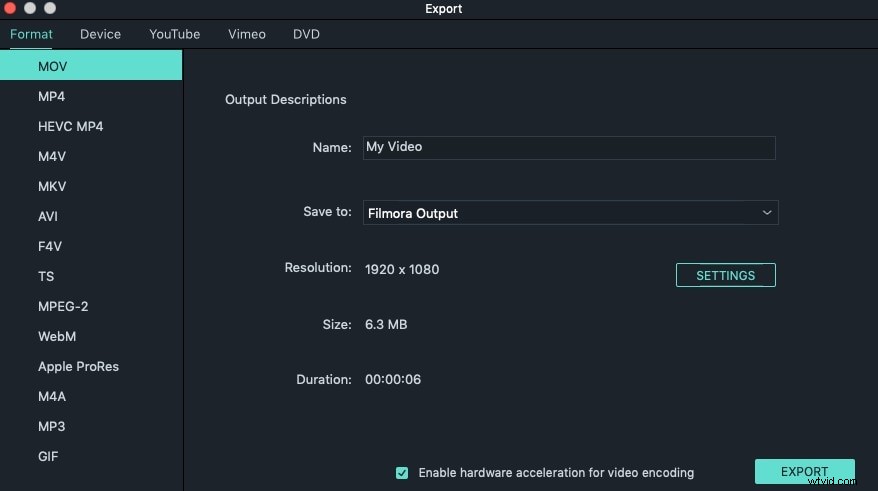
After finishing editing your FLV video in Mavericks, click the "Export" button on the main menu bar and choose an output option as you like. You can either choose to save it in the original FLV format or convert to any other format like MP4, M4V, AVI, WMV, MKV, DV, MOD, TOD and more. What's more, you can upload the video to YouTube directly or burn to DVD.