
MOV is just a type of popular video among people favoring in video enjoyment. However, sometimes you may find some MOV videos you watch are not so good in quality. Actually you can edit MOV files by yourself. All you need is a MOV Editor to help you do the job.
Here Wondershare Filmora (originally Wondershare Video Editor)is highly recommended. With it, you're able to edit and personalize your MOV videos with rich text, filter and transition effects for sharing on iPhone, YouTube, etc. or burn to DVD. Now get more information about this MOV Video Editor and follow the steps on how to easily edit a MOV file.
- Simple, concise, fashionable interface, easy to use, only need drag-n-drop and several clicks.
- Edit MOV video with basic features like crop, trim, cut, split and more.
- Personalize with more advanced editing tools like Tilt Shift, Face off, Jump Cut, etc.
- Add text, water mark, effect, sound to original video/audio.
- Save your video in different format, burn to DVD or upload online.
Why Choose Wondershare Filmora
Intuitive Interface
This MOV editor has a useful-friendly interface and makes it easy to turn original videos into works of art. The clear navigation makes all the video editing operation quite easy.
Powerful Editing Functions
Easily edit MOV video with tools like trim, crop, cut, split, rotate and combine videos. Set video brightness, contrast, saturation and hue to enhance your video quality.
Rich Stunning Effects
Video Editor provides various useful filters and special effects like PIP, transitions, intro/credits and sound effects, which definitely will take your video to the next level.
Different Output Options
Video Editor allows you to share video on iOS and Android devices, as well as upload them to Facebook, YouTube, and burn to a DVD collection.
How to Easily Edit MOV Video:
1. Split MOV Video
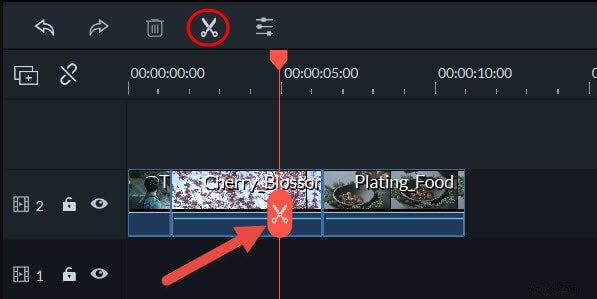
Easily adjust the MOV video length by applying the Split function. To split the whole video into short clips, just move the slider to any position where you want to split on the video Timeline. Then click the scissors icon, or right click the video to select "Split" option.
2. Join MOV Video
To join several MOV videos together, you just need to place all the video files on the timeline, adjust the order and hit "Create" to export it.
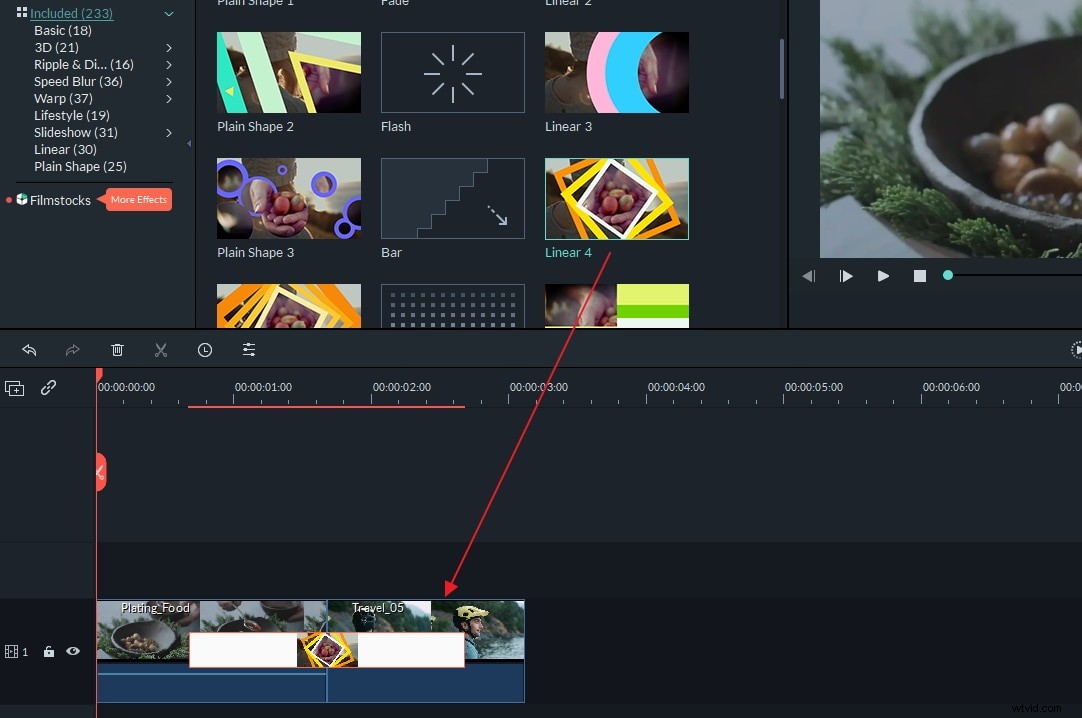
You may also want to apply specific scene transitions between video segments. To do this, go to the "Transition" tab and drag one scene transition you like to your video. If you want to apply a certain transition effect to all your videos, right click the effect and choose the option "Apply to All".
3. Edit the Audio of MOV Video
Click on the edit button on the time, switch to the Audio column and then you can easily set volume, pitch, fade in/out effect of the audio.
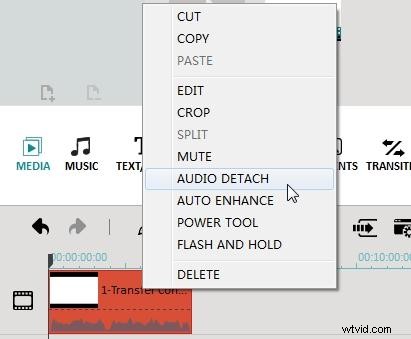
You can also change the original audio track: just right click the video file and choose "Audio Detach". Then the audio file of your video will immediately be separated. You can easily delete it or replace it with a new one.
4. Add Video Effects
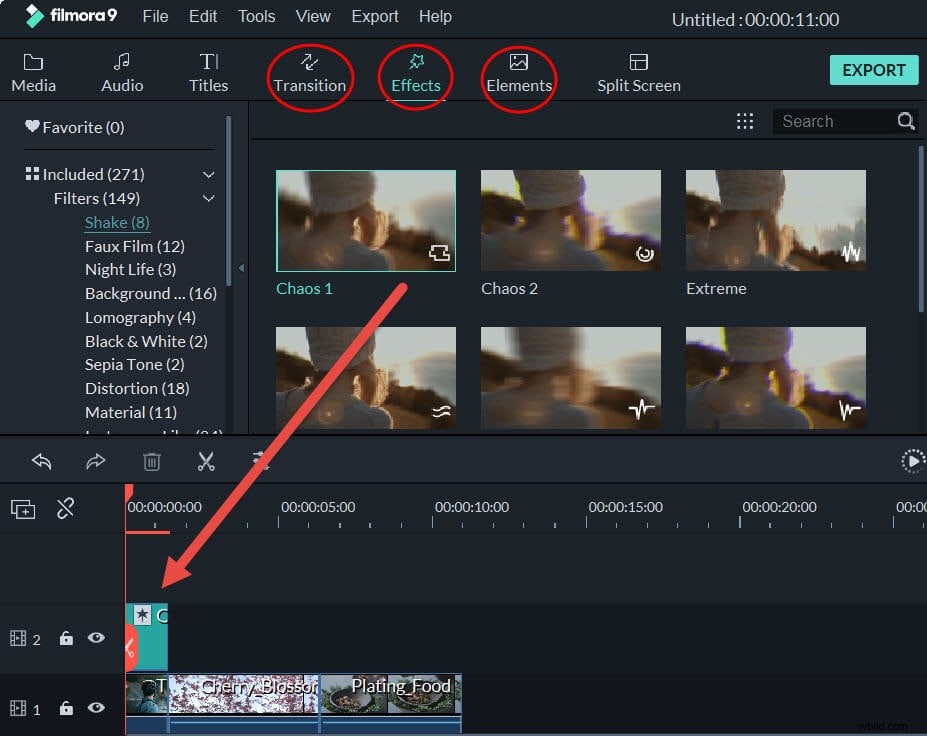
For more stunning effects, click on “Effect” button and select your desired one from over 50 visual effects. Then apply it by drag and drop it in the Timeline. If the present effects are not enough, you can download more fresh effects by clicking the Download which is on the top of the interface.
Video Tutorial: See what Filmora can do for optimizing your video