Although Apple’s new operating system - Mac OS X 10.10 Yosemite will bring new vigor to your Mac computer, you may have to face the roadblock when it comes to video editing, since its built-in video editing software iMovie only supports a limited formats. So what would you do then? Have no direction to edit video on Mac OS X 10.10?
Don’t worry. Here a comprehensive and easy-to-use video editor for Yosemite – Wondershare Filmora for Mac is recommended. It supports almost all the popular video formats including AVI, WMV, MP4, FLV, MKV, MOV, 3GP, etc. With it, you can put together your video clips or split to segments to get creative and customized brand new videos. Here is a detailed guide on how to create videos on Yosemite with this smart video editor.
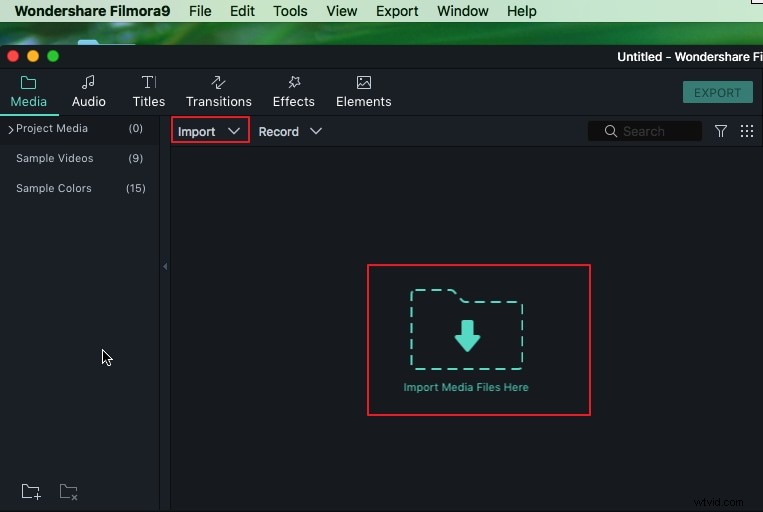
Step 1. Import media files to edit
To import videos, audio, photos to edit, you can go to “File”>”Import Media” or directly drag and drop them to the Media Library of this app. By the way, there is a window which allows you to import media files from your iTunes or iMovie etc. To activate it, just go to "File" > "Resources". You can also capture a video with the built-in iSight by clicking the “Video Recording” icon above the timeline.
Step 2. Edit videos, audio and photos
When all the media files have been imported to the software, drag and drop them to the respective timeline. Then you can do various video editing tasks as you like.
Basic editing
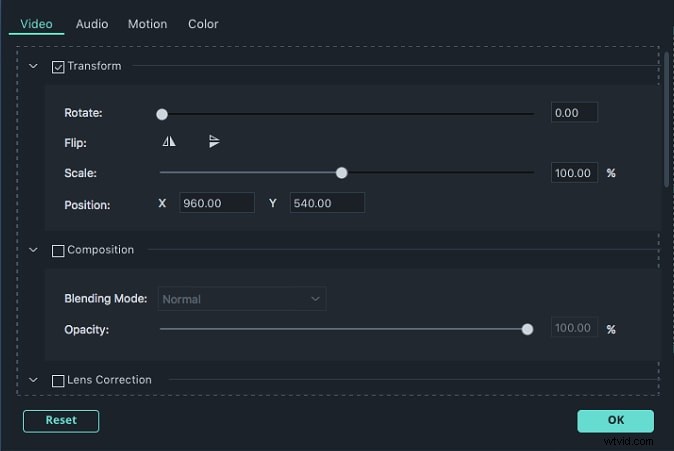
You have two different ways to edit the video. One is to double click the video and then choose different editing options. The other is to hit the corresponding Trim, Crop, Rotate, Voiceover button on the tool bar.
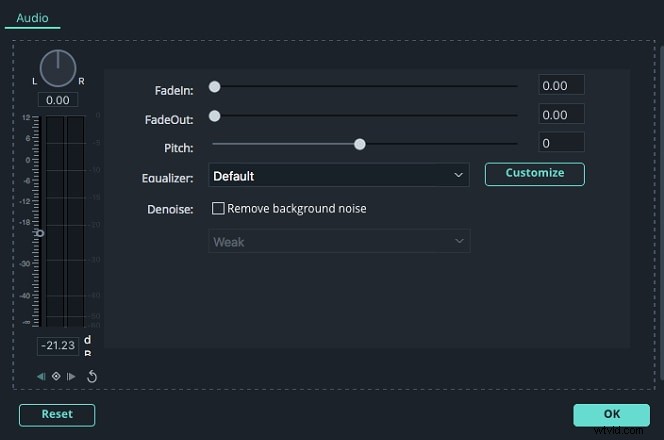
Edit and enhance audio
If you want to add an additional audio file as the background music to the videos and photos, just drag your favorite audio clip to the music track. To further edit the audio file, just double click the clip. Then the Audio Inspector will pop up for you to adjust different settings like pitch, volume, and speed or add Fade in/out effect. You can also right click the audio to cut, copy or trim the audio file.
Add transition and other effects
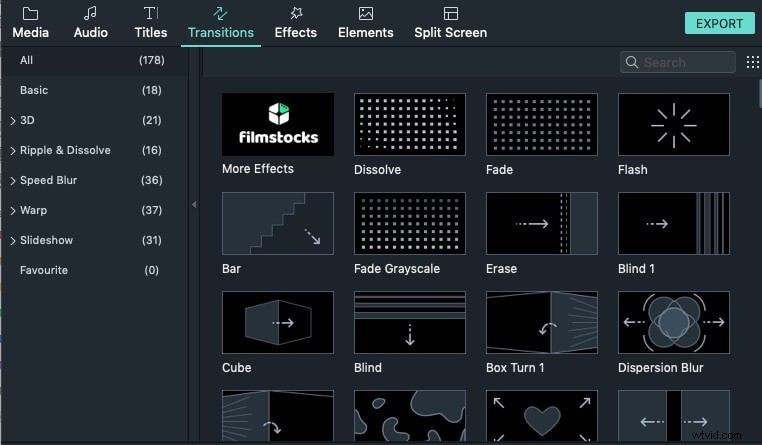
This app also allows you to add cool transitions and other effects to your videos and photos. To achieve this, just go to the respective tab in near the Media Library. For more details, please go to the user guide of Filmora for Mac.
Step 3. Export your video creation
After you preview the effect, just click the “Export” button to export the video creator. There are totally five methods: Devices, Formats, YouTube, Vimeo and DVD. Just select any one you want to save or share the edited videos.