
When editing a video QuickTime MOV file, sometimes you may need to remove audio tracks bundled with it so that you can add a different audio track. Although a range of video editing programs can help you achieve this, I think Wondershare Filmora is worth trying. This program is cross-platform so that it can help you remove audio completely from the original MOV files with ease in both Windows and Mac.
Related Article:
How Replace Audio Track in Video >>
Mix Audio Tracks into One File >>
Below is a detailed tutorial on how to remove audio from QuickTime MOV files in Windows (Widnows XP/Vista/7/8/10 included). If you're running a Mac, you can adopt Filmora for Ma to achieve the same. Before getting started, please download and install the right version for your operating system.
Remove audio from quicktime videos
To remove audio from video, you can simply mute the video audio in Filmora or you can remove the audio track from the video. Below we will share you how to remove the audio track in QuickTime .MOV video with Filmora.
1 Import the source video files
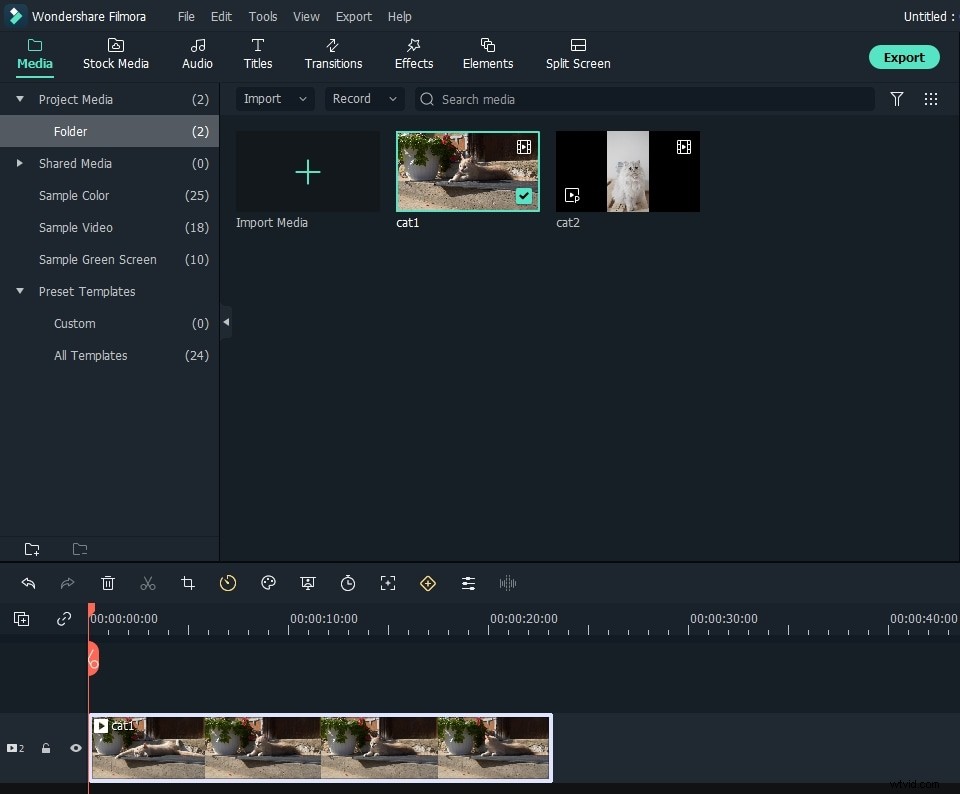
After download and initiating this audio remover, choose between 16:9, 1:1, 9:16 and 4:3 ratio rates. Then click the "Import" button to add the source video files to the this video & audio editing software. You can also directly drag and drop your MOV video files to the media library. After importing the source video files, drag and place them to the video timeline.
2 Remove audio from QuickTime MOV files
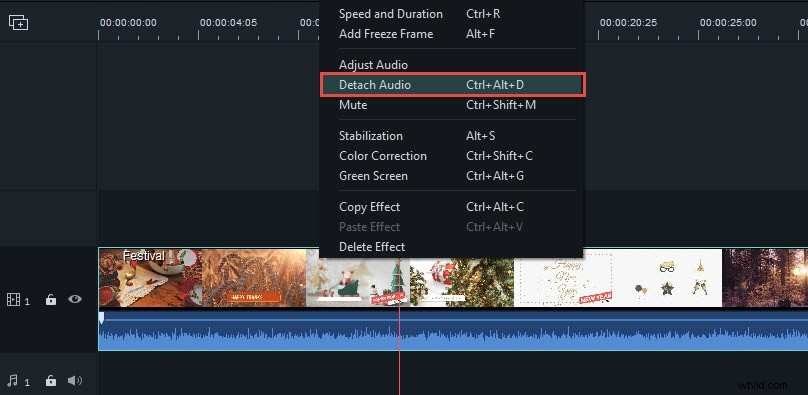
Double click the target MOV video file in the timeline to highlight it. Then right click the video file and select "Audio Detach" option. The program will automatically separate the existing audio track from the original video file. You will find the separated audio track will appear in the Audio track. To remove the audio from MOV video, right click the audio track and choose "Delete". If you want to keep the audio file in the video, you can click "Mute" and the video audio will not appear in the video.
Tip: This video editing tool also enables you to easily add your own sound track. To do this, just import the audio file as step 1 and then drag and drop it to the audio timeline. If the audio needs editing, double click it to adjust the volume, speed, pitch or add fade in/out effect in the pop up window.
Learn the detailed info about How to add voiceover?
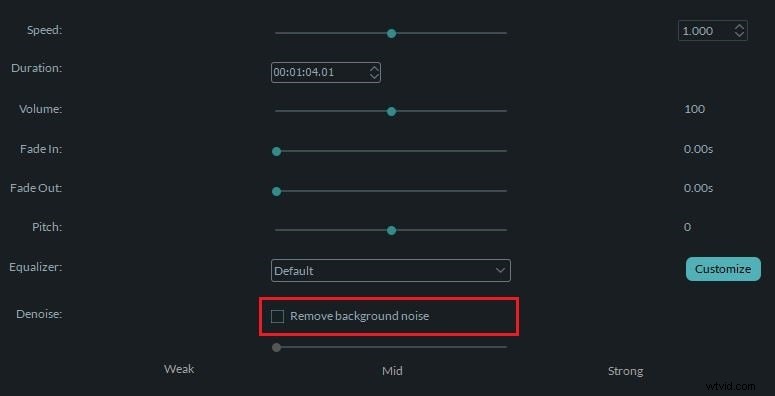
Note: If you just want to remove the background audio noise from the .MOV video, you can achieve it with the De-noise feature. To do that, just double click the audio file in the time to enter the audio editing window. In the pop-up window, click the De-noise option and Filmora will remove the audio noise from the .mov video.
3 Export or save the new files
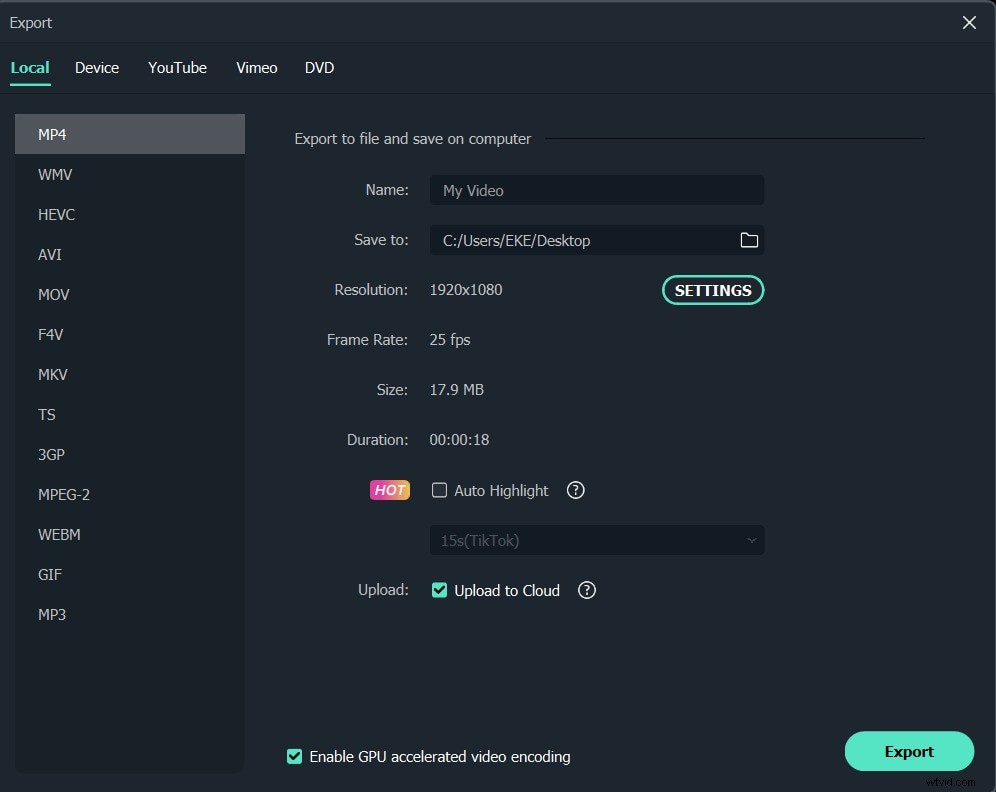
Click the "Play" button in the right preview window to see the result. If you're satisfied, hit "Export" and you'll go to the export window. As you see, this program offers four output ways. In the "Format" tab, you can save the new work in all popular formats such as AVI, MP4, MOV, FLV and much more. You can also convert your video to a YouTube compatible format for online sharing in the "YouTube" tab and immediately upload it. Or burn a DVD disk in minutes to watch it on your home cinema.
Besides removing audio from video, Filmora allows you to edit .MOV videos further, including changing video speed, and some advanced video editing features such as green screen and video stabilization. Check the video tutorial below to check how to edit videos with Filmora.