
How to mute video without Windows Movie Maker
Some people like to use Windows’ built-in app, Movie Maker, to mute the sound on their clips. While this is possible, it definitely isn’t straightforward. Nor is it quick. There are a lot of different editing tools to familiarise yourself with, too, which just overcomplicates things.
So, what is the best way to remove audio from a video without Windows Movie Maker? We’ve got the answer and not only is it free, but it doesn’t require buying and downloading any expensive or potentially harmful applications.
Working from the comfort of your web browser, our tool can delete the audio from a movie clip online on any device, as long as it’s got an internet connection.
Here’s how to do it, in three simple steps:
Upload your video to mute
From your browser, head over to Clideo’s Audio Remover. You’ll be welcomed by the uploader page. There, you’ll find a big blue ‘Choose file’ button. Tap this and a pop-up box will appear, giving you the option to upload your video of choice.
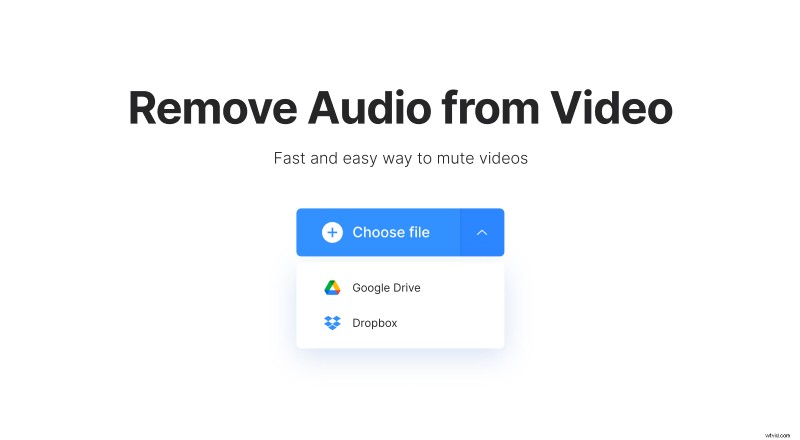
Note that the muting tool works with most moving image formats including MP4, AVI, MPG, VOB, WMV, MOV and many more, so you don’t need to worry about your video not being supported.
Is your clip saved on a cloud account? No problemo. Hit the downwards-facing arrow on the right-hand side of the button and this will display a drop-down menu. Here you can upload directly from Google Drive or Dropbox.
Remove sound from the video
For the next step, you literally don’t need to lift a finger; just sit patiently and wait as your selected video is automatically uploaded and processed for sound removal.
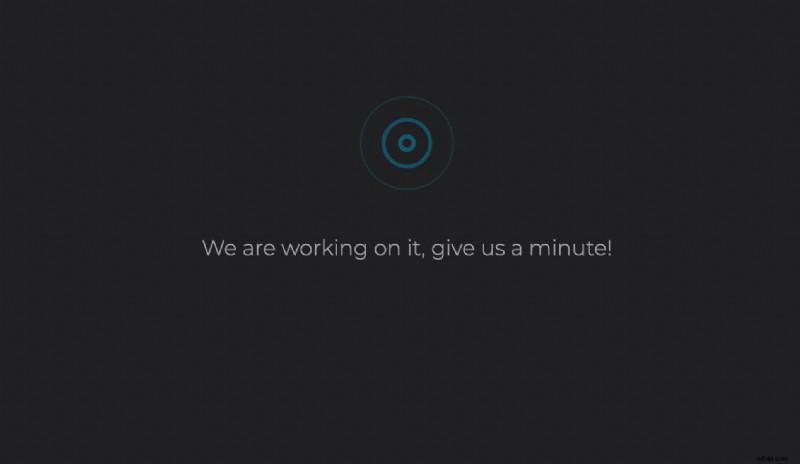
A progress bar will let you know when it’s done. Time will depend on how long your movie is, or how large your file is. You won’t have to wait too long, however!
Save the muted video to PC
Once the progress bar has hit 100 percent, you’ll be able to give your new, muted clip a preview to ensure all the sound has gone.
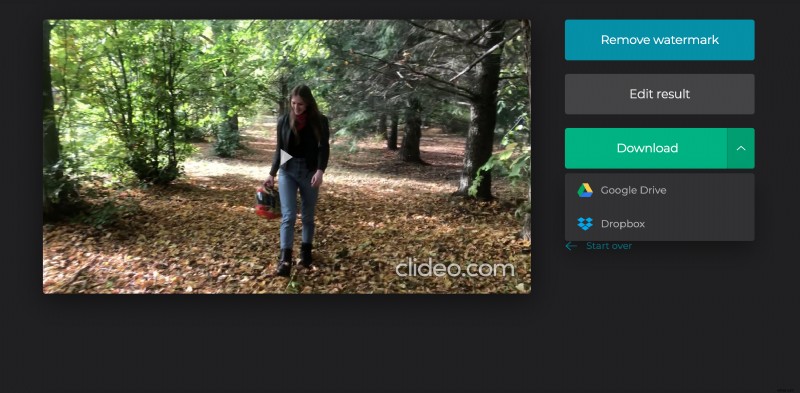
If you're happy that there’s not one ounce of audio left on your movie, you can download the video back to your device or cloud storage.
Want to delete the audio from another movie? Just tap the ‘Start over’ link and you’ll be taken back to the start.