How to delete a selected part of an iPhone video
Use our Clideo’s video cutter to do that. It works online, so you don’t have to purchase and install any costly software or applications. It allows not only to delete a certain part of a video on iPhone but also to simply cut it.
And don’t you worry about lack of technical skills – our tool is intuitively comprehensive. We’ve prepared three short steps below in case you want to get familiar with the cutter before using.
Upload a video to cut
Open the Video Cutter tool homepage and hit the blue pane “Choose file” to upload a recording from your personal device.
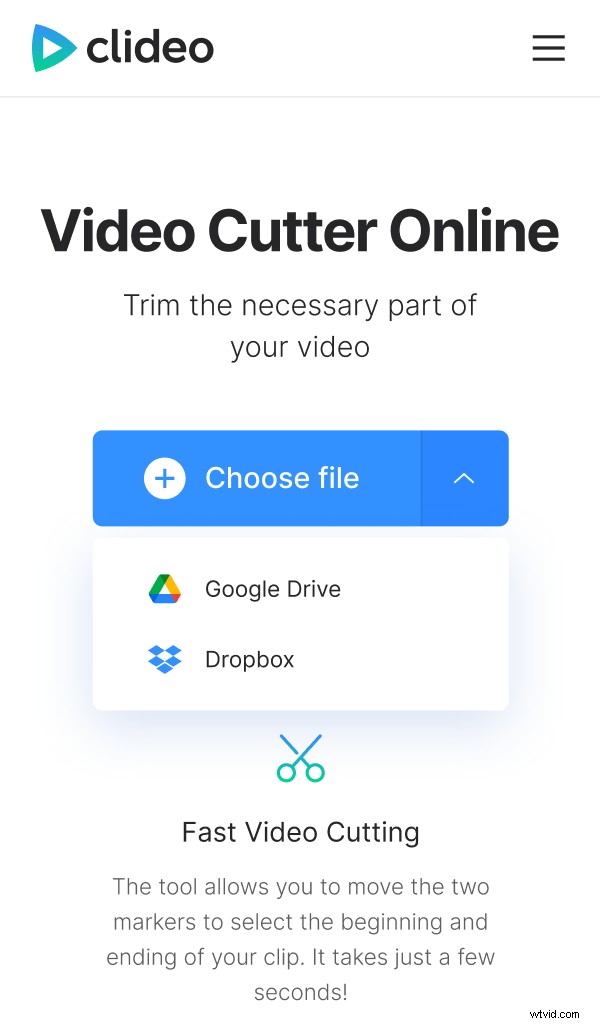
Another option – find a tiny arrow on the right side of the pane to call a drop-down menu and import a file stored online. You can upload it from Google Drive or Dropbox.
Cut a part out of a video on iPhone
Scroll down. There you'll have two options:
- Extract the chosen snippet and delete the rest of the recording. By ticking the “Fade in” and “Fade out” boxes you’ll make your new visual appear out of the darkness and disappear gradually.
- Vice versa, delete the selected frame and the tool will merge the rest. Tick “Crossfade” to make merging smooth.
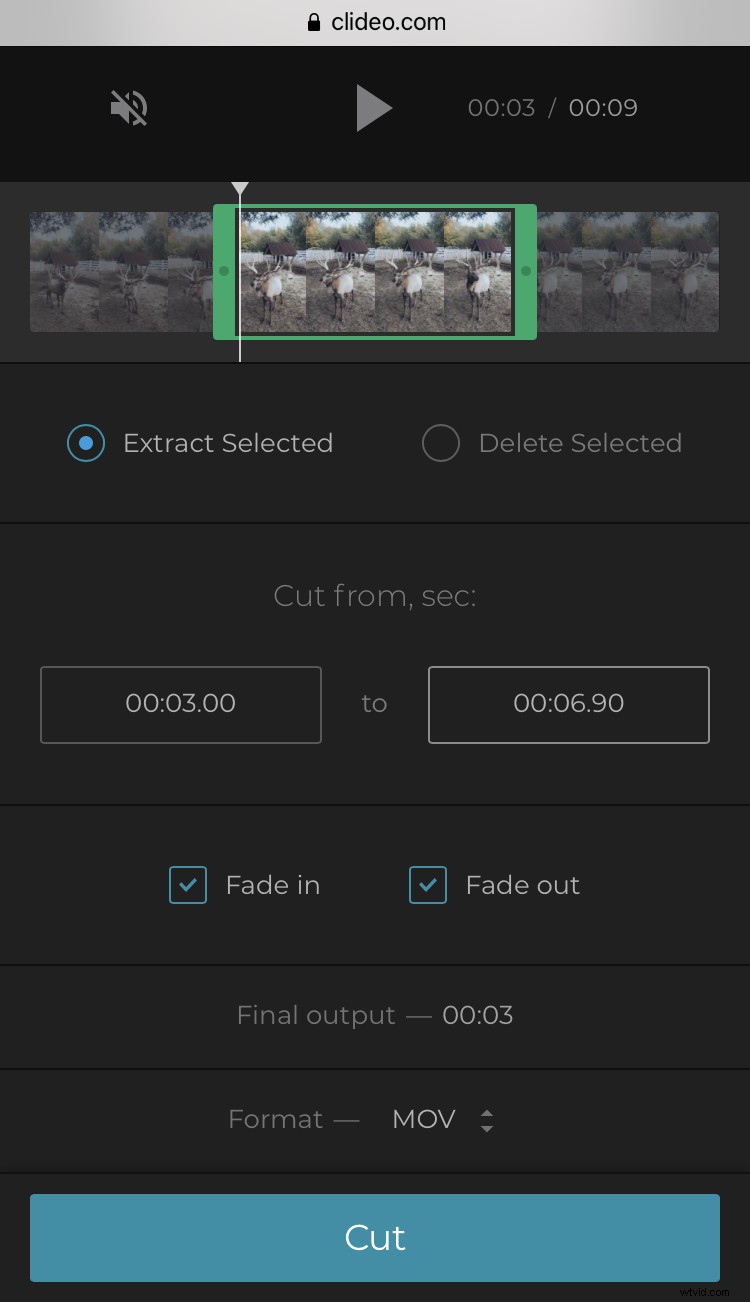
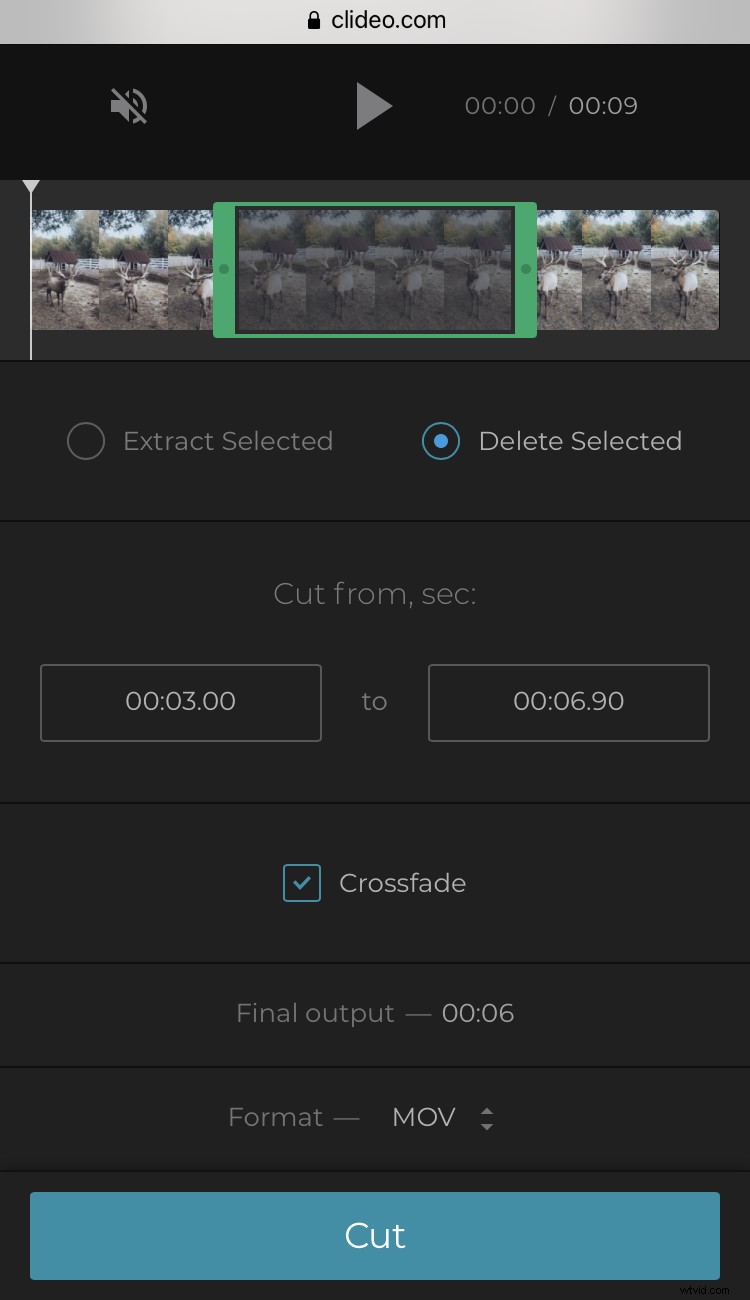
In both cases you can set the start/end timing manually or with the help of sliders.
Choose an output format. If you’re going to post your renewed clip on social media, stick to MP4 or MOV, as they are the most compatible ones.
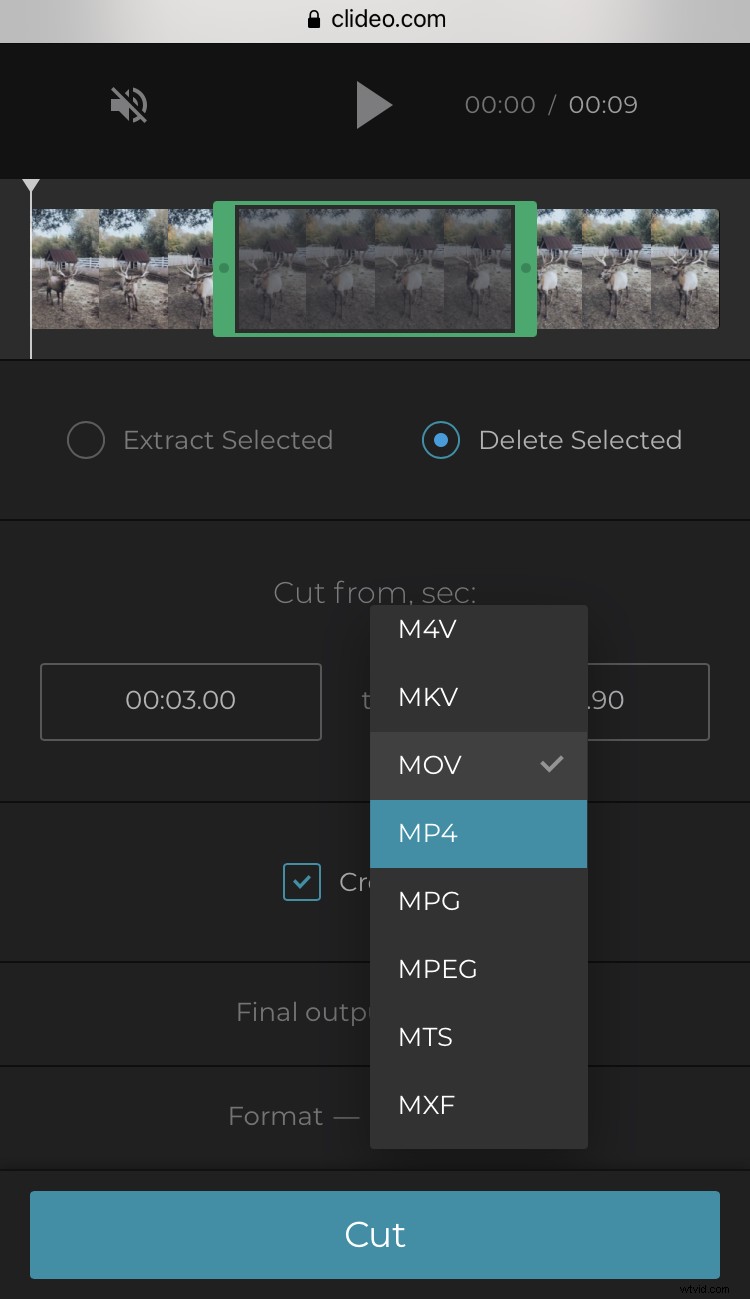
Click “Cut” and let the video get processed.
Save the final video
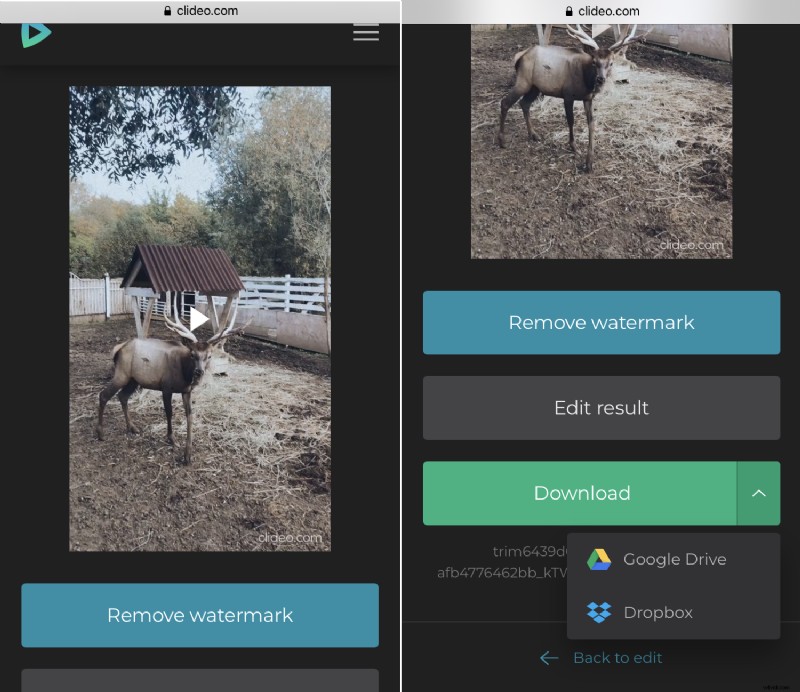
Have a preview to get sure that you like what you see. If so, save your project to your personal device or cloud storage account. If you want to change something, hit “Back to edit” and keep working.