
How to remove parts of video
And in some cases, editors deliberately delete frames in certain shots to achieve the effect they want, for example, to catch the viewer off guard.
If you too are faced with such a situation, our tool will help you! With it, you can trim the beginning or end of your video and remove the middle part of the video online on any device anytime, getting a high-quality shortened video of the length and content you need. In this case, you will not spend much time and effort.
The process is also simple; just follow the steps below:
Upload a video
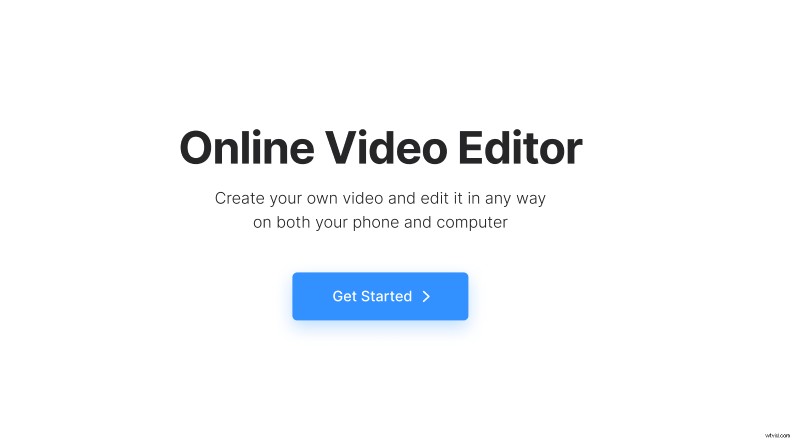
Open Clideo’s Online Video Editor and click "Get started".
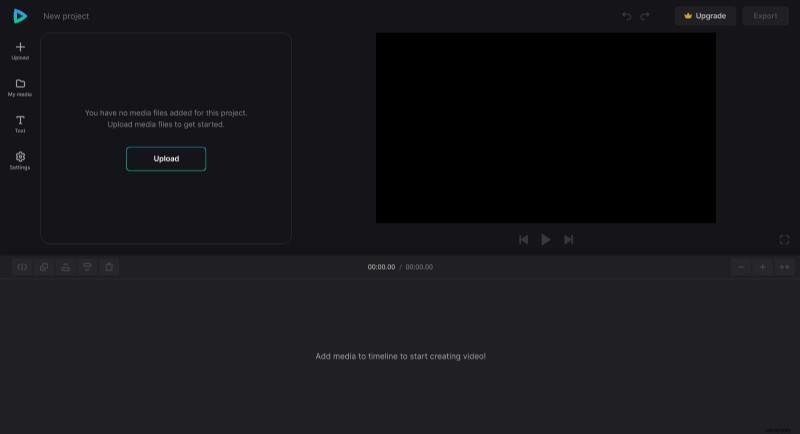
Click "Upload" to add the video you want to cut. You can upload it from the device or pick it from your cloud storage account.
Cut parts of the video
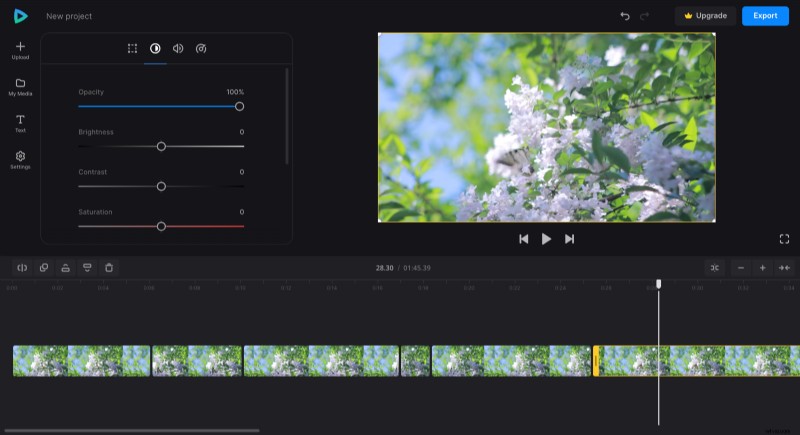
Add the clip to the timeline by clicking the "+" icon in the "My Media" tab or drag it directly to the preview area or timeline. Now, to split the video into parts, do the following:
- Place the playhead in the timeline where you need to cut it, then click the "Split" icon at the top left of the timeline. Repeat at every point in the video where it's required;
- To remove unwanted parts, select them in the timeline and click the "Delete" icon or the correspondent button on your keyboard.
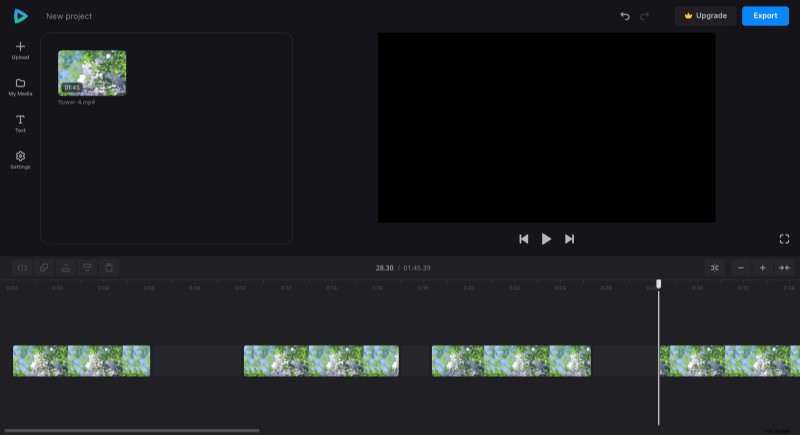
Gaps will appear in place of the cut pieces, so drag the remaining parts together to get rid of them. For a seamless transition, make sure the "Snap" feature is on – you can check it on the right side of the editor under the preview.
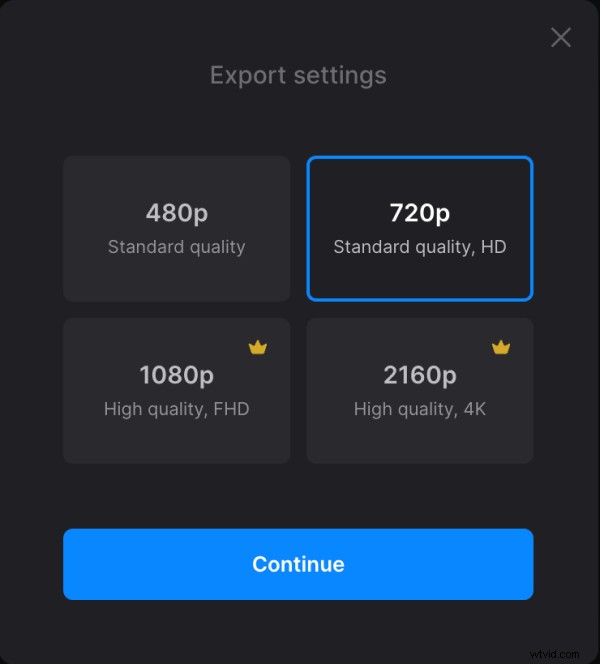
When you finish editing the video, click "Export" and choose the export option you like.
Download the cut video
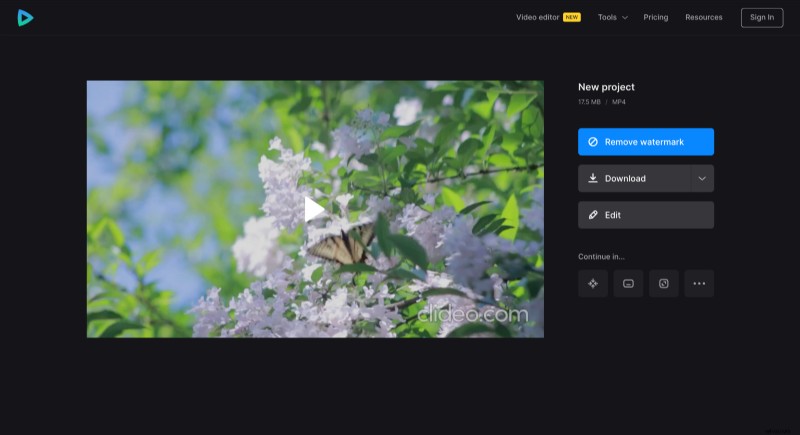
Watch the preview to see how the finished video looks. If everything is good, click "Download" to save the video to your device or upload it back to the cloud storage. Otherwise, click "Edit" to add some changes.
Check our Video Editor Help Center to find out more about all Video Editor possibilities.