
How to put multiple videos in one frame
There are many reasons why you may decide to put 4 videos in one screen or even more. Multiple videos can be used to compare different events, illustrate some notion, or create an artistic effect. In any case, you'll need to get prepared.
Record or find the videos you want to combine. If their size is different, you can use the Video Resizer to make them the same — this way, your project will look much neater. If you are not sure how to use it, check out this step-by-step manual and have a look at this detailed example.
When everything's shipshape and Bristol fashion, save all the needed files to the same folder on your device, Google Drive, or Dropbox. Don't forget to find some nice background music and save it there too.
Make sure your Internet connection is fast and stable enough, as our service works online, and file processing takes some time. Now you are ready to make a multi-screen video!
Upload all the files to the tool
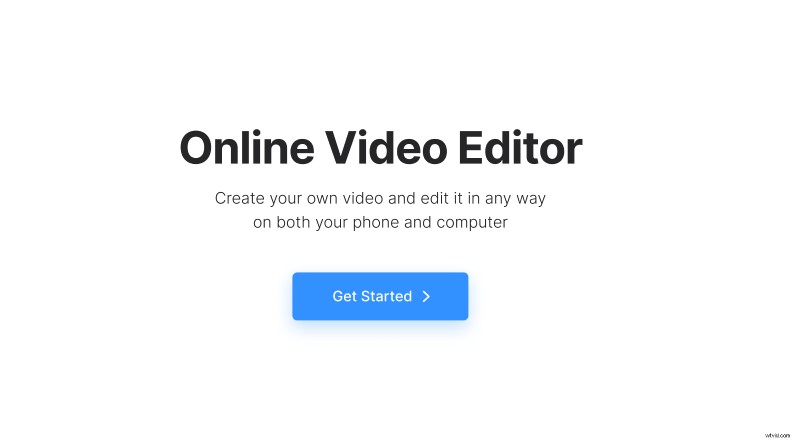
Open the Clideo’s Video Editor in any browser and hit the "Get started" button.
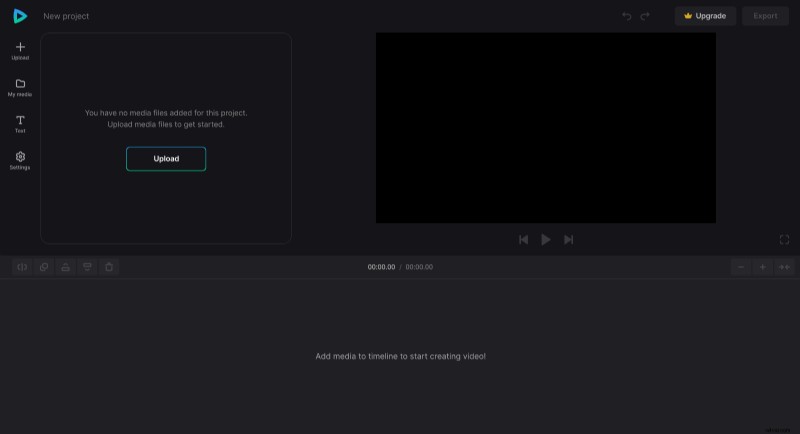
Then import your previously prepared files to the tool. You can drag and drop your clips and tracks from your computer folder or avail of the "Upload" button. It is possible to select several files to bulk import them (that's why we recommend having your source files in the same folder).
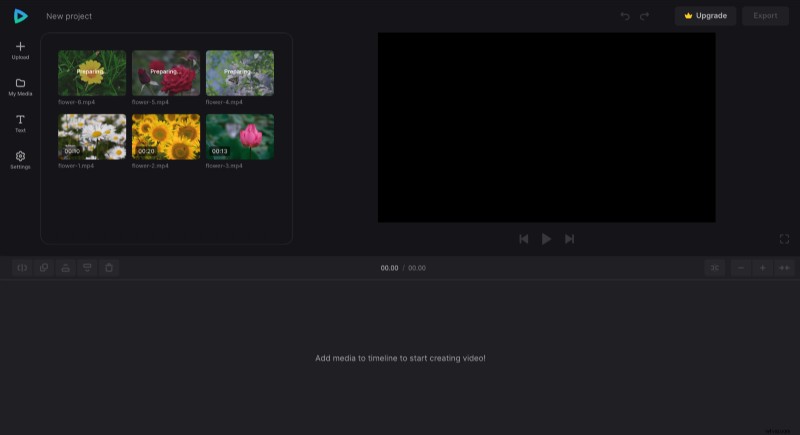
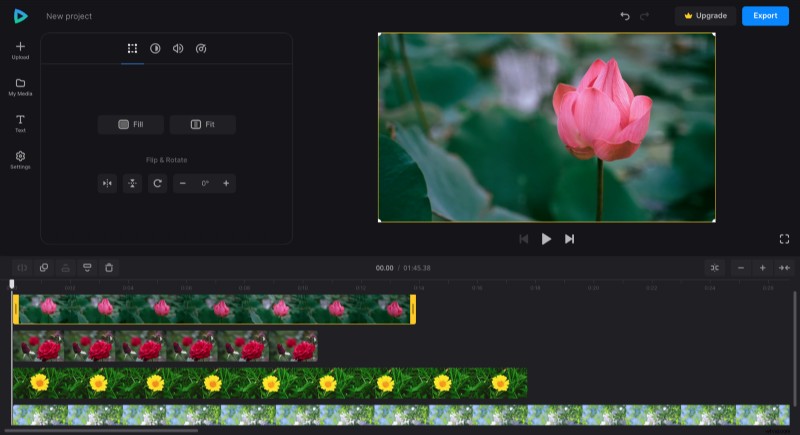
You can find your imported data in the "My Media" folder. Then drag the files to the preview area or the timeline below it and place them exactly under each other.
Create split screen video online
To edit each separate file, click the thumbnail in the timeline to select it and change the available options above (speed, color adjustments, etc.).
If you want to change the aspect ratio or background color for the whole project, click "Settings" in the left-side navigation sidebar.
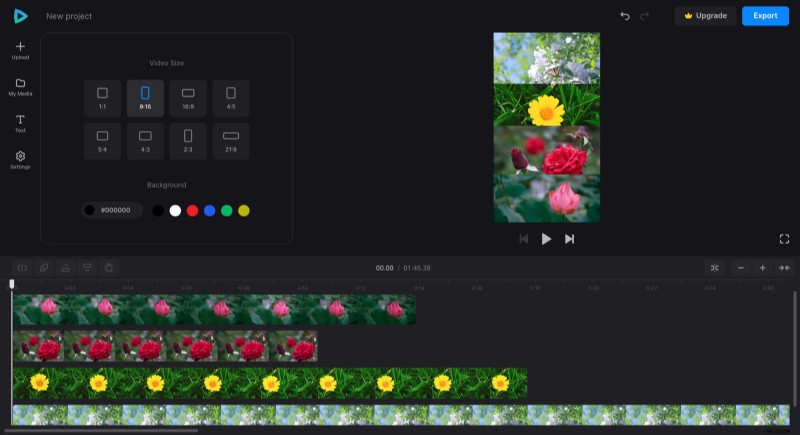
Then, to arrange all the clips on one screen, drag the videos by the corners in the preview pane to resize the clips and then place them as you need. Now you see why it was a good idea to resize them previously!
Don't forget to adjust the videos' lengths on the timeline. You can do it by dragging the yellow handles. Don't forget that we have a new snap feature that will help you be precise.
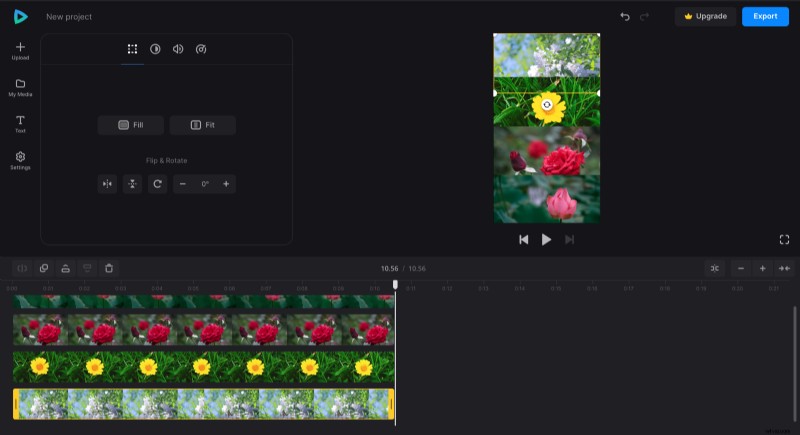
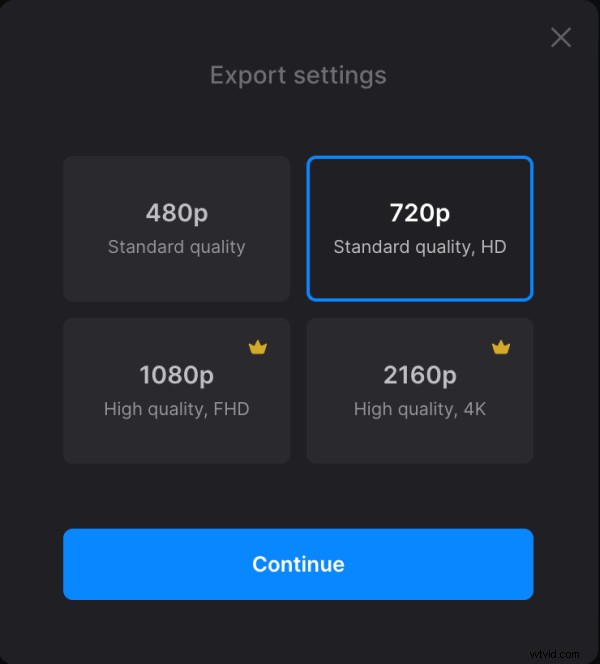
When you are done, give your video the final run and hit the "Export" button. After that, you will be offered to choose one of four quality resolutions. Two of them are completely free, but to get your project in FHD or 4K, you have to upgrade your account to Clideo Pro.
Save the clip
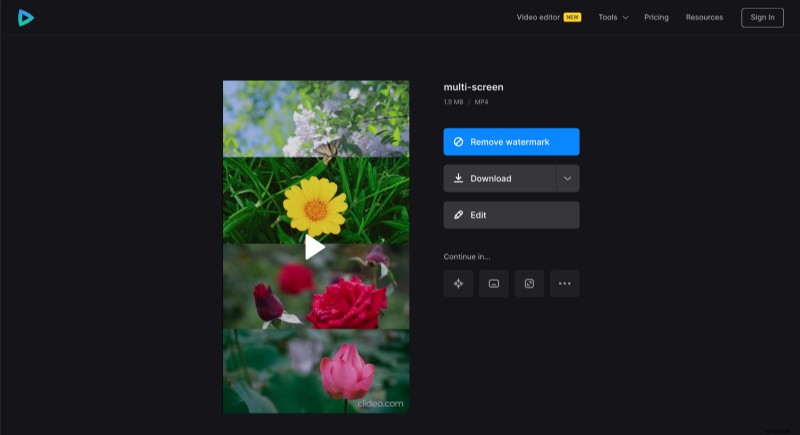
When your video is processed, you still can change it: just hit the "Edit" pane. If you are delighted with the project, save it to your device or cloud storage.
If you would like to know more about our all-in-one video editor, you can find more details in our Video Editor Help Center.