
After Effects is an extremely flexible software program, and whilst its main focus is on effects and add one to video production, it can be used to do some editing as well. And today we are discussing cutting video, and whether it can be done in After Effects or not.
You may also like:
Free After Effects Templates >>
How to Cut Videos in After Effects
1. Launch After effects and import your video
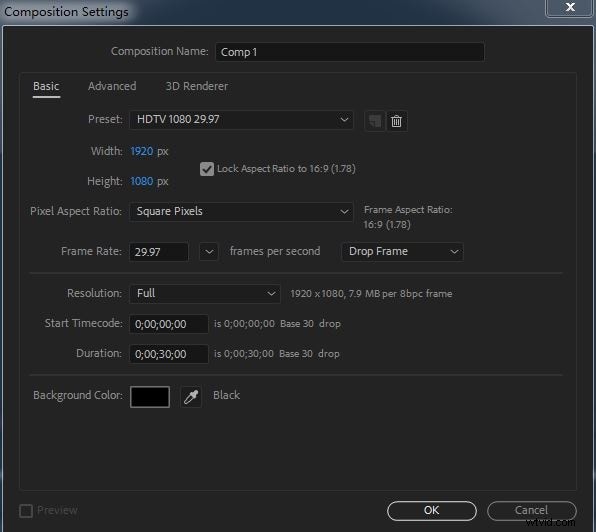
The first task is to open a new project, and load your video into it. First off from the main menu is to select new composition. Which then opens up the composition menu, choose the resolution and so on you want, and then create your composition.
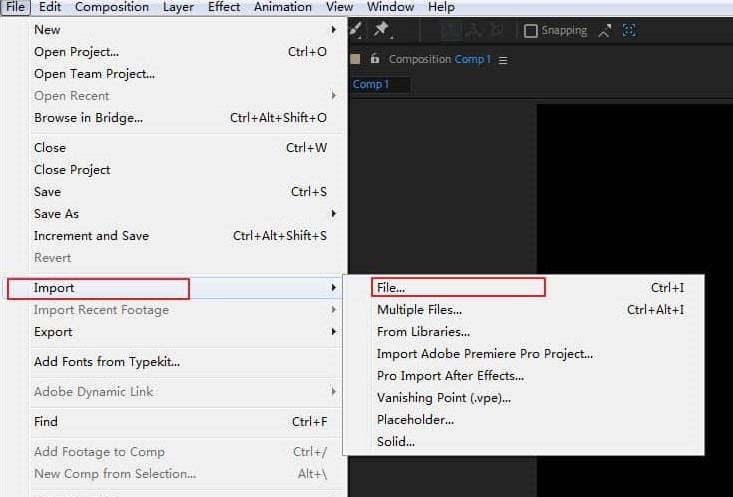
You are now ready to import your video. This is achieved through the file/import menu as we see here
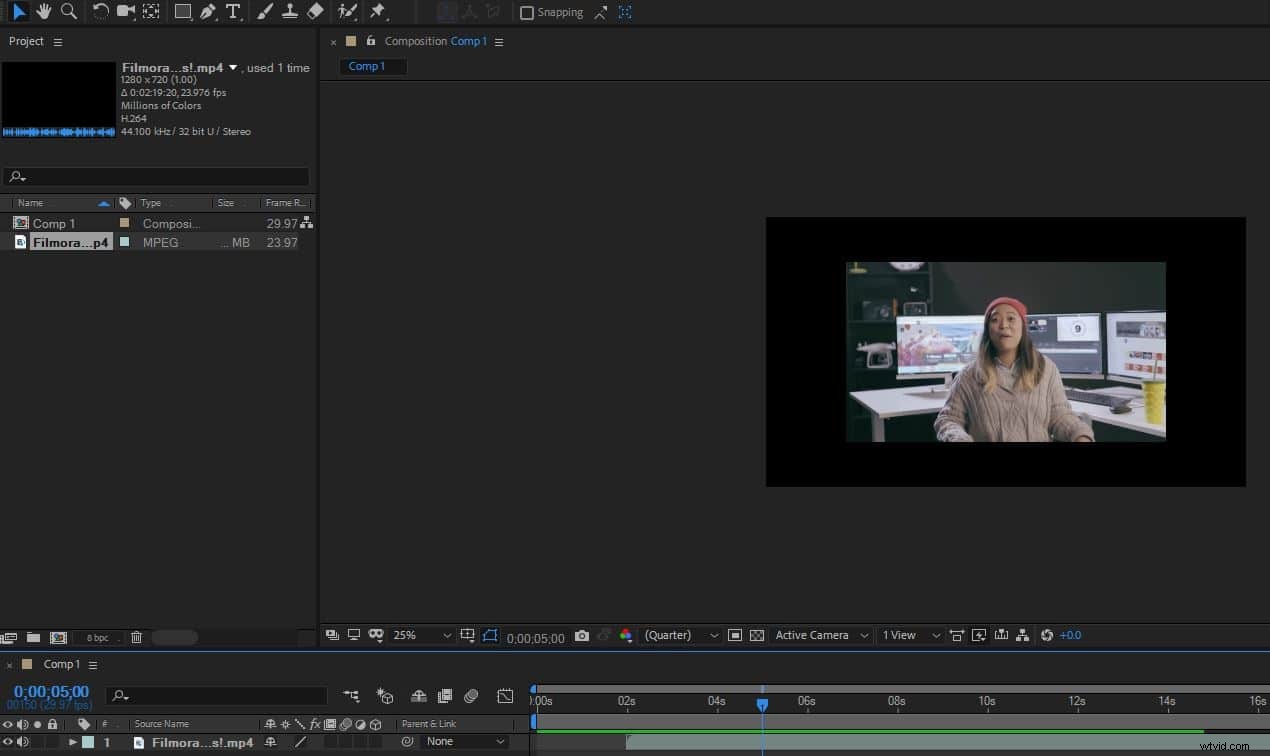
Once you have your video, you can drag it into the timeline as we see below. Now here my video clip is a lot smaller and shorter than my composition, but for purposes of this it doesn't really matter. You can use this effect though, as in After Effects, you can have the actual video bounce around inside the composition as it is playing, an interesting effect to try.
2. Editing the video
Related Article: How to Edit Audio in After Effects >>
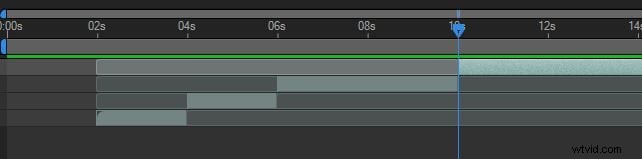
To make things clearer, my first step is to zoom in on the timeline so I can see clearly the start and end of my video track. Now I can begin to cut the video track into the pieces I want. This is very easy, select the video track in the timeline, move the guide to the exact point you want to cut the track, and then you can either use the edit menu edit>split layer or the shortcut Control+Shift+D.
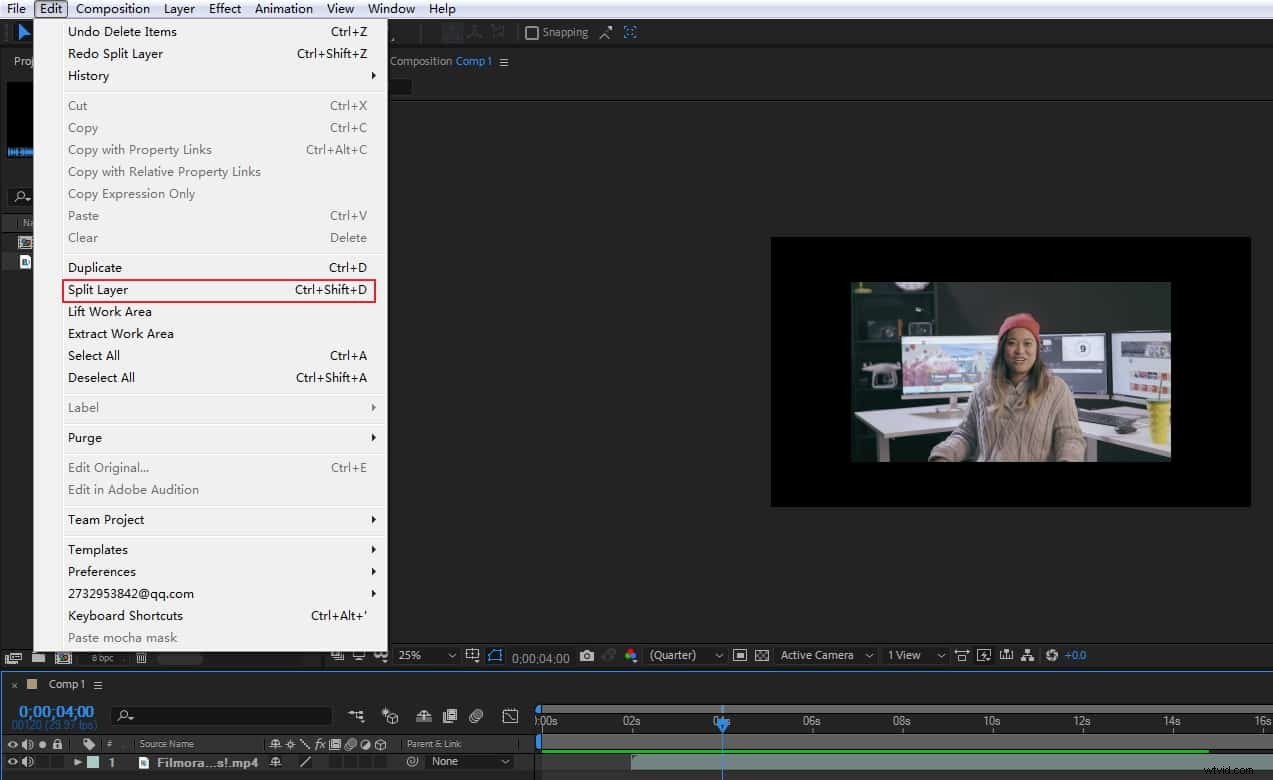
Whichever way you accomplish it, this leaves you with your video track split, and the second part is shifted off into a separate layer too so you can add in transition effects and so on as you want. Of course, you are not restricted to one cut, you can make as many as you want and be able to do re-organize them and so on if you wish.
3. Additional tools
There are several advantages in cutting this way, in that the separate layers enable quite complex effects and processing to be done on each part of the video entirely independently, they can easily be reordered as well without problem.
As we can see here, the video will play in an entirely different order now. One of the things you can do very easily once you have this is to add transition effects, simply highlight a point on the timeline where the transition is to begin, and choose one from the effect menu.
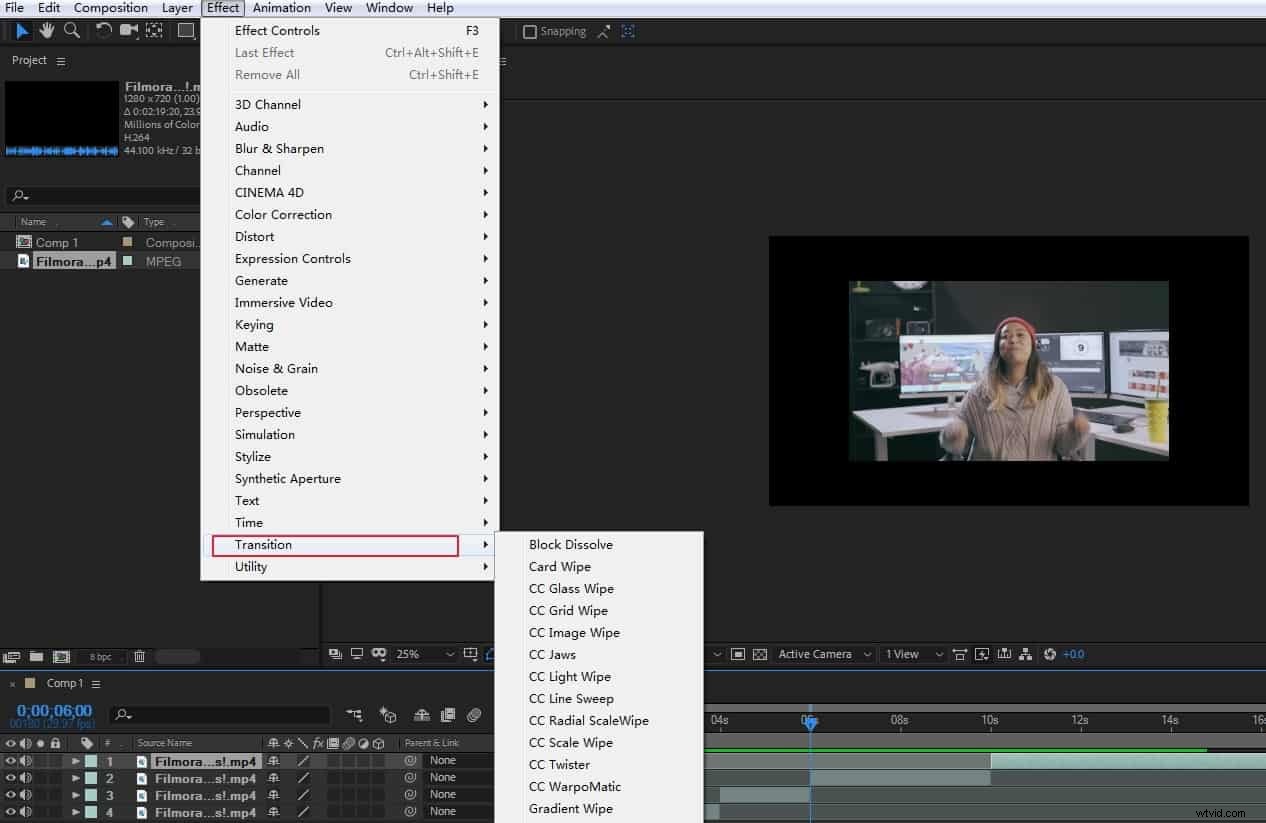
Once added you can adjust the time taken and so on to get the precise effect you want. You can of course delete any clip you do not want by simply deleting the layer.
4. Exporting the file
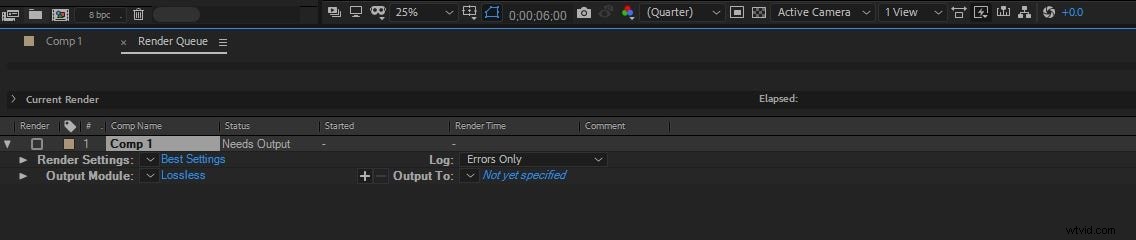
Once you are happy you can then export the finished file from the file>export menu. Choosing 'add to render queue' presents you with the render menu allowing you to choose the settings, filename and destination of the final output as you need.
And that is how simple cutting video is with Adobe After Effects.
An Easier Way to Cut Videos in Filmora
Wondershare Filmora gives you the power to edit videos fast. The software can be downloaded and installed on both Mac and Windows operating systems.
This video editing tool has gained rapid popularity among professional video makers and editors due to its smooth functionality and awesome features.
So, if you want to know how to cut videos in Filmora, here’s what you need to do.
Step 1: Import Video on the Platform
The first step demands importing videos to the interface.
For that, you need to click on the “Movie Clap” icon and choose the video you want to cut using Filmora.
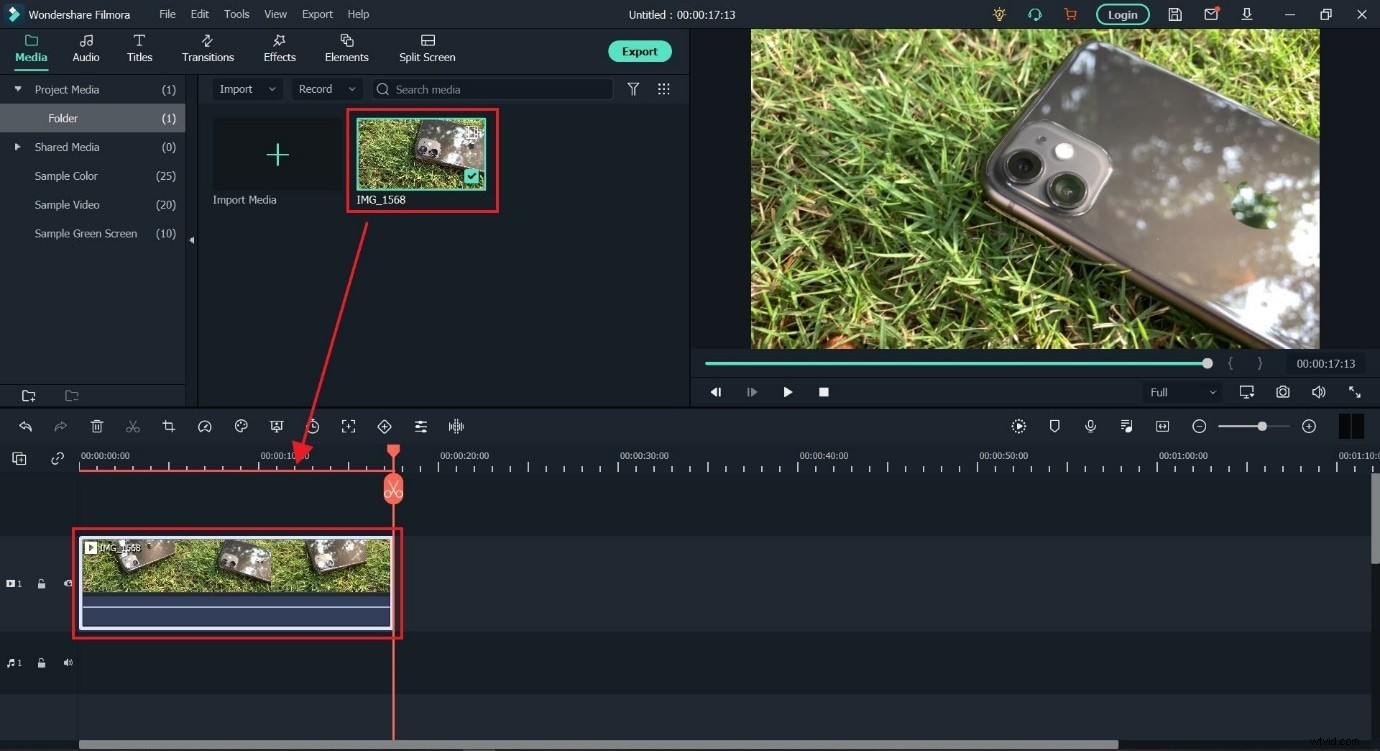
Step 2: Drag Video to the Timeline
Now, drag the video to the timeline and keep the project settings to “Match to Media.”
If the message doesn’t appear, relax and carry on to other steps.
Step 3: Select the Video Part to Cut
There’s a red pointer on the timeline called “Playhead.”
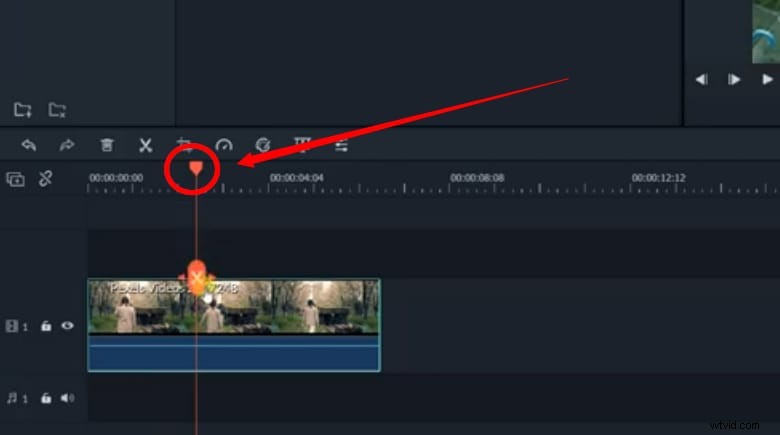
Beneath the straight line of the Playhead, you will see a “Scissor” icon.
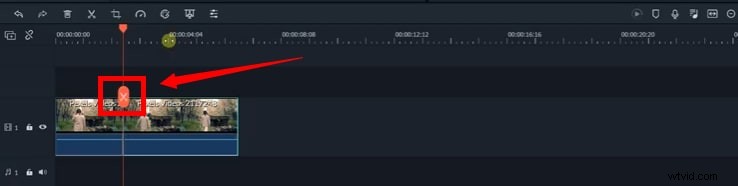
Now, use your mouse to place the Playhead on the starting point of the video part that needs to be cut, and then click on the “Scissor” icon.
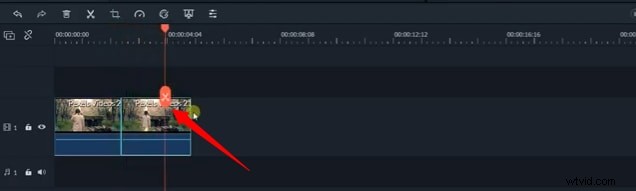
Then, move the Playhead to the ending point and click the “Scissors” button to mark the video clip.
Next, right-click on the marked part, and select the “Delete” button.
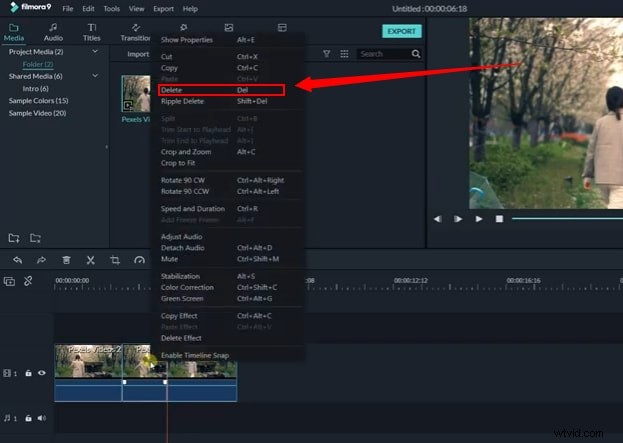
Doing so will cut the specific part of the video from the main clip.
And if you want to trim your video in Filmora, grab the clip’s edge on the timeline with the help of your mouse.
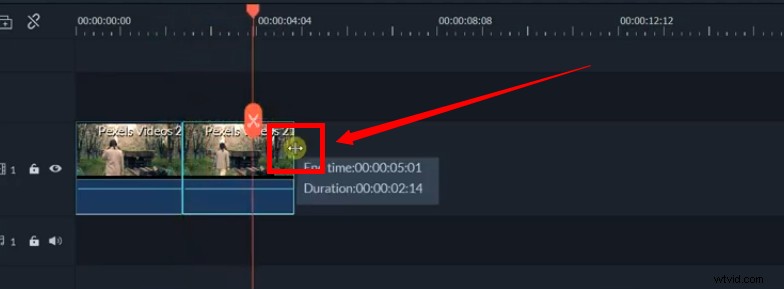
Hold the mouse button. And drag the cursor to the right or left to trim in the video, like this.
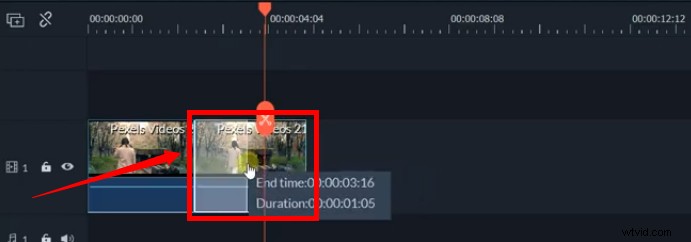
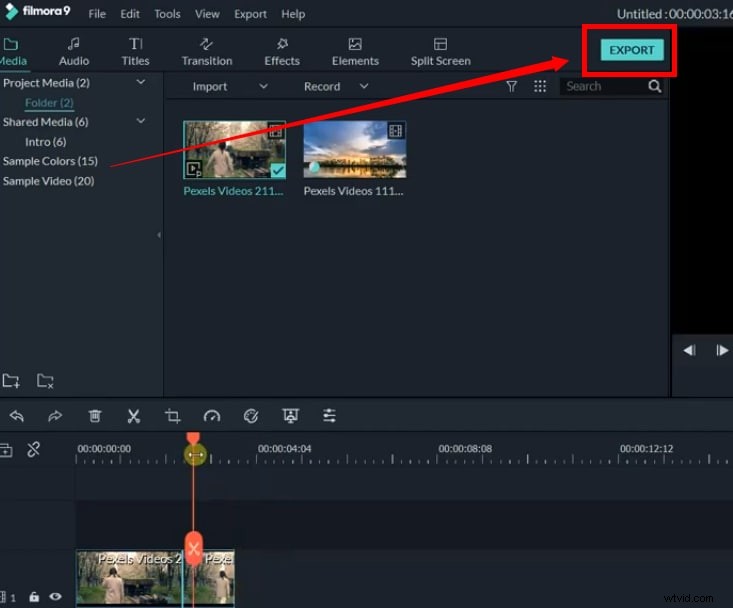
Step 4: Export Your Project
Lastly, click on the “Export” button to save the new clip on your computer.
You can do wonders with your videos in Filmora if you know the right tools. Plus, all your editing is done quickly compared to other video editors. So if you are trying to cut videos in Filmora, you can do it easily by performing all the steps mentioned here.
Conclusion
As we have shown, Adobe's own Premiere Pro offers a much braoder range of tools for cutting and trimming and makes a much better platform for the process. In addition there are many video editors at all budgets designed specifically for cutting and trimming video and perhaps present a better option than using After effects to accomplish it.
As we said before, cutting in Adobe After Effects may be difficult for video editing beginners. Then try to use FilmoraPro to cut videos. It is the best editor that can make excellent video, yet easy to use. Watch the video below to get more ideas about FilmoraPro.
Recommended: FilmoraPro to cut video
This is a basic tutorial about Adobe After Effects, professional video editing software. However, if you think After Effects is too difficult, consider Wondershare FilmoraPro. This is a professional video editor, but easy-to-use tool for users who want to enter a new editing level. You just need to use the split functionality in the toolbar to cut video. So easy! Download it below (Free) and cut your video footage with FilmoraPro.