Change video from portrait to landscape online
From time to time, you may come across a situation where you need to change a video's orientation from landscape to portrait or vice versa. For example, if you recorded a video on a vertically positioned smartphone, then it can be played as a horizontal one, but with the image flipped to the side. You may wonder how to make a portrait video landscape so that doesn’t happen?
Luckily, it’s only a matter of minutes with our tool! If you’re an iPhone user, there’s an app version that works offline; if not, the tool works entirely online on any device. It allows you to set custom dimensions of the video or choose one of the many presets that suits your needs and has a few other neat features.
It’s also very easy to use; just take a look at the steps below!
Upload a video
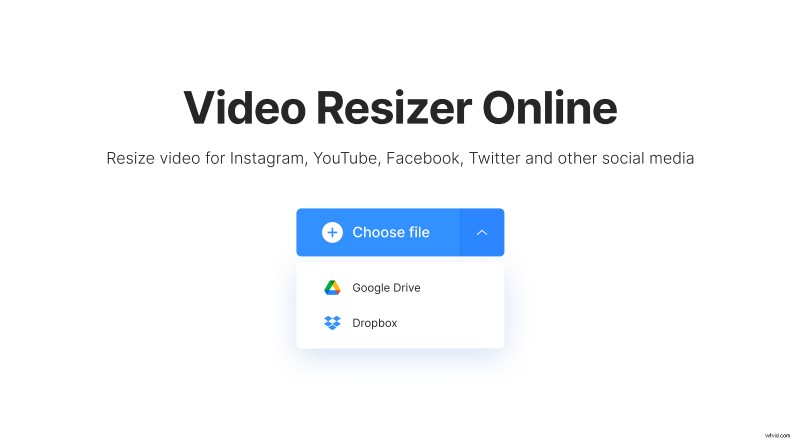
Open Clideo’s Video Resizer. Then, click "Choose file" to select a video for resizing from your device or hover over the arrow on the right side to pick it from your Google Drive or Dropbox account.
Change the video’s orientation
In the "Resize for" section of the editor, select one of the landscape presets with the dimensions you need or input the custom ones.
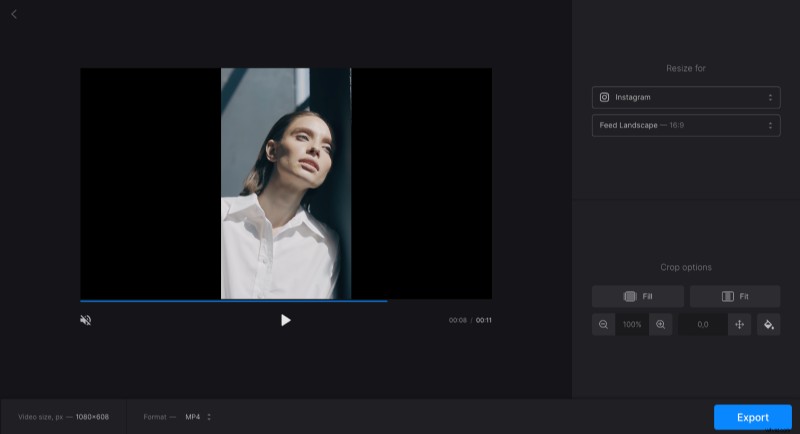
Then choose the "Fill" or "Fit" crop option. The former will get rid of black bars on the sides of the vertical video but will crop the image to do so. Use zoom and position selectors to move the video. If you don’t want to lose any detail, you can select "Fit" and click on the paint bucket icon to blur the background or give it the color you want.
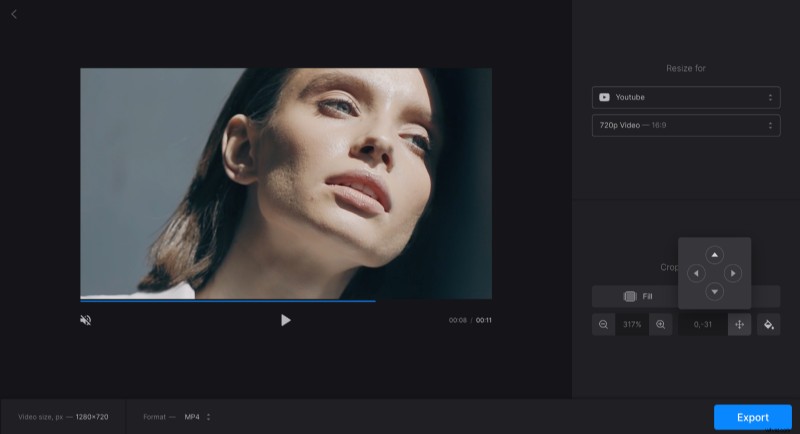
If you need to change the video’s extension, simply click "Format" under the player and pick the option you want. Formats available will vary based on the preset you chose.
When you finish editing, click "Export".
Download the result
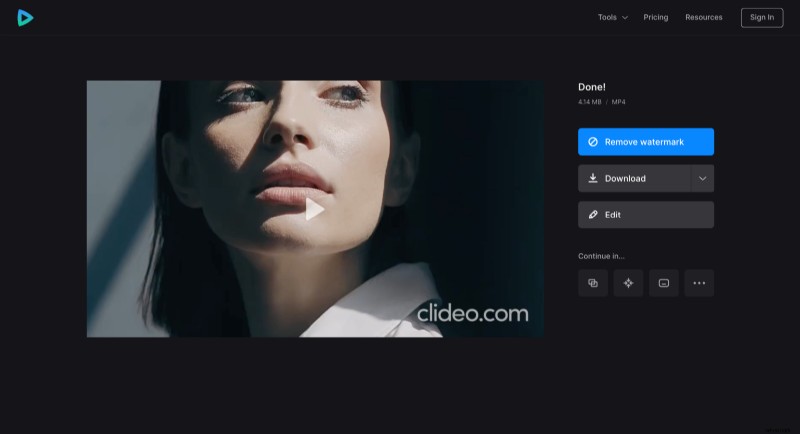
Review your new video one more time, just in case. Click “Edit” should you need to fix anything. Or save the file to your device or cloud storage.