How to make video widescreen
Every social media and online platform has its own specs for photos and videos. If your visual doesn’t meet these requirements, you’ll have to edit it, for example, resize a 4:3 video to widescreen (horizontal orientation).
Luckily, it’s not a problem! Clideo service allows you to change a video orientation in a couple of clicks and offers a wide range of other free editing tools.
All our tools work online, so you don’t have to purchase and install costly software. As for the price, our service is free for files up to 500 MB each, and there are no limits on how many projects you can start.
Clideo’s video editors, cutters, resizers, and other tools are user-friendly. You don’t need to read lengthy manuals to sort them out. But just in case you want to be sure what to do, we’ve prepared a short instruction.
-
Upload a vertical video
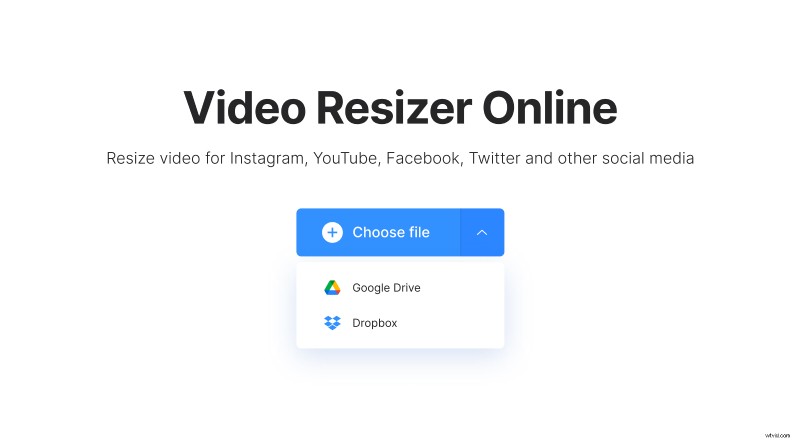
Open Clideo’s Video Resizer in any browser and import a video from your device or a cloud storage account. You can just drag and drop the selected recording to the homepage, hit the "Choose file" button, or call the drop-down menu on the right side of it.
-
Set a widescreen video size
If you are going to post your recording online, select a platform in the "Resize for" section to the right of the player. In the second field, you can find a list of available aspect ratios. You’ll need 16:9, "Landscape" or “"Widescreen" — these are different names for the same orientation.
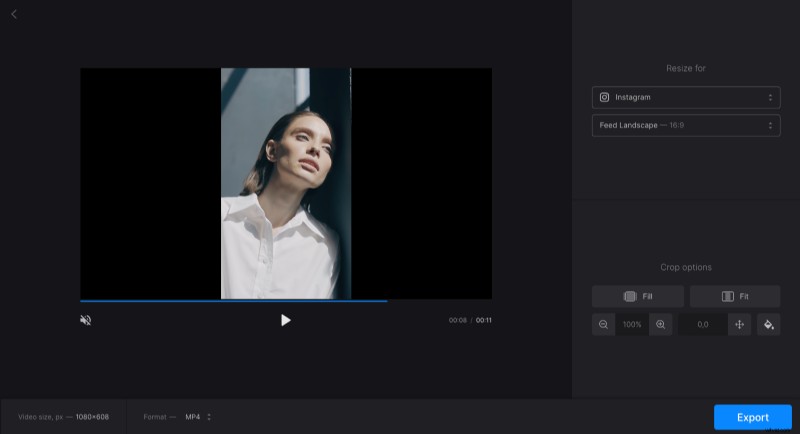
If you haven’t decided about a social medium yet, you can select the "custom" option in the first field and the 16:9 aspect ratio in the second.
Don’t forget to choose a crop option: try different combinations, zoom in and out, move the frame with the help of arrows and find the layout which suits you best.
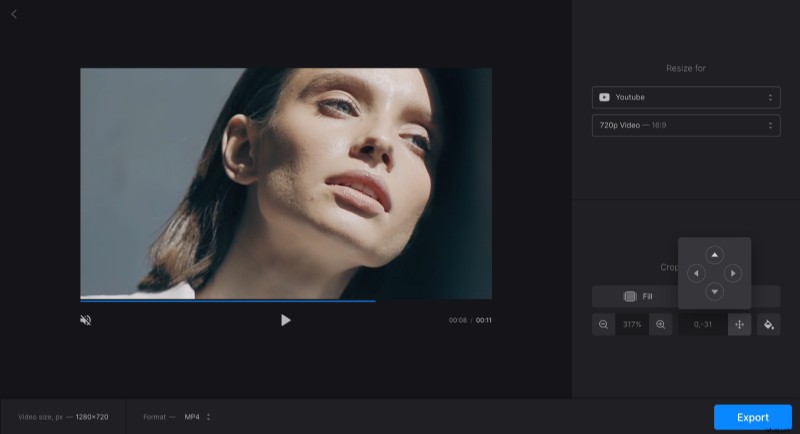
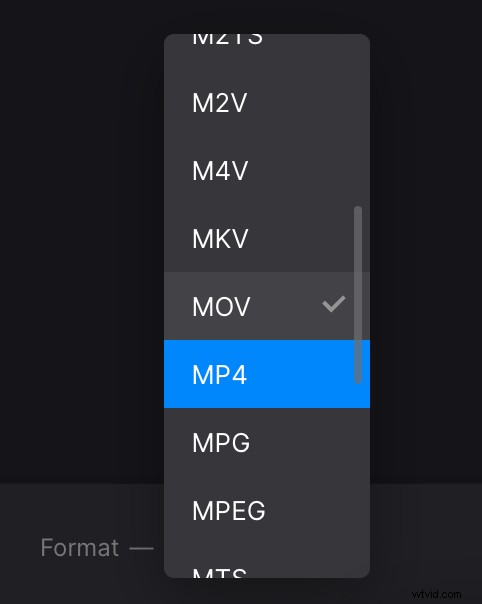
When you are done, decide on the output format in the bottom left corner of the screen. Remember that MP4 and MOV are compatible with most internet resources, while other extensions may cause different issues while being posted.
Give your project a final run and hit the "Export" button.
-
Save the converted video
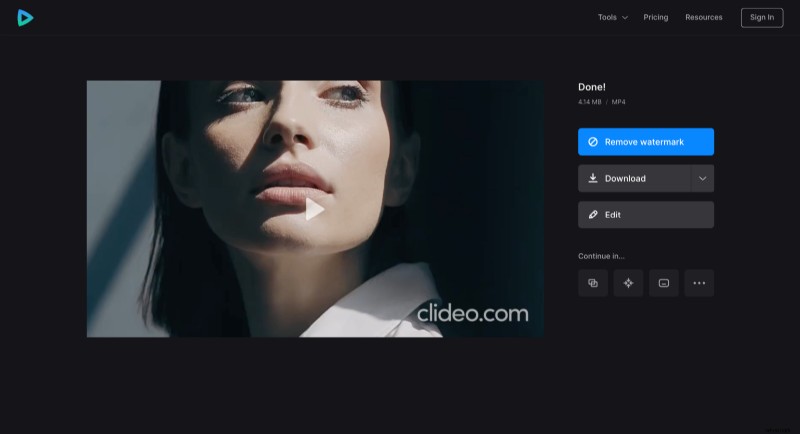
Make sure you are happy with the result and save the recording to your device, GoogleDrive, or Dropbox.
If you’ve noticed some imperfections, you can still hit the "Edit" button and fix them. If you don’t want to have a tiny watermark on the video, consider updating your profile to Clideo Pro.