Sometimes you may have several segmented MOV (QuickTime) files, which may be from the same movie or captured from your digital camera etc. In this case, you probably want to merge these MOV files into one for playback on the computer or other devices more easily and efficiently.
To join MOV (QuickTime) files, you need a smart MOV joiner. There are only a few MOV file joiners that can handle MOV format and help you resolve MOV's incompatibility problem. Because MOV is an Apple format, it is restricted to be used on lots of apps and devices etc. Fortunately,Filmora for Mac) can handle all your problems. It enables you to easily combine MOV files into one and play the video creation smoothly on different mobile devices. Read on to get more information about this MOV merger, and then follow the guide below step by step.
Easy-to-use MOV Joiner: Wondershare Filmora
- Easily join MOV videos together with no quality loss.
- Provides 48 transition effects to let you add between scenes/clips.
- Easily make a Picture-in-Picture video (another way to join MOV files). Learn more >>
- Directly upload your video to YouTube or Facebook or burn a DVD collection.
- Supported OS: Windows (Windows 10 included) & Mac OS X (above 10.6).
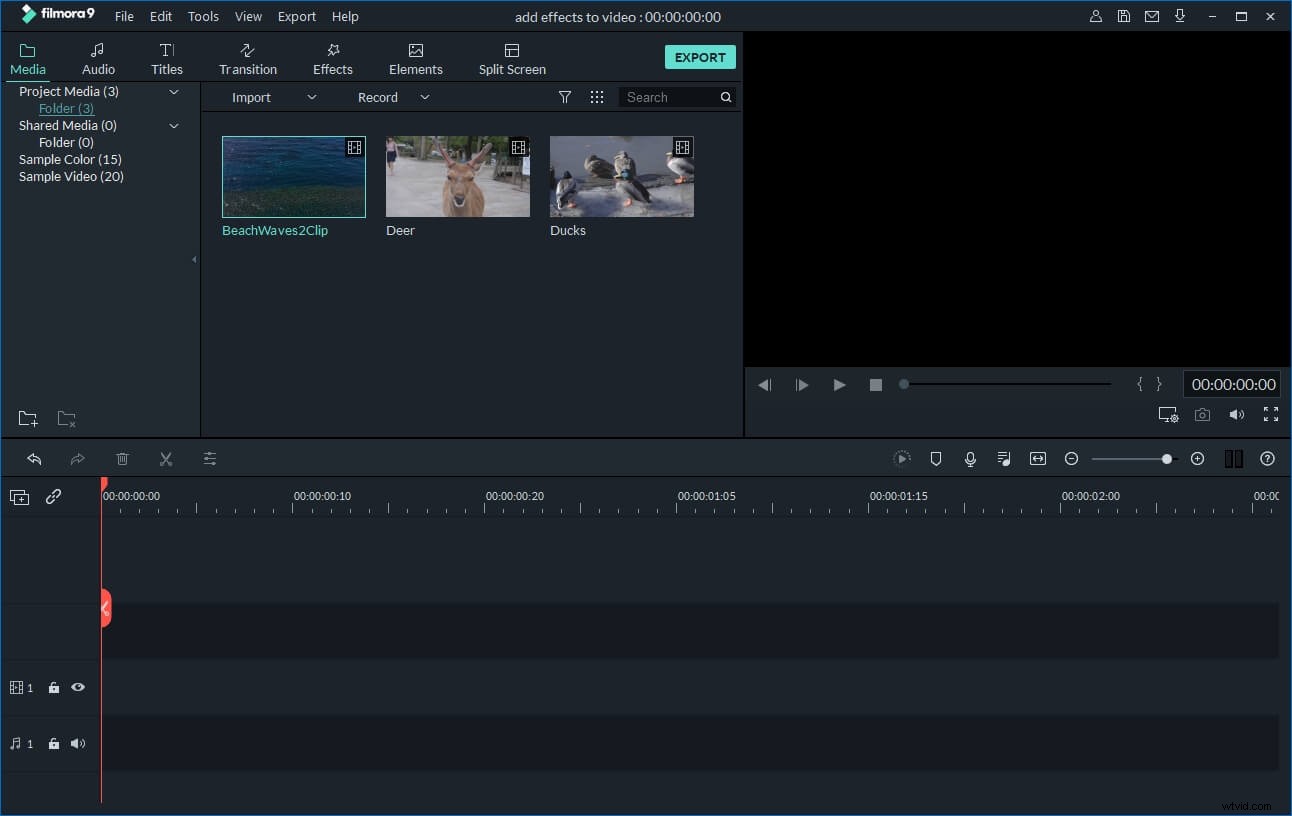
1. Import MOV files (QuickTime) to this MOV joiner
To import all MOV files you want to join together, just click "Import" menu to browse and select MOV files from the computer to the User's album of this MOV file joiner. Or if your local MOV files are at handy, you can directly drag them to this app's album.
2. Join MOV files
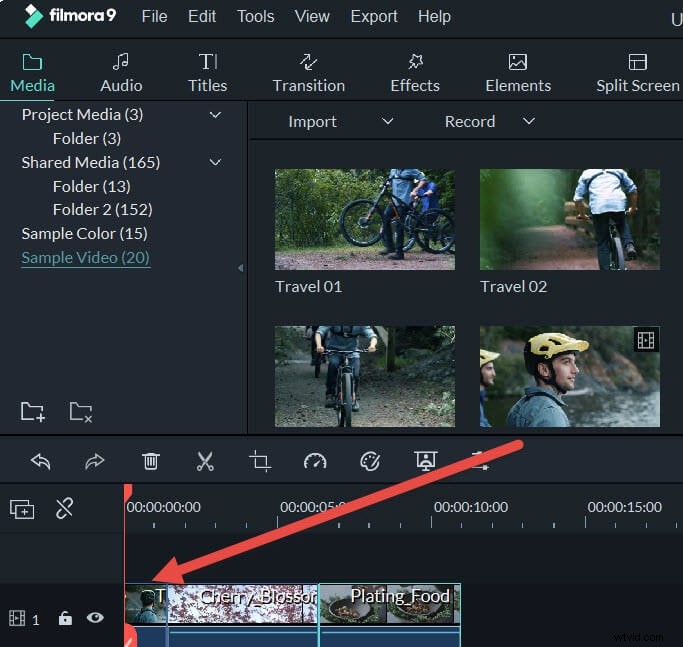
In this step, we need to drag these added MOV files (QuickTime) from the album to the Timeline of this MOV merger. And you need to follow the two important things below:
- 1. You'd better drag MOV files one by one so that these MOV files are arranged according to the play order.
- 2. Don't drag one file to another file, or you'll split the latter.
After all your wanted MOV files have been arranged in the correct order on the Timeline, you can view the effect in real time by pressing the Play button in preview window.
3. Add transitions (optional)
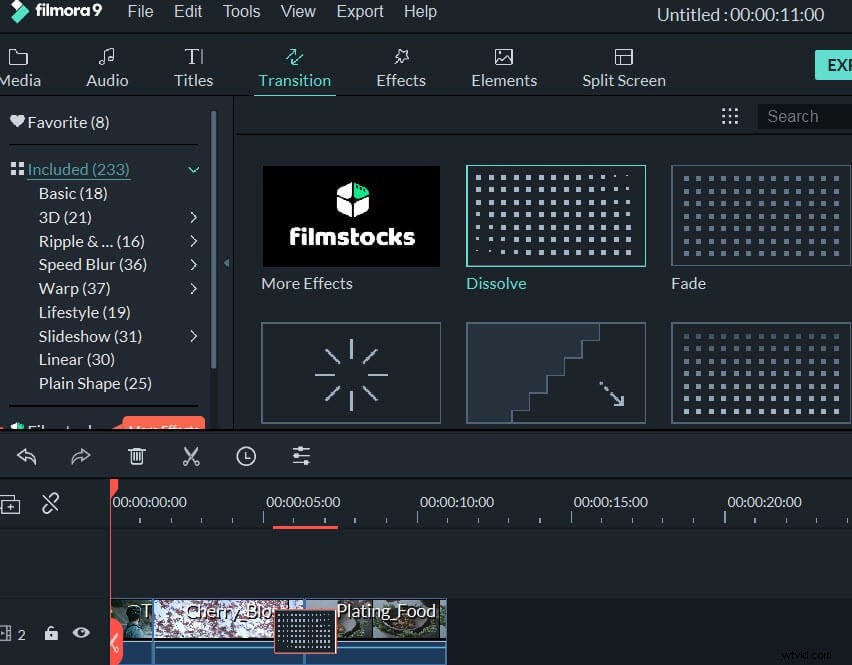
Video clips merged together may seem to be awkward without some necessary transitions. To solve this problem, this considerate video combiner provides rich free transitional effects for you to pick up. Click the "Transition" tab to select your favorite effect, and then drag between every two clips or right click "Apply to All". Double click the transition to further customize the time duration if needed.
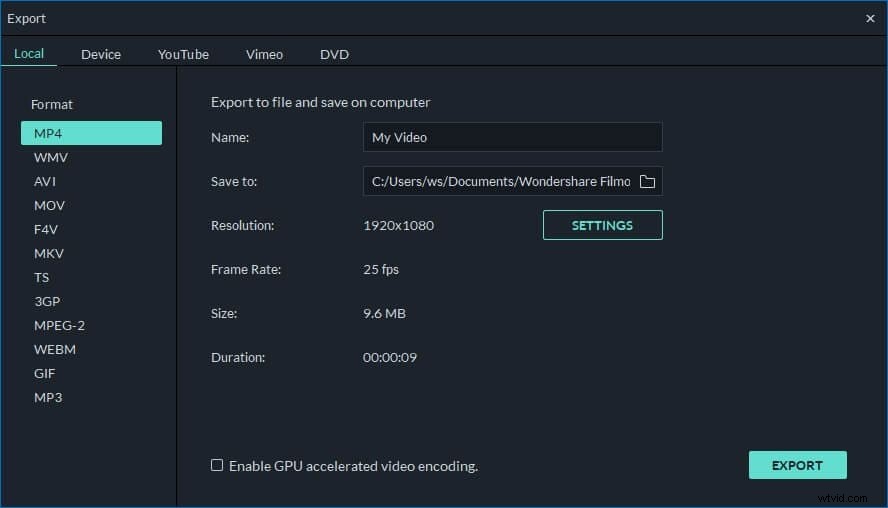
4. Export a big, new MOV (QuickTime) file
When everything is done, just click the "Create" button to select "MOV" format in the "Format" tab. In this way, you can get a big MOV file in the output folder. If you choose other formats instead, it means you convert the new video creation to the selected formats. Of course, if you want to save or share the video creation in other ways like YouTube, DVD, Devices etc, just select what you want here.