
If you looking for the best way to compress a MOV file, then you can’t miss this article. Here will detail 3 simple methods to compress MOV files. If you need to edit the MOV video file before the compression, try MiniTool MovieMaker.
MOV is a common multimedia container file format developed by Apple. It tends to be of high quality and is of a very large size. Don’t worry. There are plenty of video compressor options available that can help you compress a MOV file with ease.
Why need to compress MOV files?
Some possible reasons why you need to compress MOV files:
- Take up too much space.
- Upload slowly or failed to upload.
- Storage in the cloud may cost more.
Related article: How to Compress Videos Quickly
How to Compress a MOV File
1. Clideo
Clideo is an online platform that makes it easy to edit all your video files, images, and GIFs. The Compress tool by Clideo is compatible with any file format you may have and allows you to add a 500 MB video for free at a time. Besides, it does not have a limit on the file quantity.
Step 1. Visit the Clideo site on your web browser.
Step 2. Click the Choose file button to upload your MOV file from any of your devices: Android, iPhone, Mac, Windows. You can also select it from your Google Drive or Dropbox account.
Step 3. Wait a few moments until the compression process is finished.
Step 4. Preview the MOV file to make sure everything is okay. If you’re satisfied with the result, click the Download button to save it to your device. Here you can also choose Remove watermark or Edit result.

2. VideoSmaller
VideoSmaller is a free online service that allows you to compress your MOV video file without losing quality. If you do not want an aggressive compression, it can be configured to use a low compression level. You can even remove audio from video to reduce the size of the file further.
Step 1. Navigate to the VideoSmaller site on your device.
Step 2. Click the Browse button to select the MOV video file you want to compress.
Step 3. Check the box - Use low compression level (best quality). Choose whether to scale video width and remove audio from video.
Step 4. Then click the Upload Video button. It may take some time depending on the video length.
Step 5. After that, click the Download File option to save it.
3. YouCompress
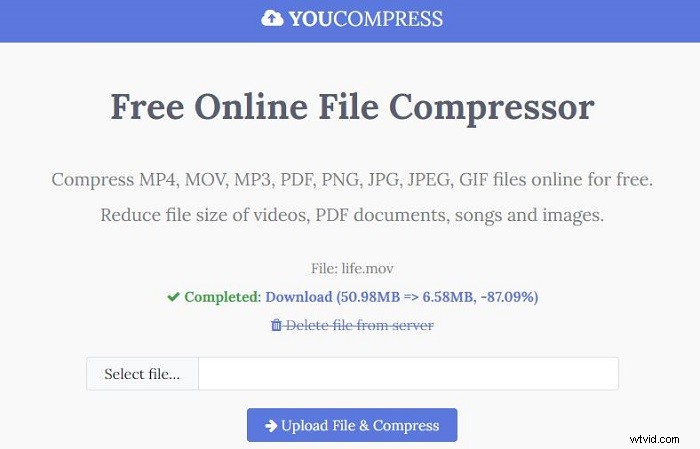
Using YouCompress is a simple and quick way to compress MOV file online. It can be used to compress various file formats other than MOV, such as MP4, MOV, MP3, PDF, PNG, JPG, JPEG, and GIF. With it, you can easily compress any number of videos on YouCompress. This online tool is completely free to use and won’t add any watermark to your video.
Step 1. Go to the YouCompress site on the web.
Step 2. Click the Select file button to import your MOV file.
Step 3. Choose the Upload File & Compress option.
Step 4. Once finished, click the Download button to save the compressed MOV file.
You might be interested in: 5 Best Open Source Video Editors in 2020 [Free]
Bottom Line
There are three methods for compressing MOV files without installing third-party software. Which one do you want to try first? If you have other approaches to compress MOV files, please let us know via admin@wtvid.com or share them in the comments section below.